
How to Set Up Referrals
What Is This?
Referrals let your existing customers invite friends to join your loyalty programme. When a friend signs up (and optionally meets a spending condition), both the inviter and the invitee can receive rewards, points, or credits. It's word-of-mouth marketing powered by your loyalty system.
Video Walkthrough

Real-Life Example
Kak Nadia is a loyal customer of Seri Anggun Salon in Subang Jaya. She shares her referral link on WhatsApp to her friend Ain. Ain signs up through the link and makes her first purchase of RM 50. Ain receives a free hair treatment voucher (invitee reward), and Kak Nadia gets 100 bonus points (inviter reward). Everyone wins.
How to Set Up Referrals
Step 1: Open the Referral Configurations Page
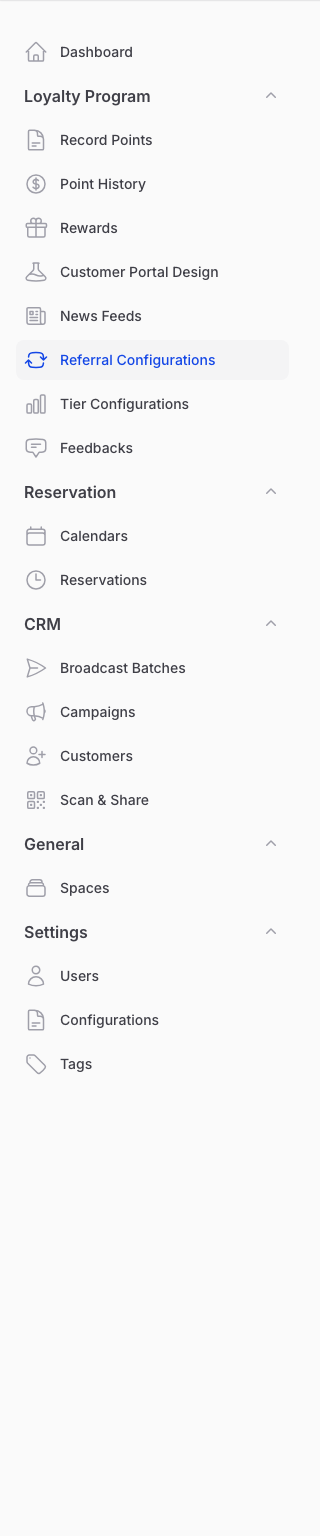
From the Admin Panel sidebar, go to Loyalty Program → Referral Configurations. Click Create to set up a new referral programme.
Step 2: Configure Invitee Rewards
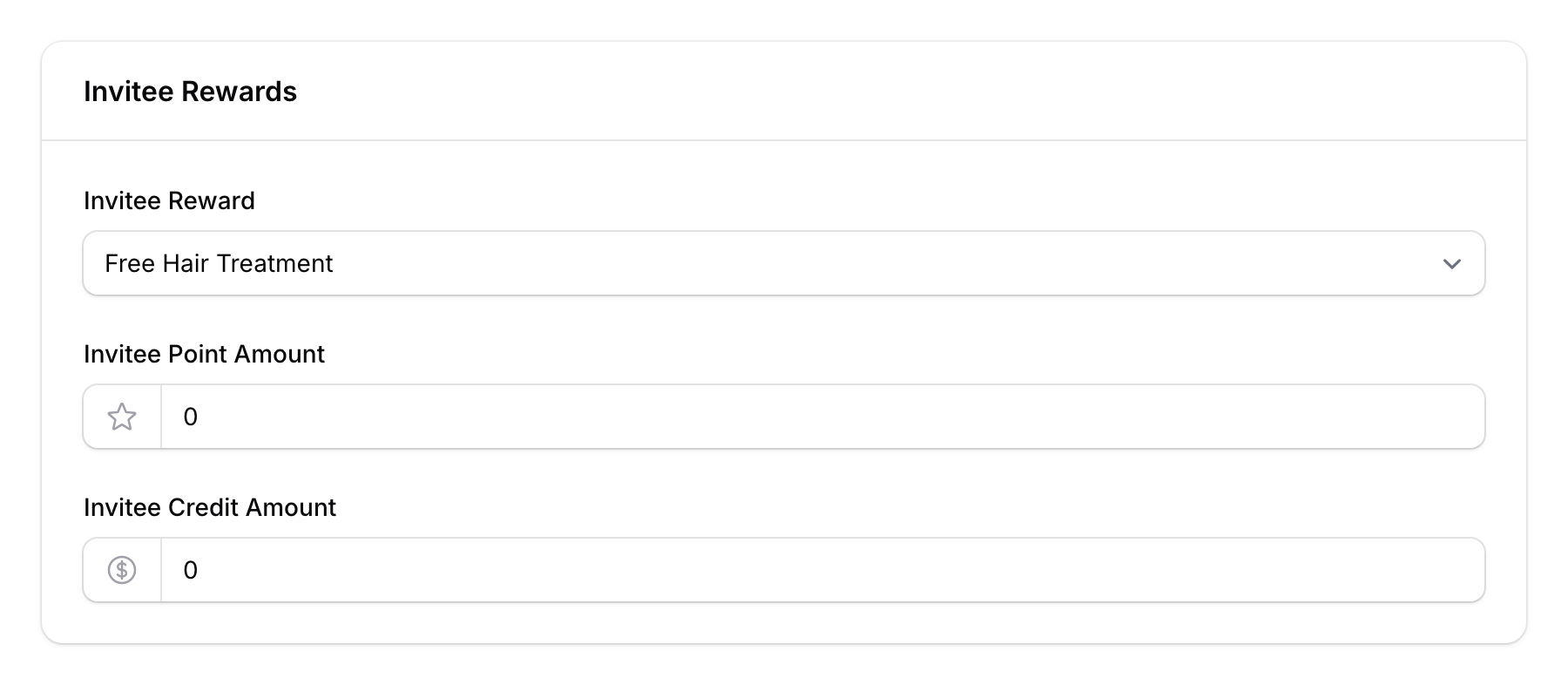
On the Information tab, set up what the new customer (invitee) receives:
- Invitee Reward — Select a reward to give the new customer (optional)
- Invitee Point Amount — Bonus points for the new customer
- Invitee Credit Amount — Bonus credit for the new customer (if credit wallet is enabled)
Step 3: Set Claim Conditions (Optional)
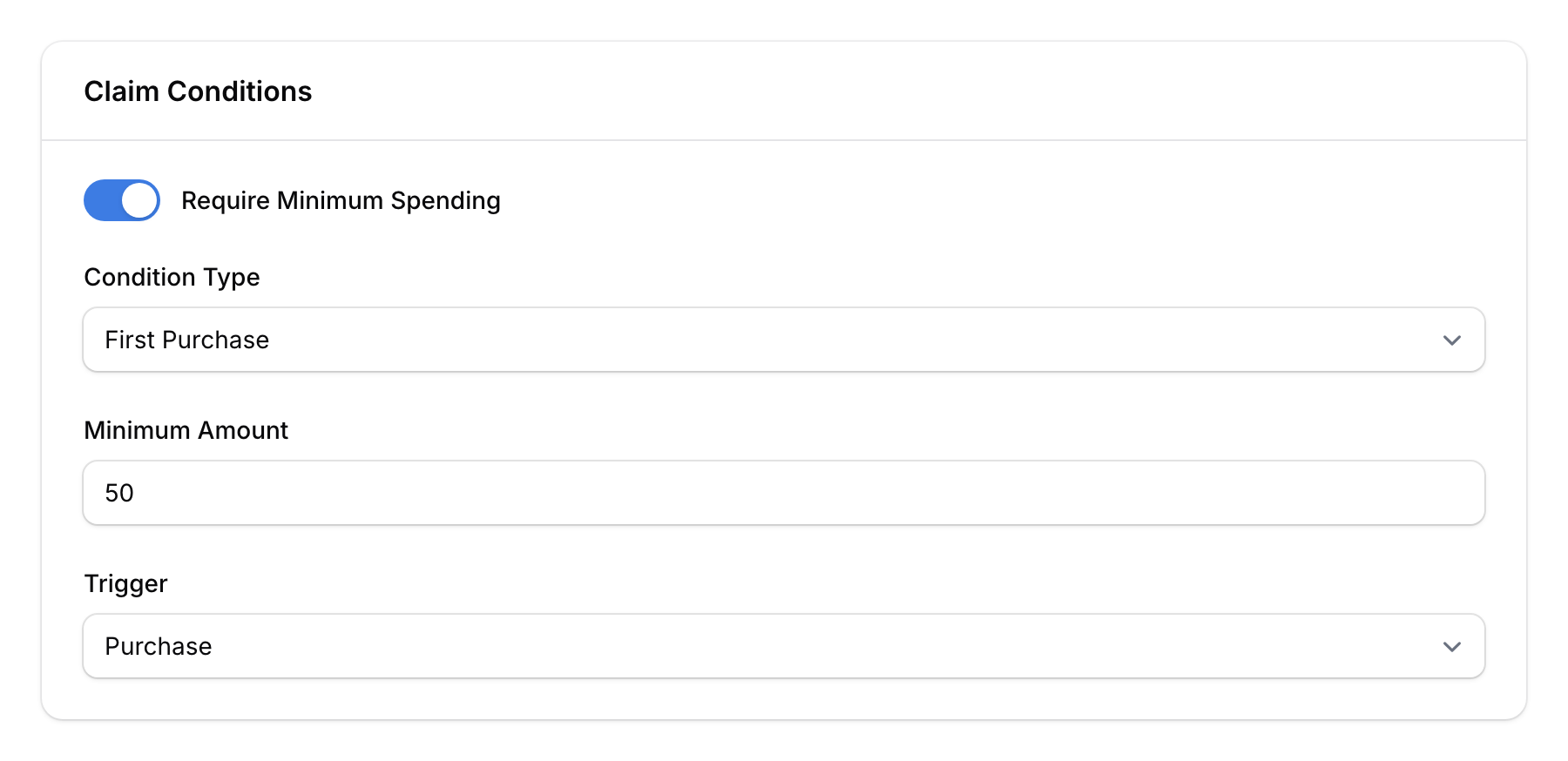
If you don't want to give rewards for free, set a minimum spending condition:
- Require Minimum Spending — Toggle on to require spending before rewards are given
- Condition Type — Choose from:
- First Purchase — Must spend on their very first transaction
- Any Purchase — Can be any single transaction
- Cumulative — Total spending across all transactions must reach the target
- Minimum Amount — The spending threshold (in points or credit)
- Trigger — When does the referral count: on Signup or on Purchase
Step 4: Configure Inviter Rewards
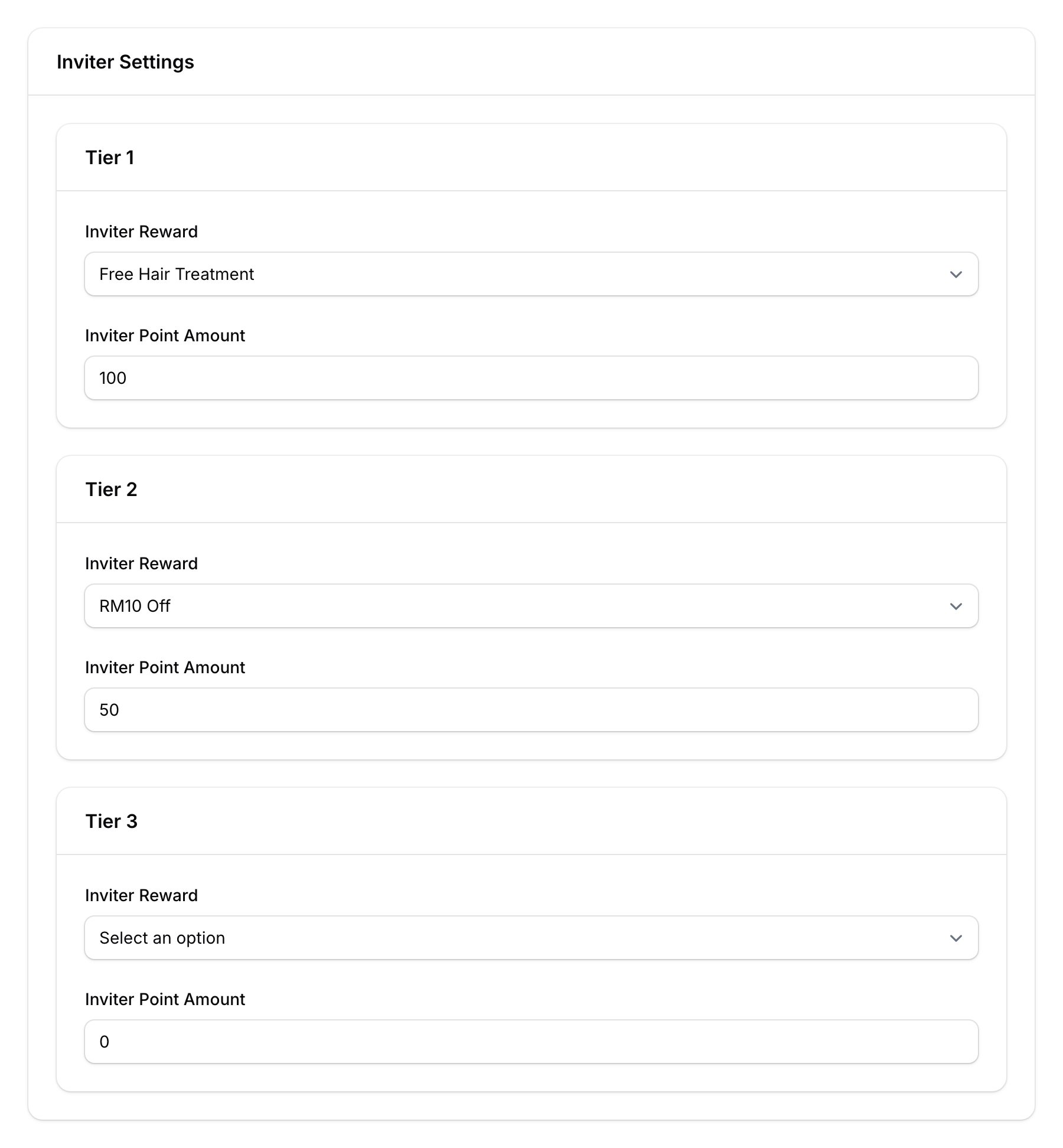
Switch to the Inviter Settings tab to set up what the existing customer (inviter) receives for each successful referral:
- Inviter Reward — Select a reward
- Inviter Point Amount — Bonus points per referral
- Inviter Credit Amount — Bonus credit per referral
The system provides 10 pre-created reward tiers for inviters. Configure each tier with a reward, points, or credits. Leave unused tiers at 0 points with no reward selected. Tier 1 applies to the first successful referral, Tier 2 to the second, and so on.
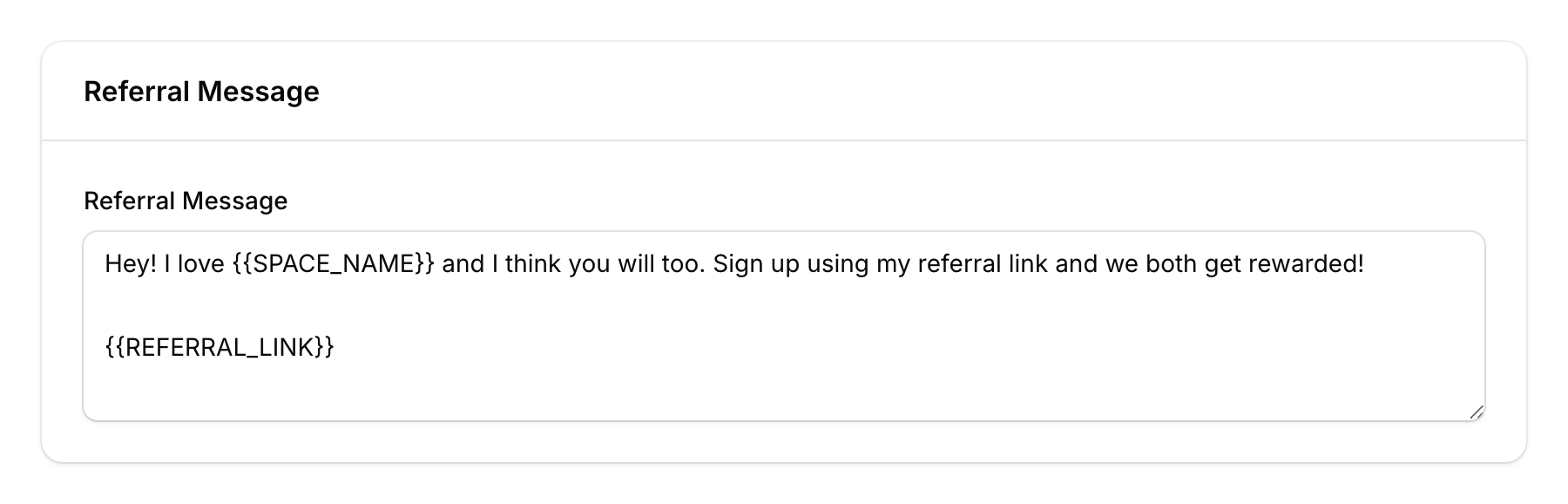
Step 5: Customise the Referral Message
Switch to the Configurations tab to edit the message customers share with their friends:
Use these template variables in your message:
{{SPACE_NAME}}— Your outlet's name{{REFERRAL_LINK}}— The unique referral link
A preview panel shows exactly how the message will look when shared.
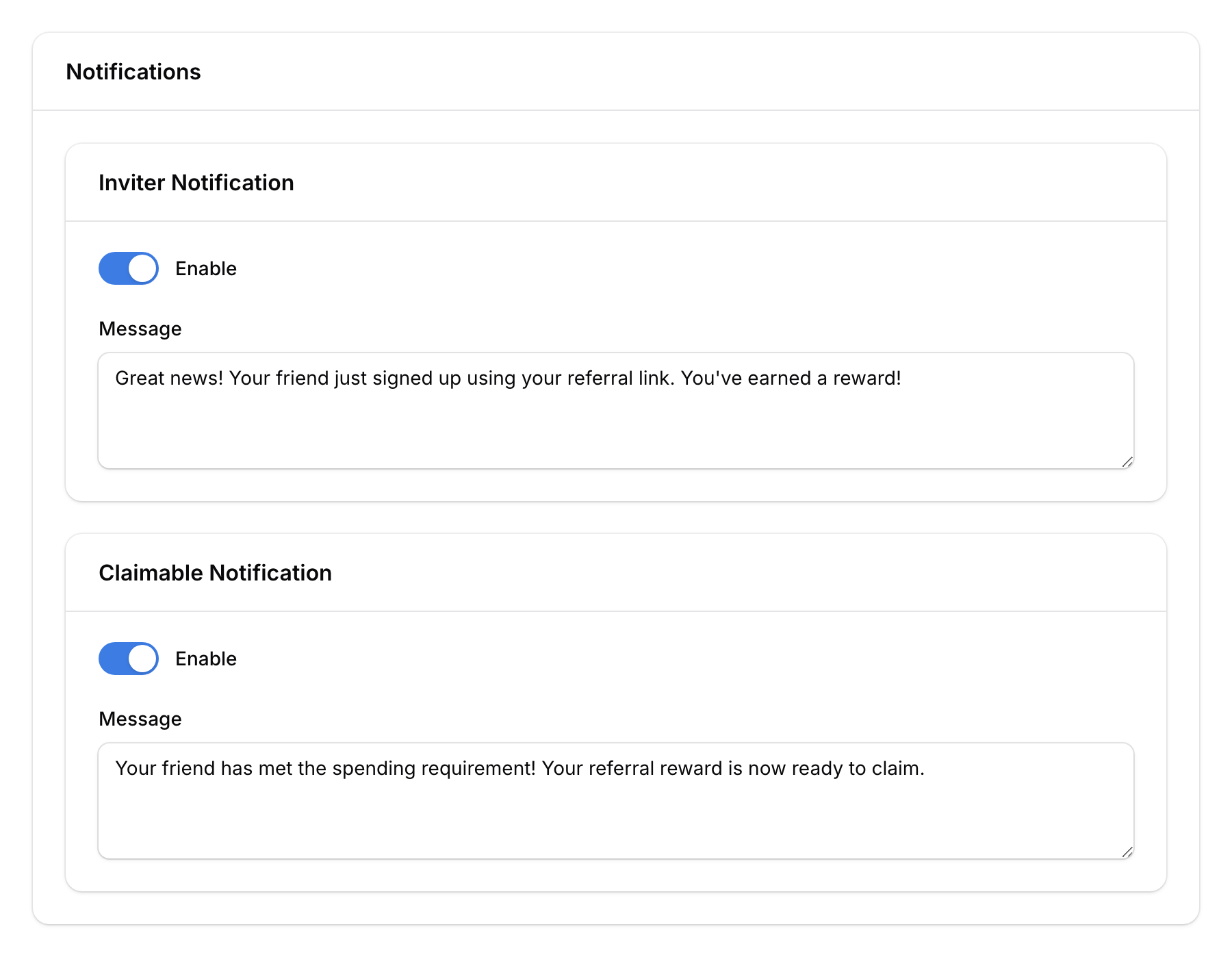
Step 6: Set Up Notifications (Optional)
On the Notifications tab, configure automated notifications:
- Inviter Notification — Notify the inviter when their referral is successful
- Claimable Notification — If minimum spending is required, notify the inviter when the invitee meets the spending condition and the referral reward becomes claimable
Each notification supports WhatsApp attachments (images, videos, or PDFs up to 16 MB).
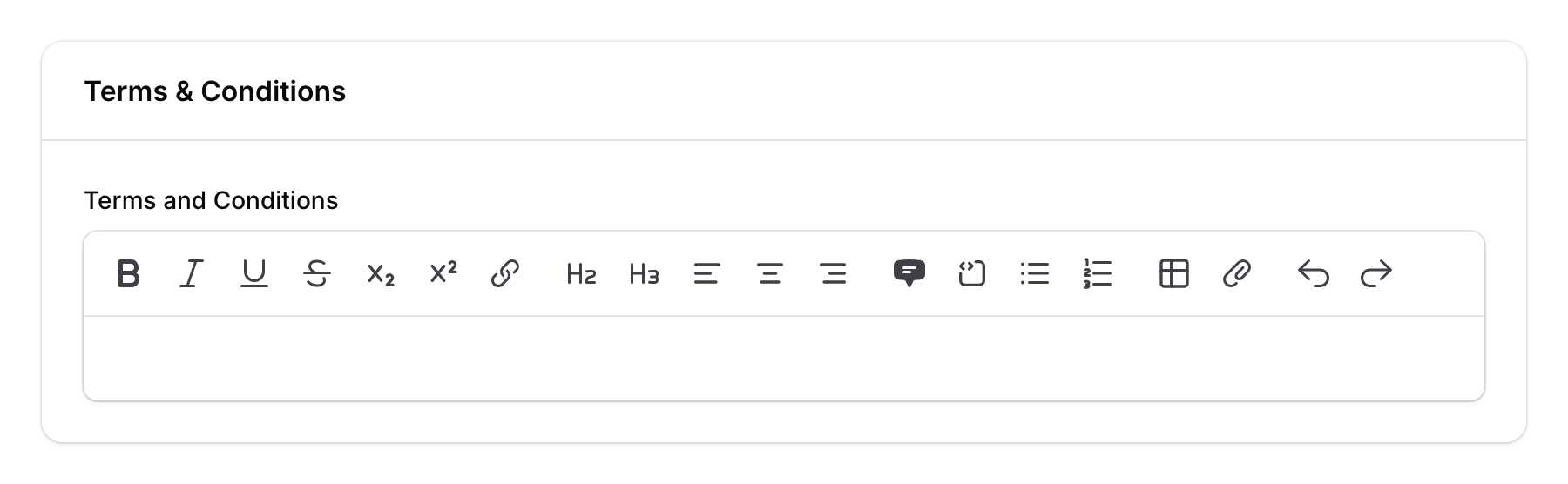
Step 7: Add Terms & Conditions
The Terms tab has pre-filled default T&C that you can customise to match your programme rules.
Step 8: Save
Click Create to save your referral configuration. Customers can now start sharing referral links from their portal.

How the Referral Flow Works
flowchart LR
    A[Inviter shares<br/>referral link] --> B[Invitee clicks<br/>link & signs up]
    B --> C{Spending<br/>condition?}
    C -->|No condition| D[Both get<br/>rewards instantly]
    C -->|Has condition| E[Invitee must<br/>meet spending]
    E --> F[Condition met:<br/>both get rewards]
Good to Know
- One referral link per customer — Each customer gets a unique referral link they can share.
- Multiple reward tiers — You can set up to 10 different inviter rewards, rewarding customers more as they refer more friends.
- WhatsApp integration — If you've connected WhatsApp, referral notifications are sent automatically via WhatsApp.
- Slot consumption — Each inviter reward "slot" is consumed when a referral is successful. Tier 1 goes to the first referral, Tier 2 to the second, and so on.
- Credit wallet — Credit amounts only appear if the credit wallet feature is enabled for your organisation.