
How to Secure Your Account If You Think It Was Hacked
How to Secure Your Account If You Think It Was Hacked
What Is This?
If you think someone else got into your Pixalink account, act fast. Changing your password signs out other browser sessions when they next load a page. Your team list and login history then show who can get in, and when.
Real-Life Example
Ahmad runs a burger stall in Shah Alam. One morning he sees a reward he never made. He changes his password first. His old laptop at the stall is signed out on its next page load. Then he checks his team list and login history. He spots a login at 3am, when the stall was closed. He keeps those details ready for an account review.
How to Set It Up
-
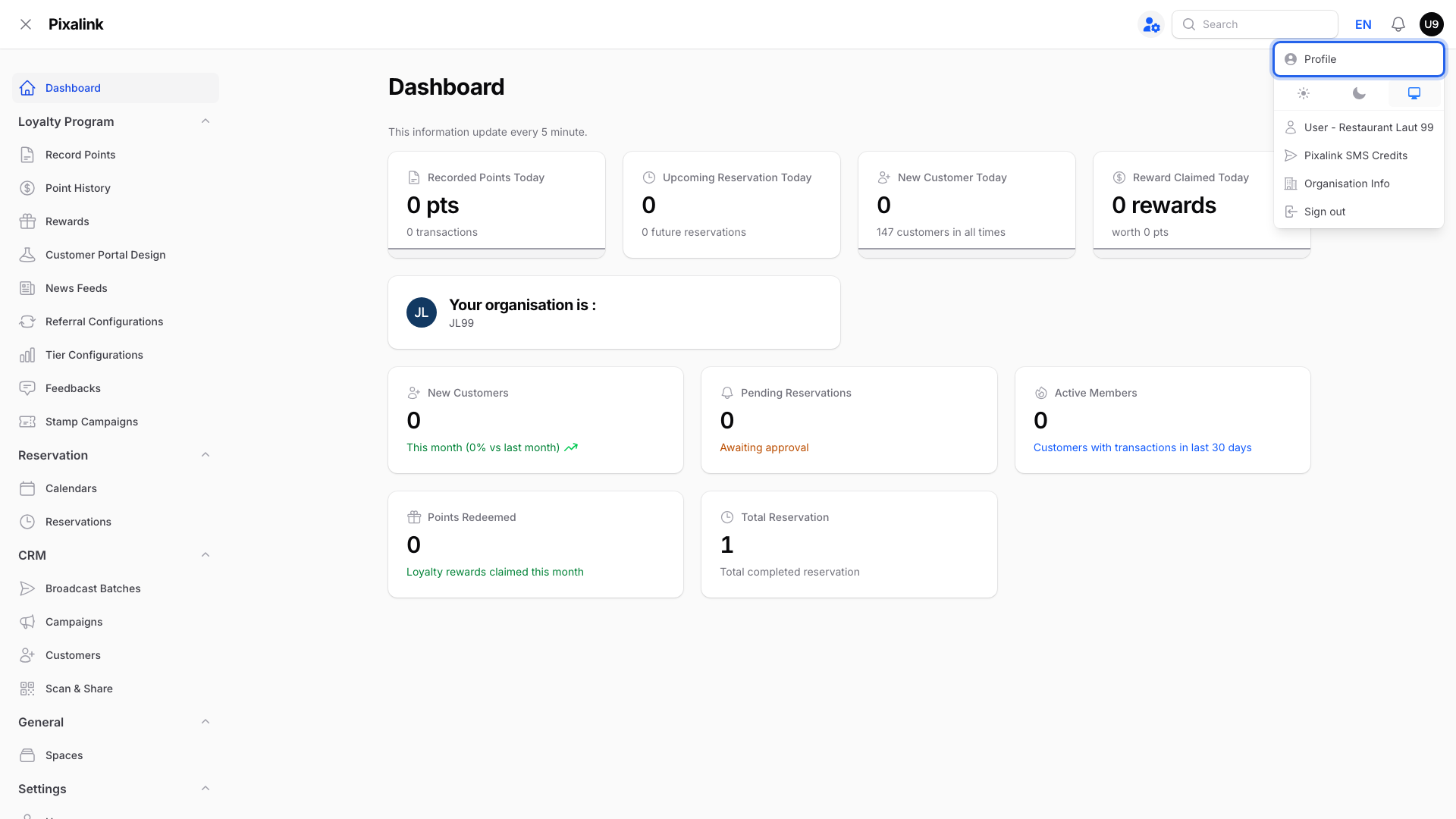
Click your initials at the top right, then click Profile.
-
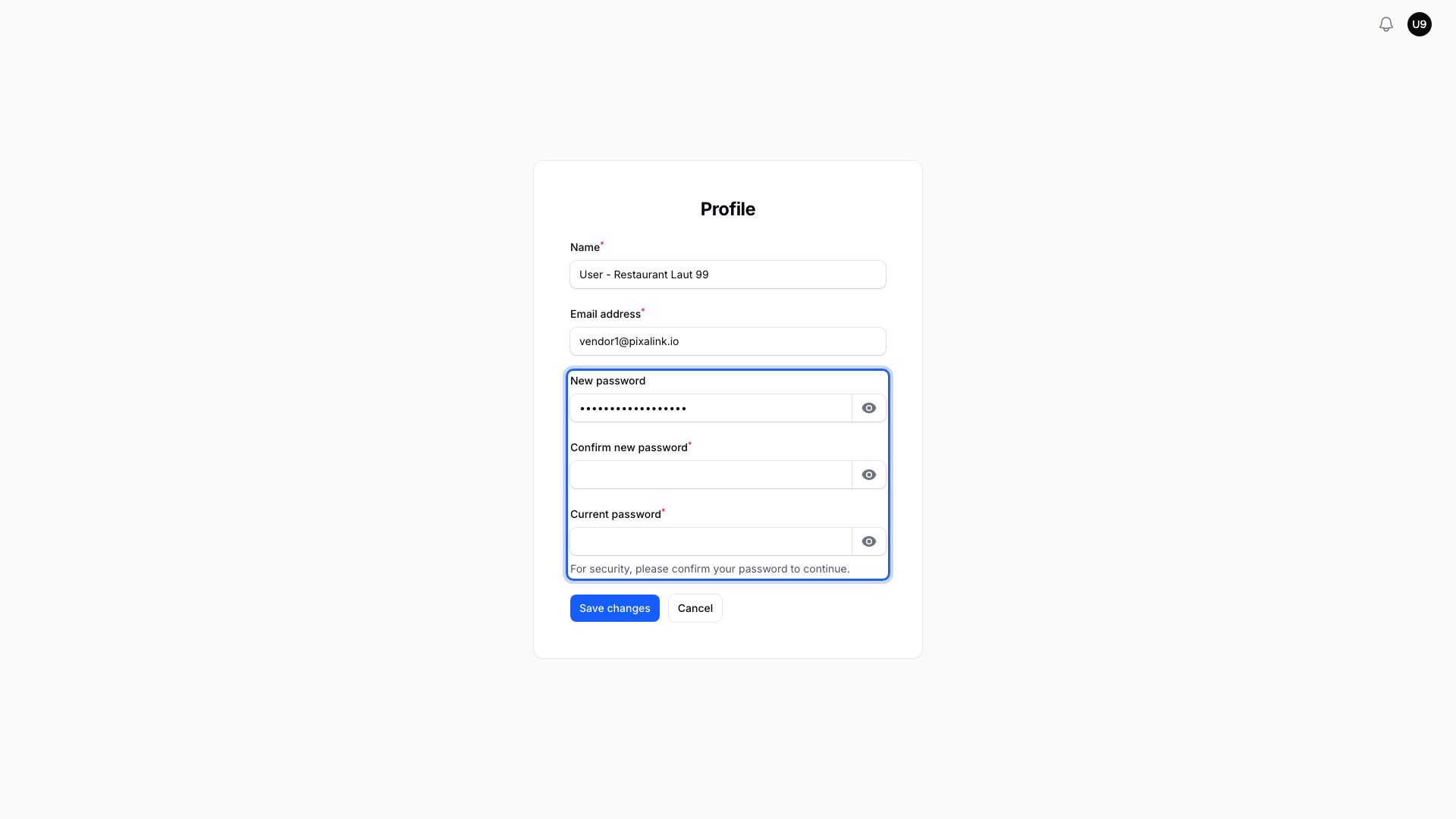
Type a new password in New password and again in Confirm new password. Then type your old one in Current password.
-
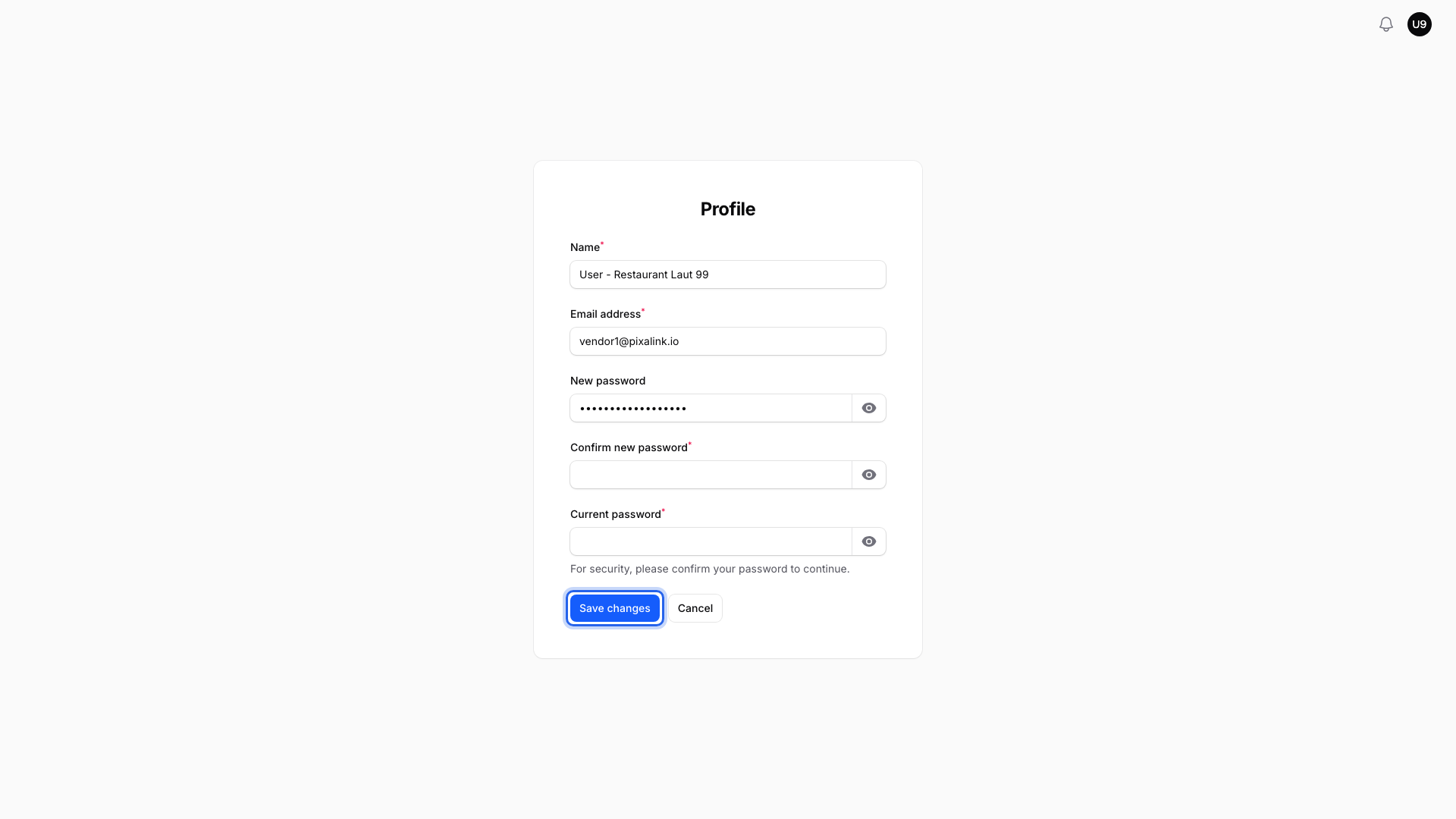
Click Save changes. Every other browser logged in to your account is signed out the next time it loads a page.
-
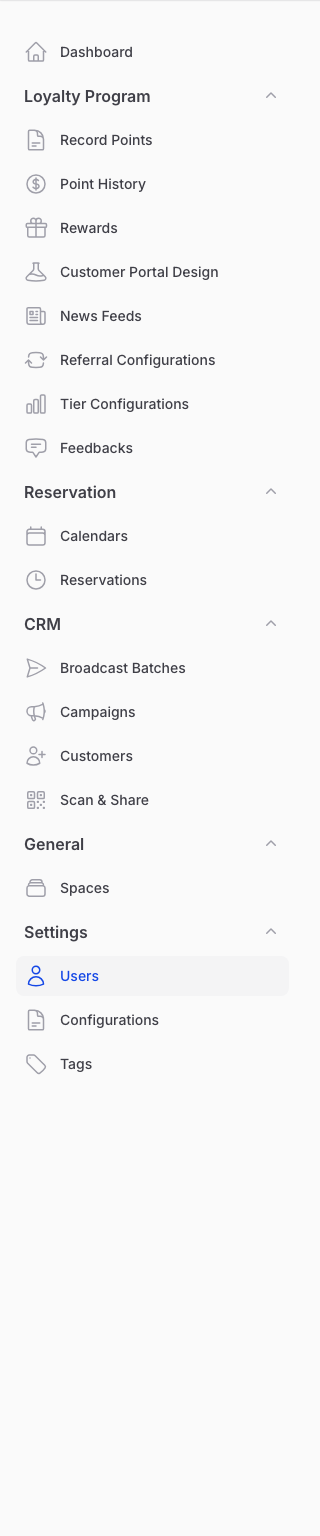
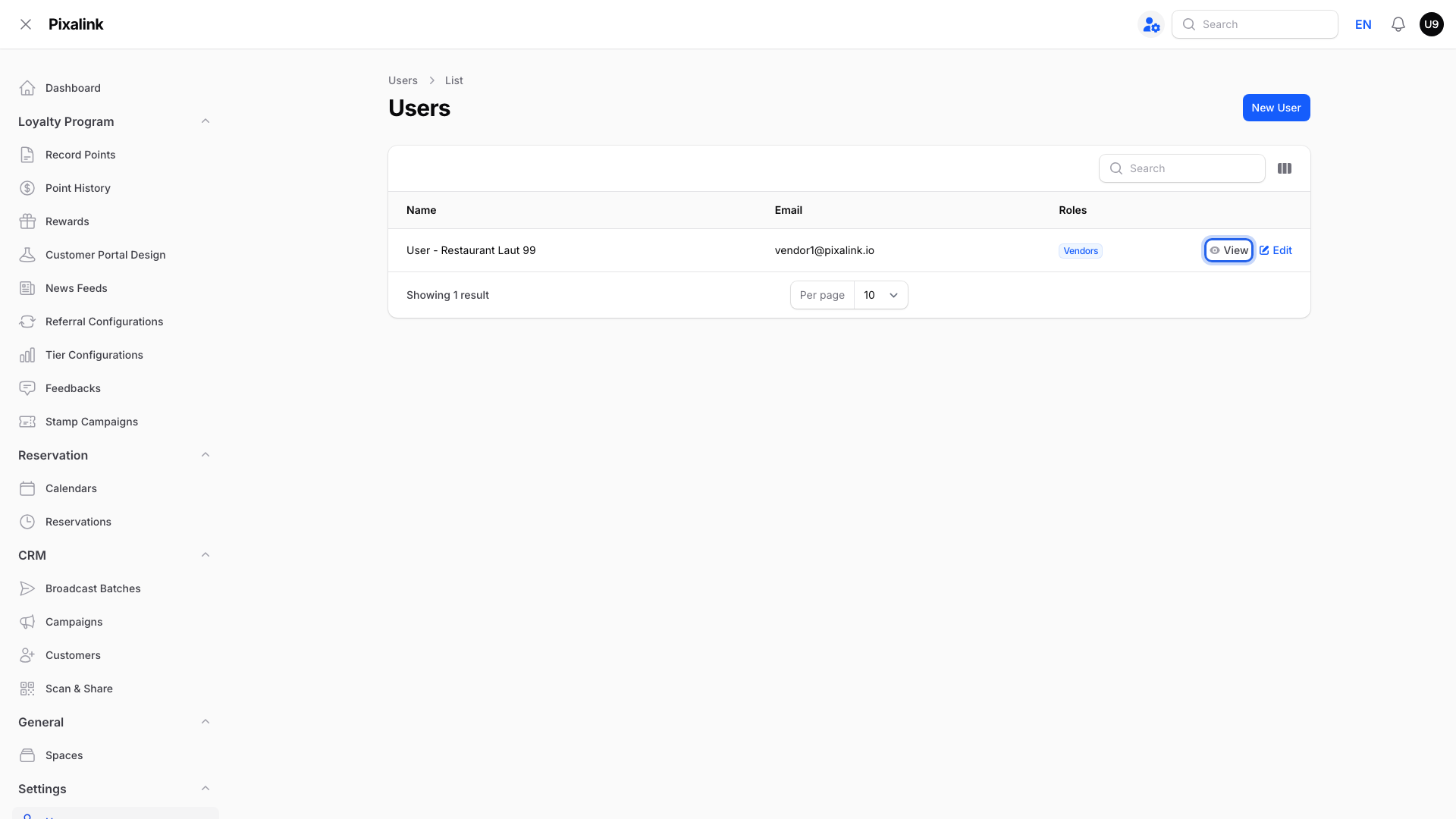
Go to Settings → Users to see everyone who can log in.
-
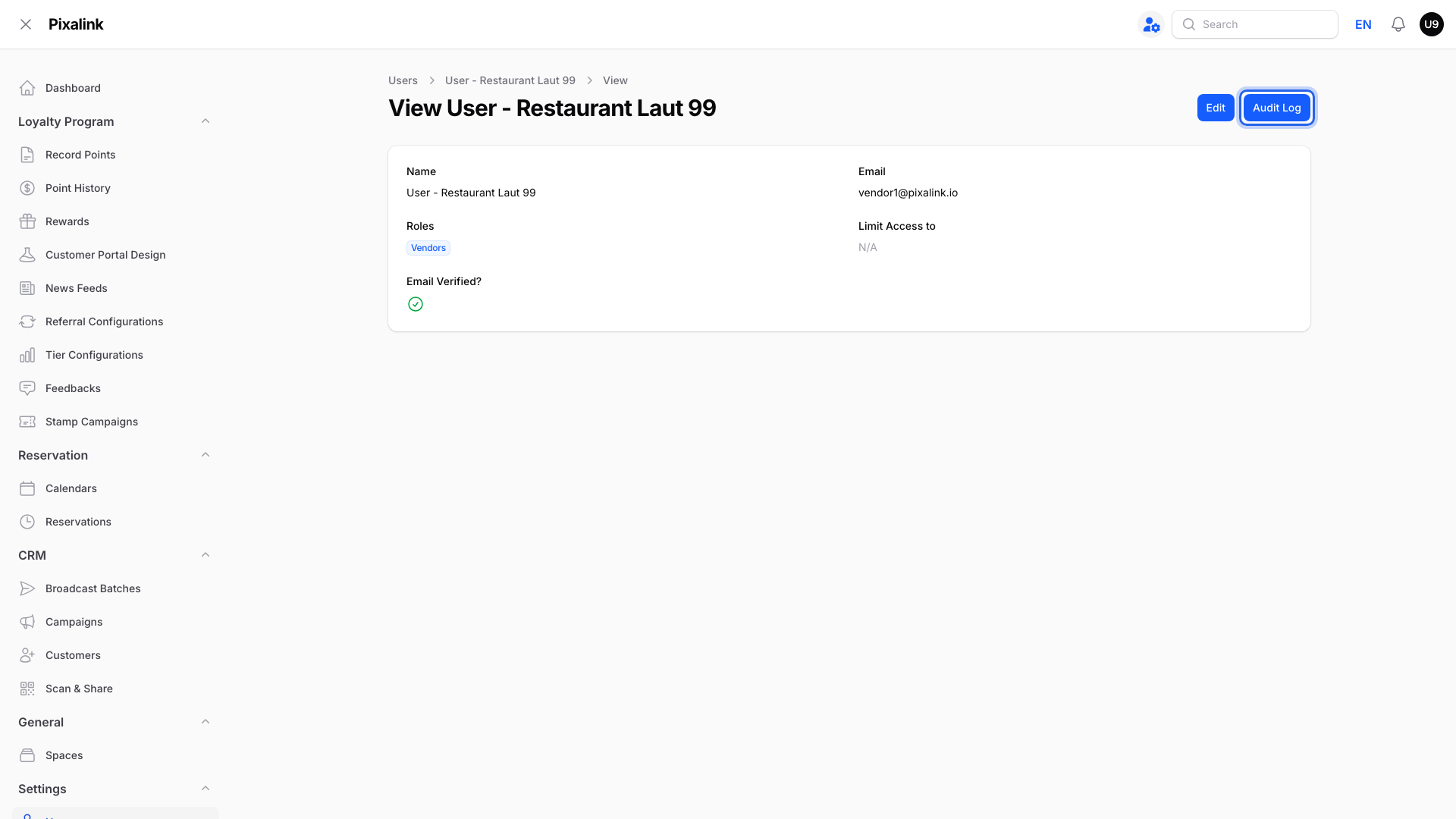
Check every name and email in the list. Then click View on your own name.
-
Click Audit Log at the top right.
-
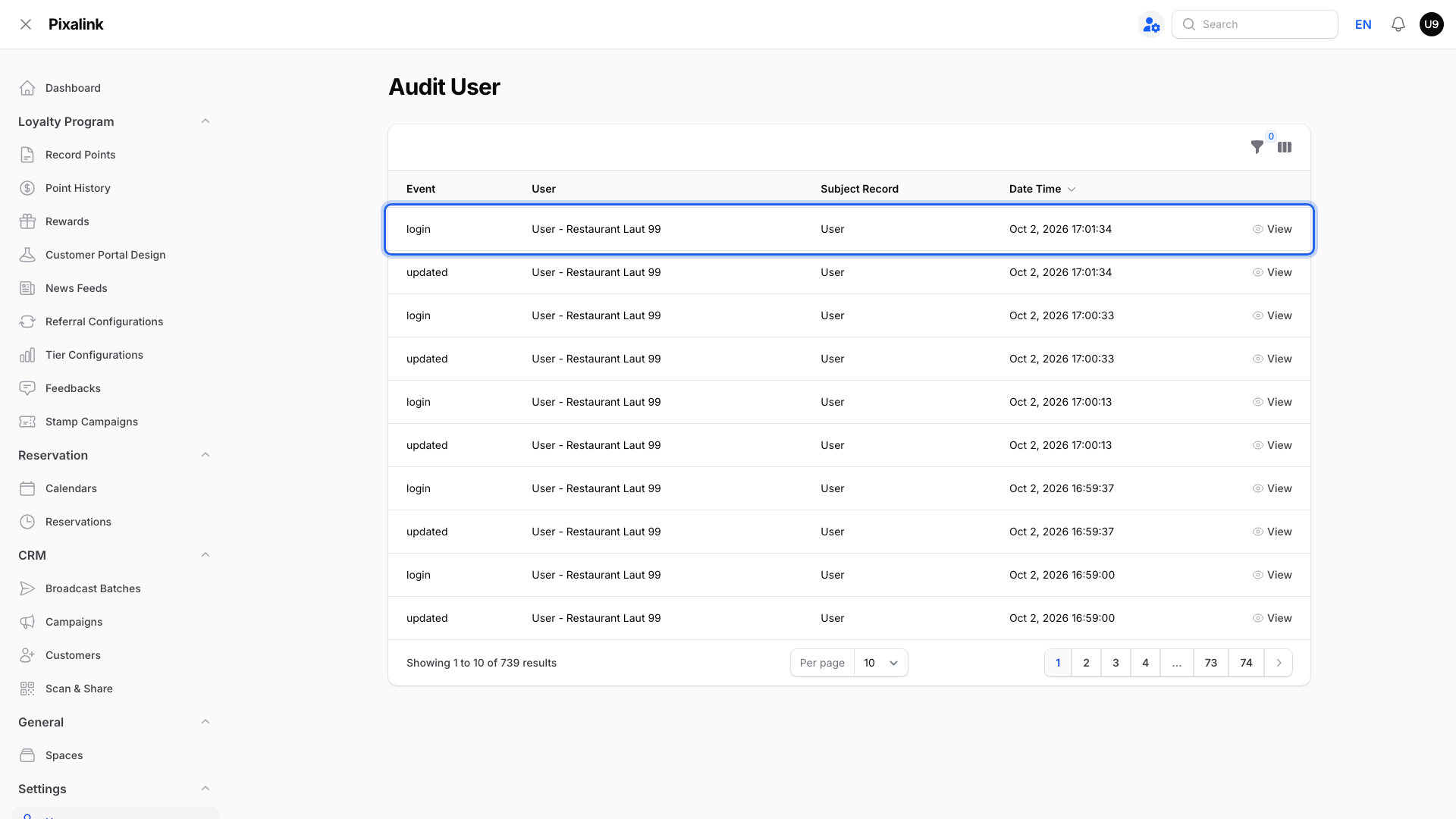
Look at the login rows and their Date Time. Read them straight from the list. A login at a time you were not working is a warning sign.
What Your Customers Will See
Nothing changes for your customers. Their points, vouchers and portal login are not affected.
Good to Know
Warning
A new password does not stop an access token. If your profile menu shows Access Token, deactivate any token you don't recognise. This stops the connected system, such as your POS system, from using it.
-
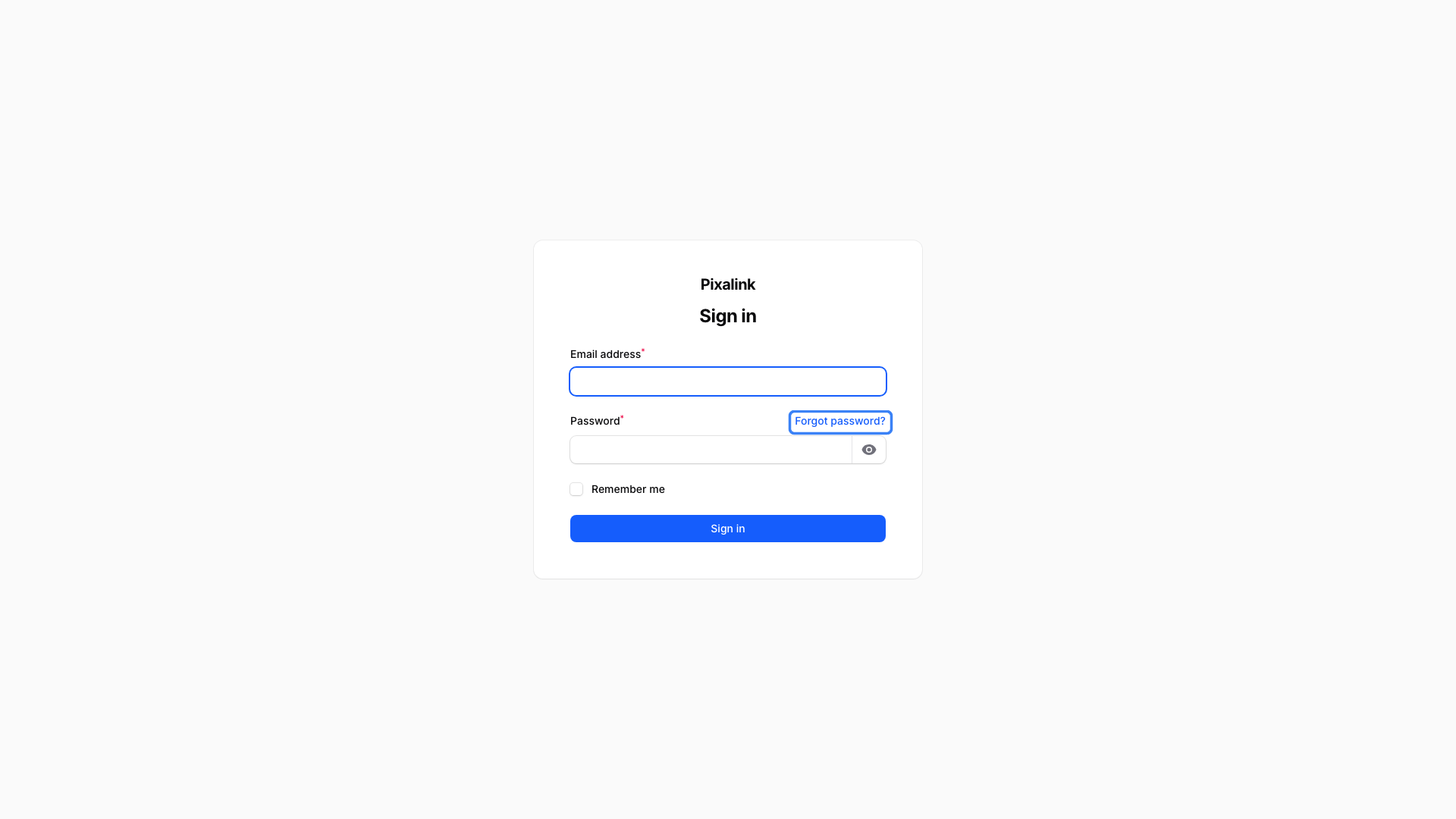
Locked out? Click Forgot password? on the login page to get a reset link by email.
-
Pixalink logins don't have two-step login yet. A long password you use nowhere else matters most.
-
Found a stranger in Settings → Users? Open their Audit Log before you remove them. Removing a user deletes their login for good, and you can no longer open their login history.
-
Give every team member their own login, so you can tell who did what.
Need Help?
Contact our support team if you suspect someone else got in, your email address was changed, or you can't get back in.