
How to Change Your Password
How to Change Your Password
What Is This?
Keeping your login password secure protects your business data and your customers' information. You can change it anytime from your Profile page — no need to contact support or sign out first. It only takes a minute.
Do it regularly to stay safe, or right away if you think someone else knows your password.
Real-Life Example
Aishah runs a bubble tea shop in Bangsar. Her barista used to help manage the loyalty program on the admin panel, but he recently moved on to another job. Aishah realised he still knew their login password.
Before her new team member started, Aishah opened the admin panel and changed the password in under a minute. She shared the new one only with her current staff. Her customer data stayed safe, and the handover was clean.
How to Change It
-
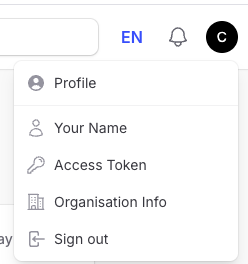
In the top-right corner of the admin panel, click your profile icon. Then click Profile.
-
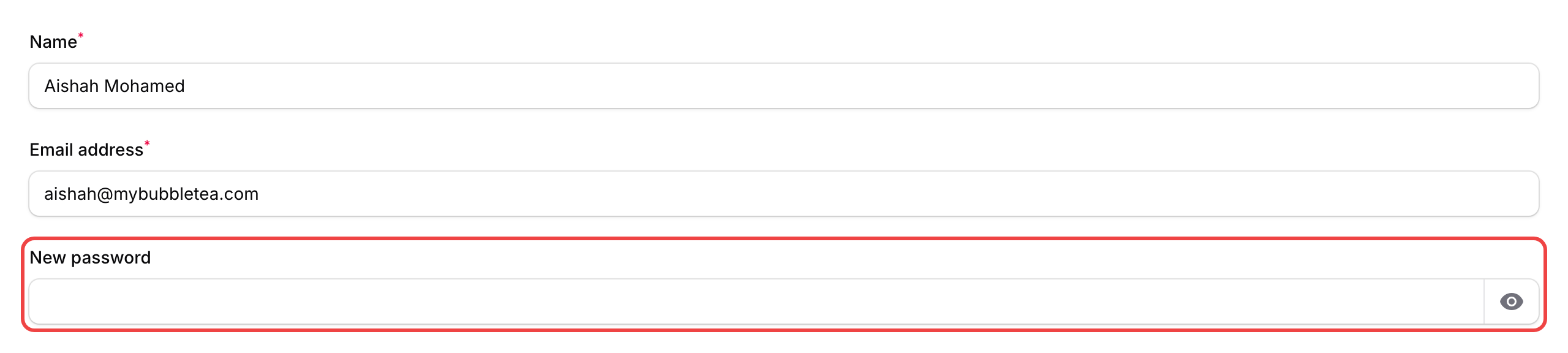
Find the New password field and type your new password.
-
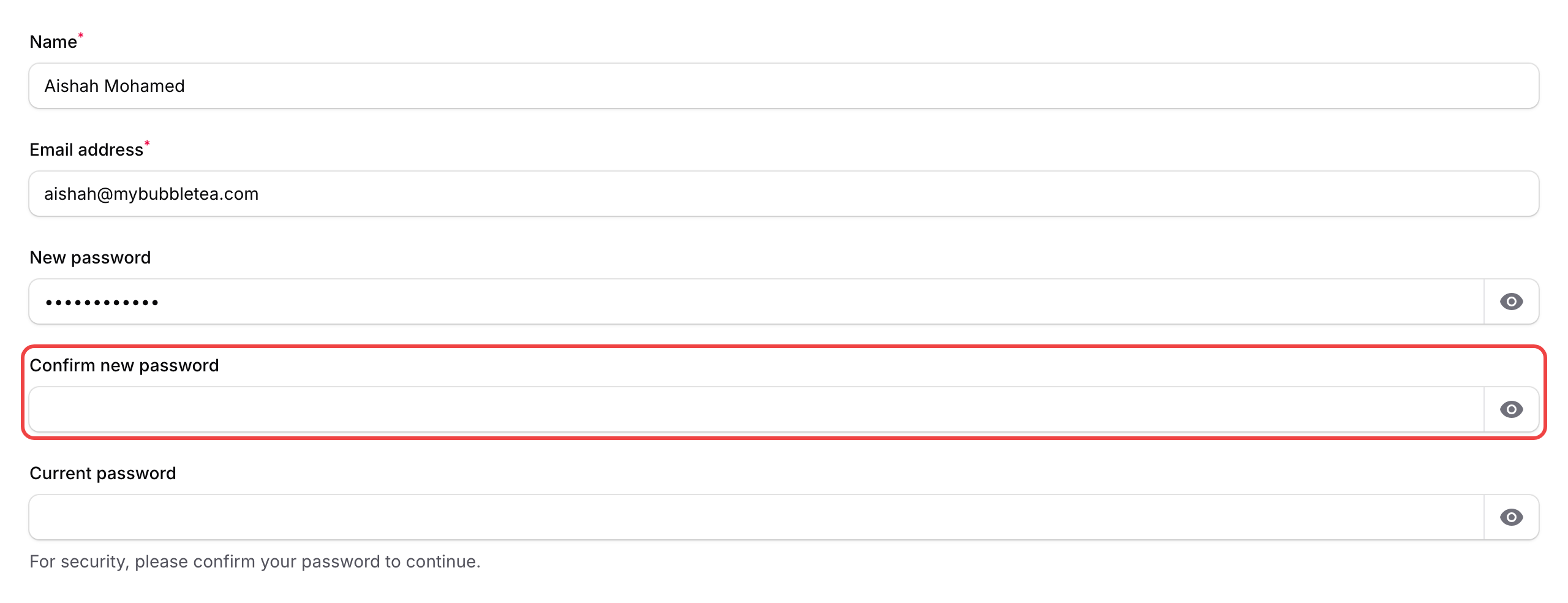
Type the same password again in Confirm new password.
-
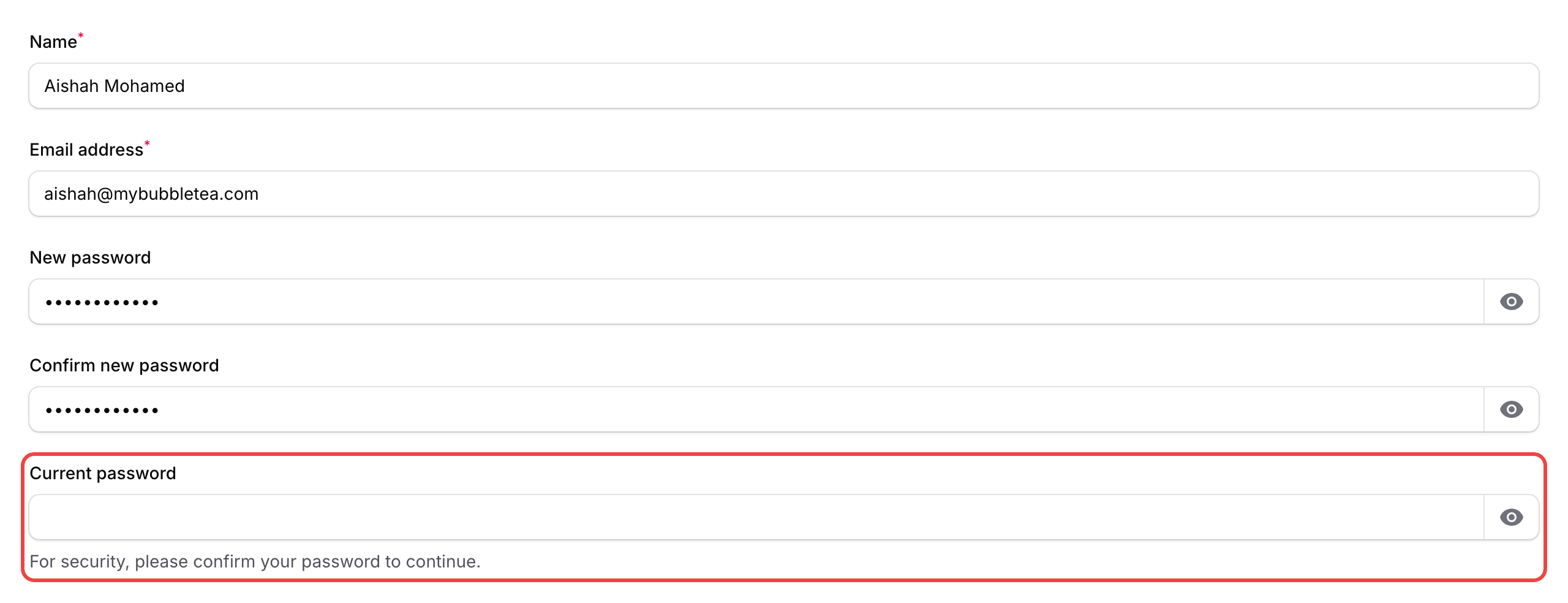
In Current password, enter the password you use right now. This is a security check to confirm it's really you.
-
Click Save changes. A "Saved" message will appear at the top of the screen.
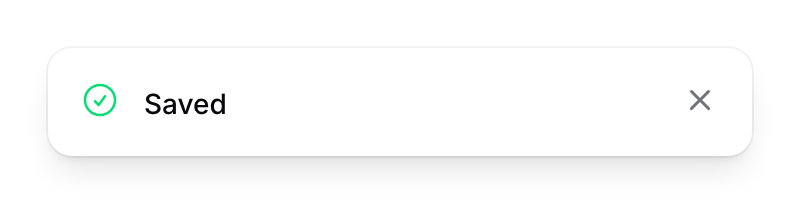
Your password is now updated.
Good to Know
- Confirm new password and Current password only appear after you start typing in the New password field. This is normal — don't worry if you don't see them right away.
- Your new password must be at least 8 characters long. Mix in numbers and symbols to make it harder to guess.
- Leave the password fields blank if you only want to update your name or email — your password won't change.
- Forgot your current password? Sign out and click Forgot password on the login screen. You'll get a reset link sent to your email.
- Get into the habit of changing your password whenever a team member with admin access leaves your business.
Need Help?
Contact our support team if you run into any trouble changing your password.