
How to Add a New Team Member
What Is This?
Team members are the people who access your Admin Panel — cashiers, managers, marketing staff, and anyone else who helps run your loyalty programme. Each team member gets their own login with role-based permissions, so you can control who sees and does what.
Real-Life Example
Encik Farid owns Restoran Selera Kampung with three branches. He adds his branch managers with full access to their own branch, and cashiers with limited access to only record points and validate rewards. His marketing assistant gets CRM access for campaigns. Everyone has the right level of access.
How to Add a Team Member
Step 1: Open the Users Page
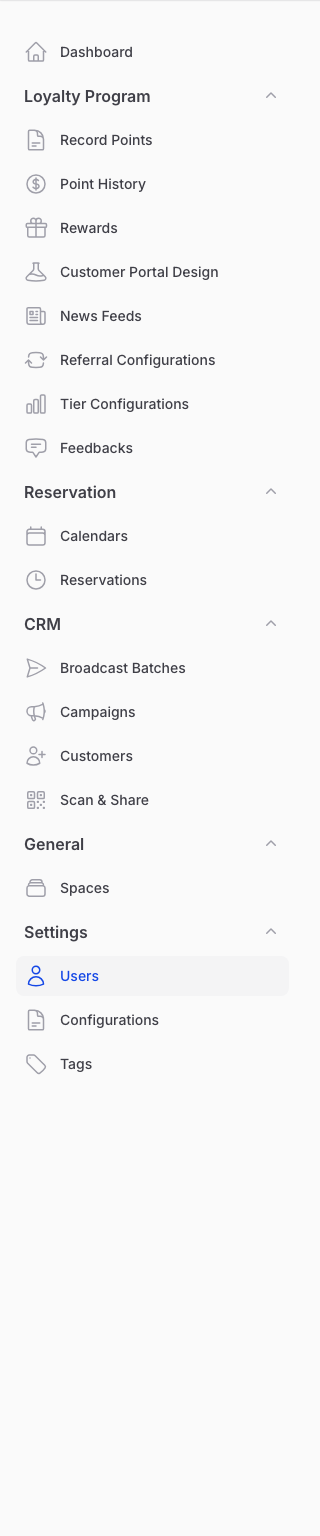
From the Admin Panel sidebar, go to Settings → Users. Click Create to add a new user.
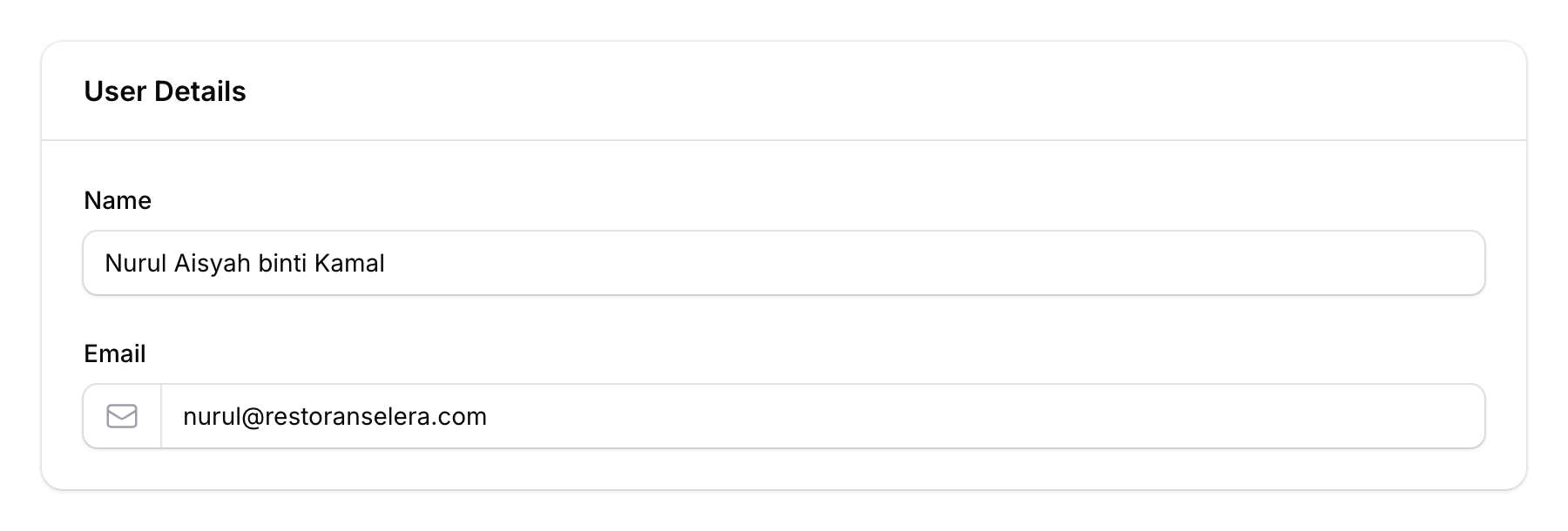
Step 2: Fill In User Details
- Name — The team member's full name
- Email — Their email address (used for login). Must be unique — no two users can share the same email.
Step 3: Assign a Role
Select a Role for the team member. Roles determine what they can access in the Admin Panel. Common roles include:
- Staff — Basic access (record points, validate rewards)
- Manager — Broader access (view reports, manage customers)
The exact roles available depend on how your organisation is configured. Admin-level access is managed separately and cannot be assigned from this form.
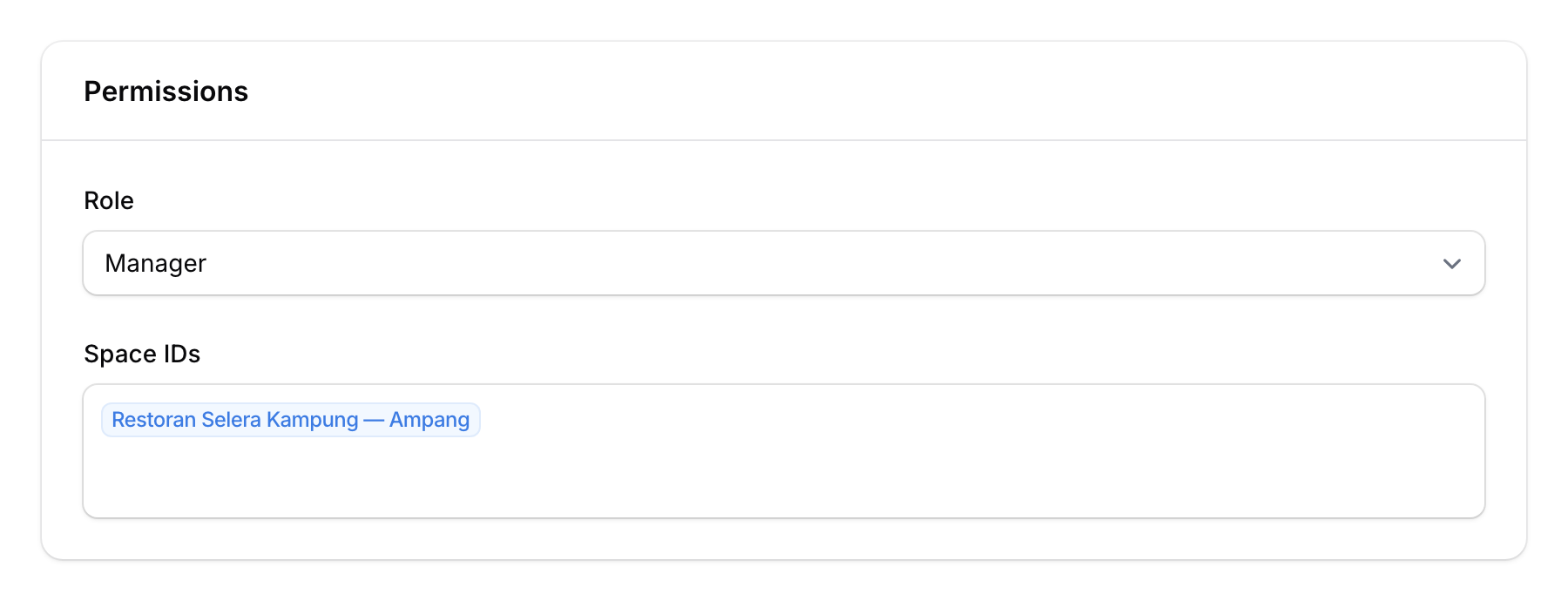
Step 4: Restrict to Specific Spaces (Optional)
If you want the team member to only access certain outlets:
- Space IDs — Select one or more spaces. The user will only see data from these spaces.
- Leave blank to give access to all spaces.
This is useful for branch-specific staff who shouldn't see other branches' data.
Step 5: Save
Click Create to save. The new team member will receive an email with login instructions.

Good to Know
- Unique emails — Each team member must have a unique email address. No sharing accounts.
- Role-based permissions — Roles control exactly what each person can see and do. A cashier can't delete rewards, and a marketing assistant can't change settings.
- Space restrictions — Assigning spaces limits the user's view to only those locations. Transactions, customers, and reports are filtered accordingly.
- Audit trail — All actions taken by team members are logged, so you can track who did what and when.
- Password management — Team members can reset their own password from the login page.