
Admin Panel Logins Explained: Devices, Staff & Permissions
Admin Panel Logins Explained: Devices, Staff & Permissions
What Is This?
You and your team log into the Admin Panel every day to run your loyalty programme. This article answers the questions we hear most: can two devices be logged in at once, should each staff member have their own login, and what to do if you get stuck signing in.
How It Works
Logging in from more than one device
You can be logged into the same account on your phone and your iPad at once. Each device keeps its own login. Signing in on a new device does not sign you out anywhere else.
Why staff should get their own account
Sharing one login feels simple at first, but it hides who did what. Every action in the Admin Panel is tied to the account that performed it. With separate logins, you can always check who validated a reward or added bonus points.
The main control you set per person is outlet access. Under Limit Access to ..., restrict a staff account to one or more outlets. A cashier at your Bangsar branch then only sees Bangsar's reservations, point history and dashboard figures, and can only pick Bangsar when recording points. They can still look up every customer, so members can collect points at any outlet. See How to Give Staff Access to Only Their Outlet for the full list.
Setting up a staff account
Go to Admin Panel → Settings → Users to see everyone with access to your account.
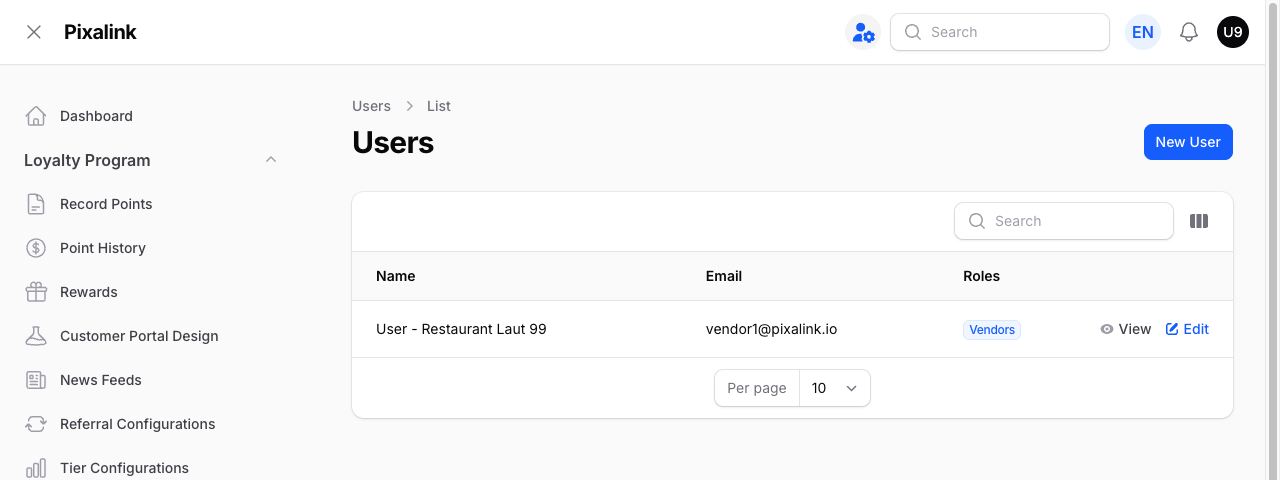
Click New User to add someone. Fill in their name and email, pick which outlets they can see under Limit Access to ..., and set the Roles field. Most accounts have a single role, Vendors, so this is usually the only option — outlet access is what you actually adjust per person.
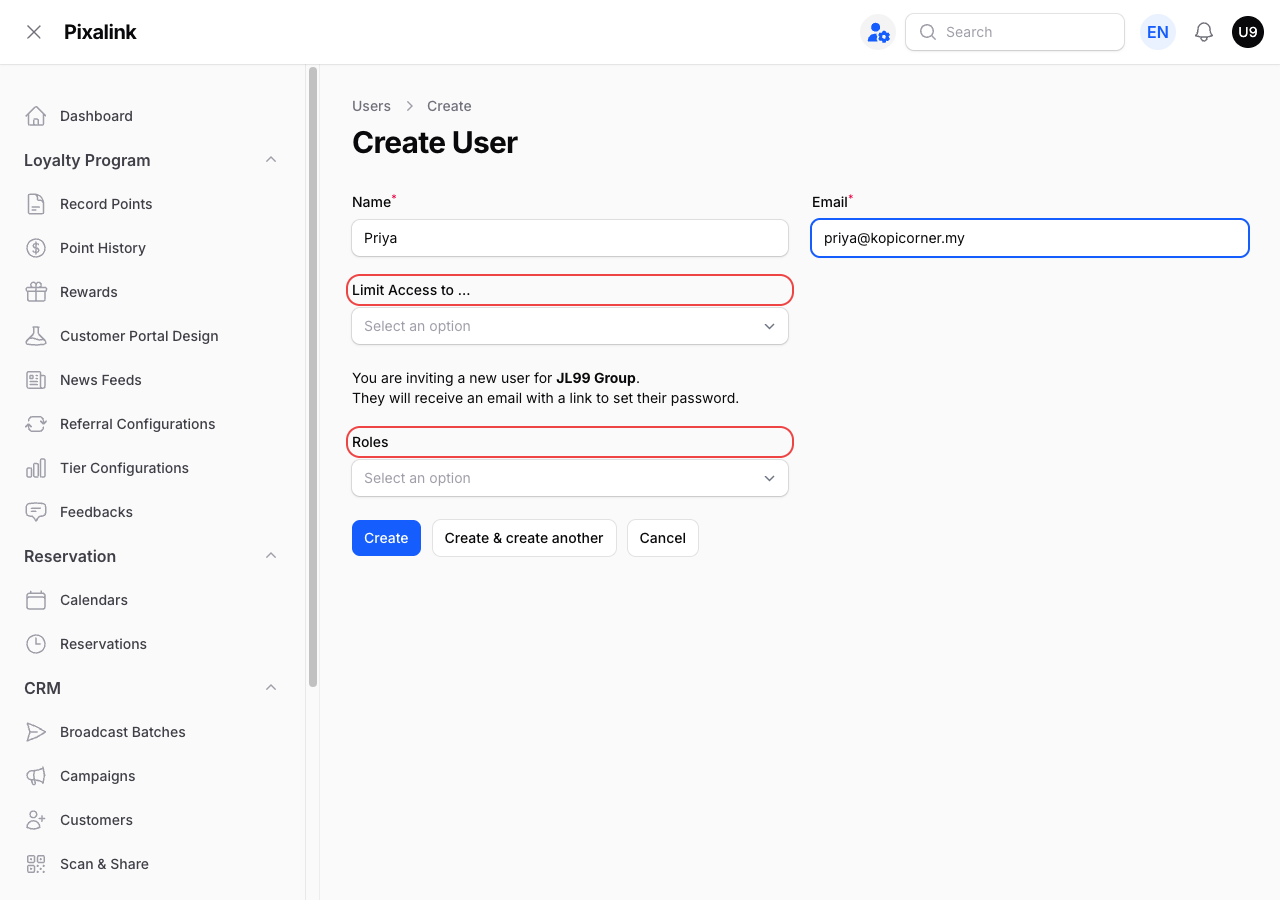
They'll get an email invite to set their own password. For the full step-by-step, see How to Invite Your Team and Manage Roles.
Changing a role or outlet later
To change a team member's role or outlet access, go to Users, click Edit on their row, update the fields, and save. There's no need to remove and re-add them.
Logging in and forgotten passwords
Staff always sign in with their email and password. The Admin Panel does not use WhatsApp to log in — that's only how your customers check points on your loyalty page, not how your team gets into the Admin Panel.
If someone forgets their password, click Forgot password? on the login page.
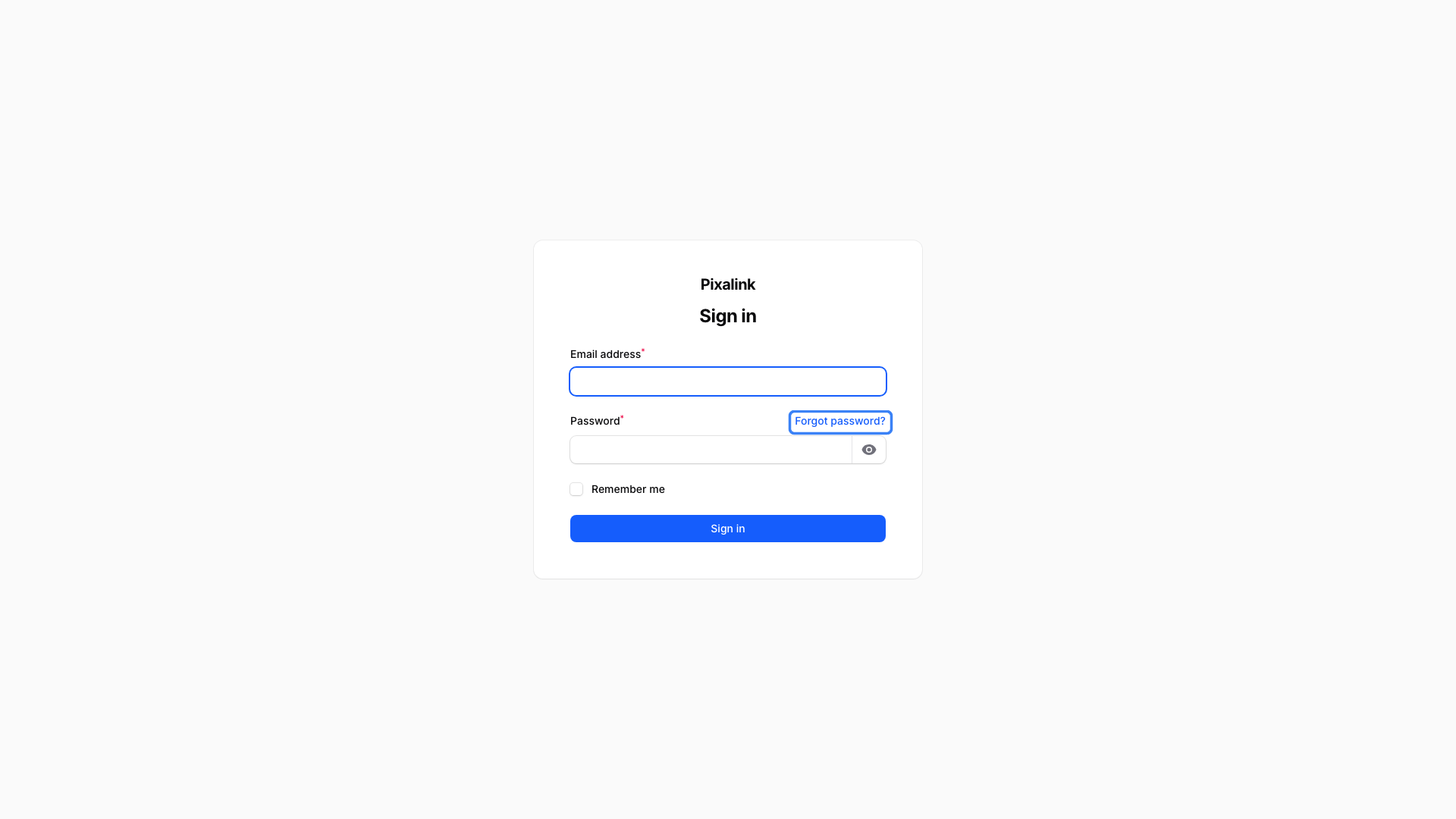
A reset link goes to their email. Note: after a team member resets their password, they'll be signed out on their other devices and need to sign in again with the new one.
Real-Life Example
Ahmad runs Kopi Corner cafe in Bangsar, with a second outlet at KLCC. At first, his whole team shared one login. When a customer's points looked wrong, Ahmad couldn't tell which staff member had made the change. He set up a separate account for Priya, his Bangsar cashier, and limited her access to that outlet only. He gave Siti, his branch manager, access to both. One busy Saturday, Ahmad checked sales on his laptop at the counter while his wife checked the same figures from home on her phone, both signed into his account without any trouble. When a redemption later looked off, Ahmad could see from the record that the change was Priya's, and sorted it out in minutes.
Good to Know
- Leave Limit Access to ... blank to give a staff account every outlet.
- Each email address can only be used for one account — no sharing logins.
- Most staff accounts use a single role, Vendors. You control what each person sees by setting their outlet access, not the role.
- You can update someone's outlet access or role any time from Users → Edit.
- How long you stay signed in depends on the Remember me box. Tick Remember me when you sign in and that device stays signed in for about a year. Leave it unticked and you are signed out after 2 hours without using the Admin Panel.
Need Help?
Reach out to our support team — we're happy to help you set up your team's accounts.
What's Next?
- How to Invite Your Team and Manage Roles — the full team-management guide
- How to Add a New Team Member — a quick add walk-through
- Cashier Accounts & Space QR Code Setup — set up outlet QR codes for your cashiers