
How to Message Customers When Their Tier Changes
What Is This?
A tier message tells customers when they reach a new tier, and what they get now. It turns a quiet change into a reason to visit.
To create your tiers first, see How to Set Up Loyalty Tiers.
Real-Life Example
Wei Lin runs a café in Subang Jaya with Silver and Gold tiers. Customers reached Gold but never noticed. So they never claimed their free drink. She turned on the Gold Tier Notification and kept the starter message, which lists the Gold perks. Now each new Gold member gets a WhatsApp message that names the drink.
How to Set It Up
-
Go to Admin Panel → Loyalty Program → Tier Configurations and click Edit.

Your business has one tier setup.
-
Click the Notifications tab.

Tier messages are on this tab, not in Settings.
-
Tick Email, WhatsApp or both under Notification channels.

WhatsApp needs a connected WhatsApp number. Email needs a valid email address on the customer's profile.
-
Click the section for the tier, for example Gold Tier Notification.

Each tier has its own message.
-
Click Reset To Default if the Message box is empty.
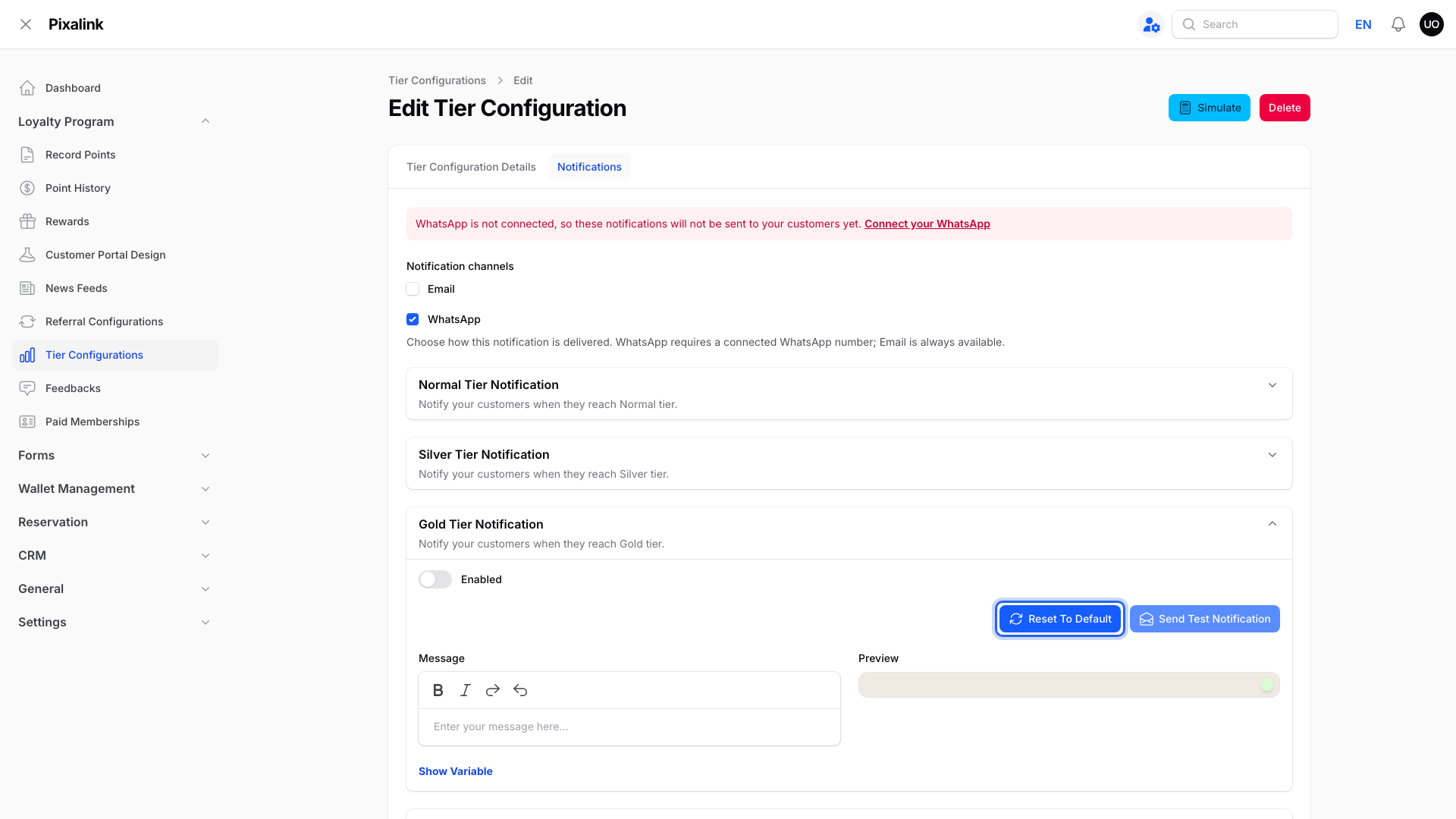
This fills in a starter message. It also turns Enabled off, so do this first.
-
Turn on Enabled.

Only tiers with Enabled on send a message.
-
Change the Message if you want.

Preview shows the message with sample values.
-
Click Show Variable to see the variables available for this message.
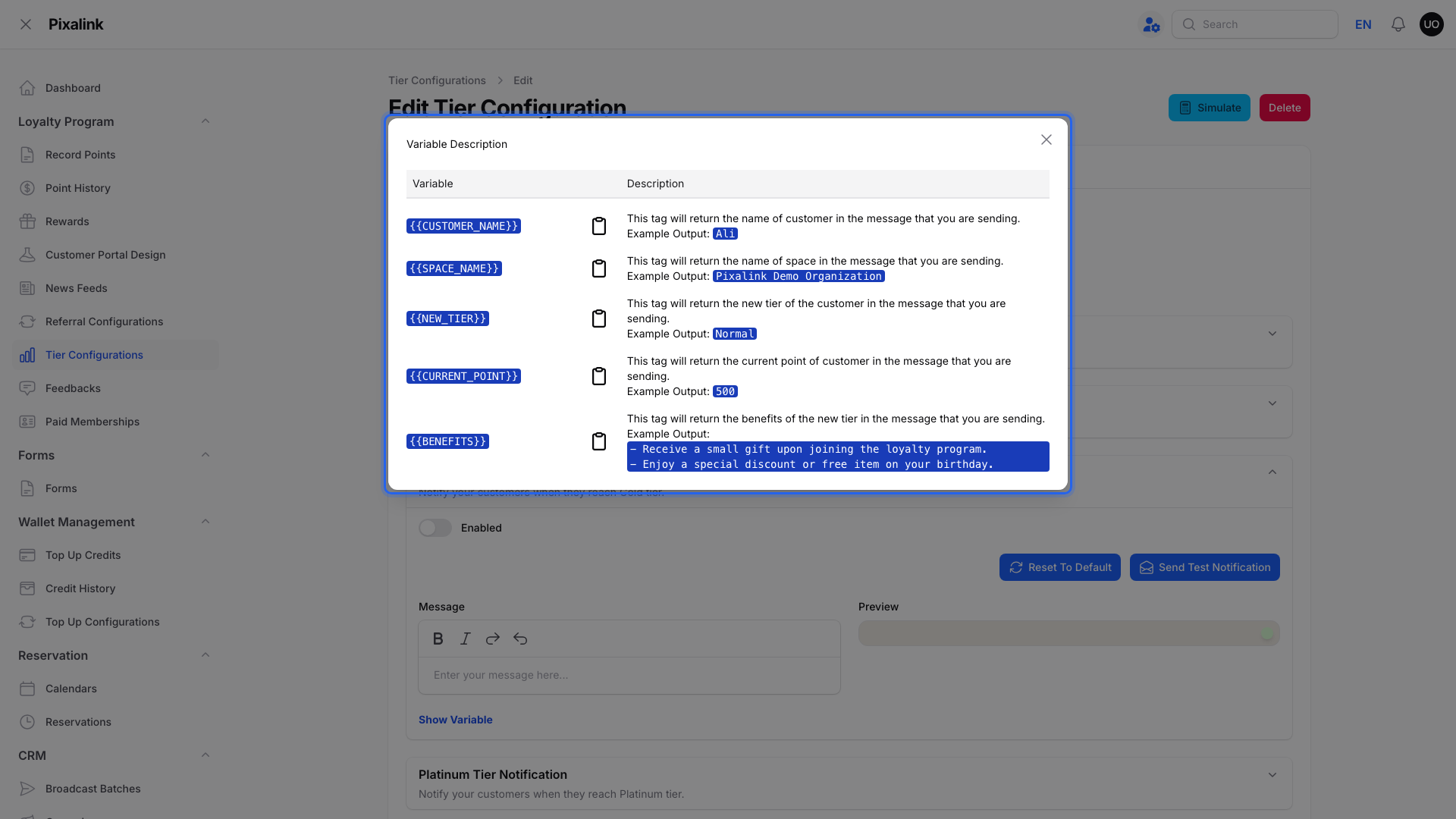
Click the clipboard icon to copy a variable into your message.
-
Click Save changes at the bottom of the form.

Your changes apply only after you save.
What Your Customers Will See
When a customer reaches a tier with Enabled on, they get your message by the channels you ticked, with their name, new tier, points and perks filled in.
Good to Know
-
Downgrade messages are set separately. Each tier also has a Tier Downgrade Notification section, sent when a customer drops from that tier. Its Show Variable list includes the points needed to get the tier back.
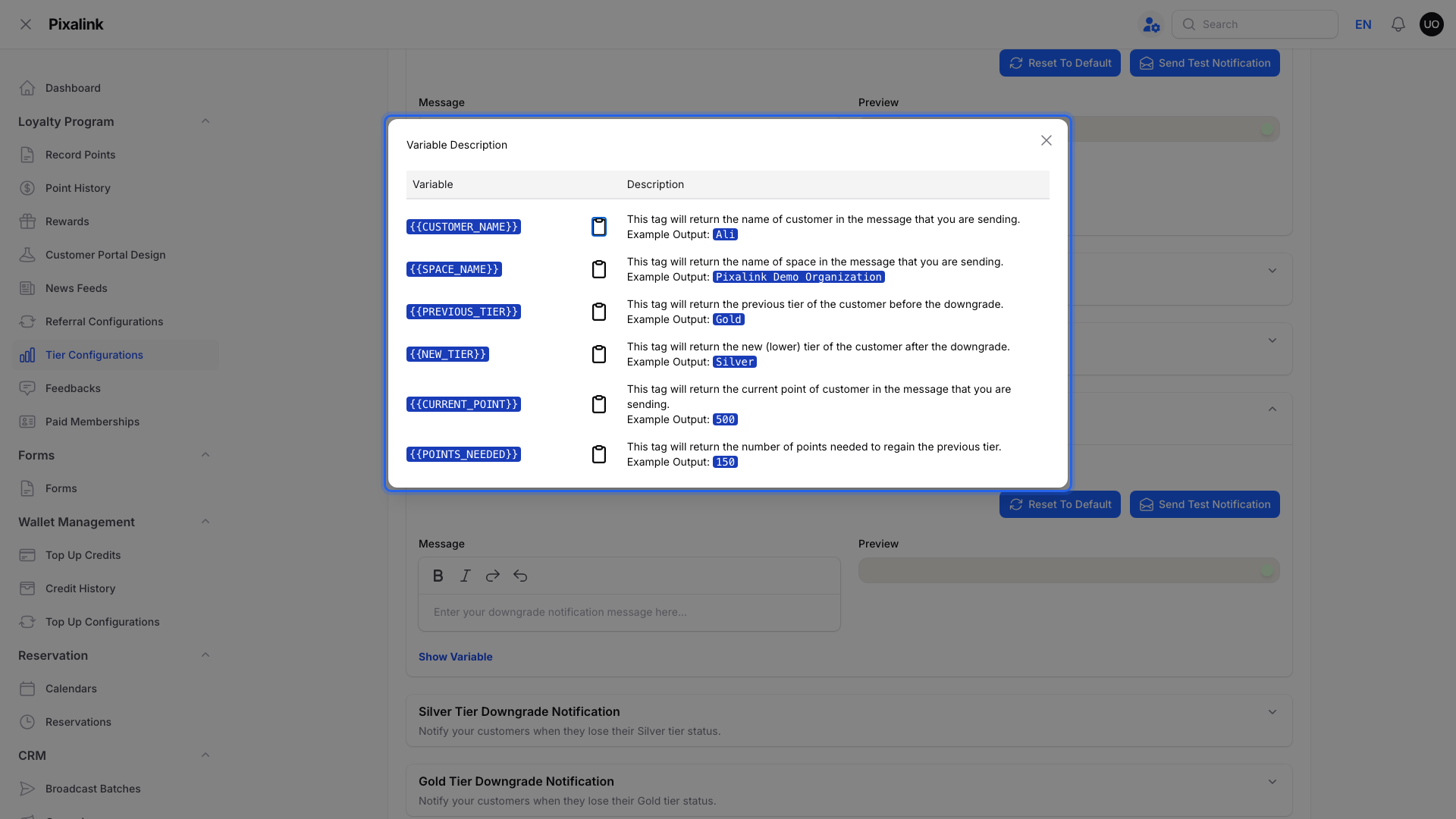
-
Your first tier counts too. If its message is on, new customers get it when they join.
-
Email adds an Email template section with its own subject and message.
-
Official WhatsApp from Meta sends an approved template, not your Message text.
Need Help?
If you see "WhatsApp is not connected" on this tab, WhatsApp messages can't go out yet. Connect your number first, or tick Email to send by email. See How to Connect Your WhatsApp Business Account.