
Customer Can't Log In via WhatsApp? Use the OTP Button
Customer Can't Log In via WhatsApp? Use the OTP Button
What Is This?
Don't lose a sign-up because someone got stuck at the login screen. Your portal signs customers in through WhatsApp, and now and then that message doesn't get through. A backup way in sits on the very same screen.
Video Walkthrough

Real-Life Example
Ahmad runs Kopi Corner, a small cafe in Bangsar. One busy morning Nurul came in to claim her free drink. She keyed in her phone number and tapped Login via WhatsApp. She sent the ready-written message, but the page just sat there. She tried again, but still nothing. Nurul was ready to give up on her RM12 drink. Ahmad leaned over and pointed at the small link under the green button. Nurul tapped it, a six-digit code landed in her WhatsApp, and she was inside her account in about a minute.
How to Set It Up
Run through this on your own portal once, using your own phone number. Then you'll know every screen by heart when a customer gets stuck at the counter.
-
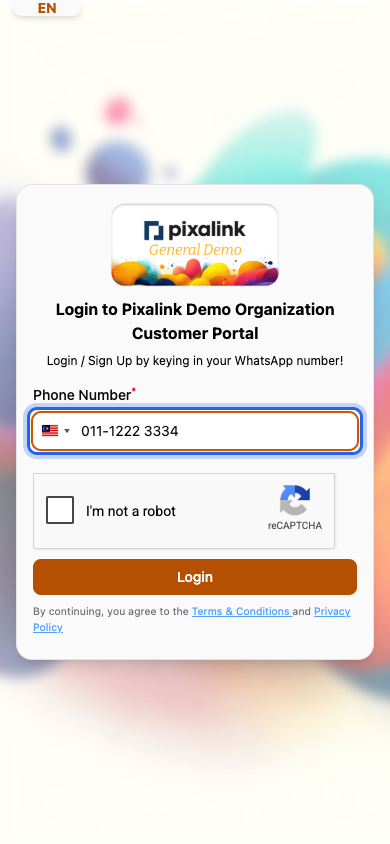
Open your portal and key in your own phone number, then tap Login.
-
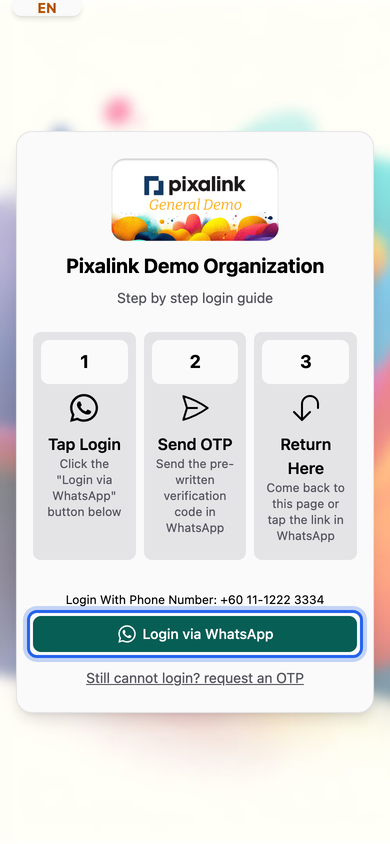
Tap Login via WhatsApp, then tap send on the message that opens. Wait about a minute.
-
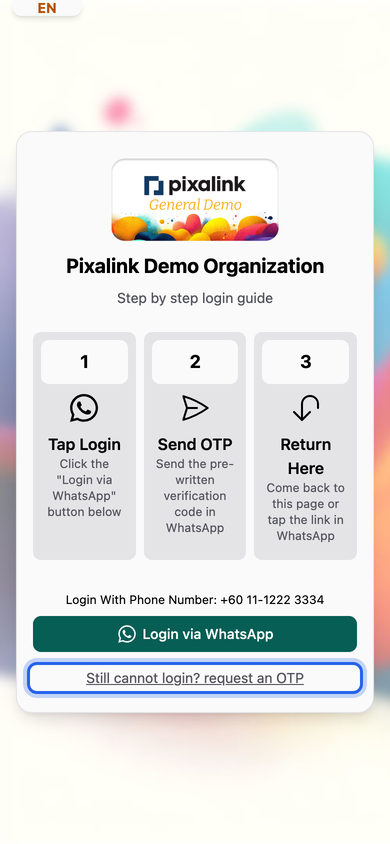
If nothing has happened, go back to the portal page and tap Still cannot login? request an OTP.
-
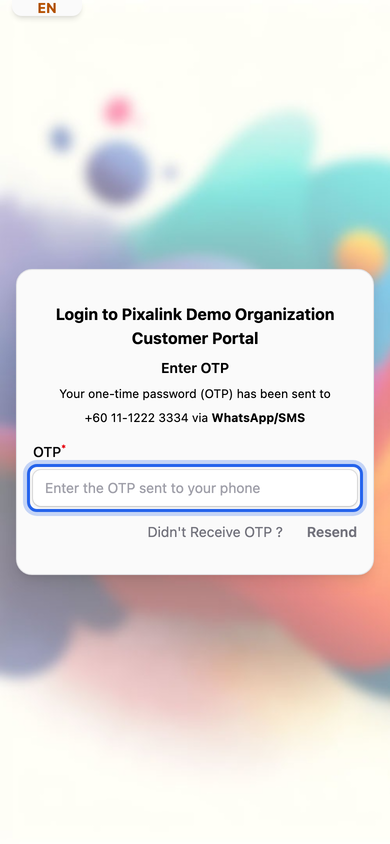
Key in the six-digit code that arrives in your WhatsApp.
What Your Customers Will See
In WhatsApp, your customer gets a ready-written message with a code in square brackets. All they do is tap send. The page then moves on by itself once the code lands. Depending on your setup, we may also reply with a safe login link. On the backup route we send the six-digit code instead, and they key it in on the page.
Good to Know
- Codes last 15 minutes. After that, ask for a fresh one.
- Resend waits 60 seconds between tries.
- The code must go out exactly as written, square brackets and all, from the number keyed in on the login screen.
- Once the OTP screen is showing, the page no longer moves on by itself.
- Login links from older messages stop working after 30 minutes. Tap the newest one.
- Keying the number in over and over restarts the wait. Going back one screen is enough.
Need Help?
Reach out to our support team. We're happy to walk a stuck customer through it with you.