
How to Link Your Google Business Profile to Pixalink
What Is This?
Customers often find you on Google Maps first. If your listing links to your Pixalink pages, they can join your loyalty programme or book a table right there. Here's how to copy your links and add them to Google.
Real-Life Example
Ahmad runs Kopi Corner, a cafe in Bangsar. His Google listing showed his hours, but nobody knew about his loyalty programme. Ahmad copied his Pixalink portal link and pasted it into the Website field on Google. He also added his brunch booking link. Now people who find Kopi Corner on Google can join in one tap.
How to Set It Up
Part 1: Copy your portal link
-
Go to Admin Panel → Loyalty Program → Customer Portal Design

The Loyalty Program group is open and Customer Portal Design is highlighted.
-
Click Show Customer Portal QR Code

The button is at the top right of the page.
-
Click the copy icon next to Shareable link. If you have more than one outlet, pick your outlet in Space first.

The copy icon is just left of the open-link icon.
Part 2: Add your portal link on Google
-
Go to google.com in your browser. Check the account picture at the top right is the Google account that manages your business. Type your business name in the search box, exactly as it shows on Google, and press Enter.

Both the search box and your account picture are highlighted.
-
Don't see the Your business on Google panel in the results? Go to business.google.com, sign in and click See your profile. If you do see it, skip this step.

The See your profile button opens the same panel.
Tip
Google won't let you edit? Ask the person who set up the listing to add you as a manager. Google explains how in Manage your Business Profile owners & managers.
-
Click Edit profile

Only managers of the listing can see this panel.
-
Click Contact

The Contact tab is next to the About tab.
-
Click Website

Click the row to open it for editing.
-
Paste your portal link into Website and click Save. If you already have a website, skip this step and put the link on that website.
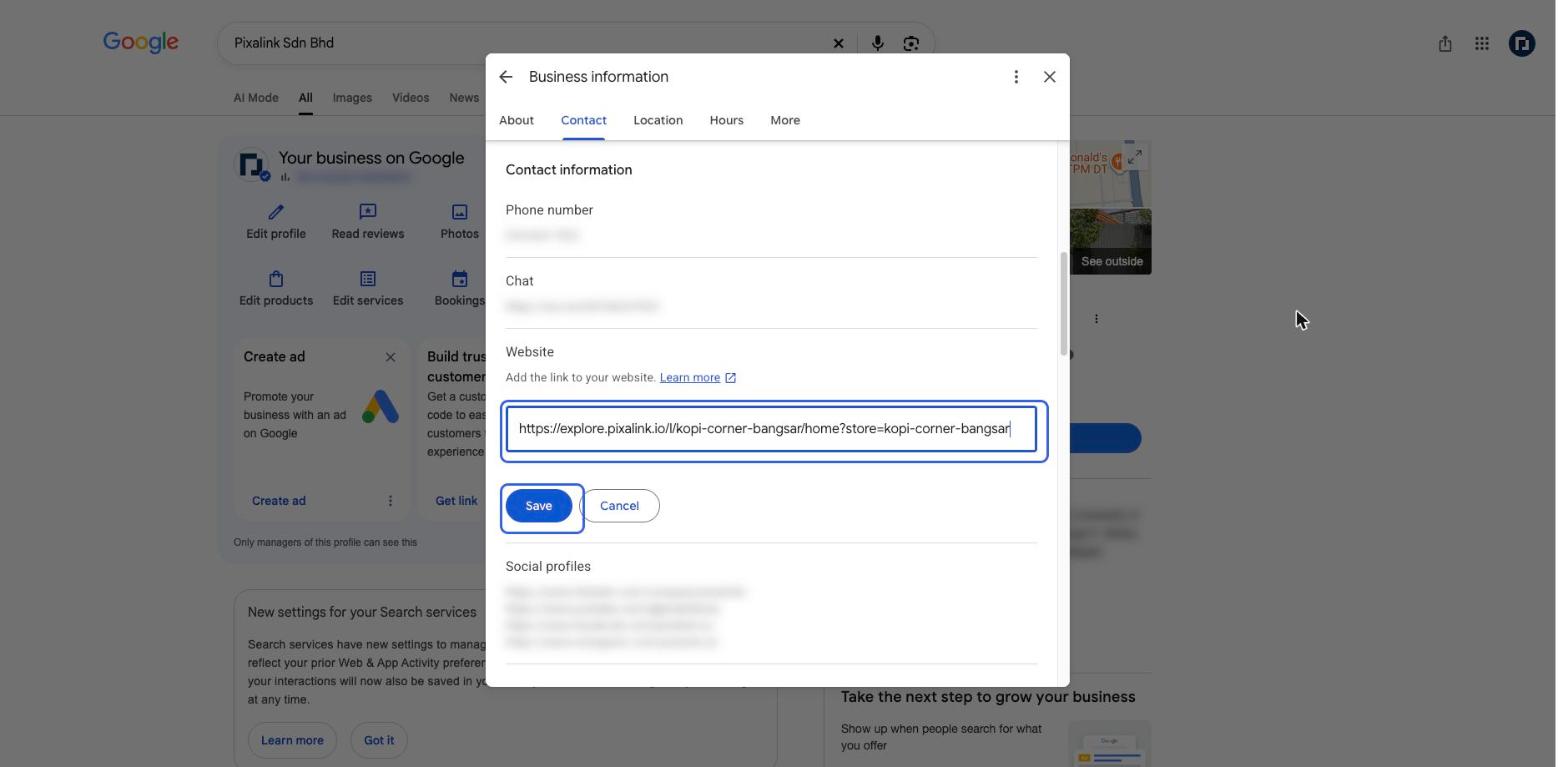
Paste the whole link, including the part after the question mark. This replaces any website already listed.
Part 3: Copy your booking link
-
If you take bookings, go to Admin Panel → Reservation → Calendars
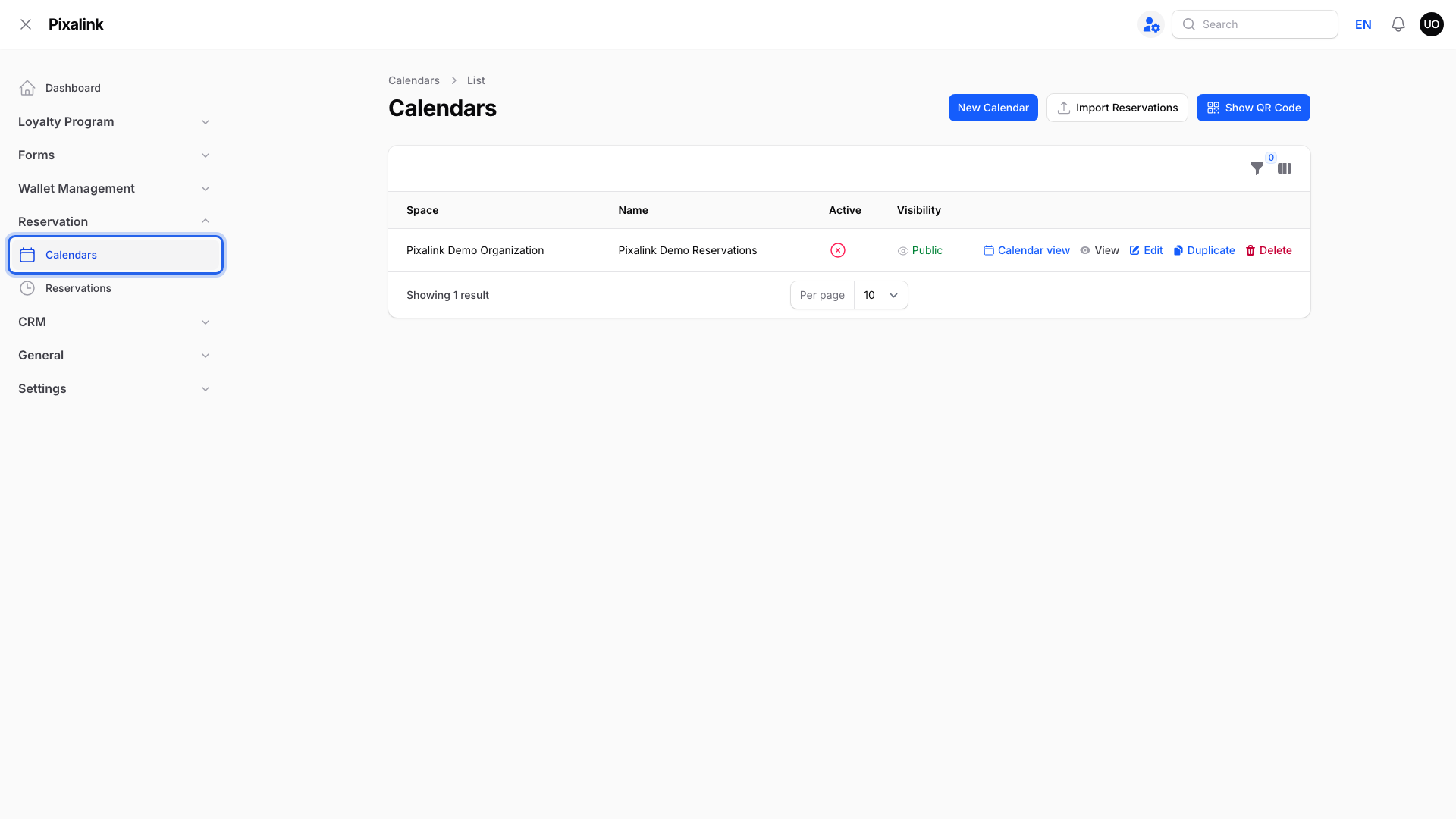
The Reservation group is open and Calendars is highlighted.
-
Click Show QR Code

The button is at the top right of the page.
-
Click the copy icon next to Shareable link. If you have more than one calendar, pick one in Calendar first.

You will paste this link into Google next.
Part 4: Add your booking link on Google
-
Go back to your business on Google and click Bookings. If you closed Google, repeat steps 4 and 5 first.

The Bookings tile is in the same panel as Edit profile.
-
Click Add another link. If you have no booking link yet, Google shows "Add link" instead.

Any link you already have stays where it is.
-
Paste your booking link into Booking URL and click Save

Nothing changes on Google until you click Save.
What Your Customers Will See
Customers who tap your Website link land on your customer portal, where they can sign up. Customers who tap your booking link land on the booking page for that calendar, if it is Active and Public.
Good to Know
- If you don't see Bookings, Google may not offer it for your type of business. Google lists the steps in Manage your local business links.
- Sign-ups from the portal link are credited to the outlet you picked.
- Customers can book without logging in only if the calendar is Active and its Visibility is Public.
Need Help?
If you don't see Customer Portal Design, ask the Pixalink team to turn on the customer portal for your business. If Show QR Code is missing on the Calendars page, you have no calendar yet. Add one first.