
How to Reorder Newsfeed Items
How to Reorder Newsfeed Items
What Is This?
Your loyalty portal can show multiple news items and announcements to customers. Reordering lets you control which one appears first — drag any item up or down the list and the portal updates immediately.
Video Walkthrough
Real-Life Example
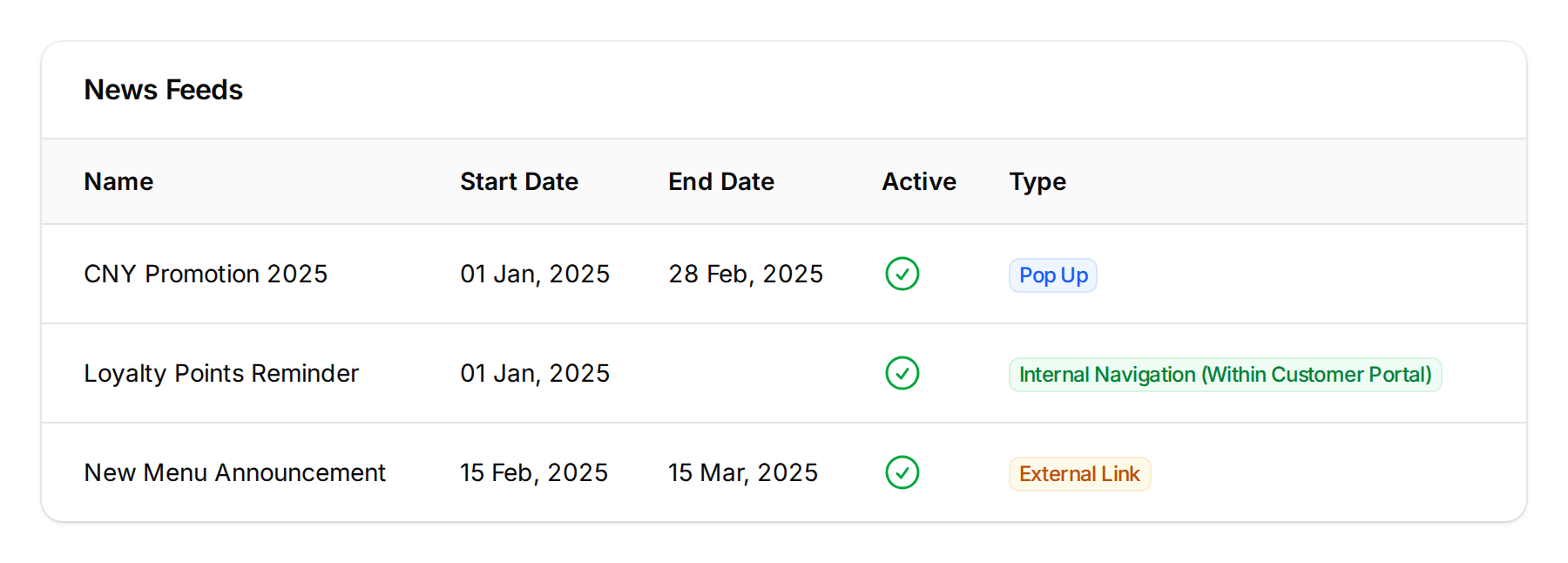
Aisyah runs a bubble tea chain and has three newsfeed items live: a loyalty points reminder, a CNY promotion, and a new menu announcement. She wants the CNY promotion at the top for the festive season. She drags it to position one, clicks the checkmark, and every customer who opens the portal now sees the CNY banner first.
How to Set It Up
-
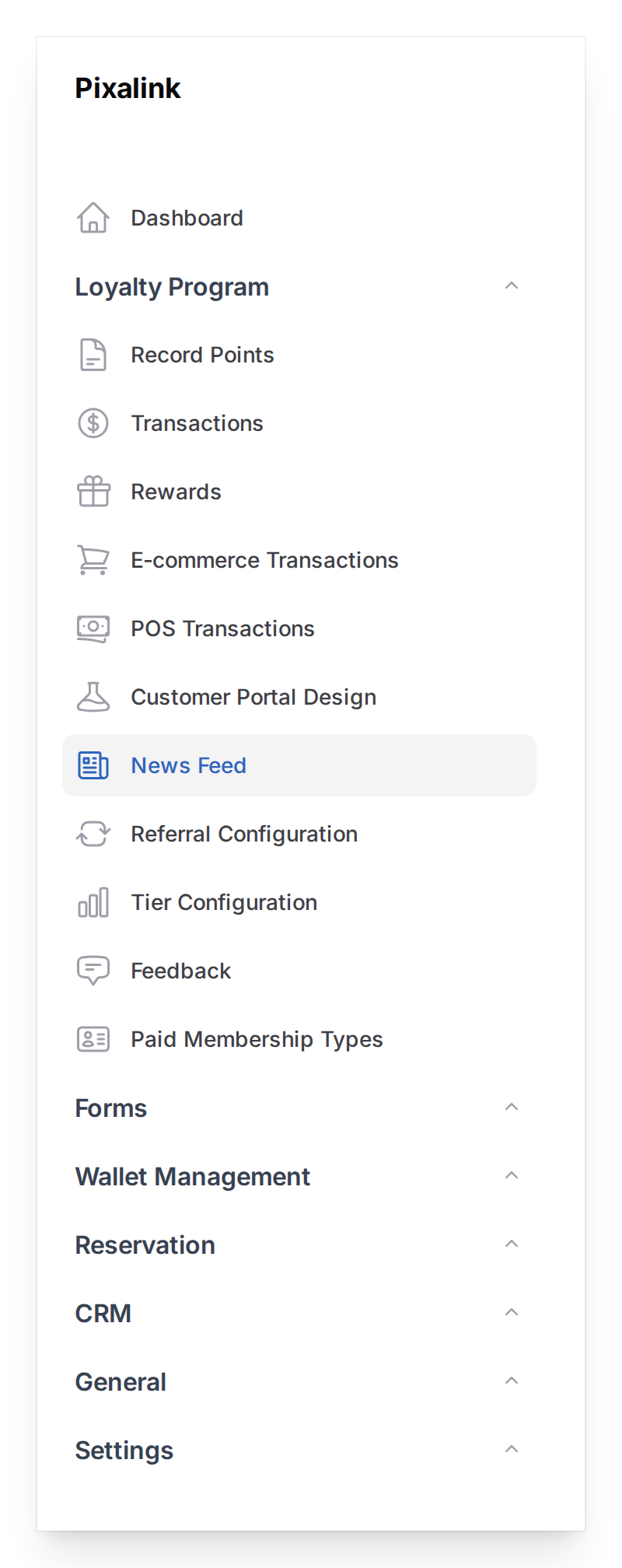
Go to Loyalty Program → News Feeds in the left sidebar
-
The table shows drag handles on the left side of each row — grab the handle next to the item you want to move, drag it to the new position, then release
-
Click the checkmark button that appears to save the new order — the portal updates straight away
What Your Customers Will See
Newsfeed items appear on the loyalty portal in the exact order you set. The item at position one is the first thing customers see when they open the portal.
Good to Know
- Only active newsfeed items within their scheduled dates are visible to customers — you can reorder inactive items too, and the order is saved for when they go live
- If you have multiple locations, reordering is per-location — switch to the relevant location using the space dropdown before dragging
- Changes take effect immediately — no need to publish or refresh anything on the customer side
What's Next?
- How to Create a Newsfeed Item — add a new announcement to your portal