
Quick Links on Your Customer Portal
Quick Links on Your Customer Portal
What Is This?
Quick Links are shortcut buttons on your customer portal home page. They give customers one-tap access to ordering, rewards, bookings, social media, and more. You can set up to 4 quick links, each with its own icon, label, and destination.
Real-Life Example
Mei runs a bubble tea chain called "TeaHouse." She noticed customers opened the portal but didn't explore beyond the home screen. She added four Quick Links: Order Now (online menu), Rewards (browse vouchers), Book a Seat (reservations), and Follow Us (Instagram). Within a week, online orders increased because the menu was one tap away. The whole setup took less than five minutes.
This feature requires activation. Contact our support team to have Quick Links turned on before following the steps below.
How to Set It Up
-
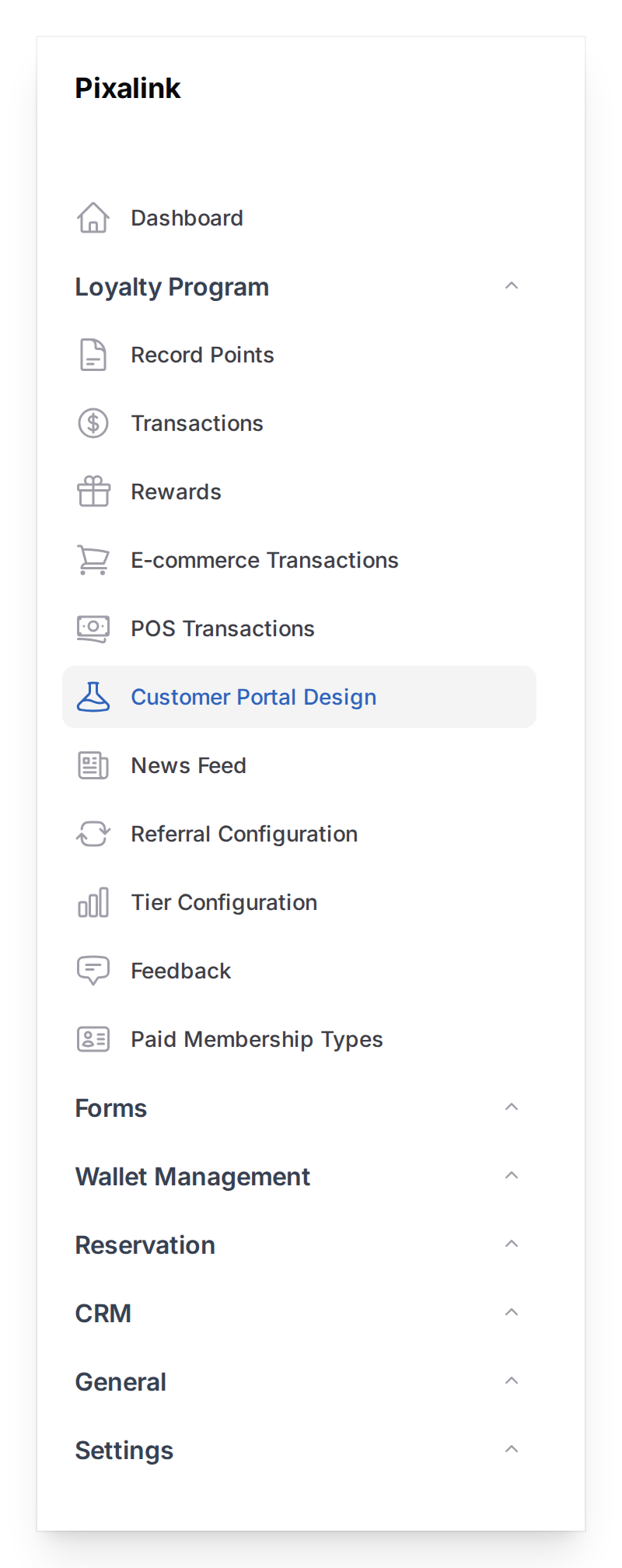
Go to Admin Panel → Loyalty Program → Customer Portal Design
-
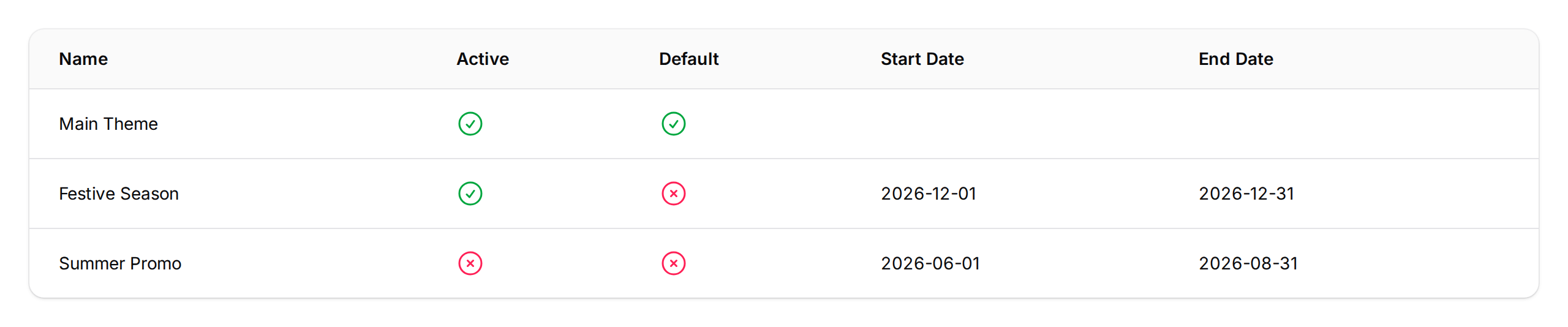
Find the theme you want to edit and click Edit
-
Click the Layout tab at the top of the form

-
Click the Quick Links section to expand it. You'll see a preview and up to 4 items below.

-
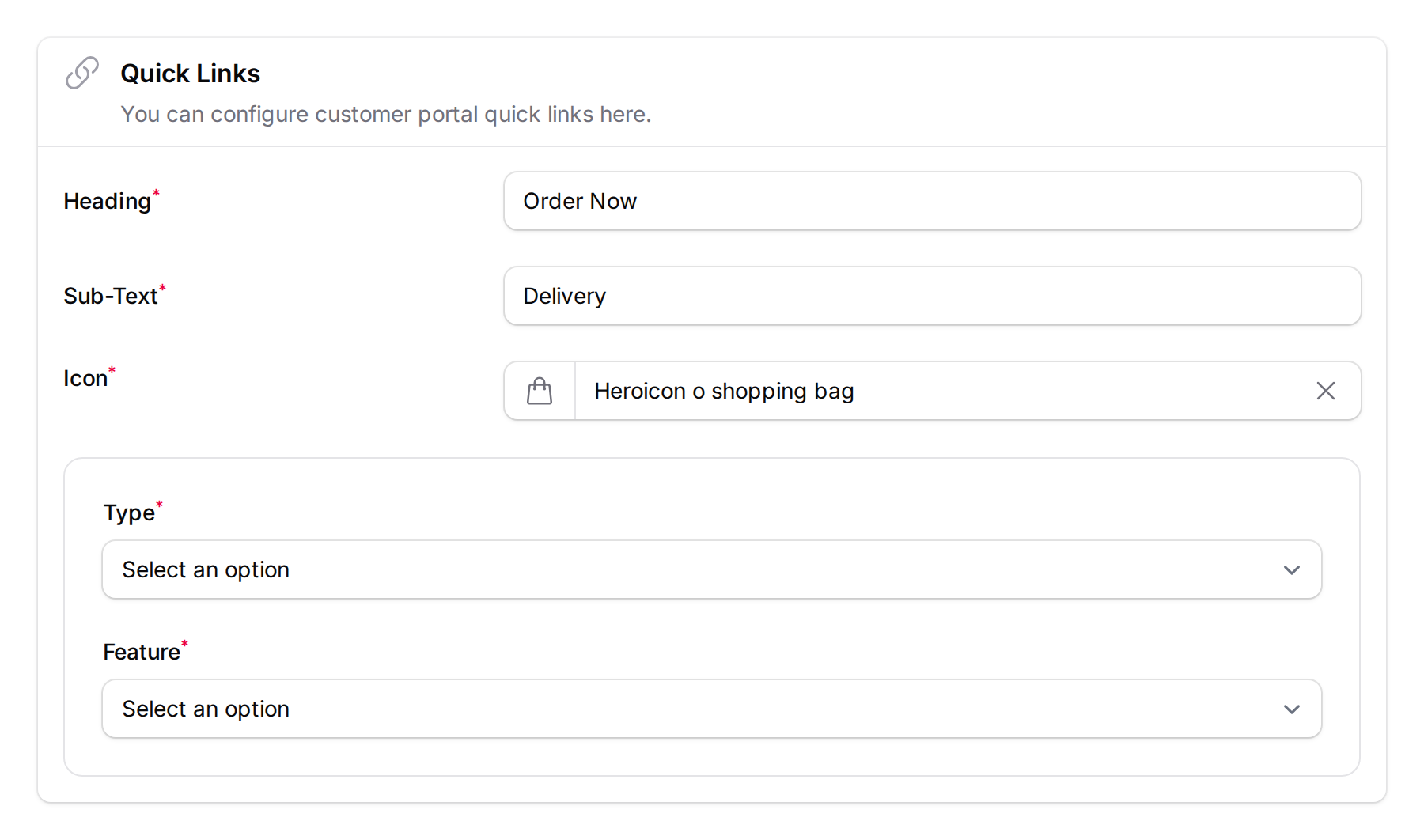
Click any quick link item to expand it and fill in:
- Heading — The label customers see (max 12 characters). Example: "Order Now"
- Sub-Text — A short description below the heading (max 12 characters). Example: "Delivery"
- Icon — Pick from the icon library
- Type — Choose Feature (links to a portal page like ordering, rewards, or reservations), Pop-Up (shows a message overlay), or External Link (opens a website in a new tab)
-
Click Save at the bottom of the page. Your customers will see the changes next time they open the portal.
Want to start over? Click Use Default above the quick links list to reset to four standard buttons: Order Now, Rewards, Membership, and Reservations.
What Your Customers Will See
Customers see a row of 4 circular icon buttons below the welcome banner. Each shows the icon, heading, and sub-text you set up. On phones, they appear in a 2x2 grid. The icons use your theme's primary colour.
Tapping a Feature link opens that page inside the portal. A Pop-Up shows a message overlay. An External Link opens a new browser tab.
Good to Know
- Maximum of 4 quick links to keep the layout clean on small screens.
- 12-character limit on headings and sub-text. "Order Now" works better than "Place Your Order Here."
- Feature links hide automatically if that feature is turned off for your space.
- Pop-up links support formatted text, images, and links — great for announcements or promotions.
- Quick links can be reordered using the arrow buttons in the admin panel.
What's Next?
- What is a Slug? — understand how your portal sharing links work
- Set up your portal theme colours and branding under Admin Panel → Loyalty Program → Customer Portal Design