How to Embed Your Ordering Website Inside the Customer Portal

How to Embed Your Ordering Website Inside the Customer Portal

What Is This?

You can show your own ordering website inside your customer portal. Customers shop without leaving your portal, so they stay close to their rewards.

The website opens on the portal's Order page. It suits any shop that already has its own online store or booking site.

Video Walkthrough
Real-Life Example

Wei Lin runs a Japanese snack shop with her own online store. Her members kept leaving the portal to shop, then forgot to come back.

She set the Order page to show her online store inside the portal. Now members tap Order, shop, then tap Home to check their points and credits.

Video Walkthrough
How to Set It Up

  1. Go to Loyalty Program → Customer Portal Design, then click Edit on your portal.
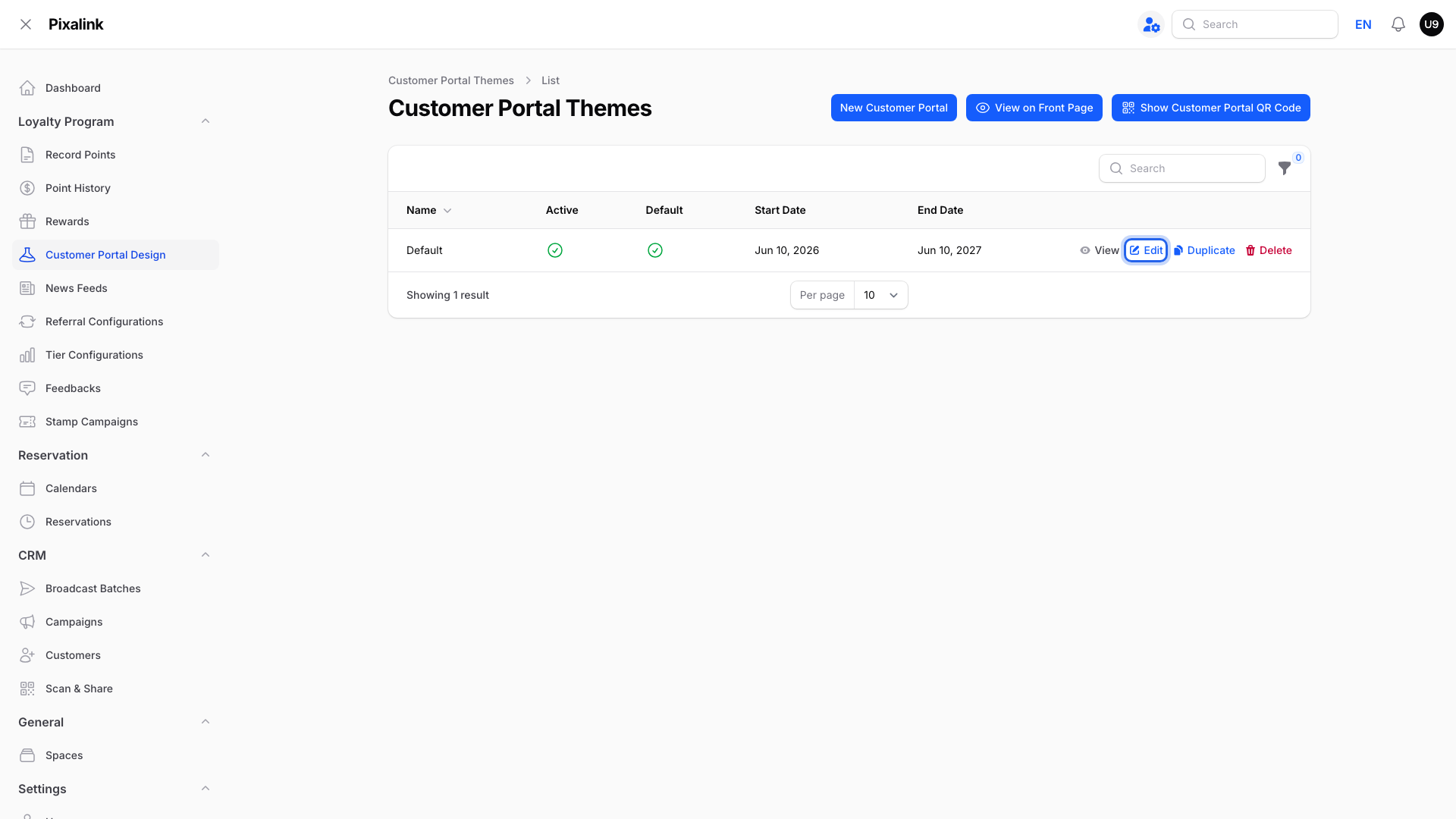
    Customer Portal Design list under Loyalty Program with the Edit action on the theme highlighted

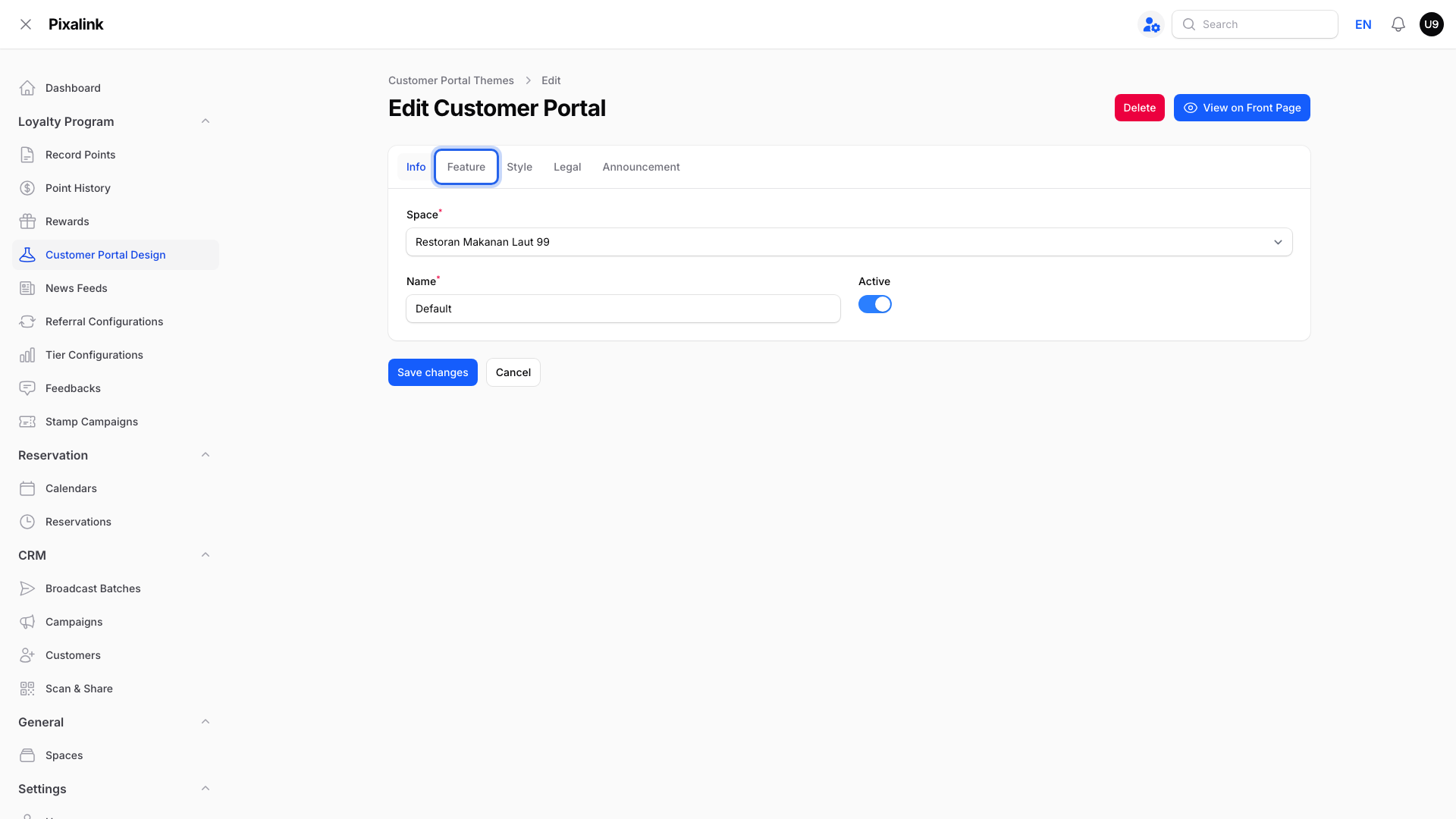
  2. Click the Feature tab.

    Edit Customer Portal page with the Feature tab highlighted

  3. Find Ordering System and click Add Location.
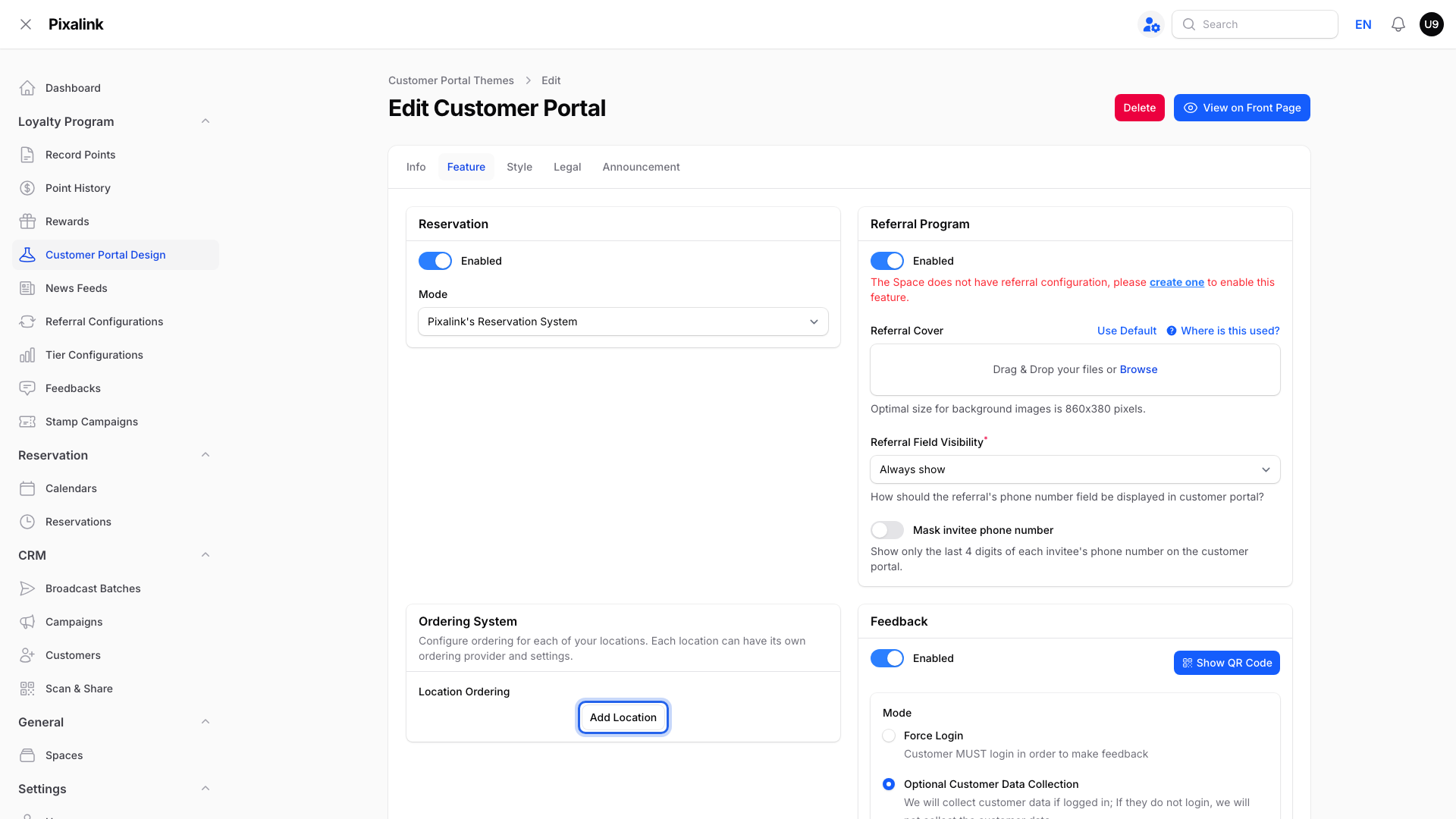
    Ordering System section on the Feature tab with the Add Location button highlighted

  4. Leave Location blank to use this website for outlets without their own ordering setting, then switch on Enable Ordering.
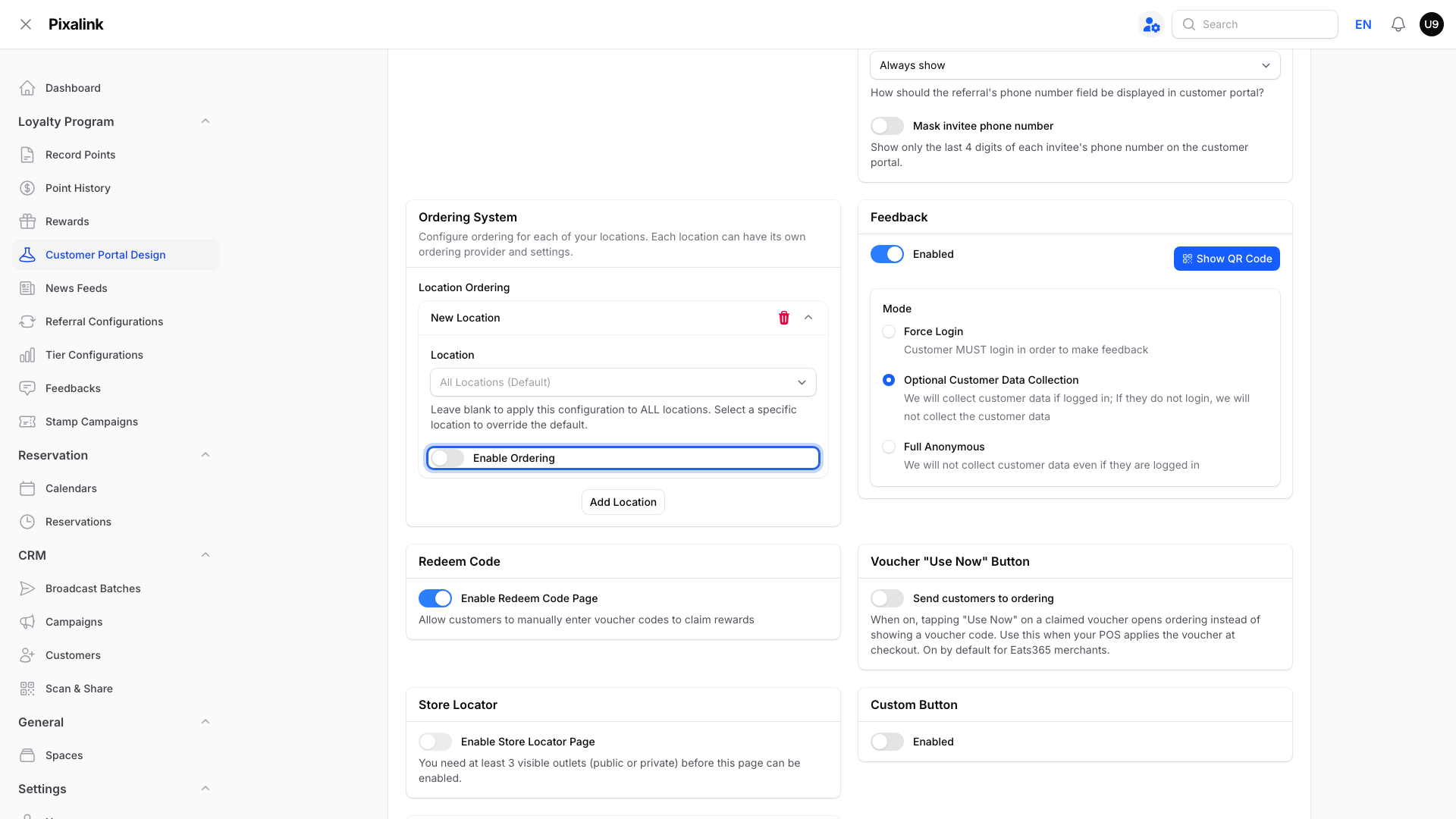
    New location row with the Enable Ordering switch, still off, highlighted

  5. Choose Custom Link under Ordering Provider.
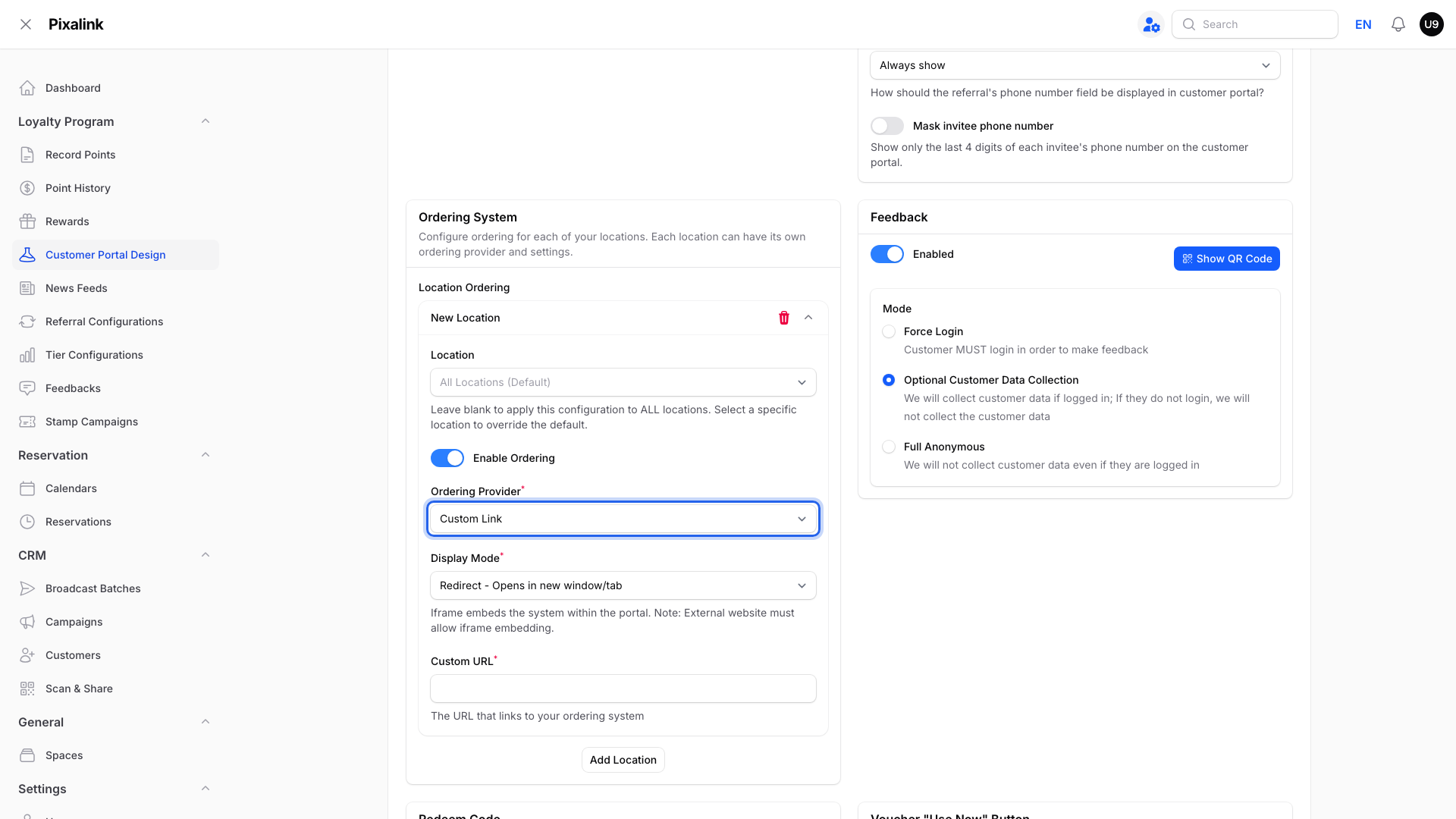
    Ordering Provider set to Custom Link and highlighted

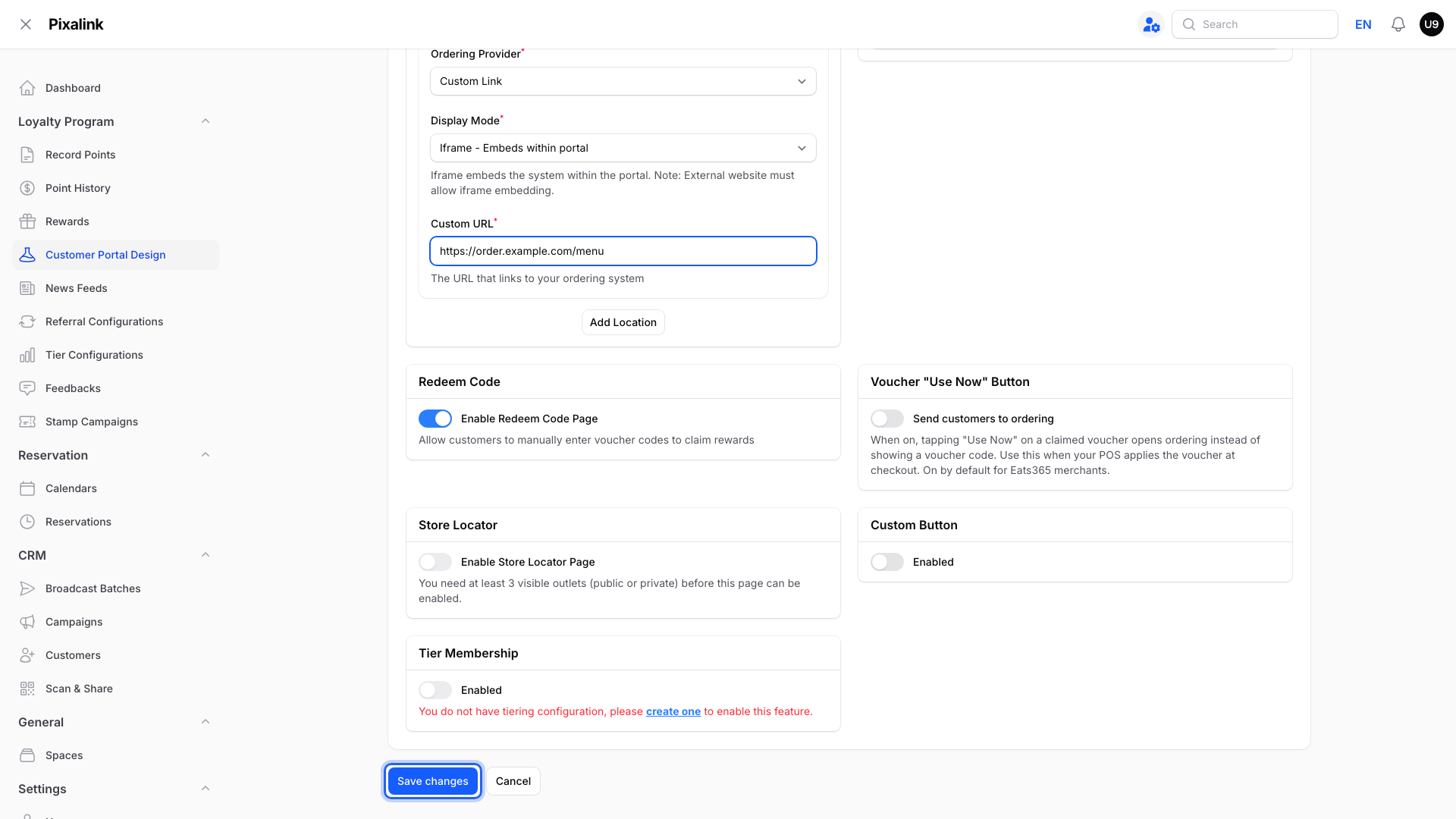
  6. Choose a Display Mode (see the table below), then paste your website link into Custom URL.
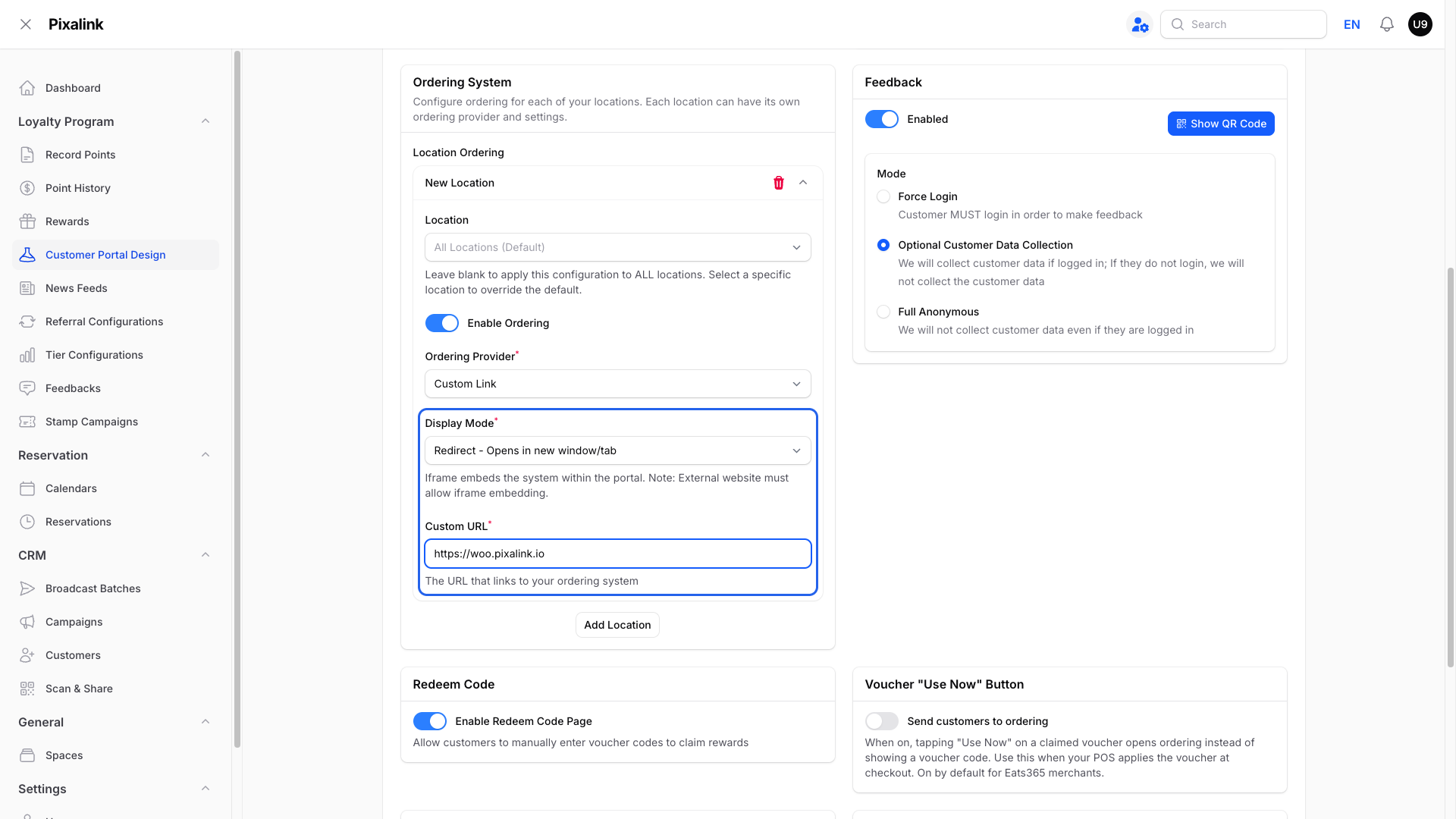
    Ordering System with Custom Link chosen, and the Display Mode and Custom URL fields highlighted: Redirect - Opens in new window/tab and https://woo.pixalink.io

    Display Mode starts on Redirect. Change it to Iframe to show your website inside the portal.

  7. Click Save changes.

    Feature tab with the Save changes button highlighted

Choose a Display Mode

Display Mode What customers see Pick it when
Iframe - Embeds within portal Your website opens inside the portal's Order page. The bottom buttons stay, so they can tap Home to see their points. Your website allows embedding. This keeps customers close to their rewards.
Redirect - Opens in new window/tab Tapping Order opens your website in a new tab. The portal stays open in the first tab, so customers can switch back to see their points. Your website does not allow embedding, or you are not sure. It works with every website.

Tip

Not sure if your website allows embedding? Try Iframe and open the Order page. If it stays blank, switch Display Mode to Redirect.

What Your Customers Will See

With a single embedded ordering page, customers tap Order to open your website inside the portal. Their existing bottom buttons stay visible. If Home is one of those buttons, they can tap it to return.

A link below the page opens the website in a new window. The card with rewards, points and credits stays on the Home page, not above the embedded website.
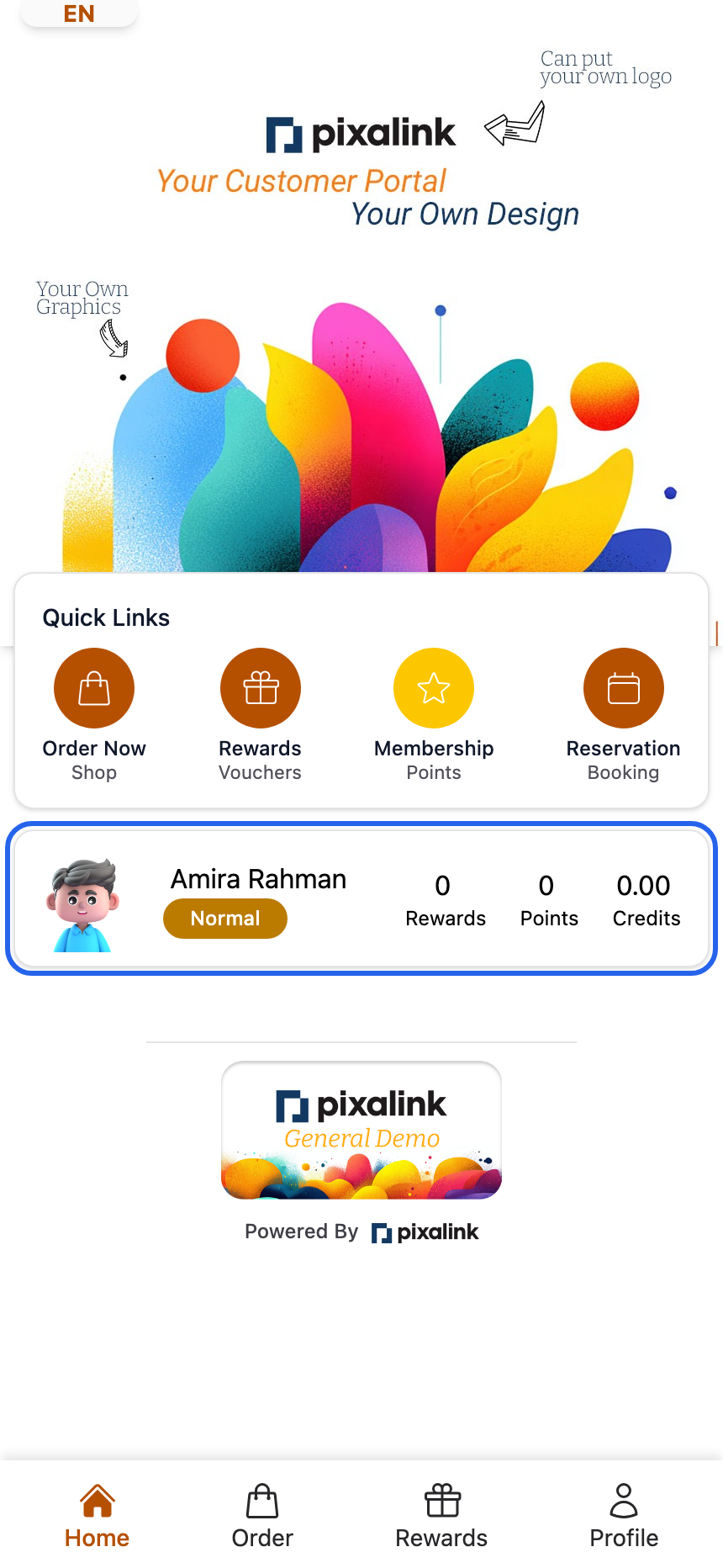
Customer portal home page with the member card highlighted, showing the member's name, tier, rewards, points and credits

Good to Know

Warning

Your website must allow embedding. Pixalink checks for some common blocks when you save, but a successful save does not guarantee the website will work inside the portal.

Situation What it means
The Order page looks blank The website blocks embedding or cannot load. Switch Display Mode to Redirect, or ask your web provider to allow embedding.
Customers cannot find the Order page They need an Order button in the bottom buttons or quick links.
A portal shared across outlets Adding more than one outlet's ordering settings shows an outlet picker. Choosing an external website there opens a new tab instead of embedding it.

Need Help?

Not sure if your website allows embedding? Contact our support team and we will test it with you.

What's Next?

Video transcript: Embed your ordering website inside your portal
Already have your own online store? You can show it inside your customer portal, so members shop without leaving, and stay close to their rewards. Here is the result. Your member taps Order, and your website opens right inside the portal. Your bottom buttons stay in place, so members can tap back to Home. To set it up, go to the Admin Panel. In the left menu, under Loyalty Program, click Customer Portal Design. Click Edit on your portal. Open the Feature tab. Find the Ordering System box, and click Add Location. Leave Location blank, so this website is used for every outlet without its own ordering setting. Then switch on Enable Ordering. Under Ordering Provider, choose Custom Link. Set Display Mode to Iframe, Embeds within portal. Then paste your website link into Custom URL. Click Save changes. Your website now opens on the portal's Order page. Your members' rewards, points and credits stay on the Home page. They tap Home to check them, then tap Order to keep shopping. One thing to know. Your website must allow embedding. If the Order page looks blank, the site may block it, so check with your web provider. If you are not sure your website allows embedding, reach out to our support team and we will test it with you.
Video transcript: Add Your Ordering Website to the Customer Portal
If you already have your own ordering website, you can link it to the Order button in your customer portal. This video shows you how to set it up, and which display mode to pick. Members open your website by tapping Order in the portal's bottom bar. In the Admin Panel, open Loyalty Program, then select Customer Portal Design. Click Edit on your portal. Open the Feature tab. Find Ordering System, and click Add Location. Turn on Enable Ordering. Set Ordering Provider to Custom Link. Now choose a Display Mode. There are two, and they behave differently for your customers. Iframe shows your website inside the portal's Order page. The bottom buttons stay, so members can tap Home to check their points. But it only works if your website allows embedding. Redirect opens your website in a new tab, and the portal stays open in the first tab. It works with every website. Paste your website link into Custom URL. When you are done, click Save changes. Here is Iframe in action, with an example website. It shows inside the portal's Order page, and the bottom buttons stay, so members can tap Home to see their points. And here is Redirect. The member taps Order, and your shop opens in a new tab, ready to order. One thing to know. If you pick Iframe and the Order page stays blank, your website does not allow embedding. Switch Display Mode to Redirect, or ask your web provider to allow embedding. If you are still stuck, reach out to our support team.

Was this article helpful?

Thank you for your feedback!

0 found this helpful 0 did not

Search