
How to Sort Rewards in Your Catalog
How to Sort Rewards in Your Catalog
What Is This?
You can drag your rewards into any order you like. The order you set is the same order your customers see in the customer portal under the Recommended sort. This puts your best rewards at the top, where customers spot them first.
Real-Life Example
Aishah runs a bubble tea shop in Petaling Jaya. Her "Free Pearl Topping" reward at 100 points is a customer favourite, but it's stuck near the bottom of her list. She opens her rewards list, drags it to the top, and clicks the tick icon to finish. The next customer who opens the rewards page sees the pearl topping reward right at the top — and redemptions pick up that same week.
Video Walkthrough
How to Set It Up
-
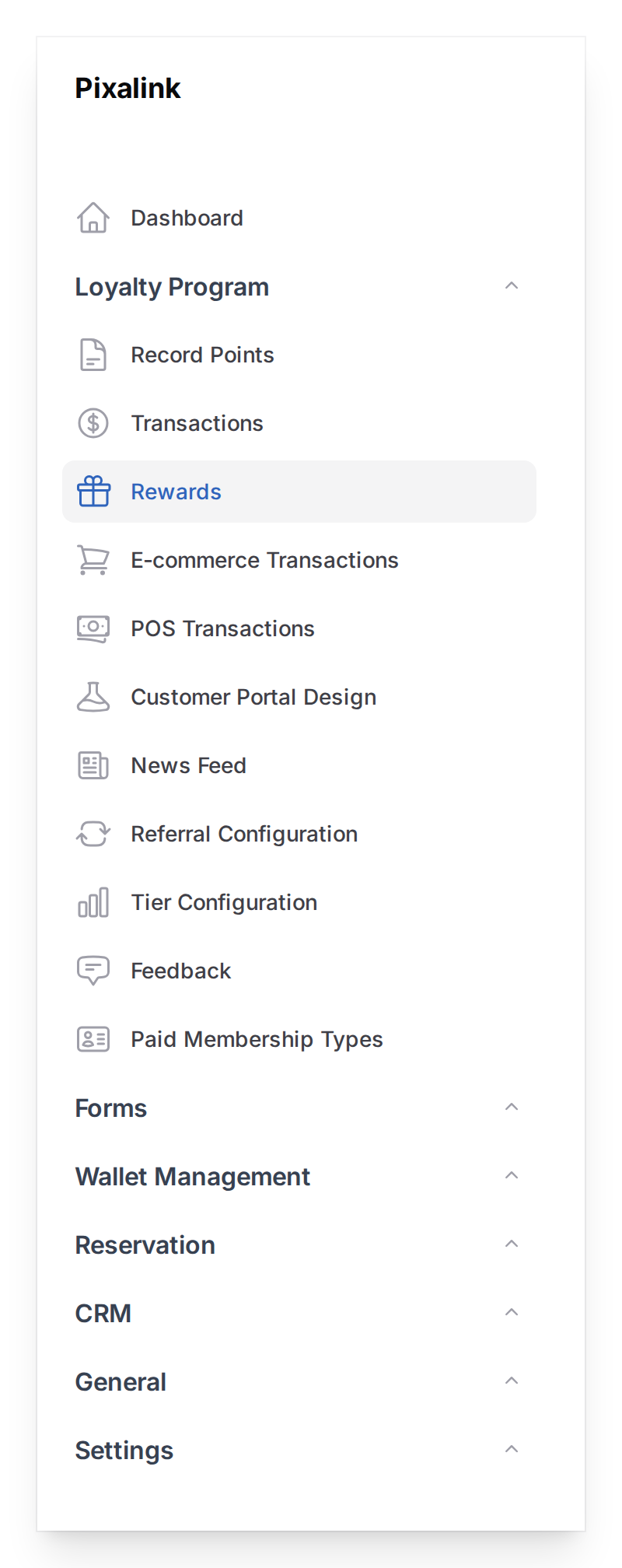
Go to Admin Panel → Loyalty Program → Rewards
-
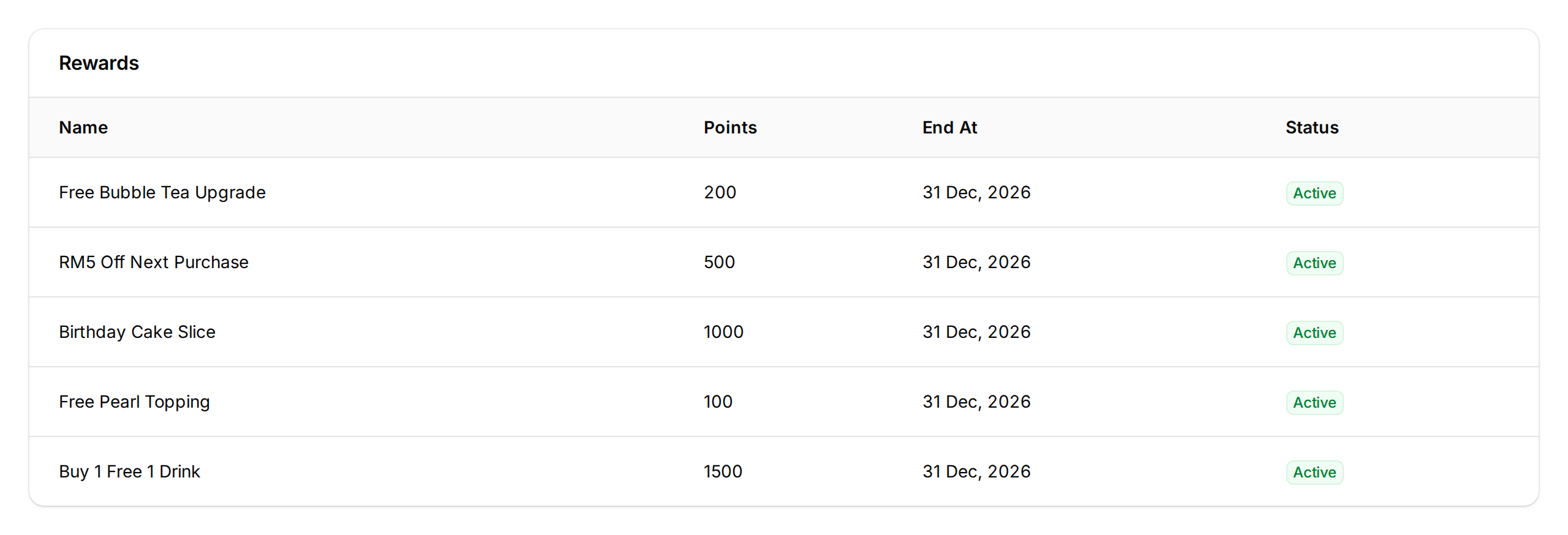
Click the up-and-down arrows icon at the top of the rewards table to turn on reorder mode
-
Drag each reward up or down using the handle on the left. Each move saves as you drop it. Click the tick icon at the top when you're done
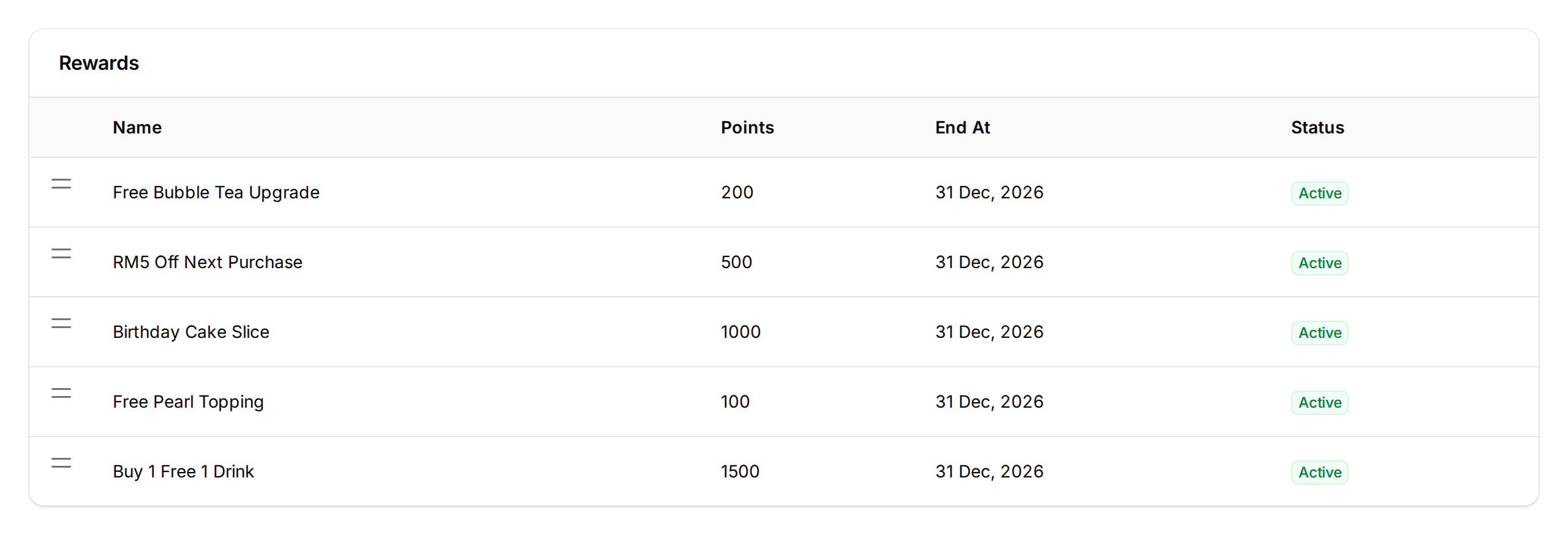
Your new order is saved straight away.
What Your Customers Will See
When a customer opens the rewards page, they see your rewards in the exact order you set. This is the Recommended sort and it's the default view — customers don't have to pick anything for this to happen.
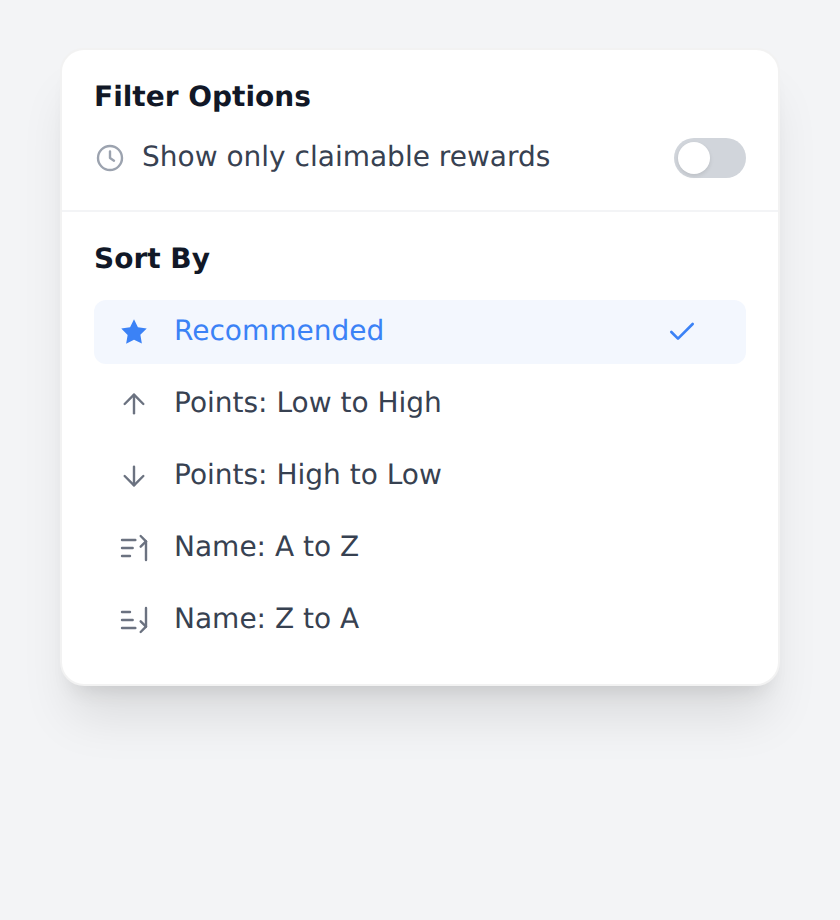
Customers can tap the filter icon to pick a different sort — by points or by name. But if they leave it on Recommended, they see the order you chose.
Good to Know
- The order is shared across your whole business — not per outlet.
- A brand-new reward shows up at the top of the list until you sort it. That's why the order can look like it "moves" on its own — it's the new reward, not the old ones.
- A copied reward goes to the bottom.
- Once you set an order it stays. You only need to re-sort when you add or copy a reward.
- The order only affects the Recommended sort. The other sorts go by name or points.
- Want customers to see your cheapest rewards first by default? Drag your rewards into points order (lowest at the top) — that becomes the Recommended view.
- Rewards that are hidden from a customer (for example, tier-locked rewards) are skipped — the rest stay in the order you set.
Need Help?
Can't find the arrows icon? Send us a message.