
How to See Who Changed a Voucher's Settings
What Is This?
Every voucher has its own Audit Log. It lists who created the voucher, who changed it later, when, and exactly what they changed. When a voucher's points, dates or rules change without warning, you can find out which staff account did it in under a minute.
Real-Life Example
Siti runs a beauty salon in Johor Bahru with three staff logins. One morning her "RM10 Off Facial" voucher suddenly costs 50 points instead of 200. Nobody remembers changing it. Siti opens the voucher's Audit Log and finds an "updated" entry from yesterday at 6:42 pm. The User column shows her part-time manager's account. She clicks View and sees the points went from 200 to 50. A quick chat sorts it out, and she fixes the points.
How to Set It Up
-
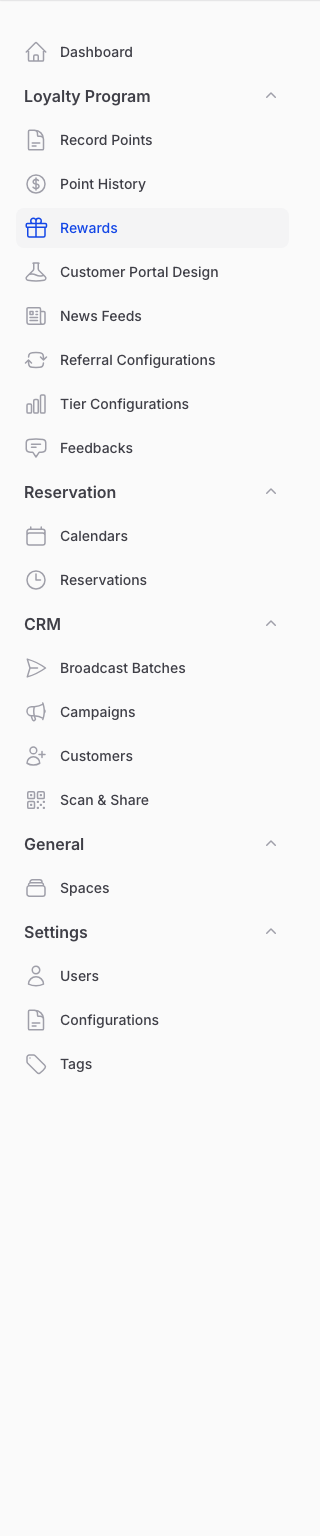
Go to Loyalty Program → Rewards in the sidebar.
-
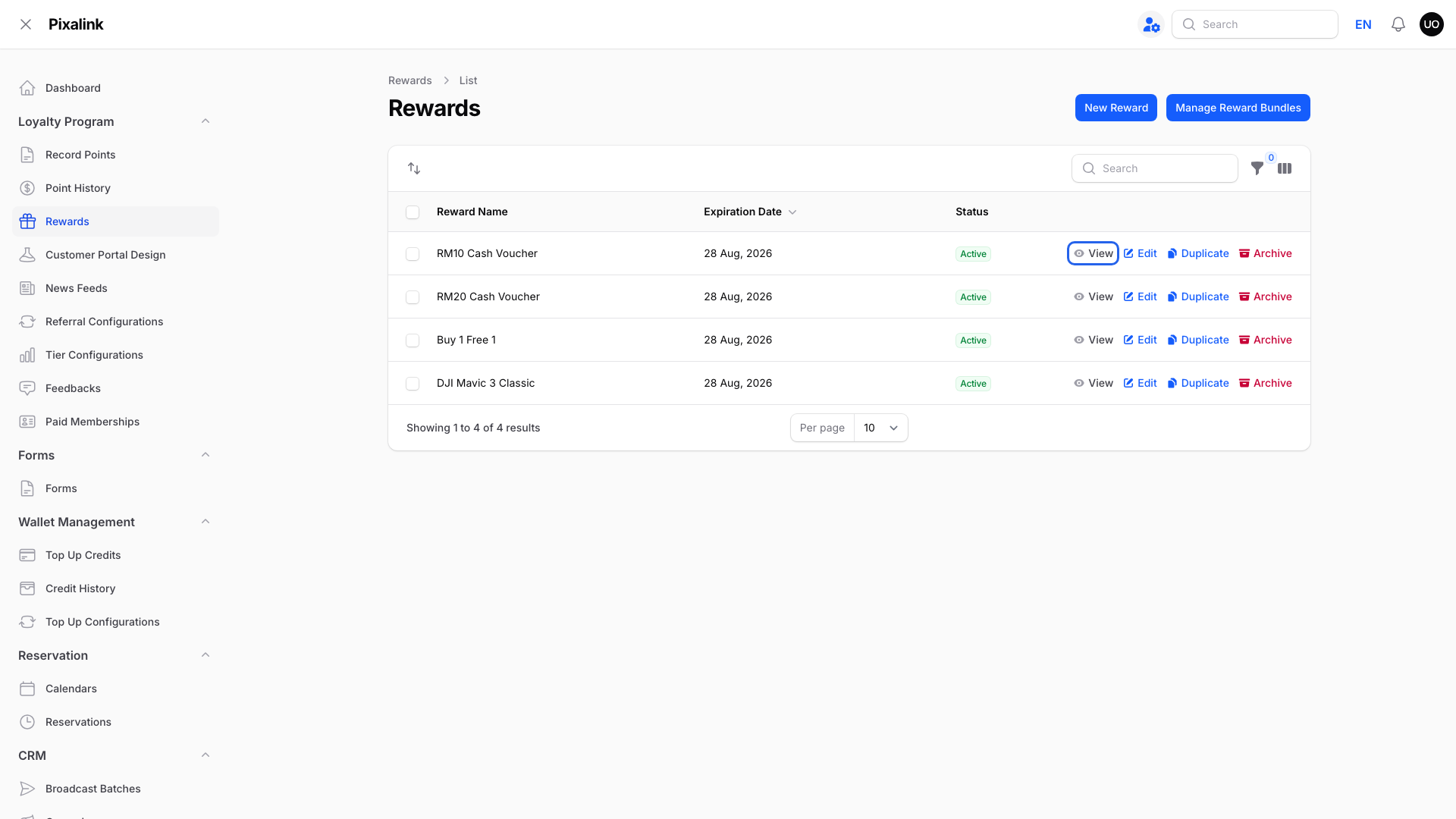
Click View on the voucher you want to check.
-
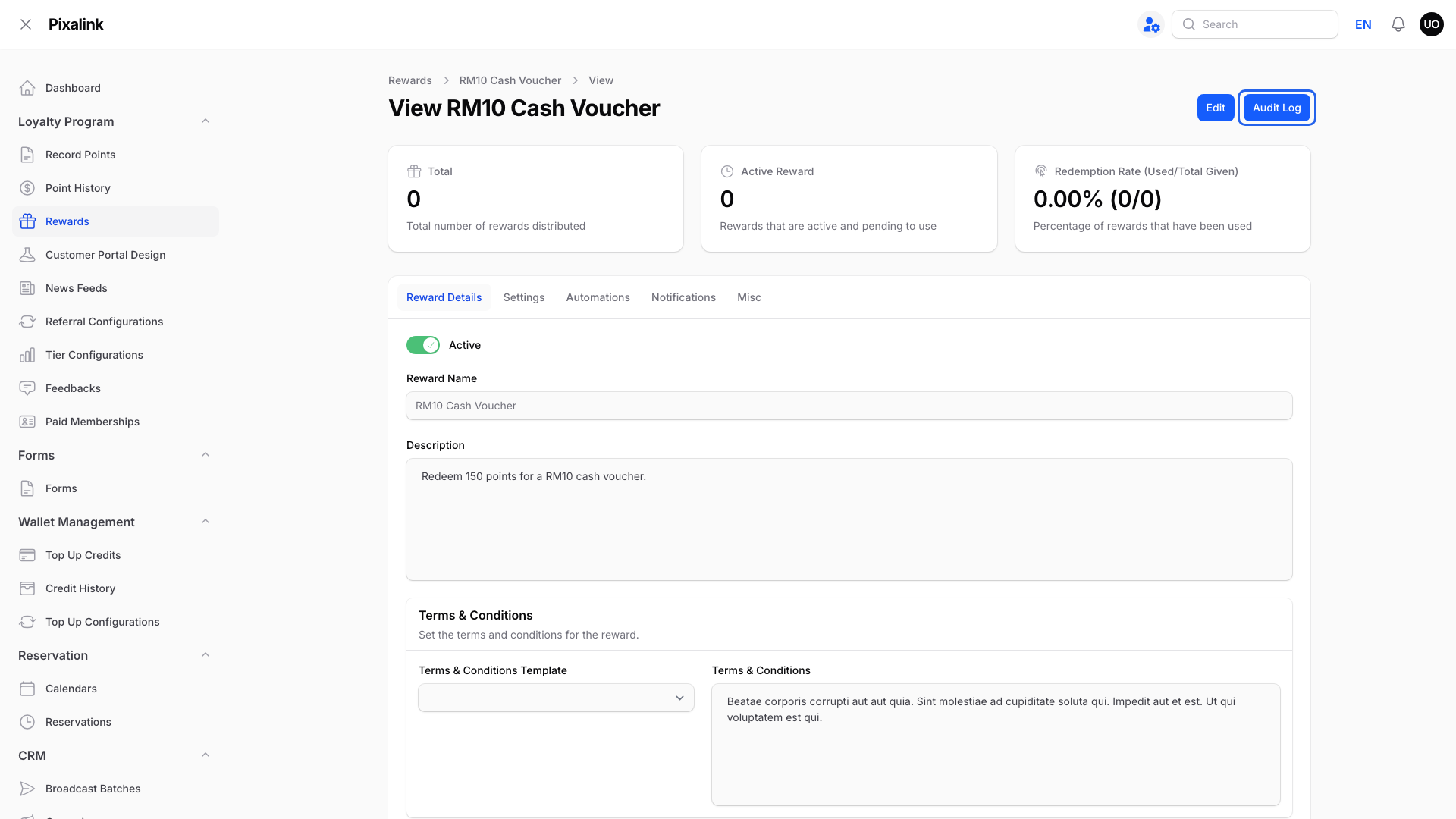
Click Audit Log at the top right. It opens in a new tab.
-
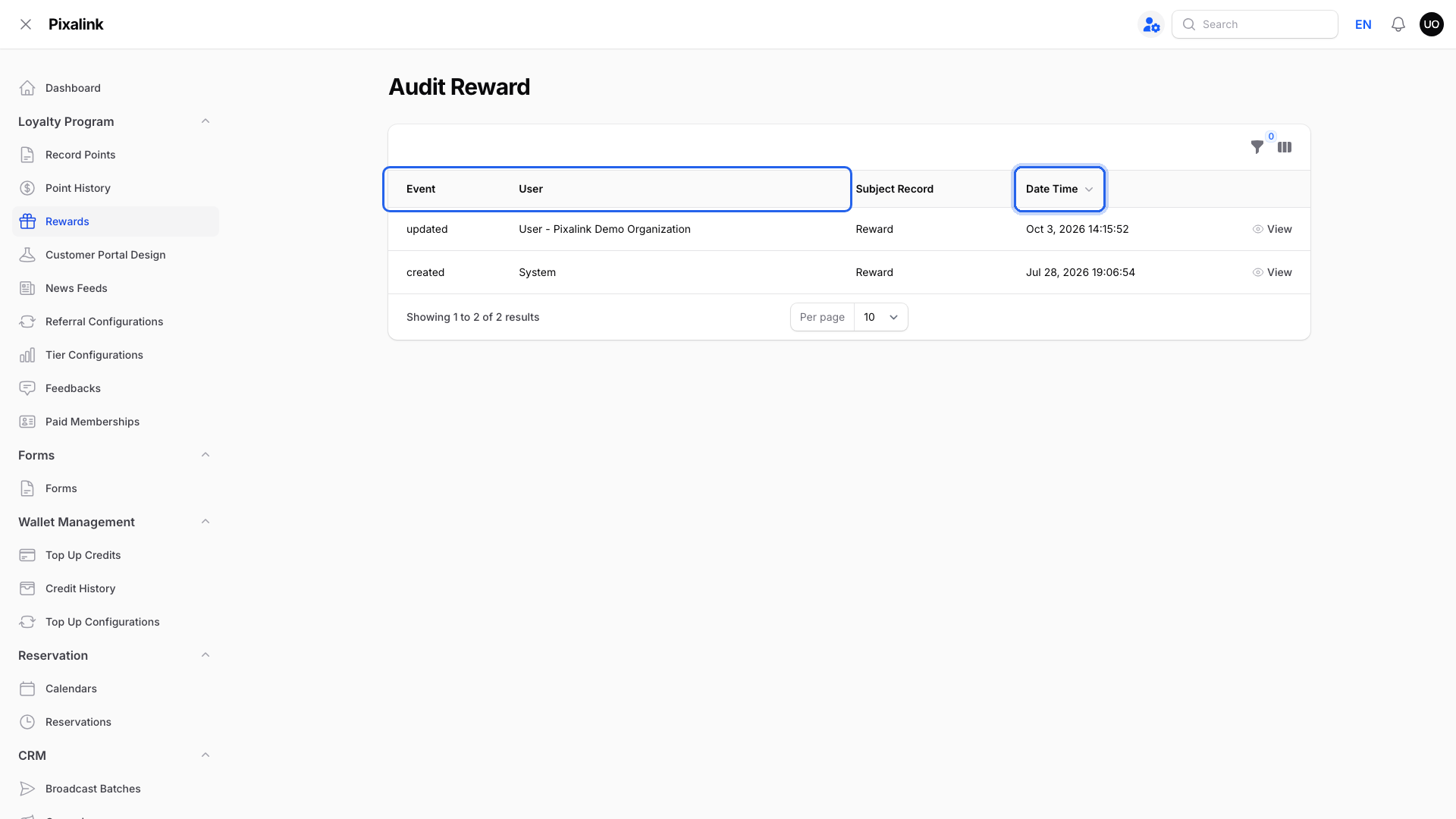
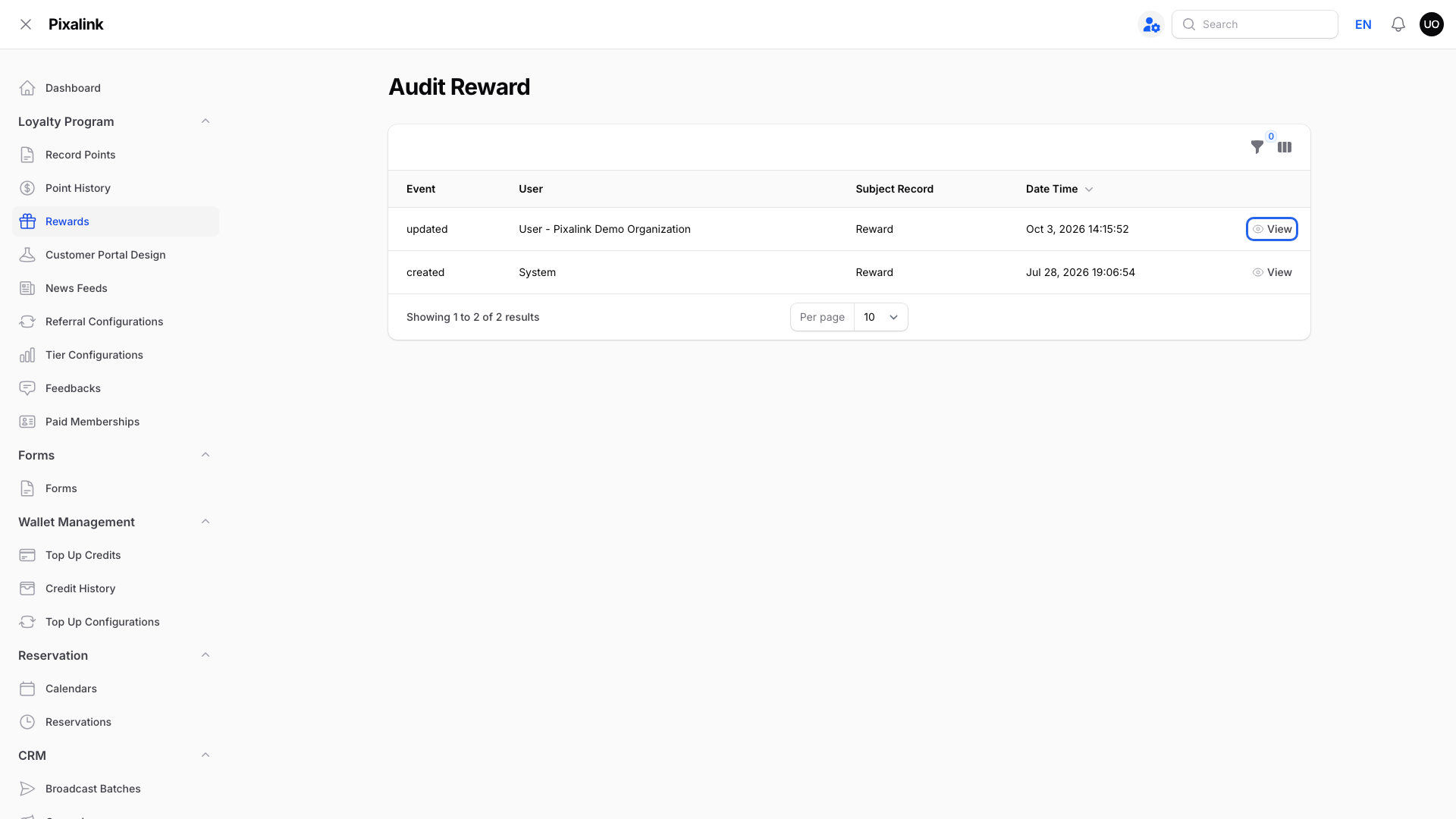
Read the Event, User and Date Time columns. The newest change is at the top.
-
Click View on a row to see exactly what changed.
-
Compare the two boxes. Old is the value before the change, and Attributes is the value after it. Here the voucher's points went from 150 to 100.
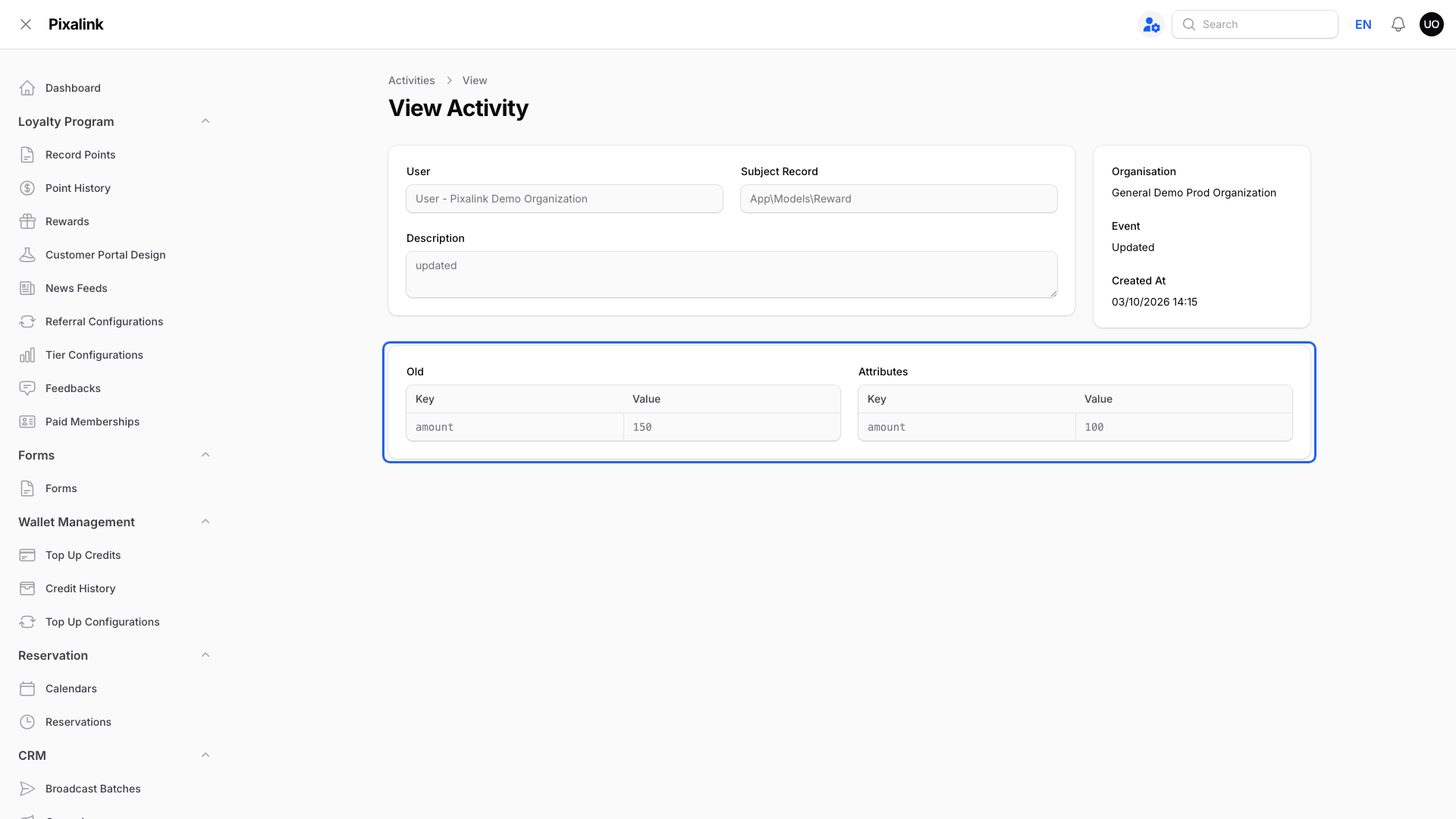
The Key column uses the system's name for each setting. For example, amount is Points to Redeem, name is the reward name and is_active is the Active switch.
How to read each row:
| You see | It means |
|---|---|
| Event: created, Subject Record: Reward | The voucher was first made by this user |
| Event: updated, Subject Record: Reward | This user saved a change to the voucher's settings |
| A staff name under User | The change was made from that login |
| Pixalink Support under User | Our team made the change for you |
| System under User | No staff login was involved, so it was an automatic change |
What Your Customers Will See
Nothing. The Audit Log is only for you and your team inside the admin panel.
Good to Know
- Only the last six months are shown. Older changes don't appear on this page.
- Other rows are not setting changes. Rows marked Transaction are points linked to this voucher, for example when a customer redeems it.
- Use the filter to narrow the list by user or date when a voucher has many entries.
- Give each staff member their own login. If everyone shares one login, the log can only show that shared name.
Need Help?
If an entry looks wrong or you can't open it, contact our support team with the voucher name and the entry's date and time.