
How to Read the Credits Dashboard and Export a Settlement Summary
What Is This?
The Credits dashboard shows how much credit each outlet sold, gave free and had spent in a period. Its settlement summary is a one-row-per-outlet file you can hand to finance or a mall for month-end.
This guide was split out of How to Export Credit History for End-of-Shift Tallies.
Real-Life Example
Wei Lin runs four bubble tea outlets, and two sit in a mall that settles credit spent there. She used to add up thousands of credit rows by hand each month. Now she opens the Credits dashboard and picks last month. She checks each outlet's share in the pie chart, then exports the settlement summary for the mall. Month-end takes ten minutes.
How to Set It Up
-
Click the panel switch icon in the top bar and choose Analytic.
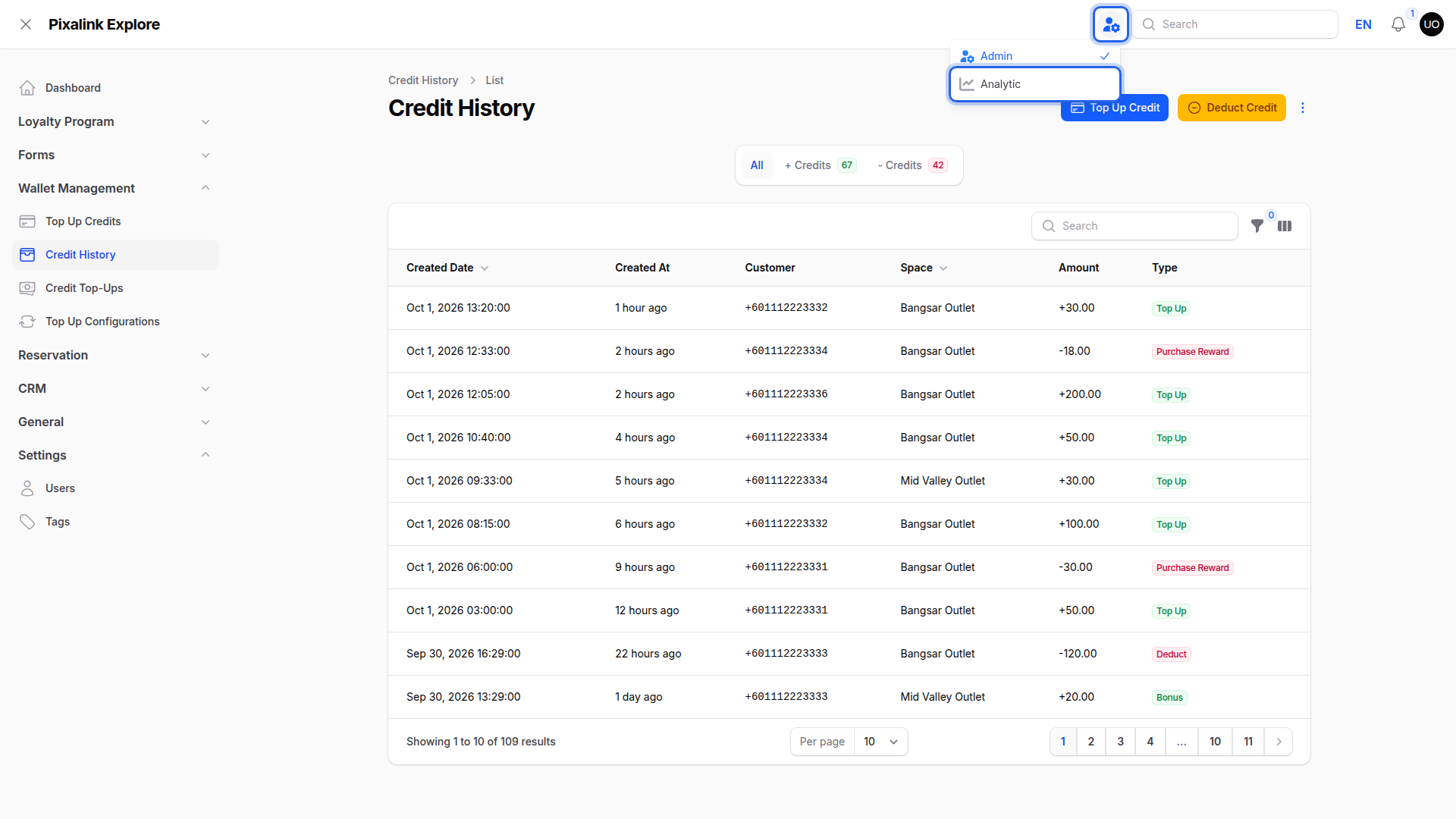
The icon sits left of the search box.
-
Go to Business performance → Credits, then set Date Range and Outlets.
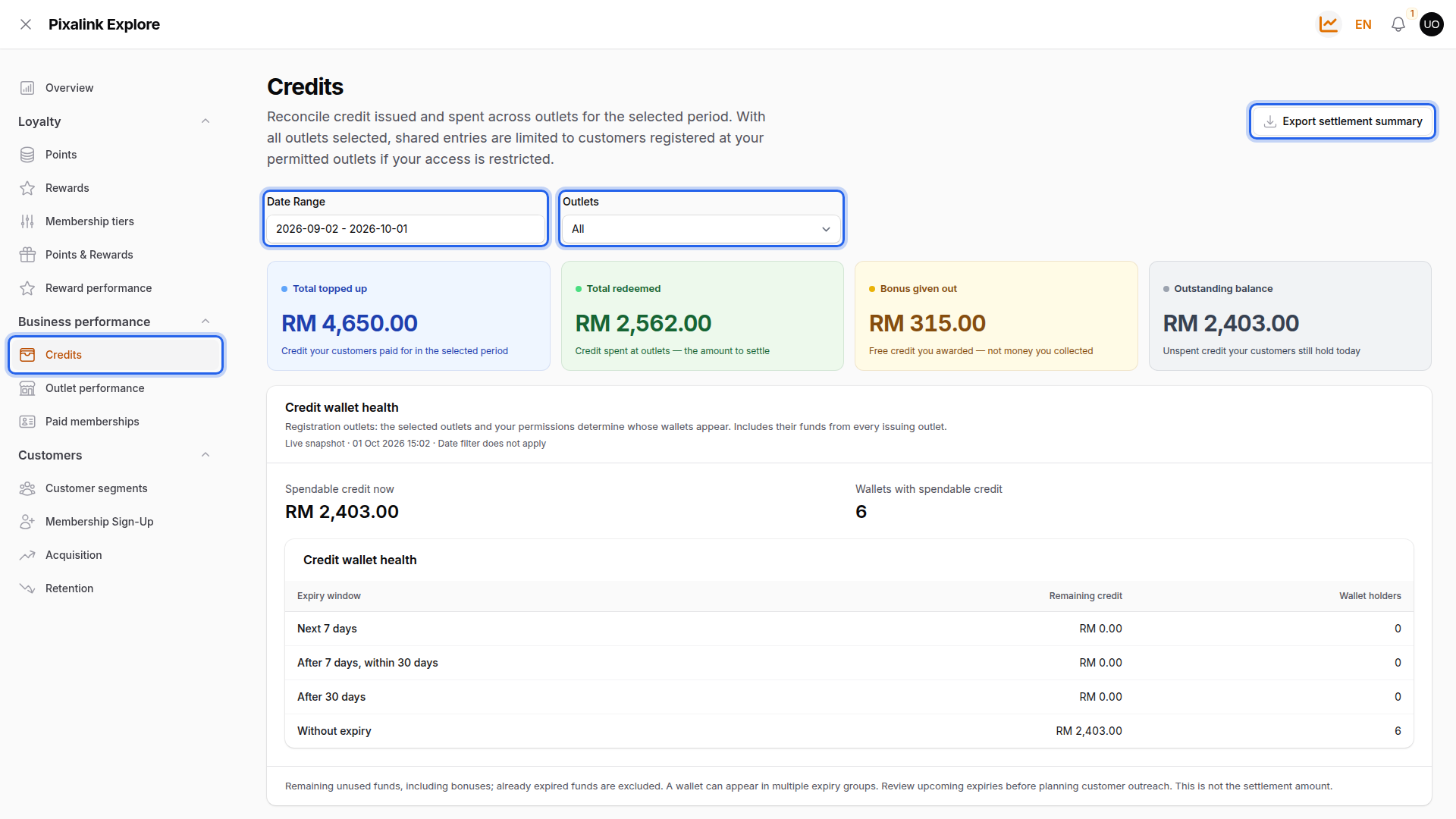
Leave Outlets on All to compare outlets side by side.
-
Read the dashboard.

The pie charts show only when Outlets is All.
- Total topped up is the value of recorded top-ups, including imported ones. Bonus given out is free credit, not cash collected.
- Outstanding balance and Credit wallet health show unspent credit right now, whatever the date filter. Outstanding balance also ignores the Outlets filter.
- Top-up contribution by outlet and Bonus contribution by outlet show each outlet's share. An Unassigned / Online slice holds credit not linked to an outlet.
-
Click Export settlement summary, check From date and To date, and click Export.
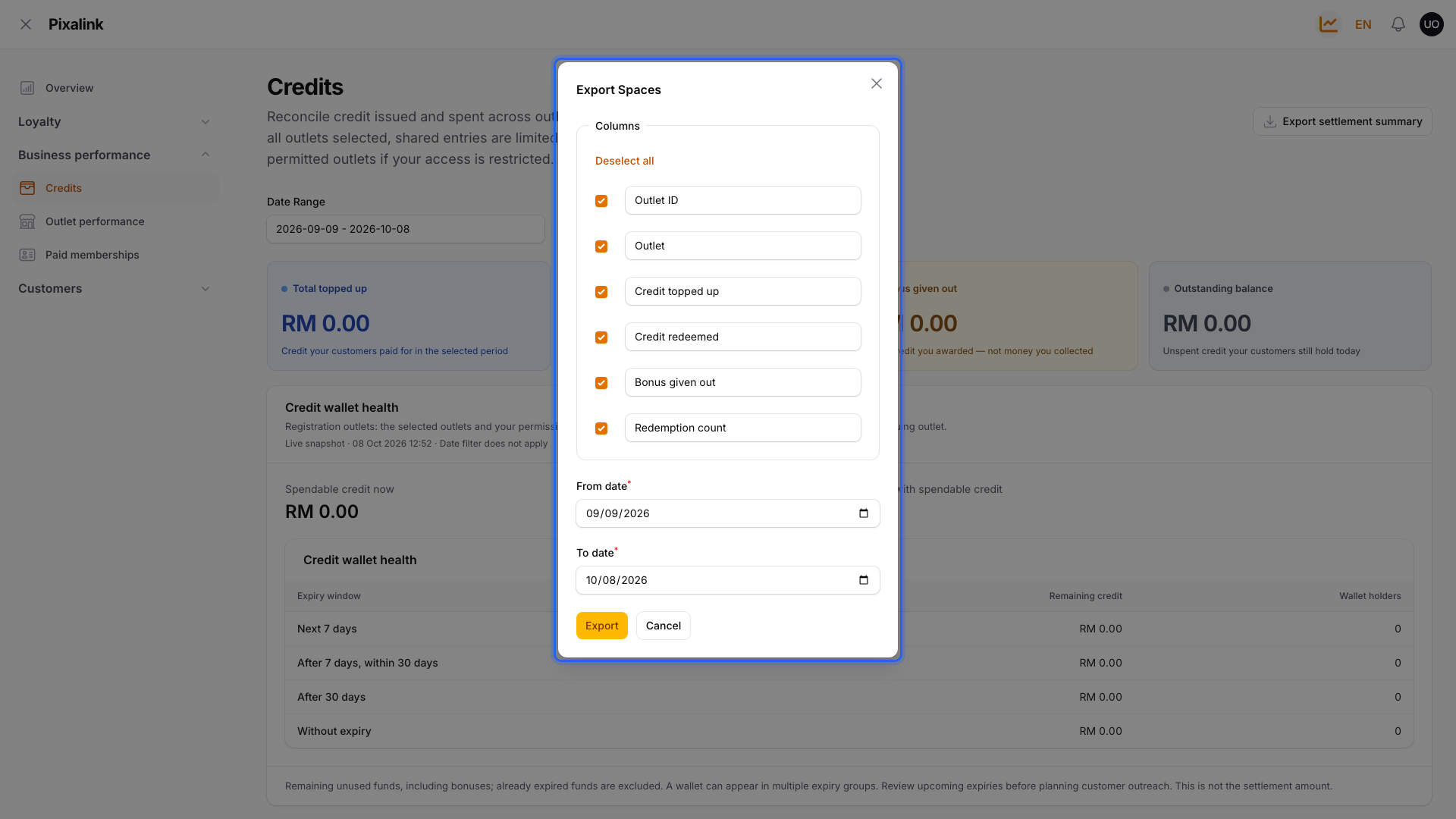
The dates start from the dashboard's Date Range. You can change them here.
-
Open the bell icon when the export is ready and download the file.

The same bell holds every export you run.
What Your Customers Will See
Nothing. The dashboard and the summary are for you and your team only.
Good to Know
- The summary has one row per outlet in your Outlets filter, with Credit topped up, Credit redeemed, Bonus given out and Redemption count.
- Credit not linked to an outlet isn't in the summary, so its totals can be lower than the dashboard.
- For each top-up with its exact time, export Credit History instead. See How to Export Credit History for End-of-Shift Tallies.
Need Help?
If you don't see Analytic in the panel switch, ask your account owner to check that your role can view dashboards. If it's still missing, ask the Pixalink team to turn on analytics for your account.