
How to Create a News Feed Item
What Is This?
News Feed items are cards that appear on your customer portal's home page. They can showcase promotions, link to specific pages within the portal, open external websites, or display pop-up announcements. Think of them as digital flyers pinned to your portal's bulletin board.
Video Walkthrough
Real-Life Example
Puan Liyana manages Glow Beauty Studio in Puchong. She creates three news feed items:
- A pop-up announcing their anniversary sale
- A card linking to the rewards page so customers can browse available rewards
- A card linking to their Instagram page to drive social media engagement
All three appear as attractive cards on the portal home page.
How to Create a News Feed Item
Step 1: Open the News Feeds Page
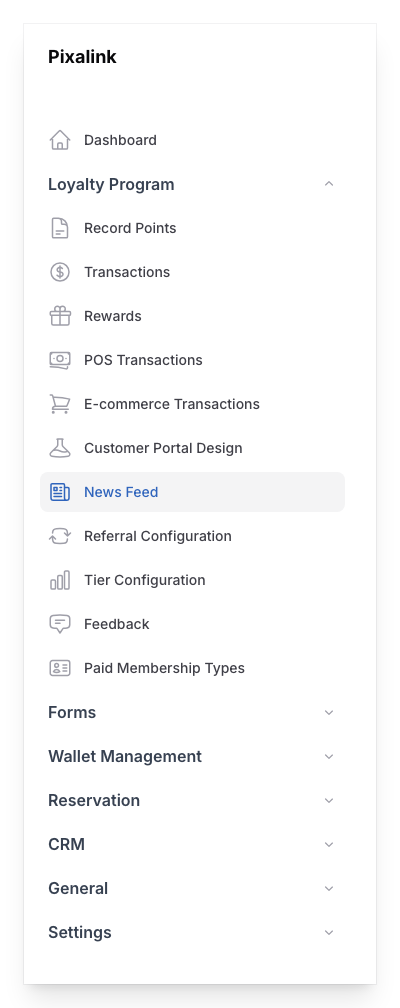
From the Admin Panel sidebar, go to Loyalty Program → News Feeds. Click Create.
Step 2: Choose the Type
Select the type of news feed item you want to create:
| Type | What It Does |
|---|---|
| Internal Navigation (Within Customer Portal) | Links to a page inside the customer portal (e.g., Reward Marketplace, Profile, Orders) |
| External Link | Opens an external URL (e.g., your website, Instagram, booking page) |
| Pop Up | Displays as a pop-up announcement overlay on the portal |

Step 3: Fill In Basic Details
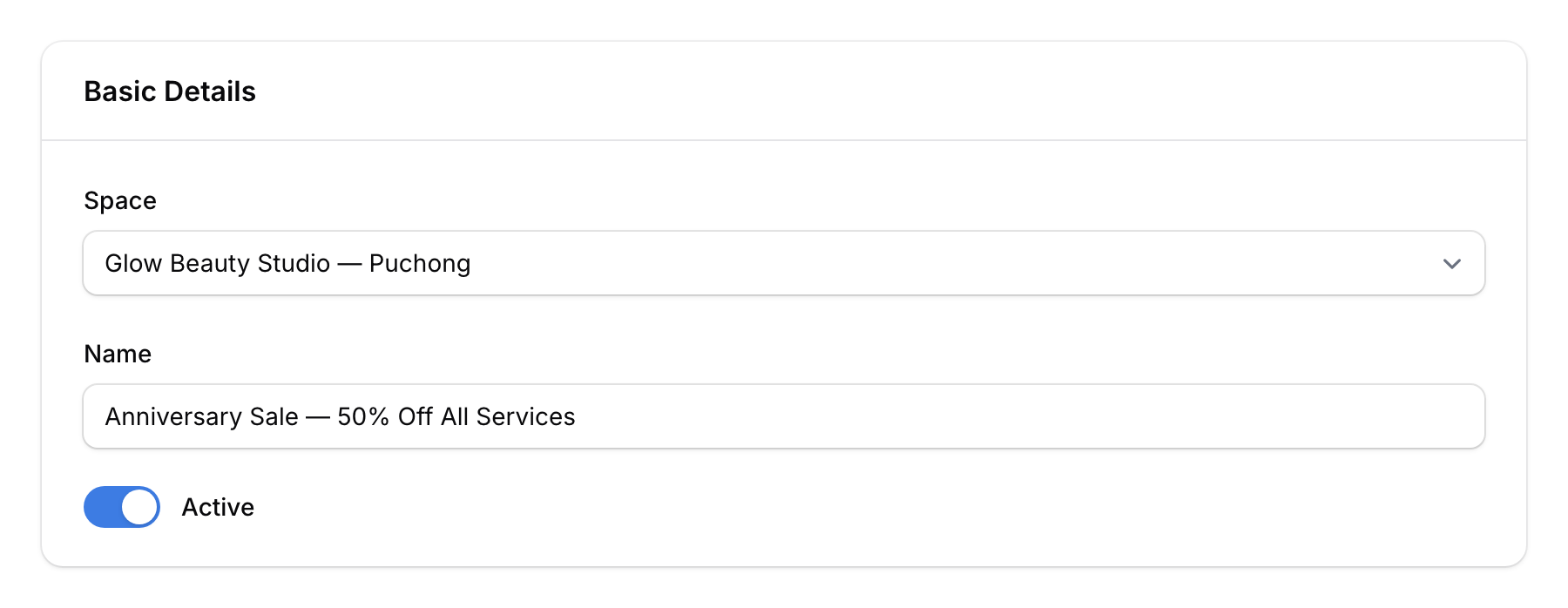
- Space — Select the outlet
- Name — Internal name for easy identification
- Active — Toggle on to make it visible
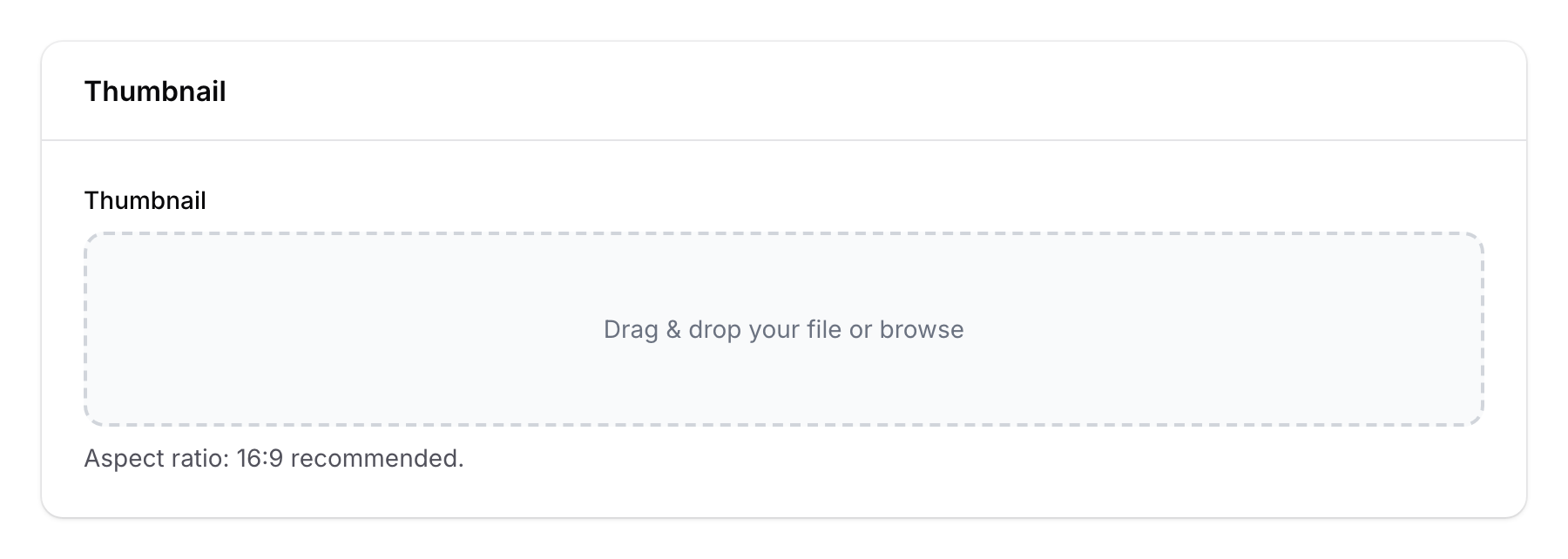
- Thumbnail — Upload an image (16:9 ratio recommended)
Step 4: Configure Type-Specific Settings
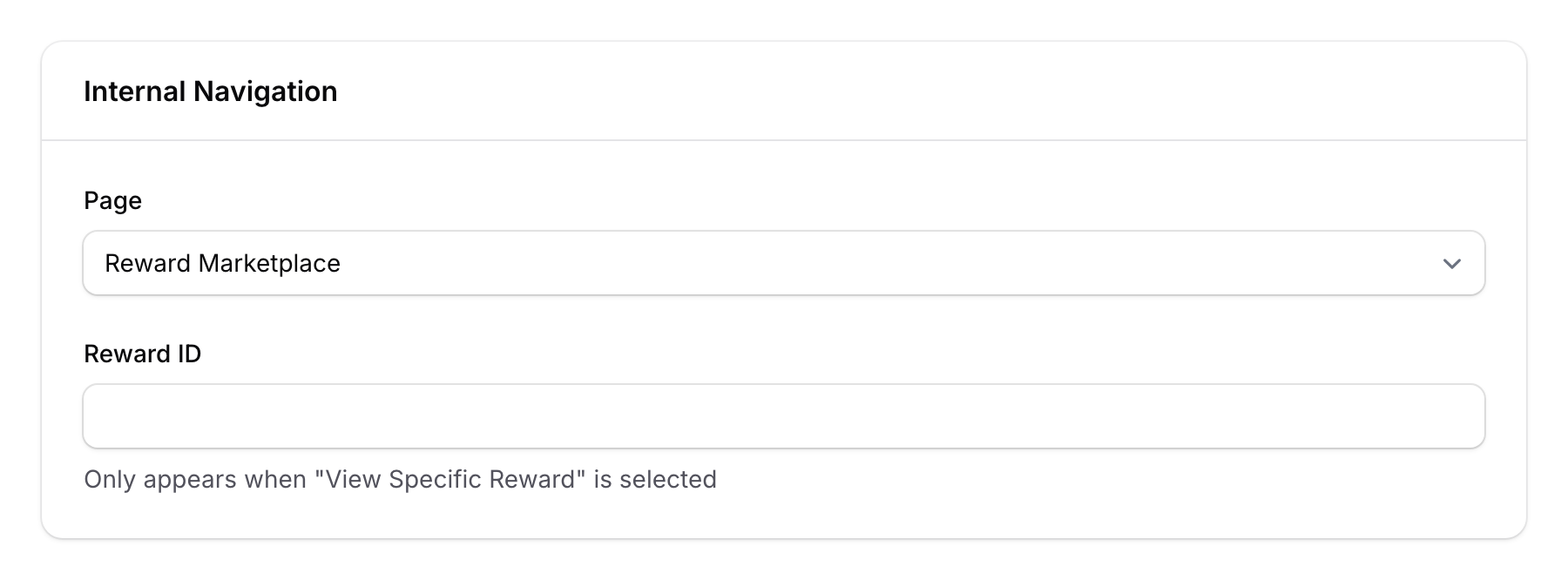
For Internal Navigation:
- Page — Choose which portal page to link to (Profile, Orders, Reward Marketplace, View Specific Reward, My Rewards, Points, Credits, Calendar, Referral, Feedback, My Reservation, Paid Membership, and more)
- Reward ID — Only appears when "View Specific Reward" is selected as the page
- Calendar ID — Only appears when "Calendar" (reservation) is selected as the page
For External Link:
- URL — Enter the full web address (e.g., https://instagram.com/your-business)
For Pop-up:
- Title — The pop-up headline
- Content — Rich text content with formatting options
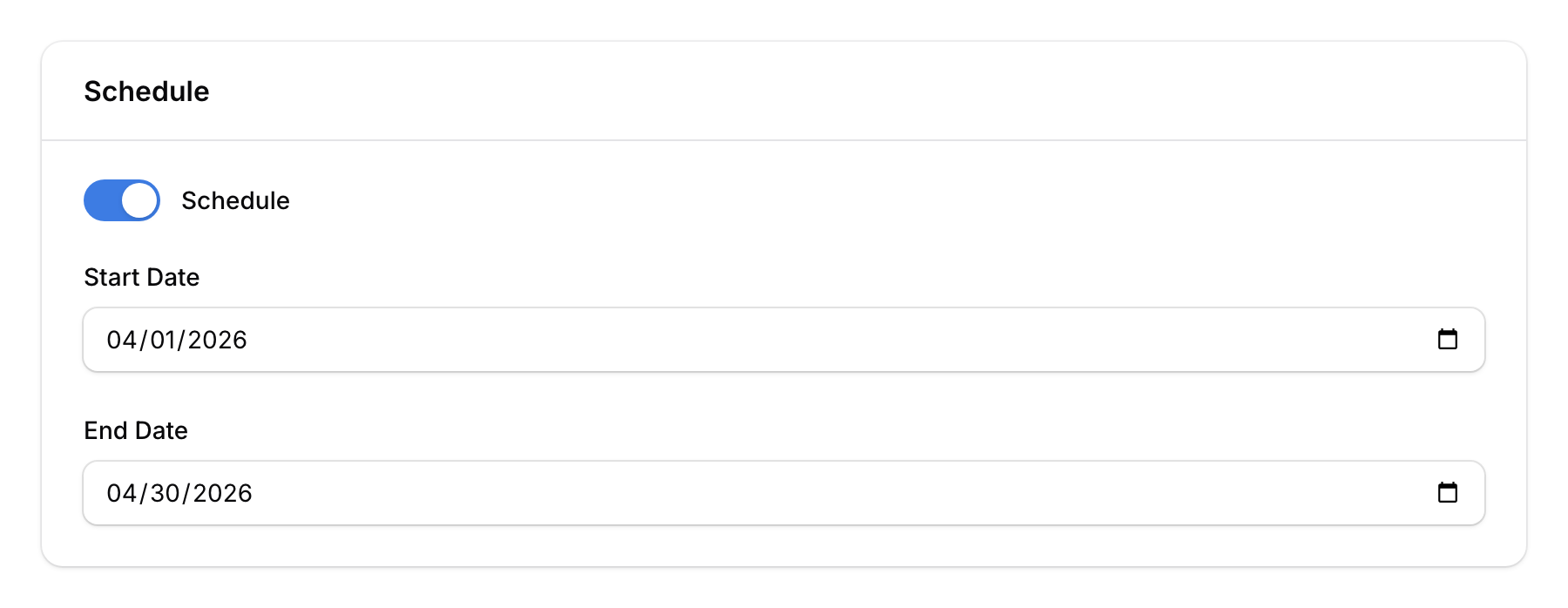
Step 5: Set Schedule (Optional)
Toggle Schedule on to set:
- Start Date — When the item becomes visible
- End Date — When it automatically hides
Leave the schedule off to display the item indefinitely.
Step 6: Save
Click Create to publish. The news feed item appears on your customer portal immediately (or at the scheduled time).

Good to Know
- Reorder items — Drag and drop news feed items to control their display order on the portal.
- Active toggle — Quickly show/hide items without deleting them.
- Scheduling is powerful — Plan an entire month of promotions in advance and let the system handle the rest.
- 16:9 thumbnails — This aspect ratio displays best on mobile phones, which is how most customers view the portal.
- Internal navigation options — You can link to: Profile, Orders, Reward Marketplace, View Specific Reward, My Rewards, Points, Credits, Calendar, Referral, Feedback, My Reservation, Paid Membership, Membership Terms, Membership Tier Benefits, Terms, Privacy Policy, and more.