
How to Set Up the Feedback Feature
What Is This?
The Feedback feature lets your customers share their thoughts, suggestions, and complaints directly through the customer portal. Every submission lands in your Admin Panel where you can read, review, and respond. It's your built-in customer satisfaction channel — no third-party survey tool needed.
Video Walkthrough
Real-Life Example
Dr. Tan runs Klinik Mesra in Ampang. After each visit, patients can tap the Feedback button on the portal and share their experience. Dr. Tan checks the Feedbacks page every morning — positive reviews help him know what's working, while complaints are addressed immediately. He even replies to urgent feedback directly via WhatsApp from the admin panel.
How It Works
No setup required — The Feedback feature is enabled by default on your customer portal. There are no settings to configure in the admin panel. This page is for viewing and responding to customer submissions.
For Customers (Portal Side)
Customers access the Feedback feature from the customer portal. They can:
- Write their feedback in a text box
- Optionally attach photos
- Submit the feedback
The submission is instant and the customer gets confirmation.
For Staff (Admin Panel Side)
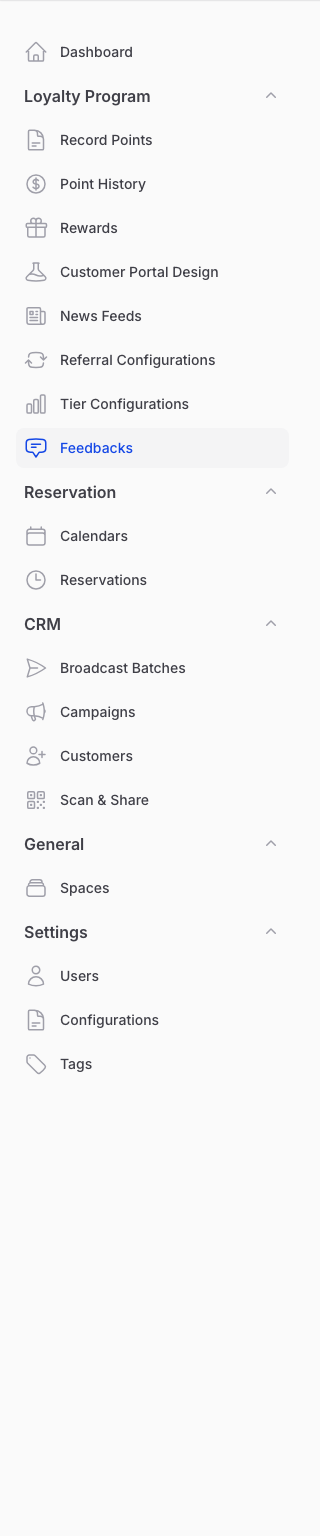
From the Admin Panel sidebar, go to Loyalty Program → Feedbacks to view all submissions.
Viewing Feedback
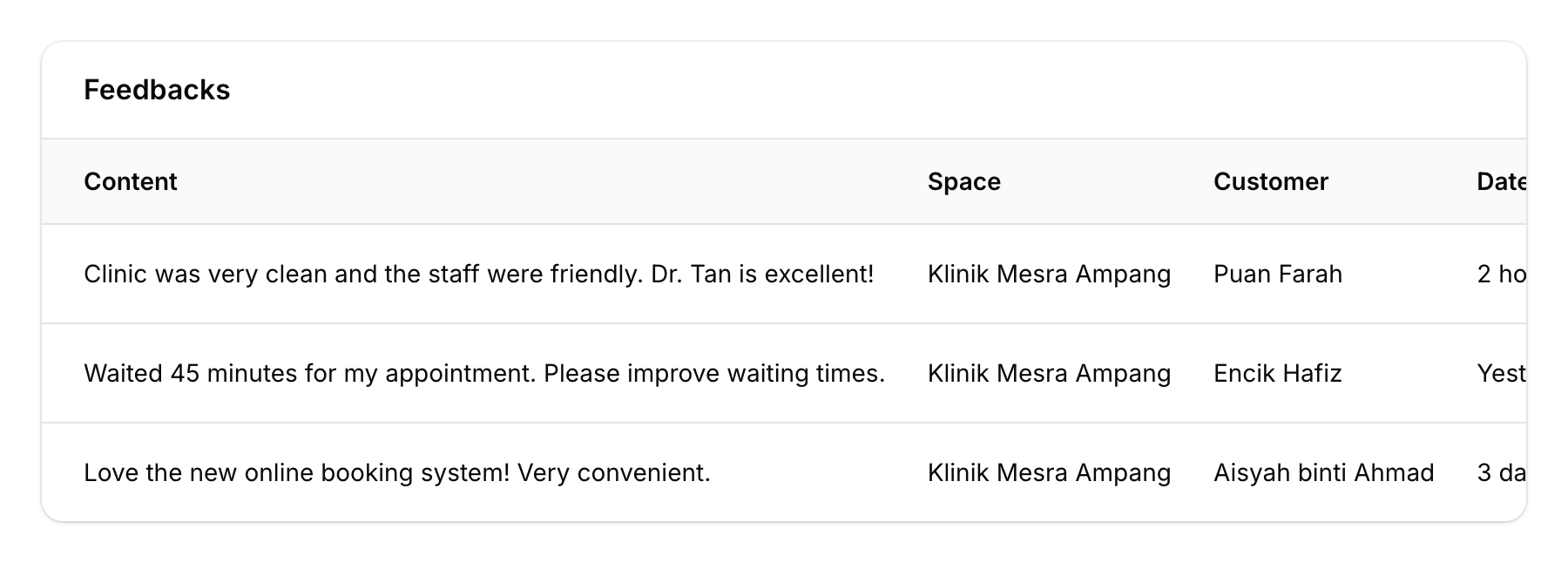
The Feedbacks list shows all submissions with:
| Column | Description |
|---|---|
| Content | The customer's feedback text |
| Space | Which outlet the feedback is about |
| Customer | Who submitted it |
| Date | When it was submitted |
Use the search bar to find specific feedback by content, customer name, or space.
Responding to Feedback
You can respond to feedback in two ways:
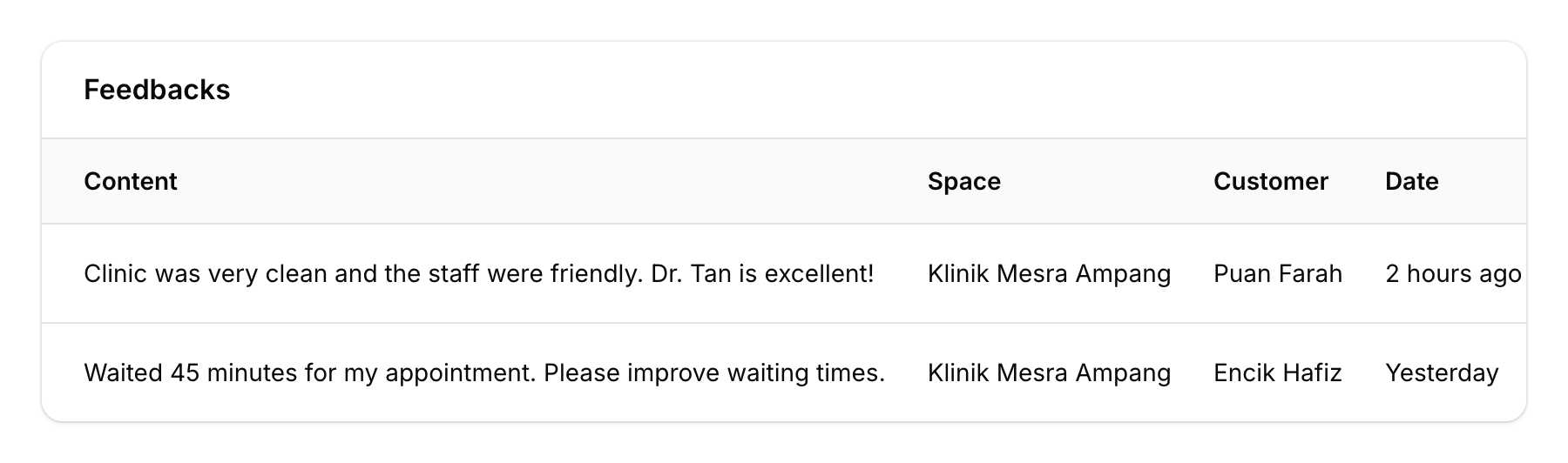
- Reply via WhatsApp from the list — Click the WhatsApp action button directly on any feedback row in the list. No need to open the record.
- View full details — Click on a feedback entry to see the complete text, attached images, and any custom fields.
Setting Up Feedback on the Portal
The Feedback feature is available on the customer portal by default. Customers can access it through:
- The portal navigation menu
- A Quick Link button (if you've configured one)
- A News Feed item (if you create one linking to the Feedback page)
To make feedback more prominent, consider adding a Quick Link to the feedback page on your portal home screen.
Good to Know
- Read-only in admin — The Feedbacks page is primarily for viewing. Customer feedback flows from the portal to the admin panel, not the other way around.
- WhatsApp replies — You can respond directly via WhatsApp without leaving the admin panel.
- Custom fields — If your organisation has set up custom fields for feedback, they'll appear as additional information on each submission.
- Images supported — Customers can attach photos to their feedback (useful for reporting issues like damaged products or cleanliness concerns).
- Per-space feedback — If you have multiple outlets, feedback is automatically tagged with the space it came from, so you can track satisfaction by location.