
How to Add Posts
What Is This?
Posts are blog-style content pages attached to your space. They're perfect for sharing news, promotions, stories, recipes, or any content you want customers to read. Each post has a title, thumbnail, banner image, and a full rich-text body with formatting and file attachments.
Real-Life Example
Chef Arif from Dapur Arif in Subang writes a weekly post about his new menu items. He adds a mouth-watering thumbnail, writes about the ingredients and inspiration behind each dish, and publishes it on the portal. Customers love reading about the story behind their food.
How to Add a Post
Step 1: Open the Posts Page
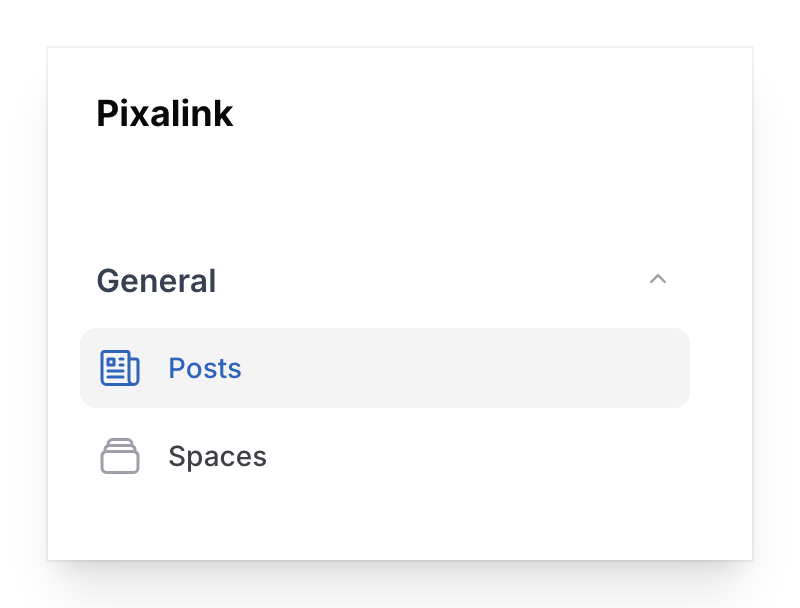
From the Admin Panel sidebar, go to General → Posts. Click Create to start a new post.
Step 2: Fill In Post Details
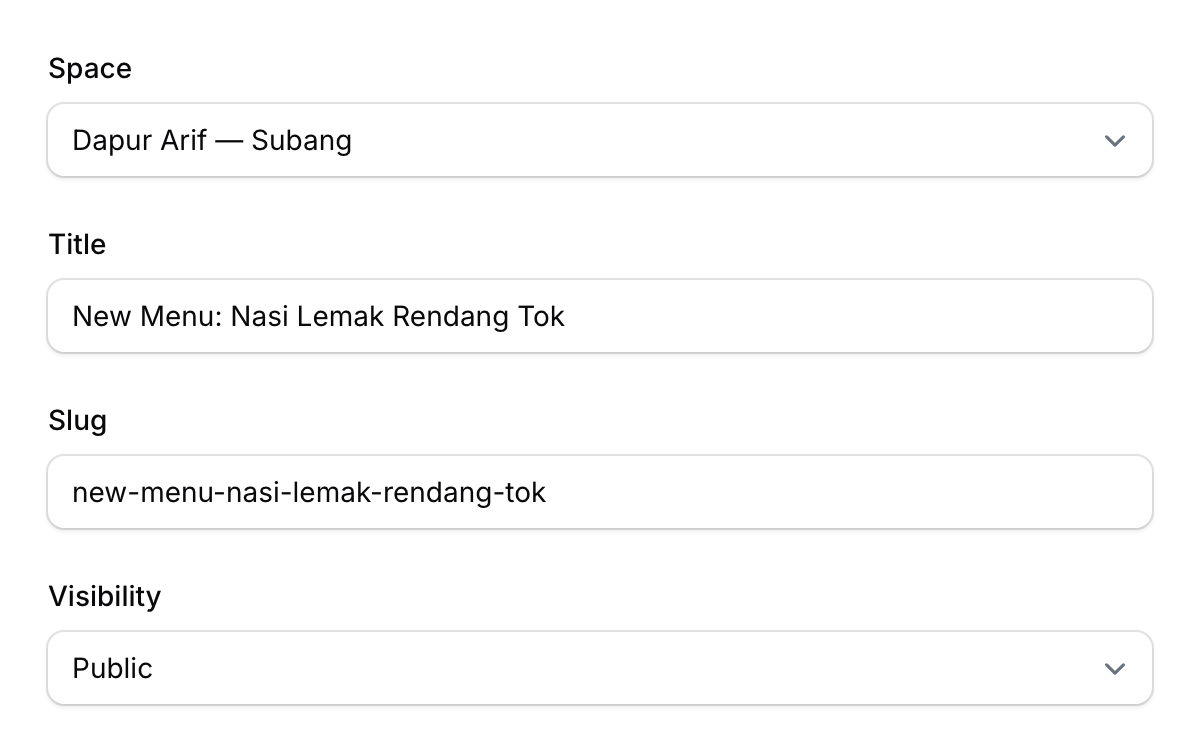
- Space — Select which outlet this post belongs to
- Title — Your post's headline
- Slug — Auto-generated from the title (used in the URL). Must be unique per space.
- Visibility — Choose who can see the post:
- Public — Everyone can see it
- Private — Only logged-in customers
- Hidden — Not listed but accessible via direct link
- Draft — Not published yet
Step 3: Upload Images
- Thumbnail — The card image shown in post listings (16:9 ratio, required)
- Banner — The header image at the top of the post (4:1 ratio, required)
Both fields include a built-in image editor for cropping.
Step 4: Write Your Content
- Description — A short summary shown in listings
- Body — The full post content using a rich text editor. You can:
- Format text (bold, italic, headings, lists)
- Add links
- Embed images
- Attach files
- Maximum 65,535 characters
Step 5: Save
Click Create to publish your post. It appears on your space's portal based on the visibility setting.
Good to Know
- Slugs must be unique — Each post within a space needs a unique slug. The system generates one from the title, but you can edit it.
- Draft mode — Use Draft visibility to work on a post without publishing it. Switch to Public when ready.
- Image ratios matter — Thumbnails are 16:9 (landscape) and banners are 4:1 (ultra-wide). Upload images close to these ratios for best results.
- Rich editor — The body editor supports file attachments, so you can include PDFs, documents, or additional images within the post.