
How to Add a Product to Your Online Shop
How to Add a Product to Your Online Shop
What Is This?
Products are the items customers buy from your shop in the customer portal. You add a product once, then set its price, its sizes, and which outlets sell it. Everything stays in one place, so your menu never drifts apart between outlets.
Real-Life Example
Aishah runs Boba Lab, a bubble tea shop in Petaling Jaya. She has just opened a second outlet in Bangsar, where the rent is higher. Her drinks come in two sizes, and each size has its own price. She adds Classic Milk Tea once and lists Regular and Large as options. For Bangsar she adds a single row with a price of RM9.90 and a stock count. Customers at each outlet now see the right price, and Aishah keeps one menu instead of two.
How to Set It Up
-
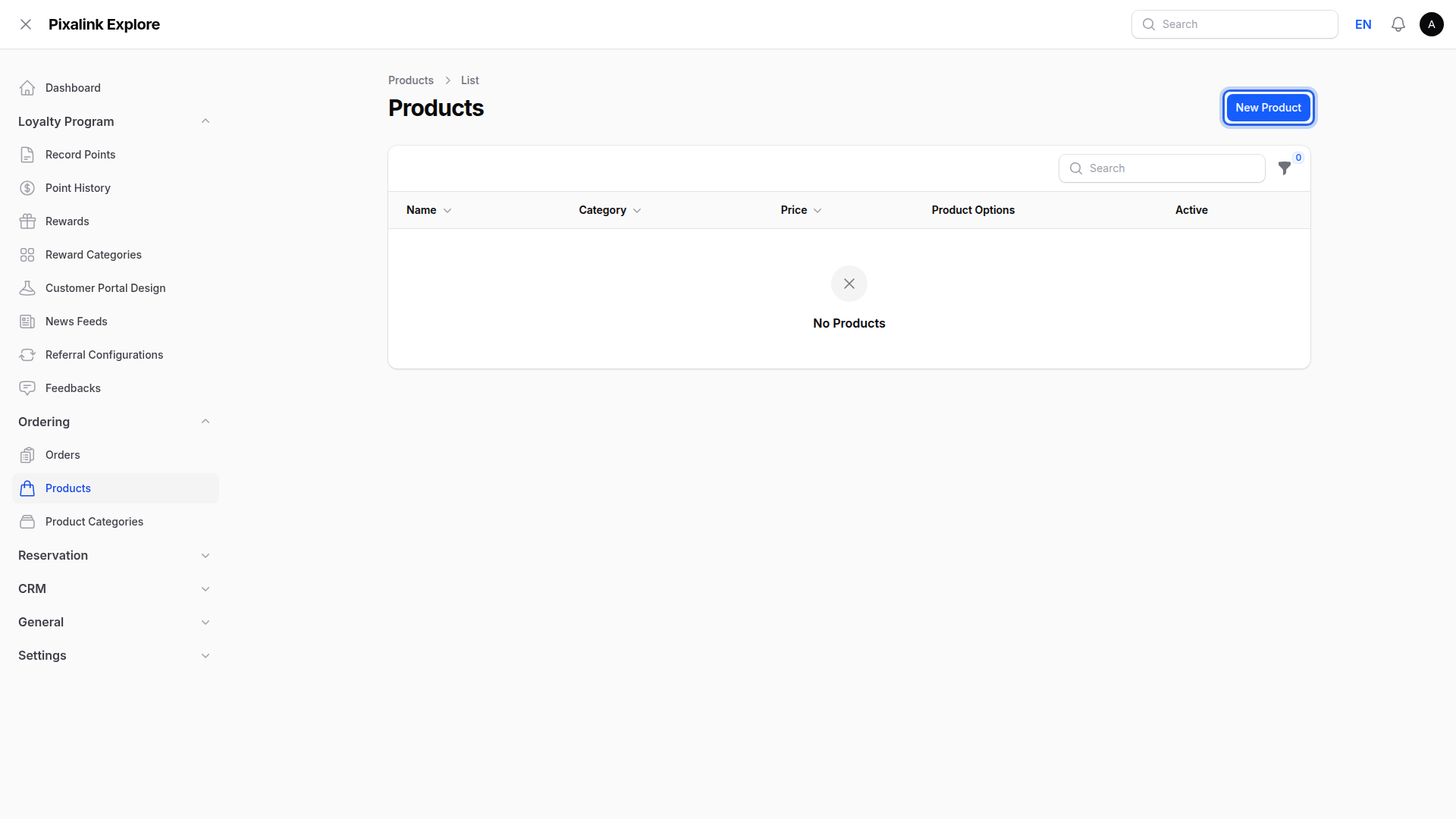
Go to Admin Panel → Ordering → Products, then click New Product.
-
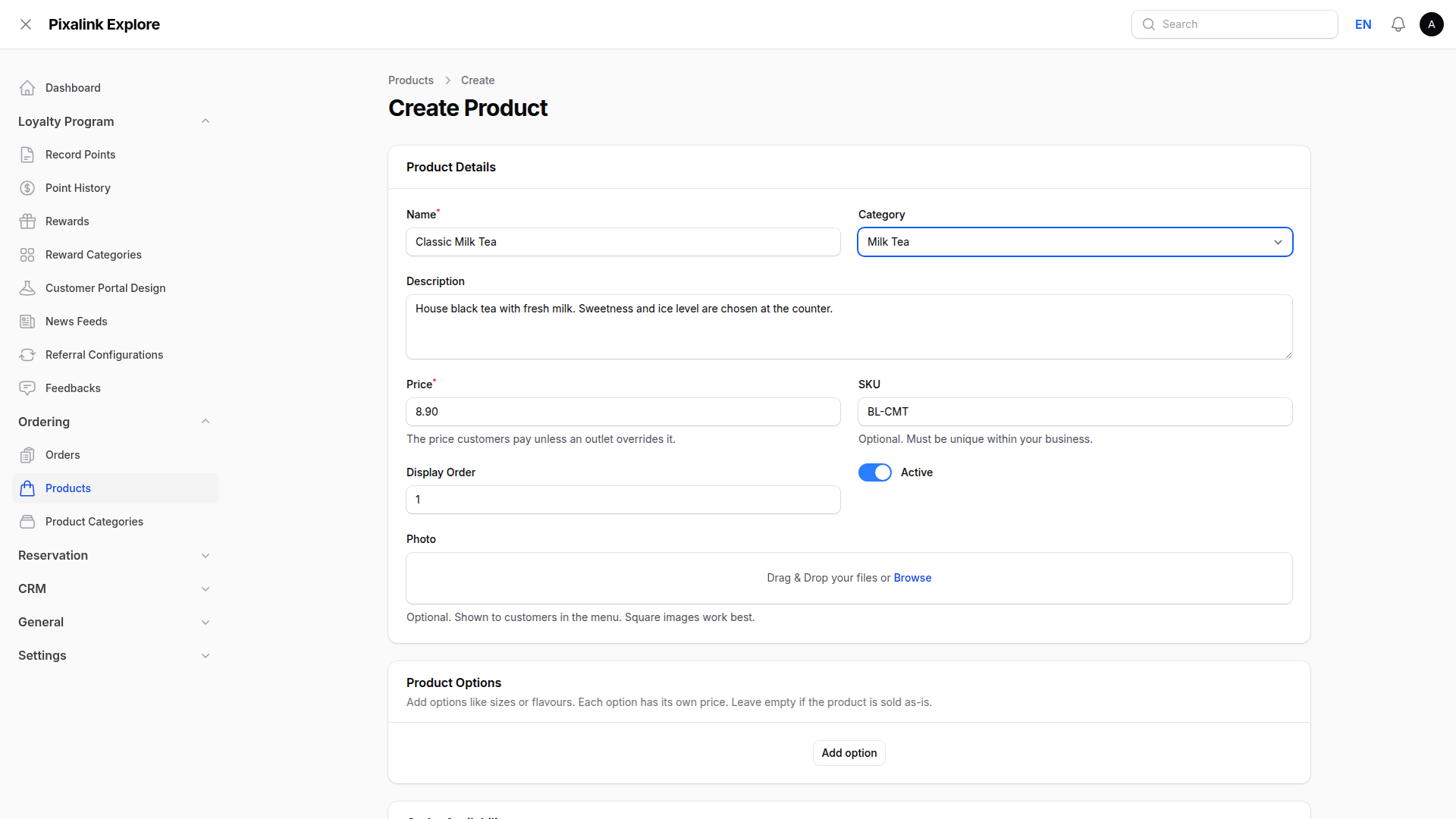
Fill in Product Details. Name and Price are the only ones you must give. A category, a short description and a square photo help customers choose.
-
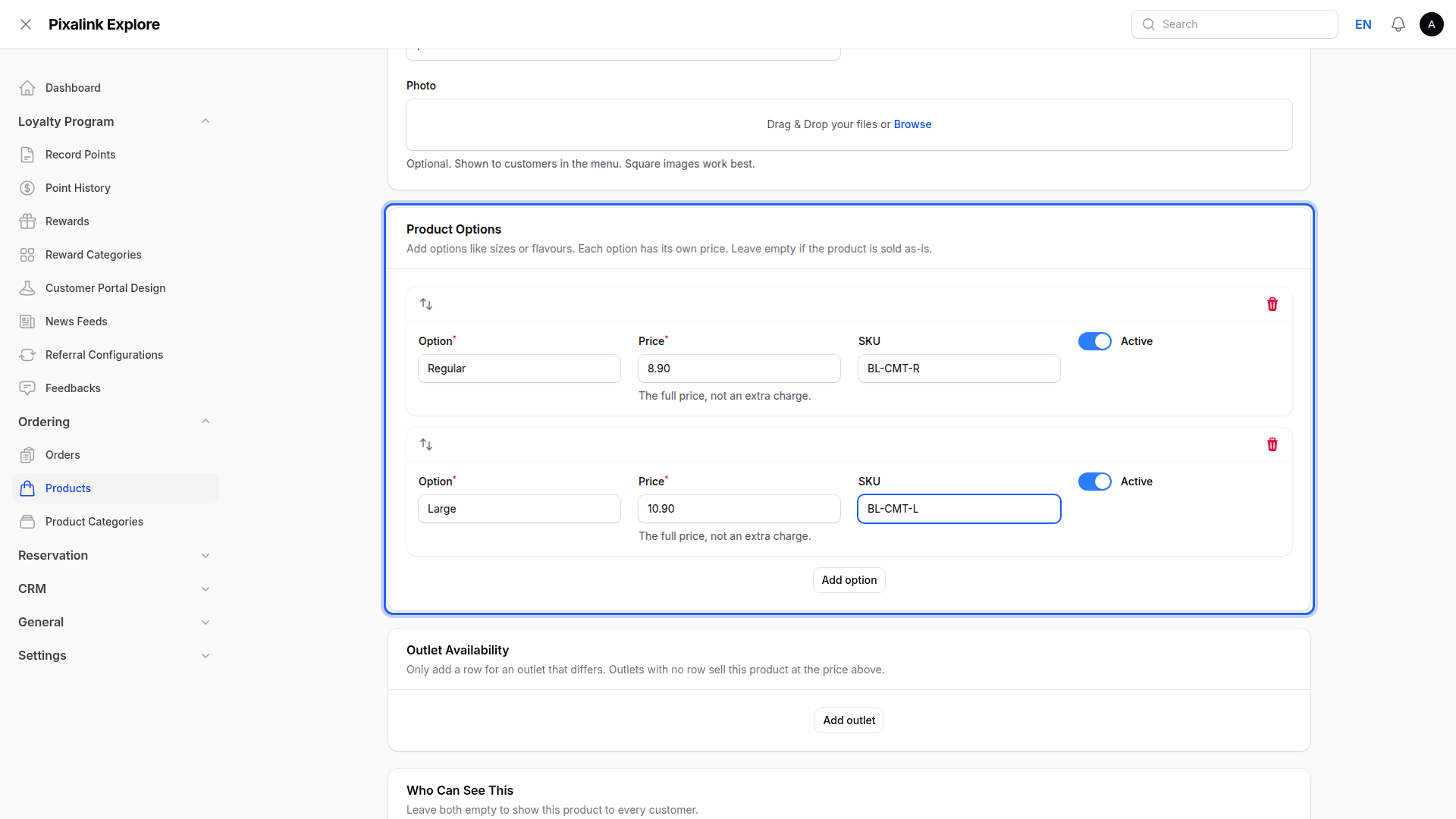
Add sizes or flavours under Product Options. Each option carries its own full price, not an extra charge. Leave this empty if the item is sold as-is.
-
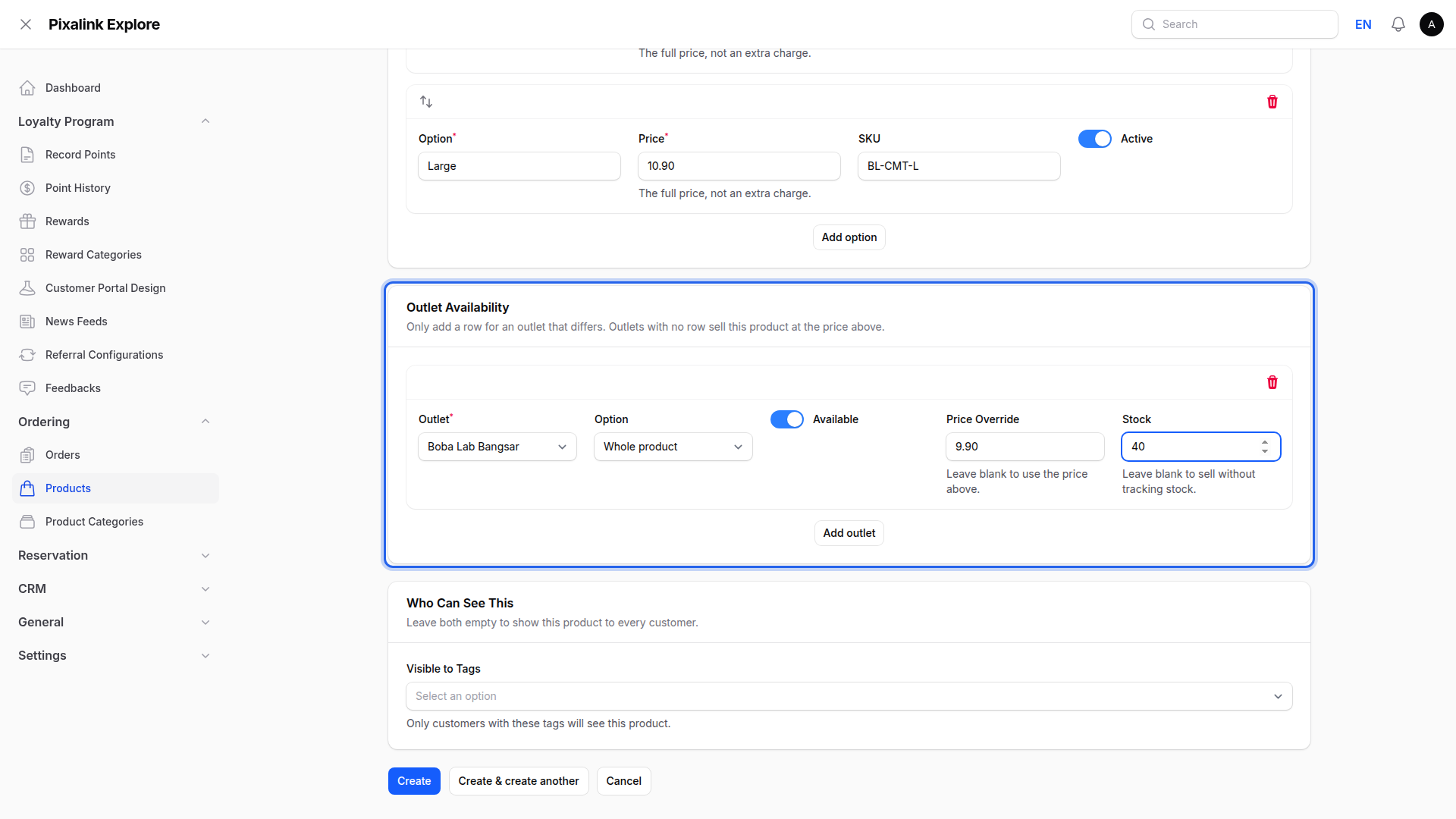
Add a row under Outlet Availability only for an outlet that differs. Use it to change the price, hold stock, or switch the item off at that outlet.
-
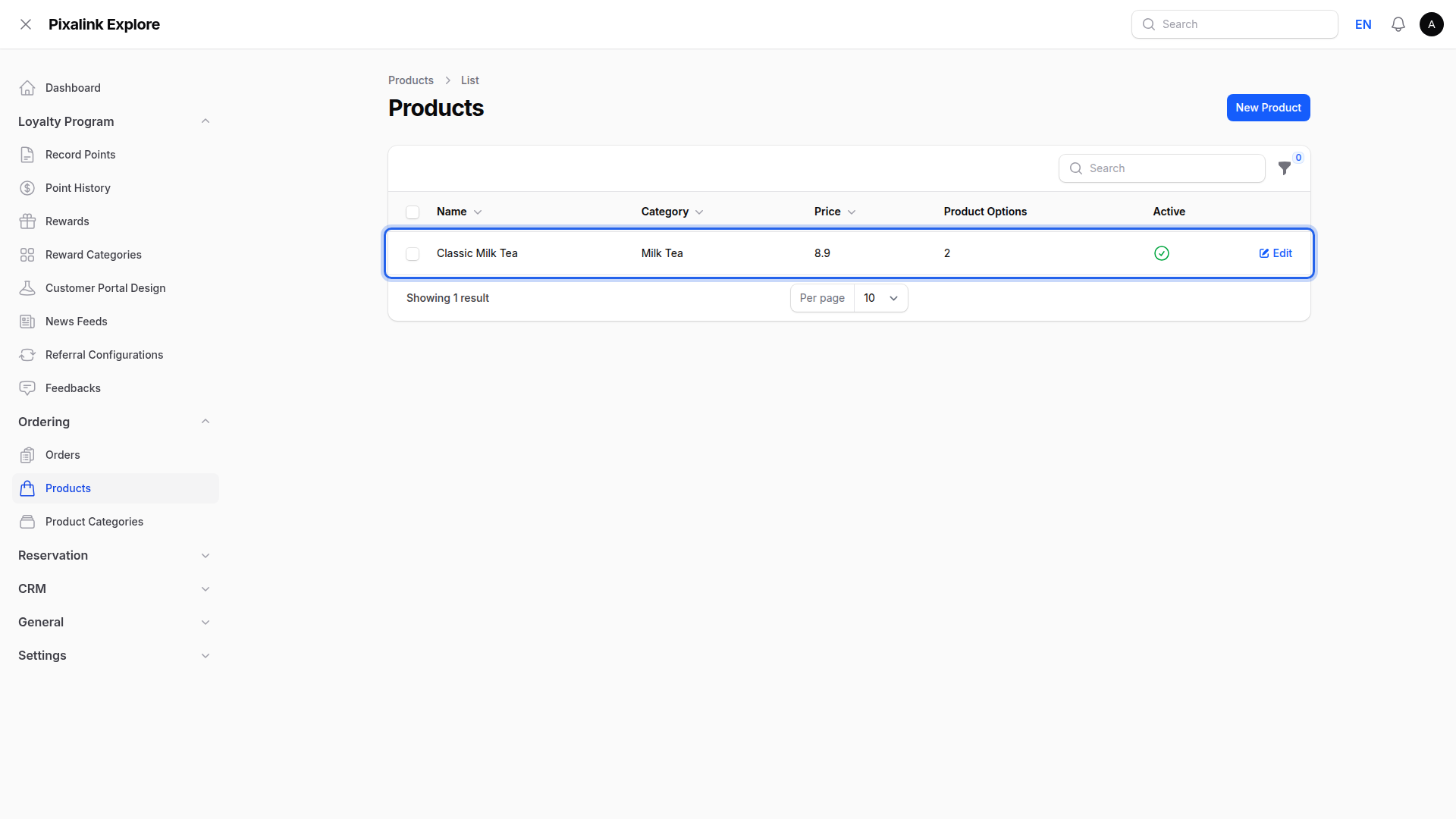
Click Create. Your product now appears in the list with its category, price and option count.
What Your Customers Will See
Customers browse your products in the shop inside the customer portal. An outlet with no row of its own sells the item at the price you set in Product Details. Where you added a row, that outlet uses your price override and respects the stock you left. Switching Active off, or marking a row unavailable, hides the item from customers.
Good to Know
- Leave both fields in Who Can See This empty and every customer sees the product.
- A SKU is optional, but each one must be unique within your business.
- Product options only become pickable per outlet after you save the product once.
- Use Display Order to decide the order customers see, lowest number first.
Need Help?
Contact the Pixalink support team and we will walk you through it.