
Eats365 Table QR Scan Mode Explained
What Is This?
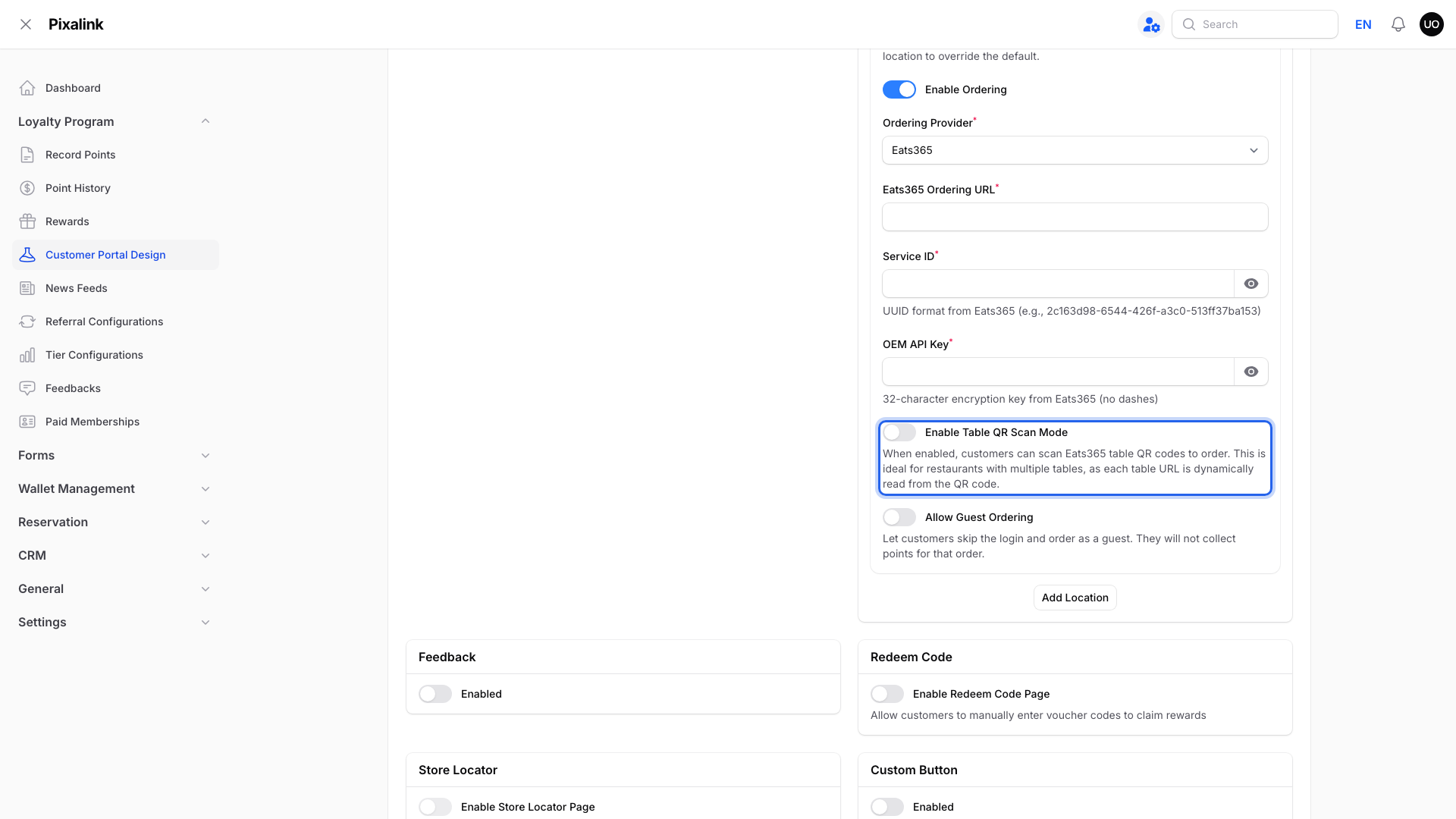
Table QR Scan Mode links every dine-in order placed through the portal scanner to a real member, so you can reward them for it. Members scan their table's Eats365 QR code inside your portal and order already signed in.
Turn it on with Enable Table QR Scan Mode under Admin Panel → Loyalty Program → Customer Portal Design, on the Feature tab in Ordering System. Setup steps are in the Eats365 setup guide.
How It Works
Open Order. The member taps Order in the bottom bar or the Order Now quick link. They need to be logged in to your portal.

Scan the table. The Order page opens the camera straight away. Their phone may ask for camera access first.

Start ordering. A valid Eats365 table QR opens that table's Eats365 menu. Their name, phone and email are passed over.
Table stickers you re-printed with your portal link, so a phone camera opens your portal first, work too. They open that table's Eats365 menu with no error.
If the code isn't from Eats365, the member sees "The scanned QR code is not from Eats365. Please scan a valid Eats365 table QR code." They tap Try Again.
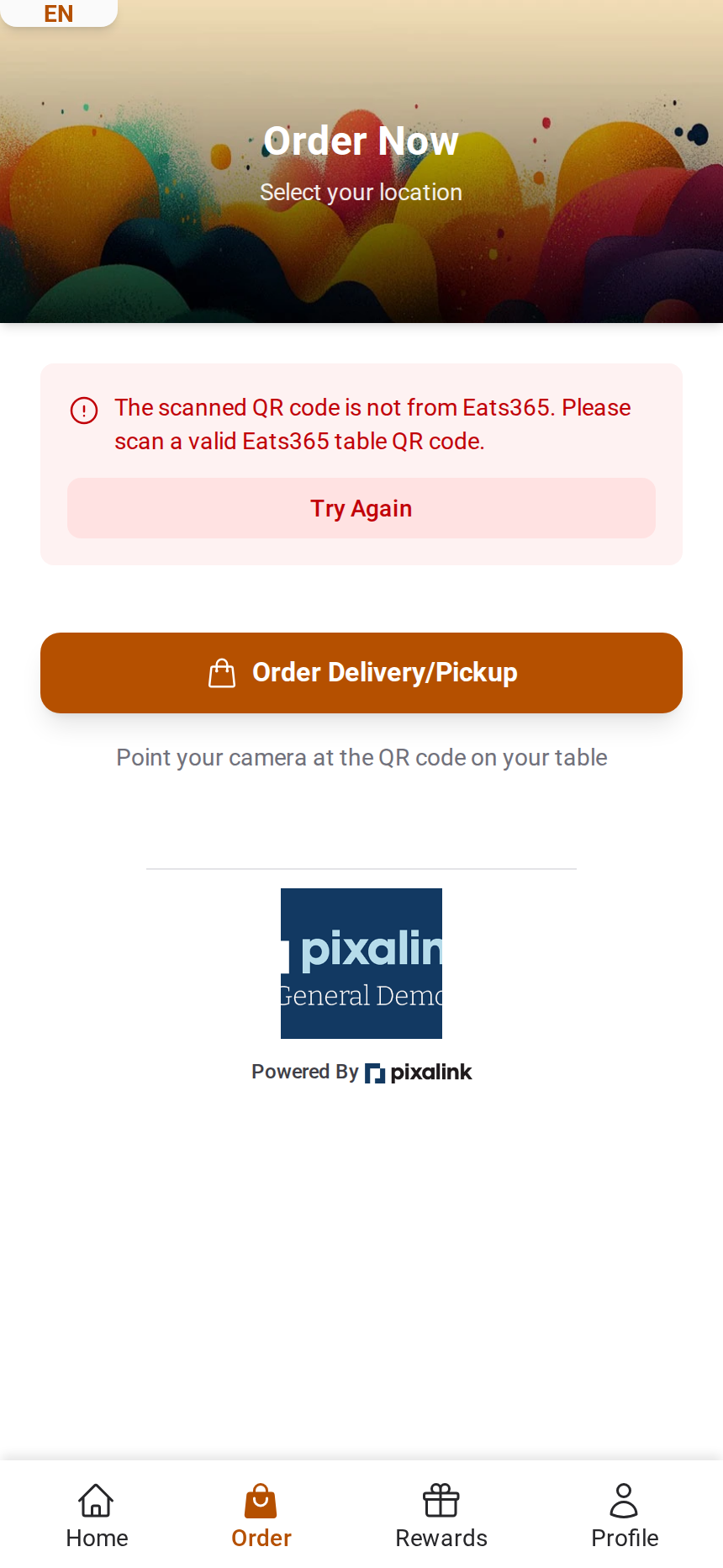
Delivery/Pickup: members not at a table tap Order Delivery/Pickup. Select Location lists each outlet you've added by name in Ordering System that has scan mode (or a Seats / Tables list) and the Delivery/Pickup button on. With only one, the member goes straight to it. If you only use All Locations (Default), add a location entry for each outlet, or the list will be empty.

Several outlets on one portal: your main outlet is the one your shared portal opens on. If it has scan mode on, members get the scanner. If not, they see an outlet list.

Note
The Order Here cards on the outlet list open your Eats365 ordering page in a new tab, without the scanner.
Real-Life Example
Ahmad now sees almost every dine-in order at his three nasi kandar outlets linked to a member.
Before, members scanned table QRs with their camera app, so their RM15 lunch sets were guest orders that earned no points.
Ahmad turned on Table QR Scan Mode for each of his three outlets. Members now tap Order, scan and order as themselves. Takeaway customers tap Order Delivery/Pickup and choose an outlet.
Good to Know
- Scan mode off: no scanner. Members go to your Eats365 ordering page or the outlet list.
- Show Delivery/Pickup Button is there for every Eats365 outlet, whether scan mode is on or off. It starts switched on. Members only see the button where the outlet has scan mode on or a Seats / Tables list.
- The sign-in we pass to Eats365 is valid for one hour.
- Other QR codes show the error above, except your re-printed portal table stickers. Barcodes aren't read.
Need Help?
Contact our support team and we'll check your setup with you.