
Where Your Logo, Hero Image, and Photos Appear on the Customer Portal
What Is This?
Your customer portal is the loyalty page your customers open on their phones. Good photos make it look professional and on-brand. This guide shows every image slot on the portal, the right size for each, and where you upload it. Each picture below points to exactly where that image shows up for your customers.
How It Works
Some images live in your portal design. Others belong to a specific outlet, reward, or news post. Here is each one.
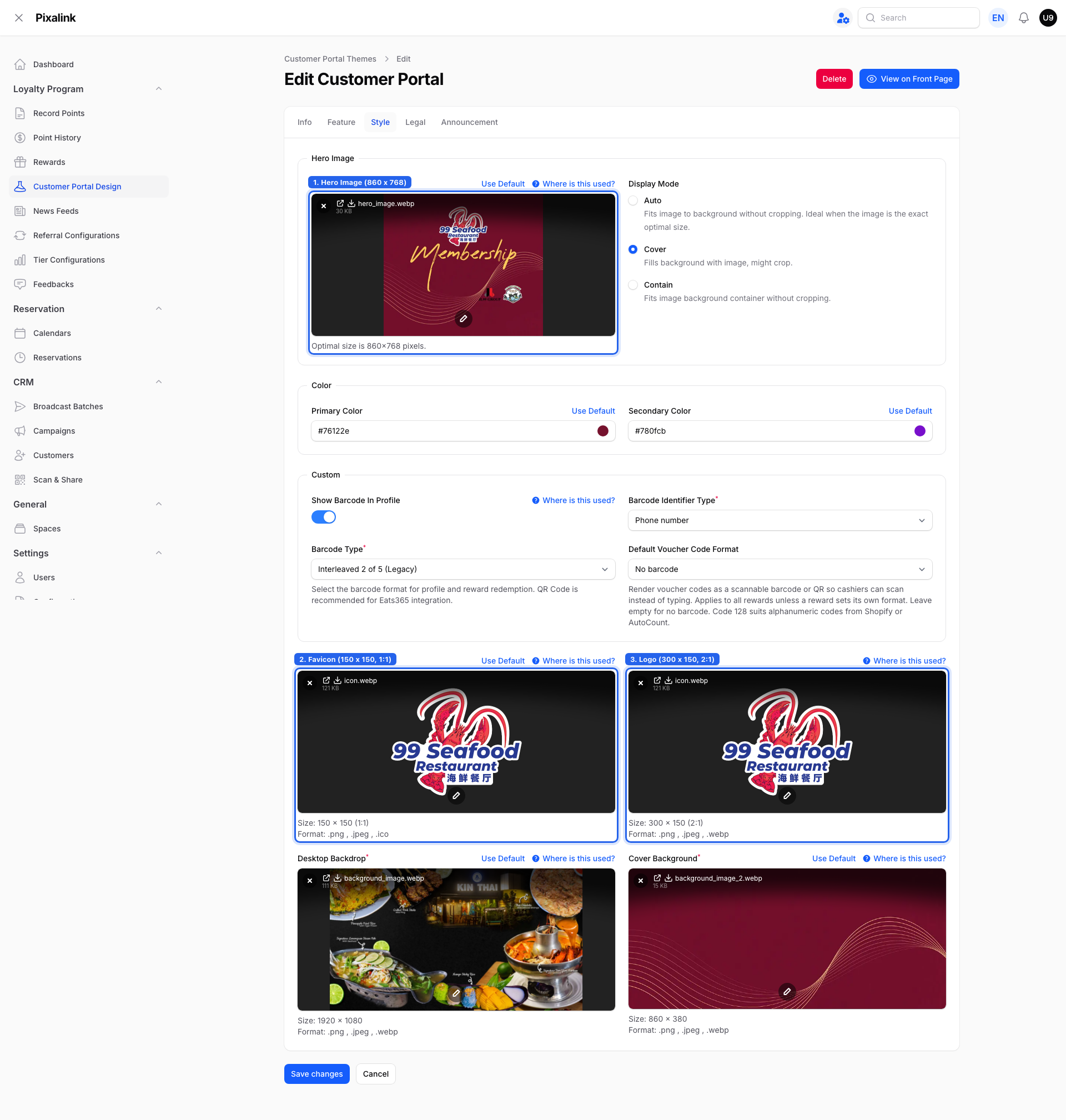
On the portal itself (Admin Panel → Loyalty Program → Customer Portal Design → Style tab):
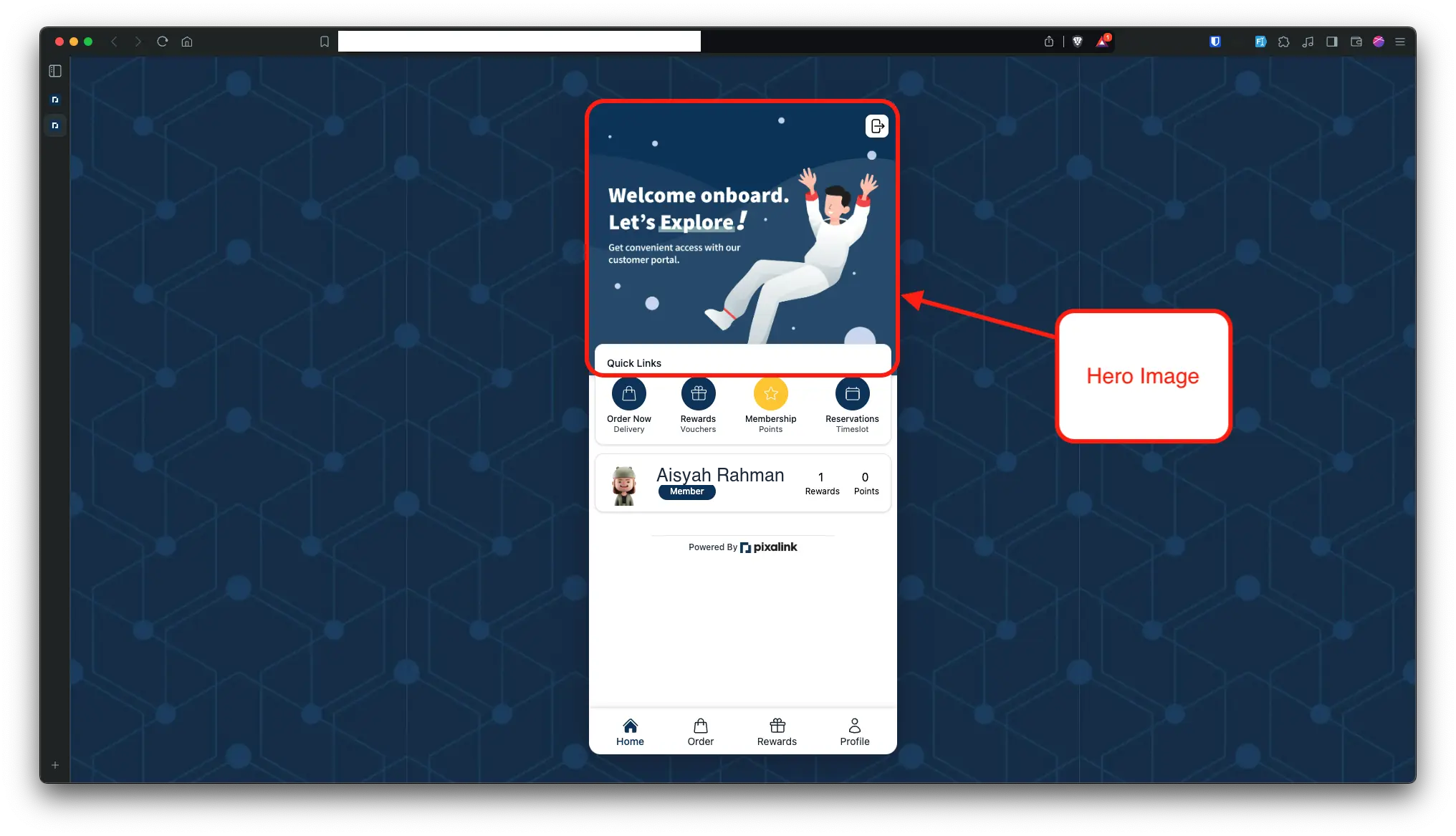
Hero Image — the large banner at the top of the home page. Recommended 860 x 768 pixels. The portal trims your image to this shape, so treat the size as a guide.
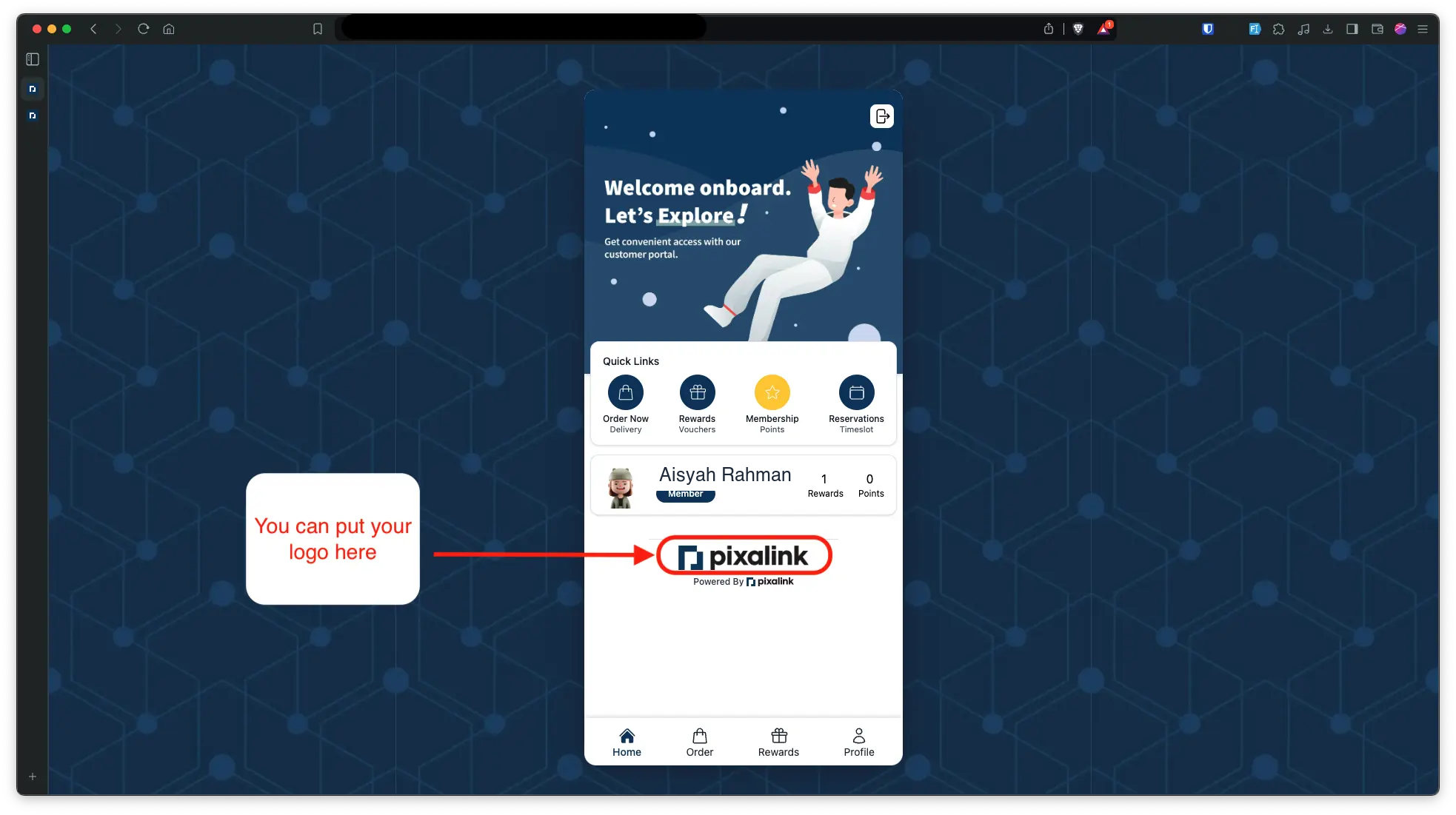
Logo — a wide logo, best in a 2:1 shape like 300 x 150 pixels. This size is only a suggestion, so a larger 2:1 image such as 600 x 300 also works. It shows near the footer.
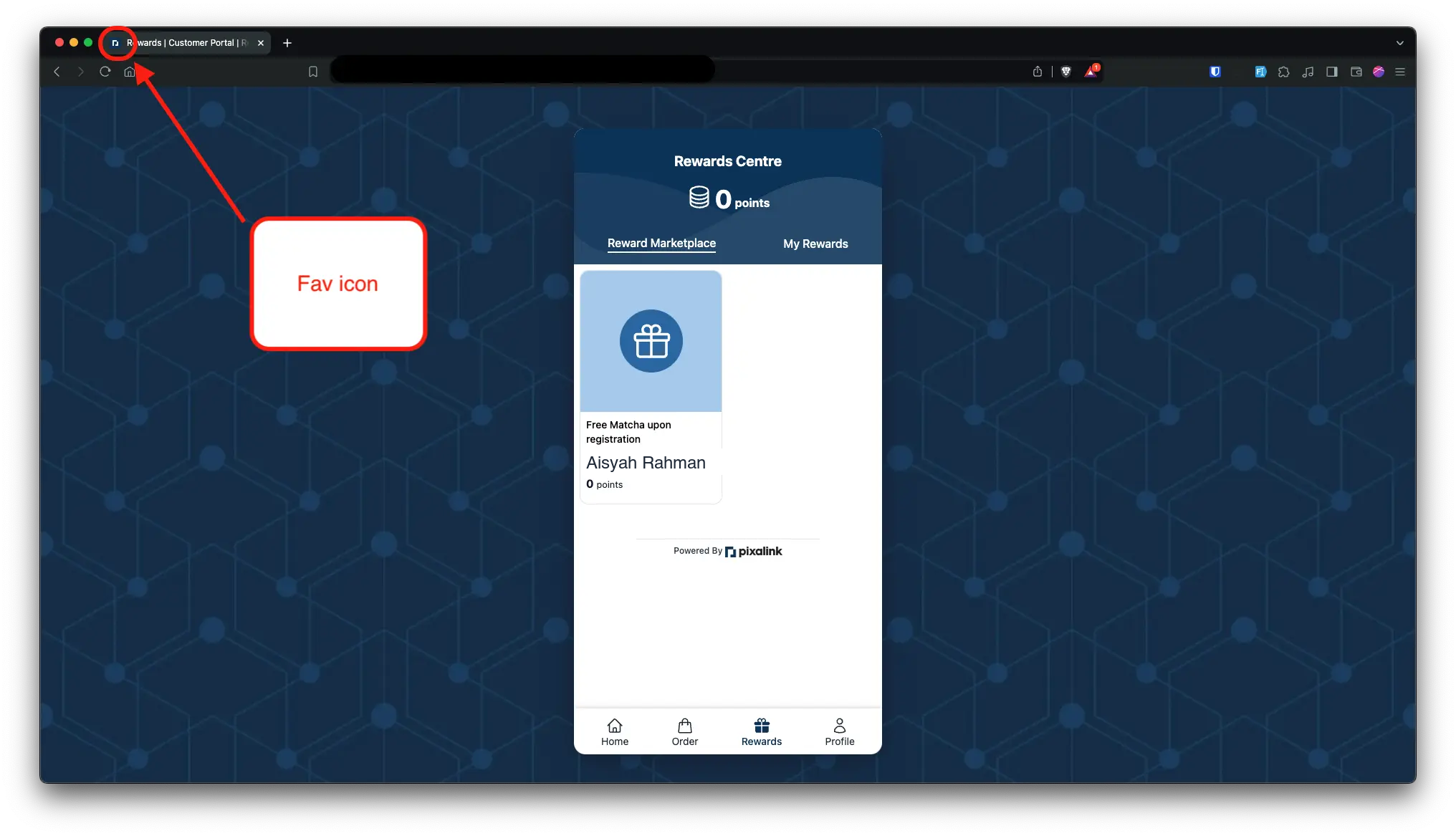
Favicon — the small square icon in the browser tab. Use a square 150 x 150 image, under 1 MB.
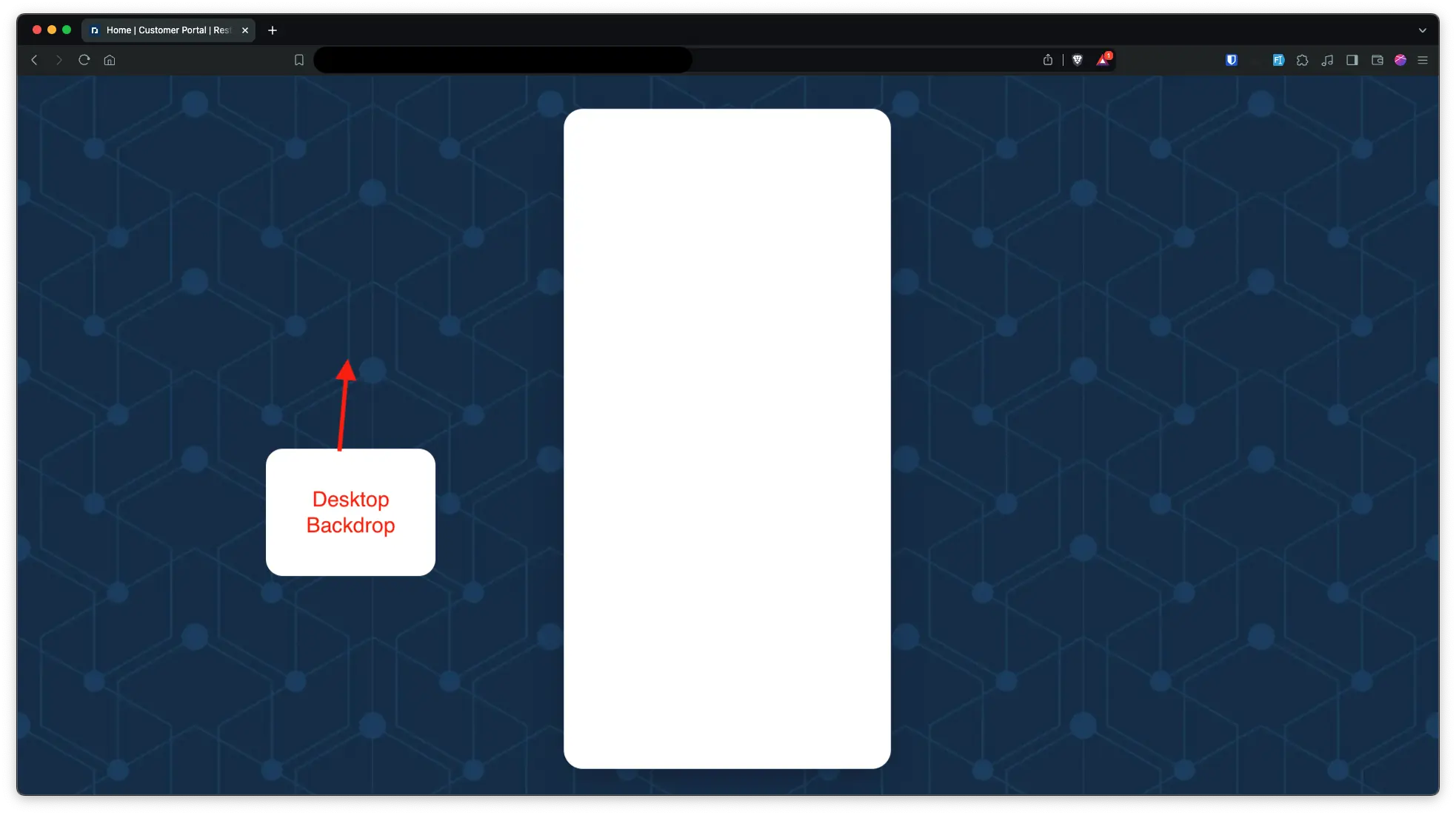
Desktop Backdrop — the wide background behind the portal on computers. Recommended 1920 x 1080.
Cover Background — a second background image in your design, recommended 860 x 380.
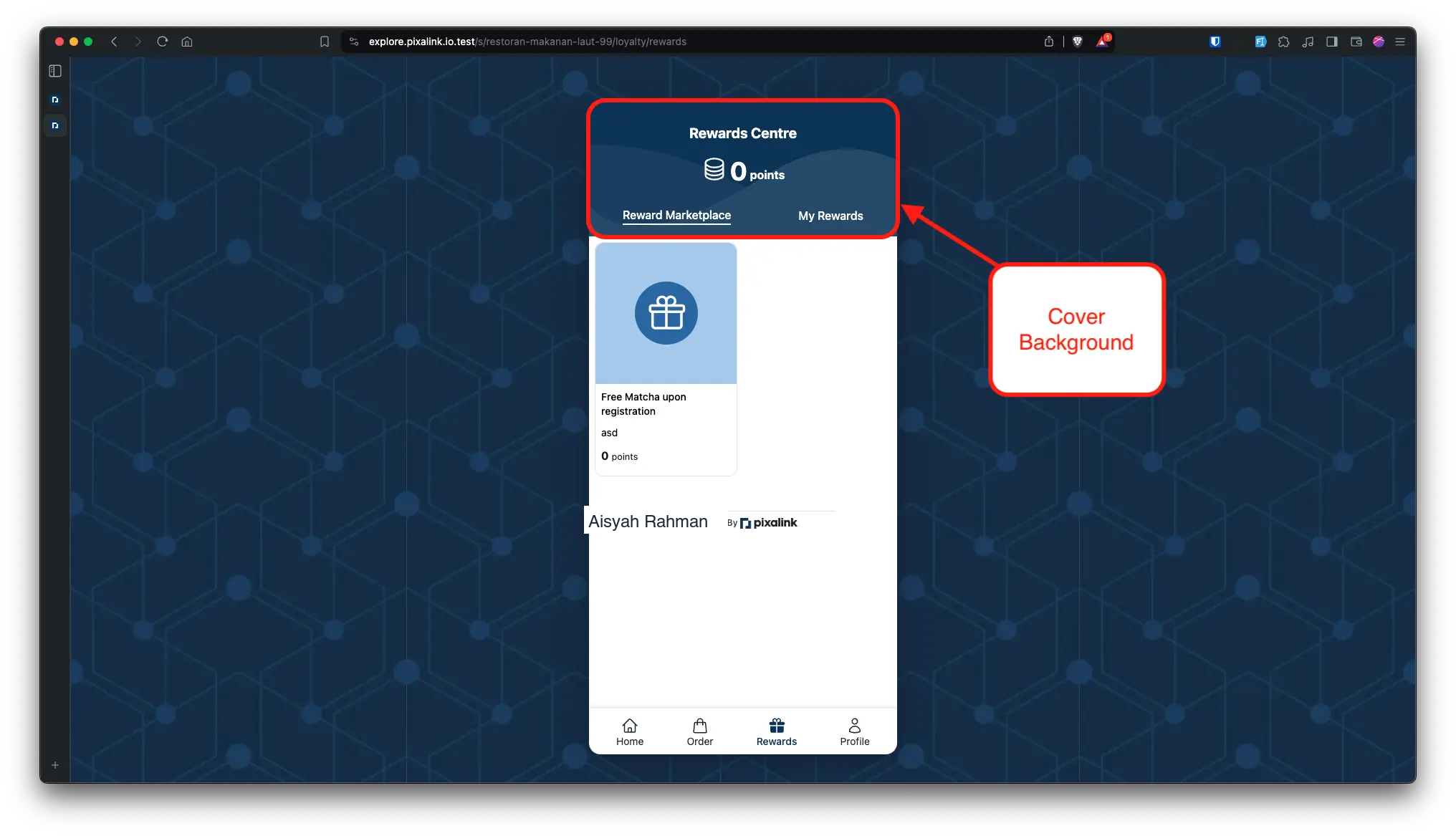
You upload all five of these on the Style tab of your Customer Portal Design:
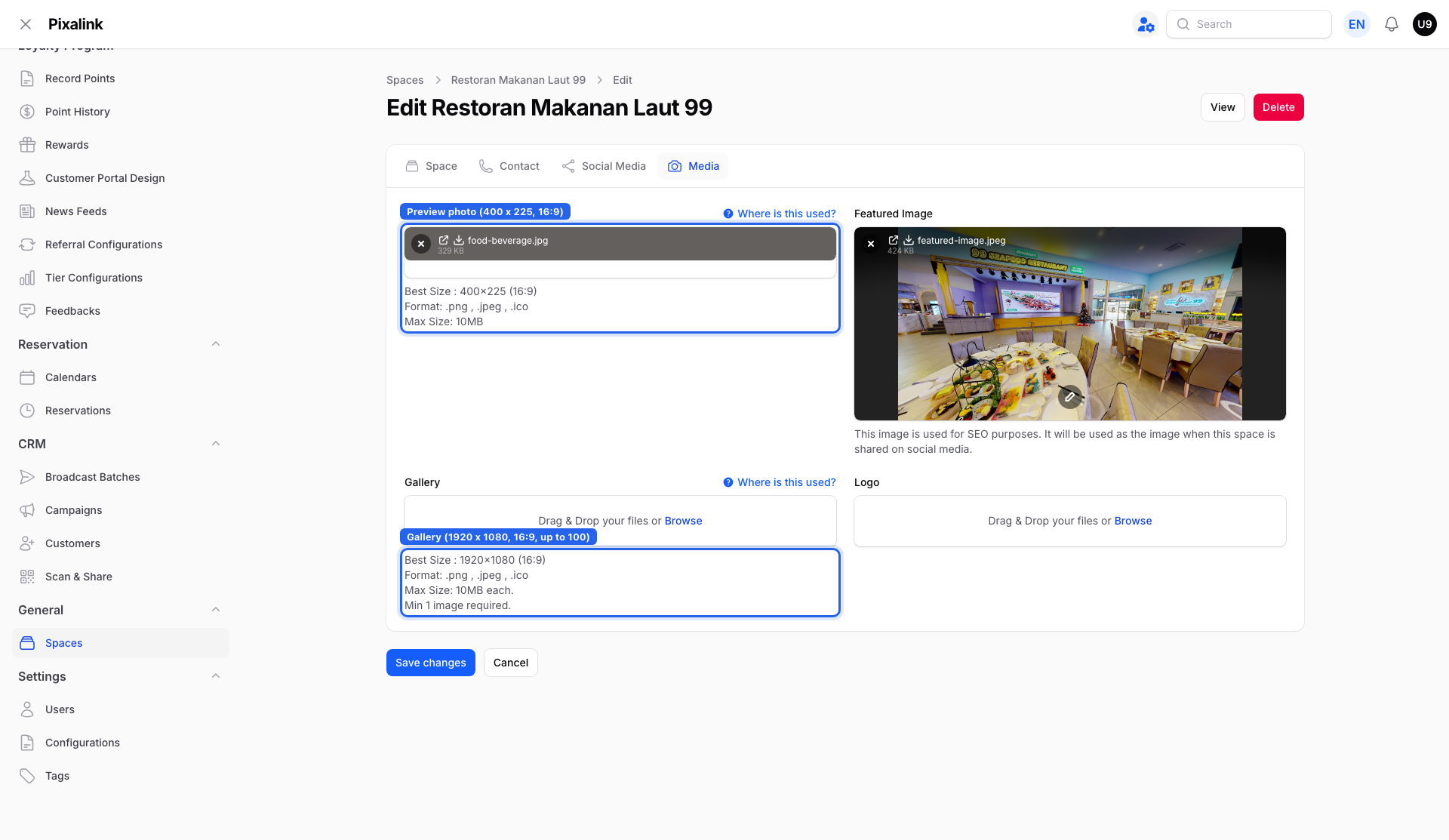
Photos for specific items:
- Outlet photos (Admin Panel → General → Spaces → Media tab) — a Preview photo at 400 x 225 and a Gallery of up to 100 wide photos at 1920 x 1080.
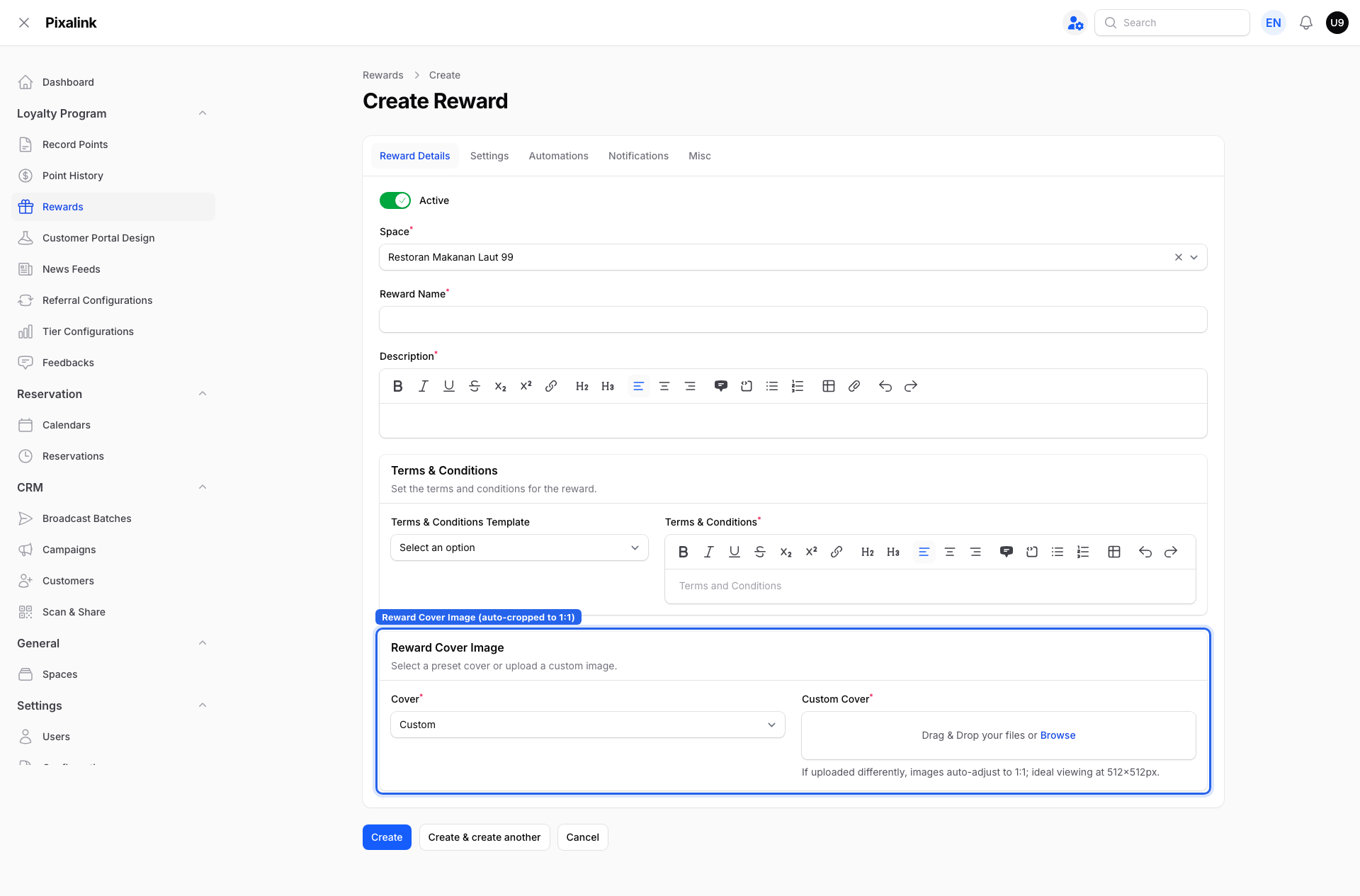
- Reward image (Admin Panel → Loyalty Program → Rewards) — each reward has its own cover. It is a square, ideal at 512 x 512, and the portal trims your image to this square shape.
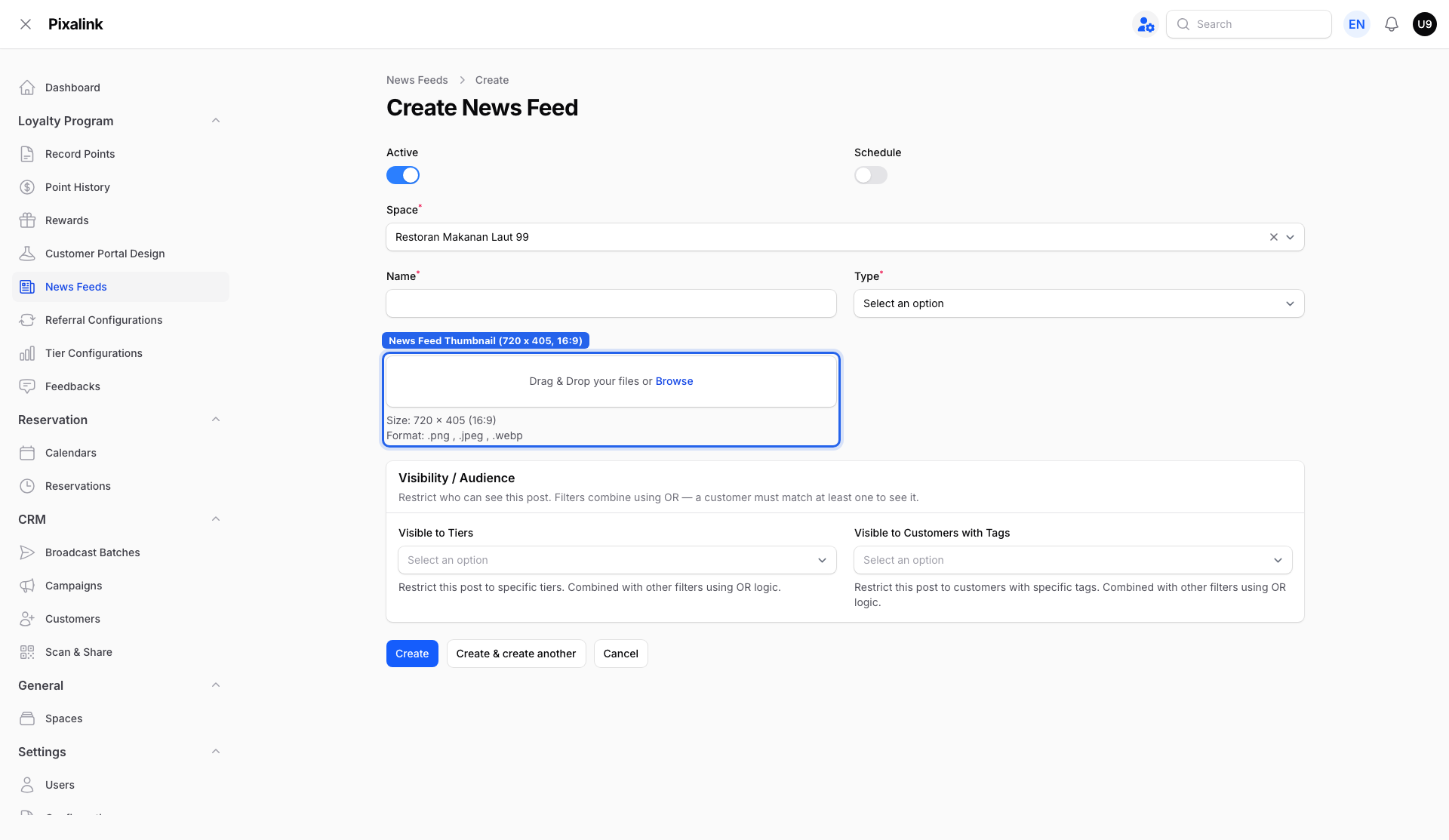
- News Feed banner (Admin Panel → Loyalty Program → News Feeds) — the promo cards in the middle of the home page. Recommended 720 x 405.
Real-Life Example
Farah runs a seafood restaurant and wants her portal to look inviting. She uploads an 860 x 768 hero banner with her tagline under Customer Portal Design. She adds a square reward photo for her birthday set-menu voucher. She posts a 720 x 405 news feed banner for a weekend promotion. She also adds five outlet photos to her Spaces gallery. Within minutes her portal looks polished, and her regulars notice the fresh look. She spends the rest of her day serving customers, not fussing with images.
Good to Know
- Most slots trim your image to a fixed shape, so keep important details near the centre.
- The Logo and Gallery sizes are only suggestions, not fixed shapes.
- If a new image does not appear, refresh the page or reopen the portal. Your phone may still show the old one from its cache.
- Very large files may be rejected. Keep each photo under the size limit shown on the upload box.
- Some blocks, like membership or ordering, only show if that feature is turned on for your account, so your portal may differ from the example above.
Need Help?
Still stuck on an image? Contact the Pixalink support team and we will help you get it looking right.