
What Pixalink Sends to QnE for Paid Members
What Pixalink Sends to QnE for Paid Members
What Is This?
If QnE is connected and paid memberships are enabled for your account, Pixalink can keep your member list in QnE up to date. This saves your staff from typing members in twice.
It is important to know what goes across, and what does not. Pixalink sends the member, not the payment.
How It Works
What syncs where
flowchart LR
    A["Member joins or<br/>membership changes"] --> B["Pixalink"]
    B -->|"Name, phone, email,<br/>address, category, TIN"| C["QnE customer record"]
    B -.->|"Fees and payments<br/>are NOT sent"| D["Record income in<br/>QnE yourself"]
| Sent to QnE | Not sent to QnE |
|---|---|
| Name, phone number, email and address | Membership fees and payments |
| Member category, such as "Paid Member" | Invoices or receipts |
| Tax number (TIN) and TIN type |
When it is sent
Pixalink sends a member to QnE when they first join. It sends them again when a paid membership starts, changes or ends. Each update runs in the background, so allow a few minutes.
Some accounts also have automatic customer sync switched on. Pixalink then checks every 15 minutes for members whose details changed, and sends them again.
The member category
Active paid members use their plan's QnE category. Members without an active paid membership use your account's default category. Set each plan's category in a few steps:
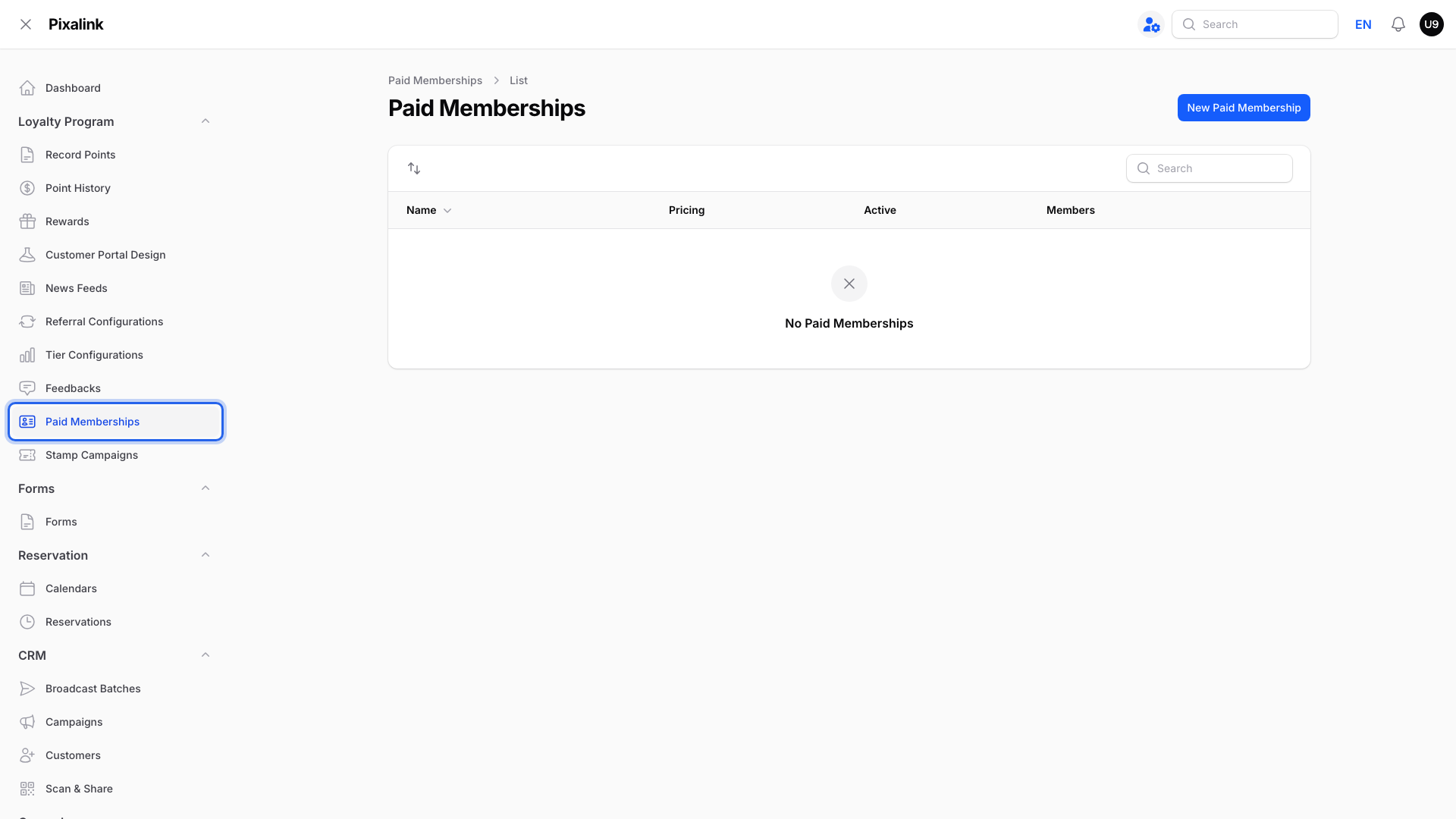
- Go to Loyalty Program → Paid Memberships.
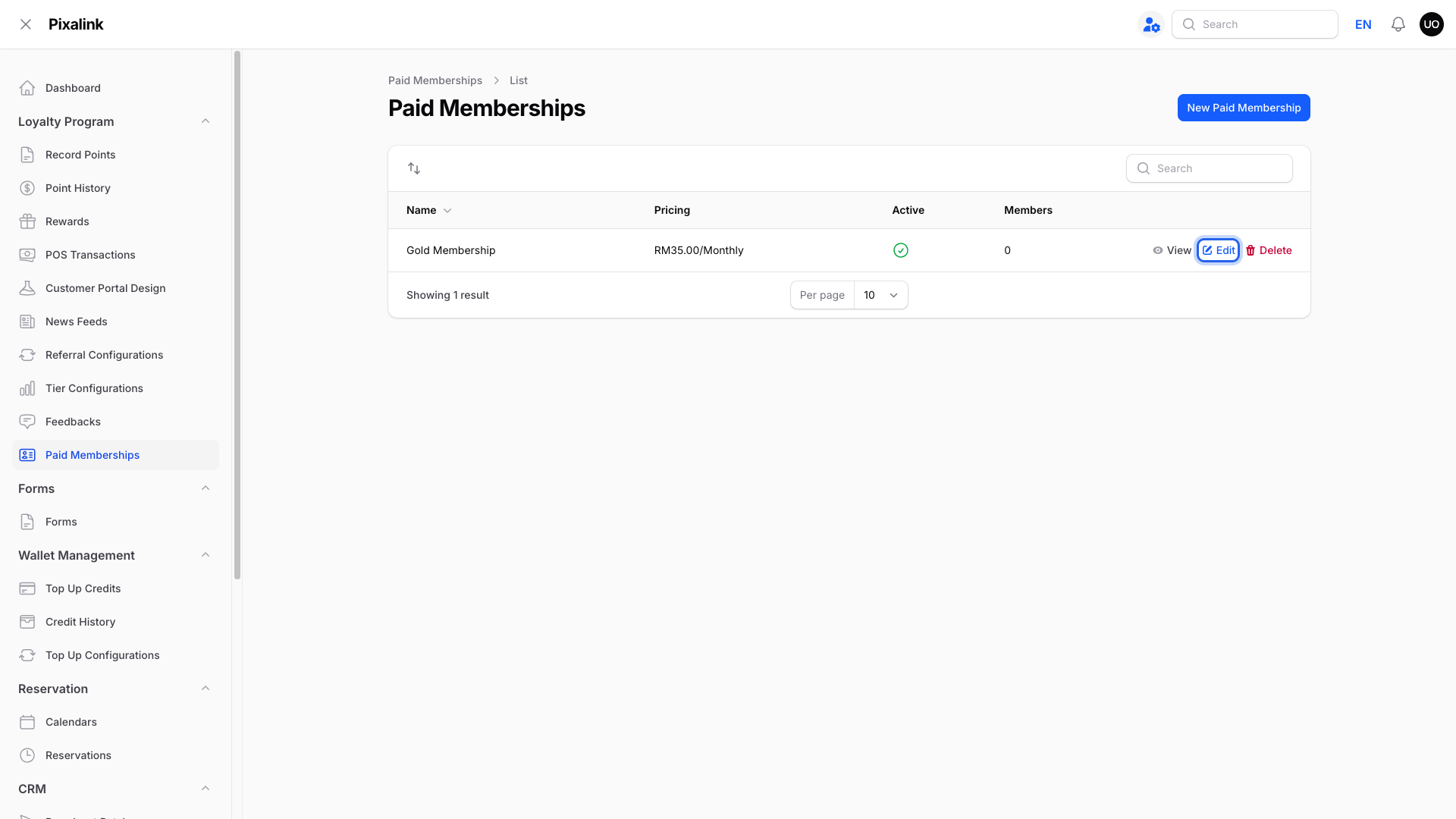
- Click Edit on the plan.
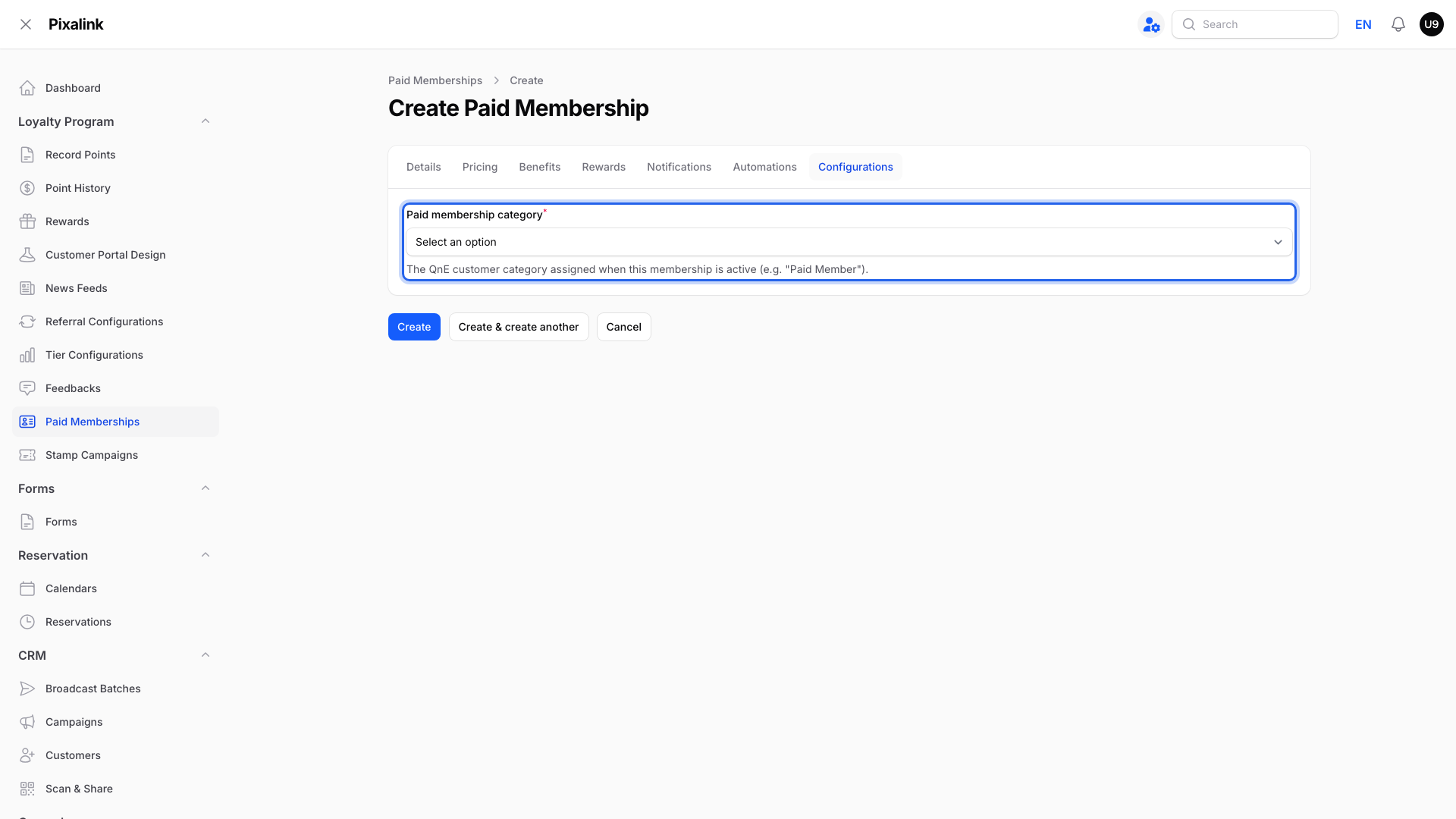
- Open the Configurations tab and choose the Paid membership category. This tab only shows when QnE is connected.
Important
A paid membership with no Paid membership category stops its members from being sent to QnE.
The tax number (TIN)
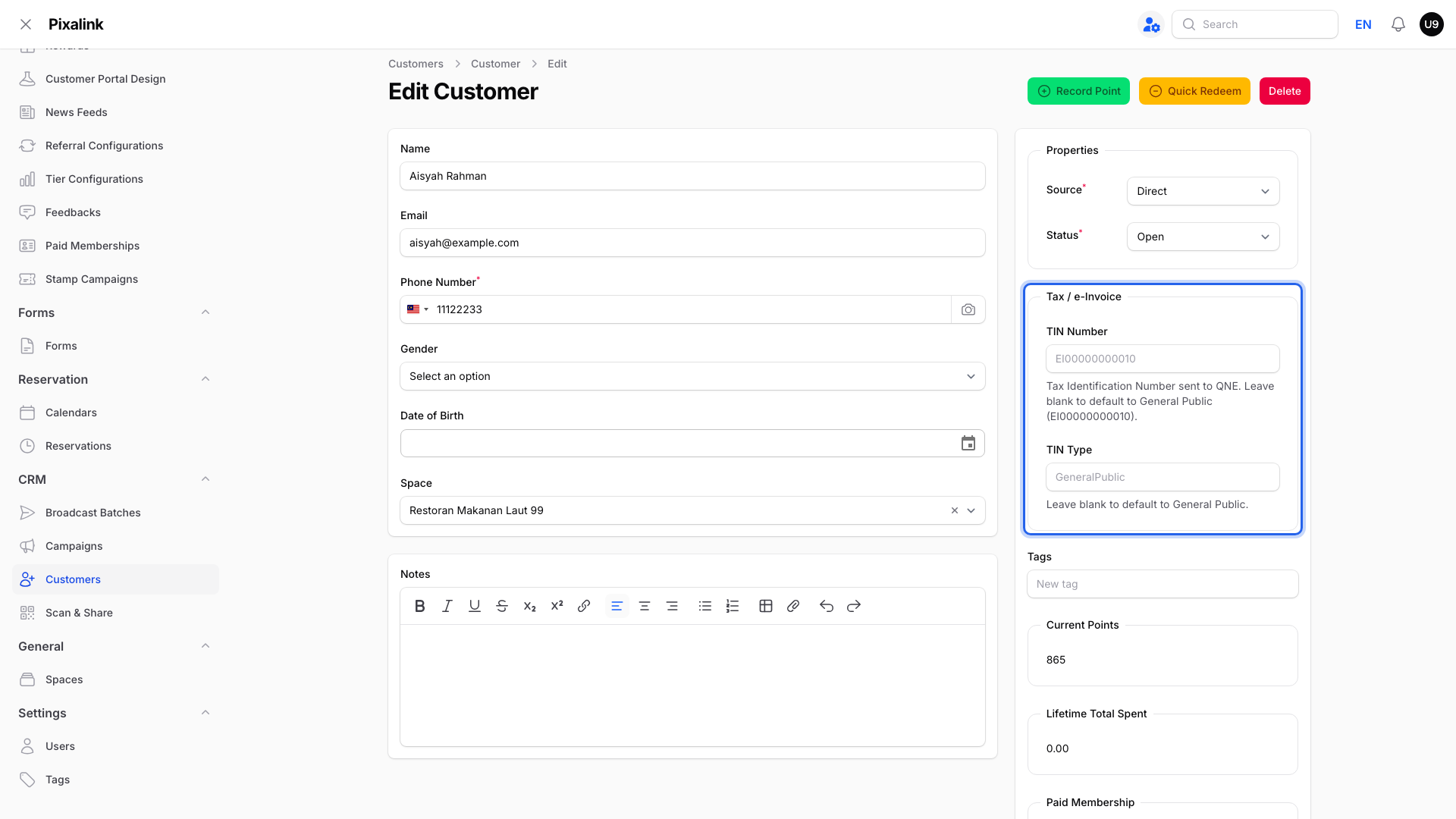
If Pixalink has no stored TIN for a member, it sends the General Public TIN EI00000000010. If a TIN is already stored, Pixalink sends that number with its stored type, or General Public if no type is stored.
The TIN Number and TIN Type boxes on the customer's edit page are read-only. A later update can overwrite changes made directly in QnE with the values Pixalink holds.
Real-Life Example
Siti manages a golf club in Seri Kembangan that uses QnE for accounts. A new member, Ahmad, paid for his yearly membership in the portal. Her accounts team could not find his payment in QnE.
Siti learned that Pixalink only sends Ahmad's member record, marked "Paid Member". So her team now records membership fees from the monthly payment report.
Good to Know
These details affect how members appear in QnE:
- A name is needed. A new QnE customer cannot be created without a name. Adding the first name in CRM → Customers starts a background update when QnE is connected.
- The category matches their membership. When a paid membership ends, the member moves back to your default category.
- Give it a few minutes. Updates run in the background.
Need Help?
If a member is still missing after an hour, contact our support team with the member's phone number.