
Understanding Spaces — What They Are and When to Use Them
Understanding Spaces — What They Are and When to Use Them
What Is This?
A Space is how Pixalink represents each of your business locations, branches, or brands. Think of it as a digital version of a physical outlet. Every business on Pixalink has at least one Space, and if you run multiple outlets, each one gets its own.
How It Works
You'll find Spaces under the General group in your Admin Panel sidebar.
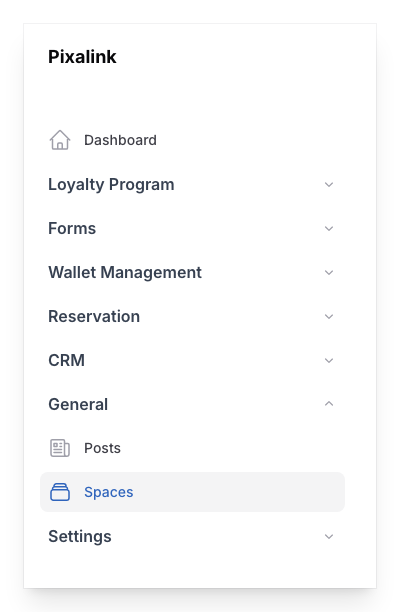
Your Pixalink account is built on a simple structure:
- Your Organisation is your overall business — the parent company or brand name.
- Spaces sit inside your Organisation. Each Space represents one location or brand.
- Customers belong to a Space. When someone signs up at your Setia Alam branch, they're linked to that branch's Space.
This structure keeps everything organised while still connecting the dots. A customer who joins at one branch can still earn and redeem points at any of your other branches — because all Spaces share the same loyalty programme under your Organisation.
What belongs to a Space?
Each Space has its own:
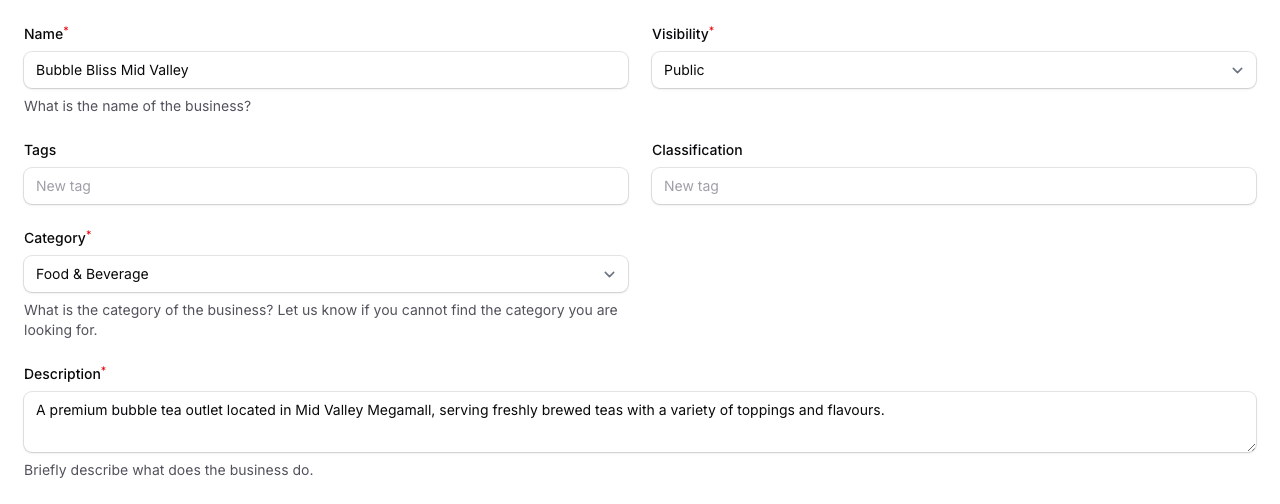
- Name, address, and contact details
- Logo, photos, and branding
- QR code for customer sign-ups
- Widgets and news feeds
- Rewards (you can create rewards tied to a specific Space)
- Reservation calendars
Here's what the Space form looks like when you create or edit a Space:
What's shared across all Spaces?
These are set at the Organisation level and apply everywhere:
- Loyalty points and tier rules
- Campaigns and broadcasts
- Customer tags and segments
- Staff user accounts
Visibility settings
Every Space has a visibility setting that controls who can see it:
| Setting | What it means |
|---|---|
| Public | Listed on Pixalink and visible to everyone |
| Private | Not listed, but anyone with the direct link can view it |
| Hidden | Not listed and cannot be found through search |
| Draft | Not visible to anyone — use this while you're still setting up |
Start with Draft while you prepare your Space, then switch to Public when you're ready to go live.
What Your Customers Will See
When a customer visits one of your Spaces, they'll see a branded portal with that Space's name, logo, and photos. Their digital wallet shows rewards tied to that Space, alongside any rewards available across all your Spaces. If you print the Space's QR code at your counter, customers scan it to sign up and are automatically linked to that location.
Real-Life Example
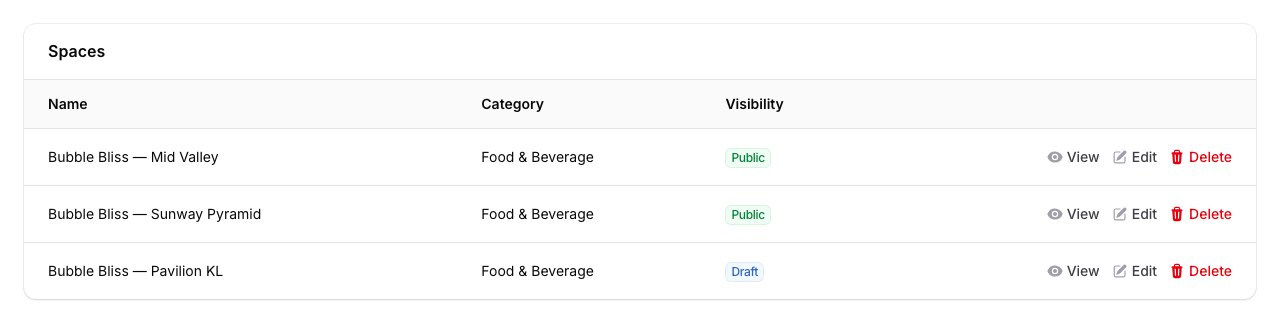
Wei Lin runs a bubble tea chain called Bubble Bliss with three outlets — one in Mid Valley, one in Sunway Pyramid, and one in Pavilion KL. She creates three Spaces in Pixalink, one for each outlet. Each Space has its own address, phone number, and photos of that location.
When a customer named Priya signs up by scanning the QR code at the Mid Valley outlet, she's linked to the Mid Valley Space. But because all three Spaces share the same loyalty programme, Priya can collect points at Mid Valley and redeem a free drink at Sunway Pyramid. Wei Lin can also see which outlet brings in the most sign-ups, helping her decide where to focus her marketing.
Here's what Wei Lin's Spaces list looks like in the Admin Panel:
When should you create multiple Spaces?
- Multiple branches — You have the same brand in different locations (like Wei Lin's bubble tea shops)
- Multiple brands — You run different business concepts under one company (e.g., a cafe and a bakery)
- Pop-up events — You're running a temporary booth and want to track sign-ups separately
When is one Space enough?
- You operate from a single location
- You run an online-only business with no physical branches
Good to Know
- Customers can move between Spaces — Points and rewards earned at one Space work at all your other Spaces.
- Staff access can be limited by Space — You can assign team members to see only certain Spaces, so your branch manager only sees their own outlet's data.
- Each Space gets its own QR code — Place it at the counter so customers scan and sign up directly to that location.
- Rewards can be Space-specific — Create a reward that's only redeemable at one outlet, or make it available across all Spaces.
What's Next?
- How to Create a Space — Step-by-step guide to adding a new Space