
How to Set Up Corporate Teams with Company Credit Pools
What Is This?
Teams lets you sell credit packages to a company for its staff. You group the company's employees into a team and record the company's payment as a credit pool. Staff then spend from it at your outlets. Company credits stay separate from each customer's own credits, and every spend is tracked so you can bill the company.
Real-Life Example
Wei Lin runs Glow Salon in Mont Kiara. A nearby office pays RM2,000 upfront for staff treatments as a benefit. Wei Lin creates a team called Glow Corp Wellness with the company's email domain. Staff join by confirming their work email in the customer portal. Their company balance shows as its own card and QR code, and they choose which balance to spend. At period end, Wei Lin exports the usage report and bills the company for renewal.
How to Set It Up
-
Go to CRM → Teams, then click New Team.

-
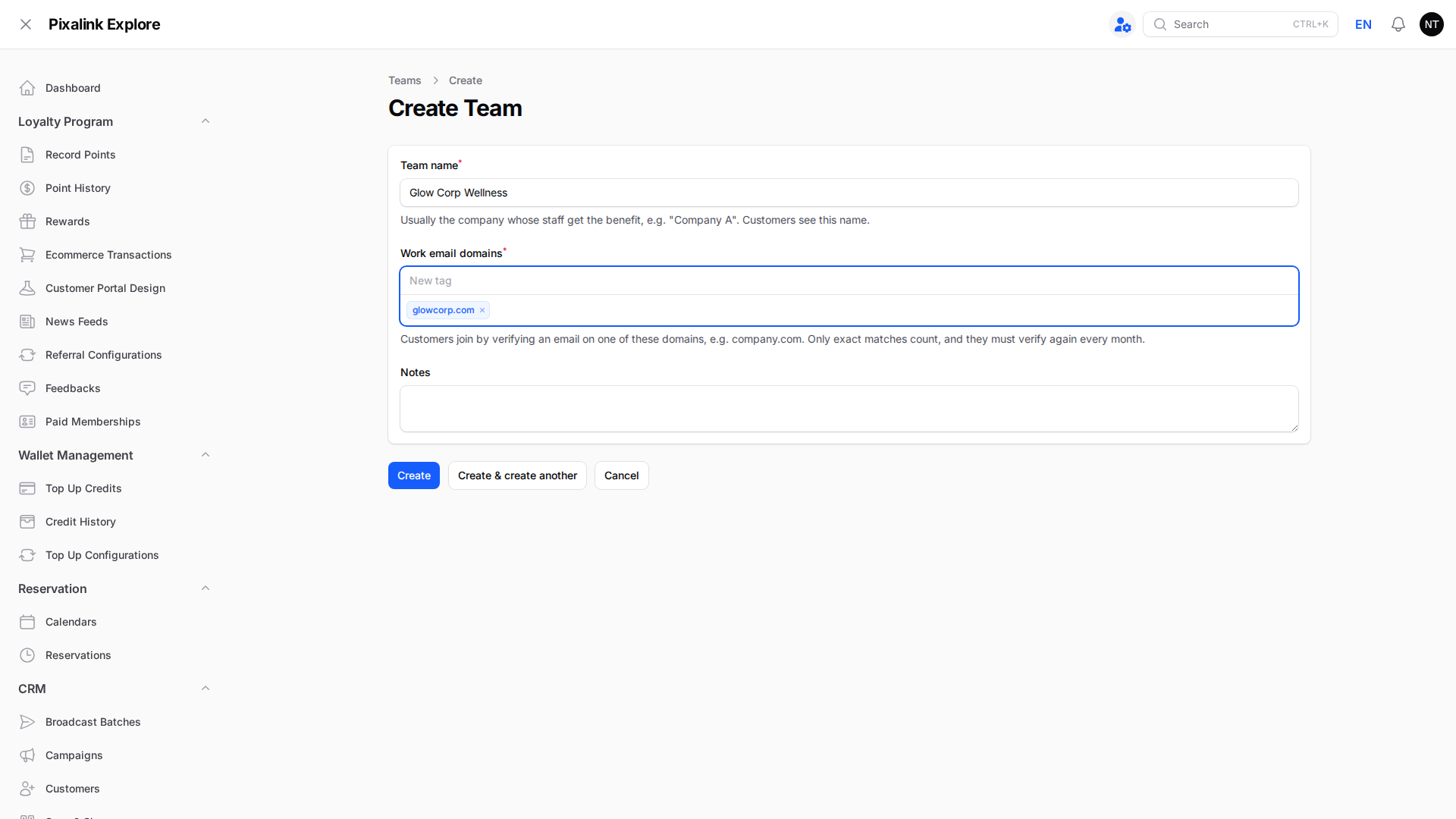
Enter the Team name and the company's Work email domains, then click Create.
-
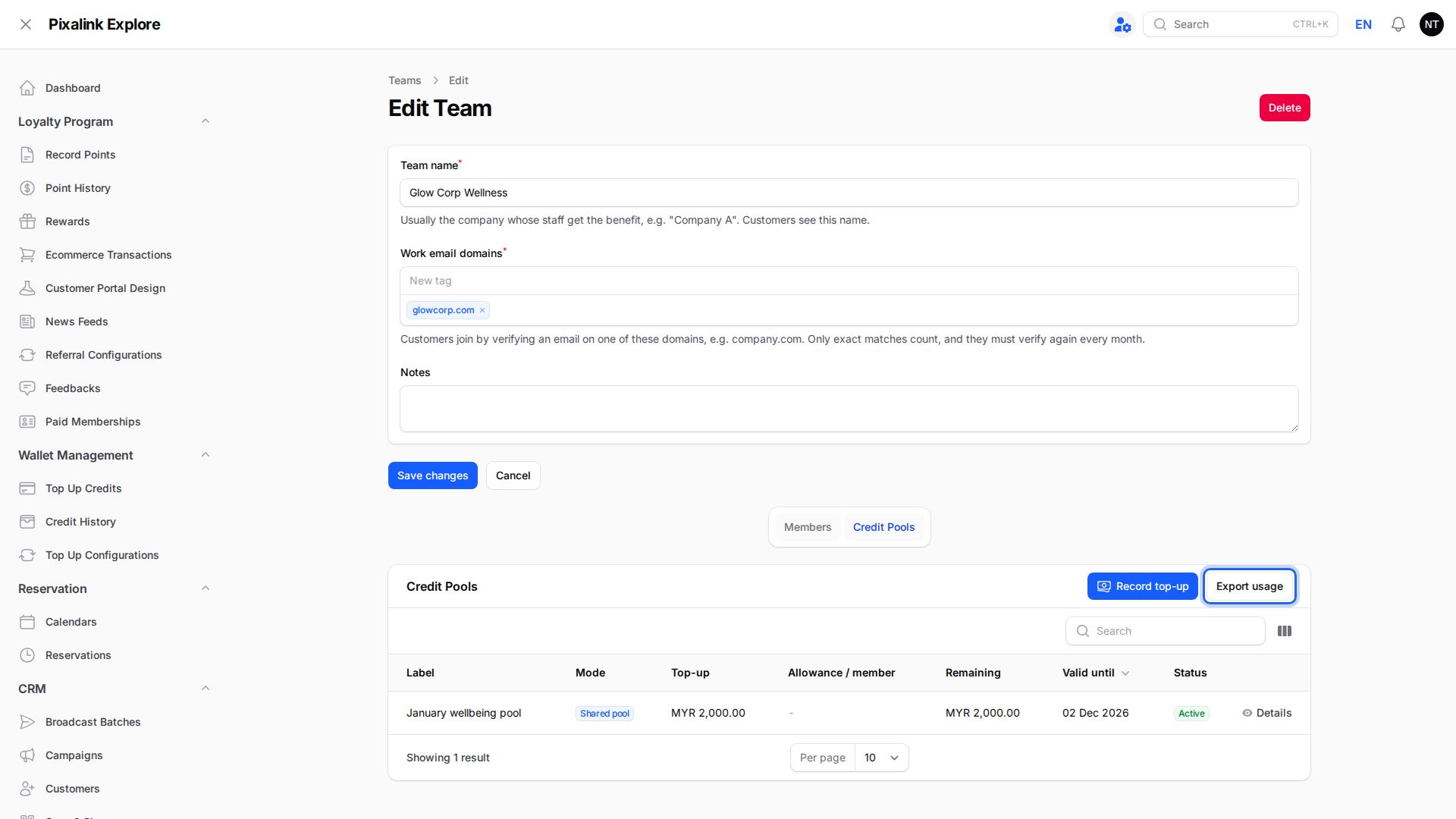
Open the team and go to the Credit Pools tab.

-
Click Record top-up. Enter a label and the amount, set the validity period, and pick a mode. Choose Shared pool for one common balance, or Per-employee allowance to give each member a fixed amount every period. Click Submit.

-
Go to the Members tab and click Add member to add a customer yourself with their work email. They stay eligible for one month.

-
Click Export usage to download what each member received and spent. Use it to bill the company.
What Your Customers Will See
Staff see a Company benefits card in the customer portal wallet, separate from their own credits. It has its own balance and its own QR code. They show the company QR code to spend company credits, or their usual one for their own. Staff can also join a team themselves by confirming their work email in the portal.

Good to Know
- Staff confirm their work email again every month to stay eligible. If they don't, they can't spend company credits, but they stay on your member list.
- Personal email providers like Gmail can't be used to join a team.
- Unspent credits can roll over to the next period or expire. You choose this for each top-up.
- Removing a member keeps their history, so your reports stay complete.
Need Help?
Contact our support team and we'll set up your first team together.