
How to Let Customers Top Up Credits Online
What Is This?
Online top-up lets customers buy credits by themselves in your customer portal and pay online. You collect the money before they visit, and your staff spend no time at the counter on it.
This guide was split out of How to Give Bonus Credits When Customers Top Up.
Real-Life Example
Farah runs a salon in Petaling Jaya. Regulars often asked by WhatsApp at night to top up credits. She turns on online top-up with buttons for RM50, RM100 and RM200, and custom amounts from RM20. The next week, eight customers top up from home. The money is in before the appointment.
How to Set It Up
-
Go to Admin Panel → Wallet Management → Top Up Configurations.

Top Up Configurations is in the Wallet Management group.
-
Turn on Enable Payment Gateway Top-Up in the Payment Gateway Top-Up section.
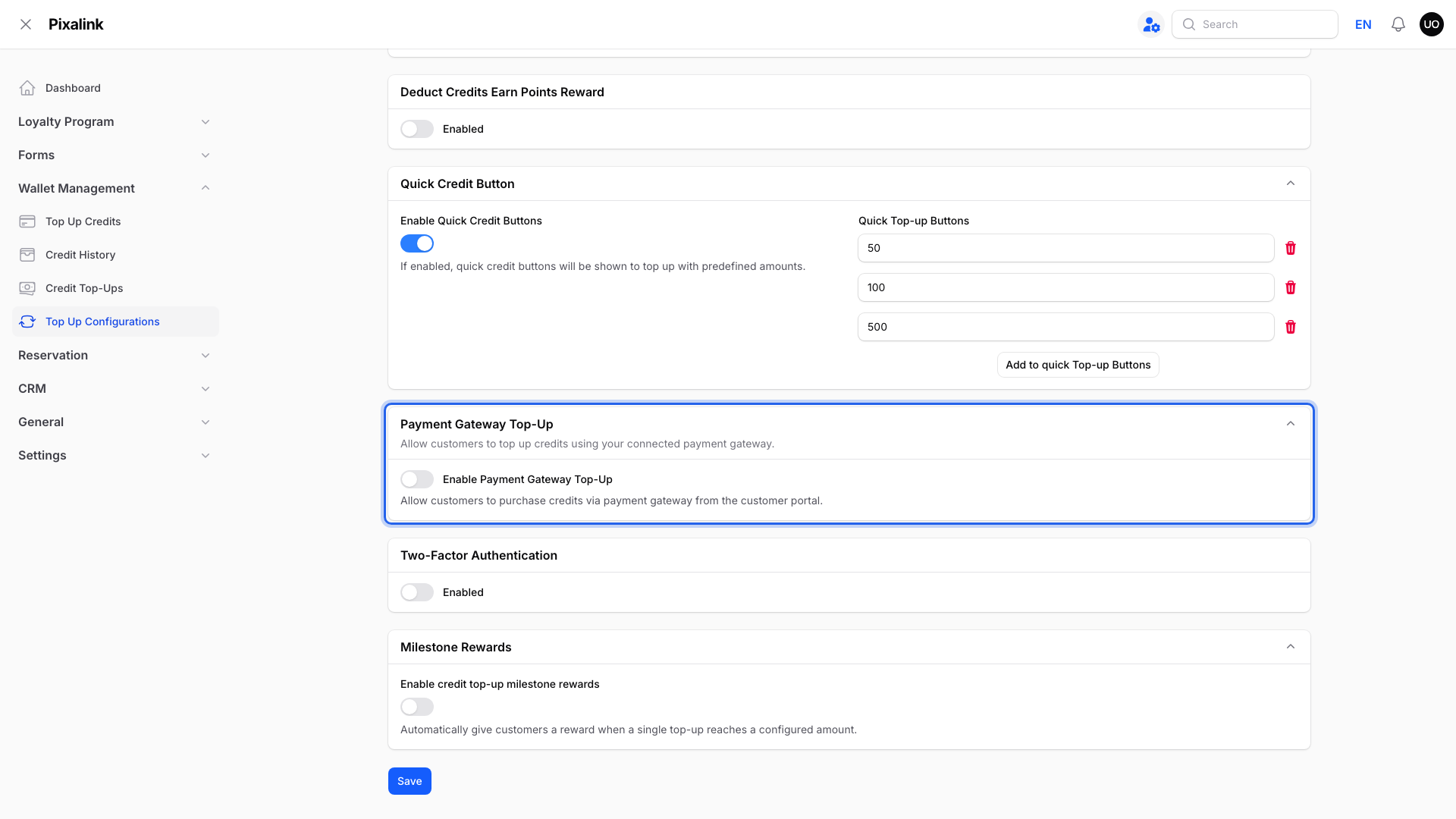
This section shows only when online payment is turned on for your business.
-
Set the Preset Amounts that customers can tap. You can add up to 6.

Amounts are in RM. Customers see one button for each amount.
-
Turn on Allow Custom Amount to let customers type their own amount. Then set the Minimum Amount and Maximum Amount.

The minimum and maximum also apply to the preset amounts.
-
Click Save at the bottom of the page.

The Top Up button appears in your portal right after you save.
What Your Customers Will See
A Top Up button appears on the wallet page of the customer portal.

Top Up sits under the wallet balance.
The Credit Top-Up page shows your preset amounts and, if allowed, a box for any amount. If you give top-up bonuses, each amount shows its bonus before the customer pays.

One credit for each RM1 paid, plus any bonus in green.
Good to Know
- Credits go into the wallet only after the payment succeeds.
- Your bonus tiers apply to online top-ups too. See How to Give Bonus Credits When Customers Top Up.
- Online top-ups appear under Wallet Management → Credit Top-Ups, with Completed, Pending and Failed tabs. See How to Top Up Customer Credits.
Need Help?
If you don't see the Payment Gateway Top-Up section, online payment isn't set up for your business. Ask the Pixalink team to set it up. For CommercePay, see How to Prepare Your CommercePay Application Documents.