
How to Import Shopify Vouchers
What Is This?
If your online store runs on Shopify, you can upload a batch of discount codes into a reward and have Pixalink turn them into working Shopify discount codes. When a customer redeems the reward, they get a code that already works at your Shopify checkout — you never build codes one at a time in Shopify.
Real-Life Example
Aishah runs Bloom & Co, a homeware store with a Shopify shop. She wants every Gold-tier customer to get 10% off their next online order. Instead of building codes one by one in Shopify, she uploads a list of codes to her "10% Off Online" reward and sets them to 10% off. Pixalink creates the matching discount codes in her Shopify store. When a Gold customer redeems the reward, their code works at checkout straight away.
How to Set It Up
Shopify must be connected to the reward's outlet first. If it is not connected, the Shopify tab stays hidden.
Step 1: Set a Code Prefix (required)
Open your reward and go to the Shopify tab. Turn on the Shopify integration, then set a Code Prefix and save.
- The prefix must be 2 to 10 letters or numbers (for example
GOLD10). It is saved in capitals. - Every new code for this reward is created as
PREFIX-CODE(for exampleGOLD10-AB12CD34), so you can trace any code in your Shopify admin back to this reward. - The prefix is set once and cannot be changed afterwards, so pick it carefully.
- If a code would ever be too long for Shopify, only the end is shortened; the prefix is always kept.
A prefix is required. Until you set one, the import button and automatic code generation stay disabled.
Step 2: Import your codes
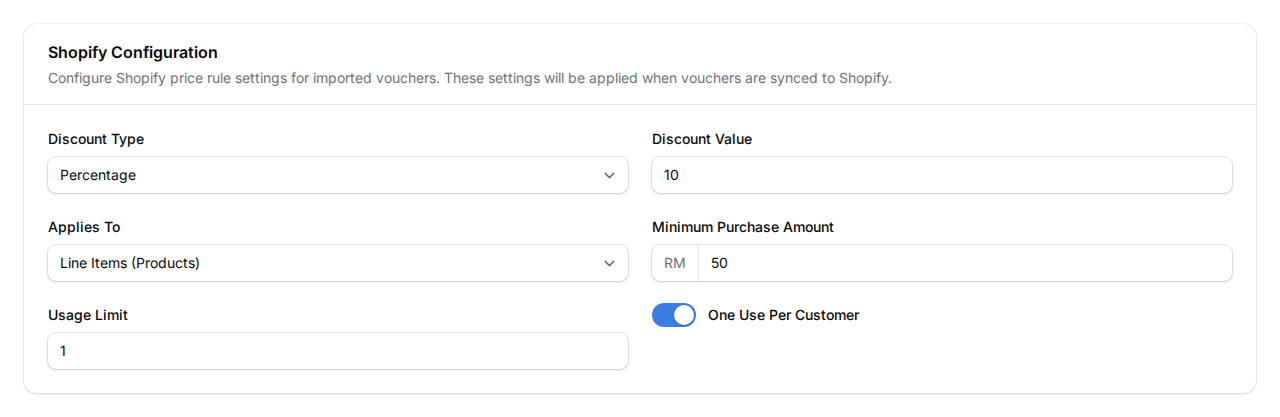
Still on the Shopify tab, select Import Shopify Vouchers, upload your CSV file, and choose your discount settings under Shopify Configuration.
Step 3: Watch the sync
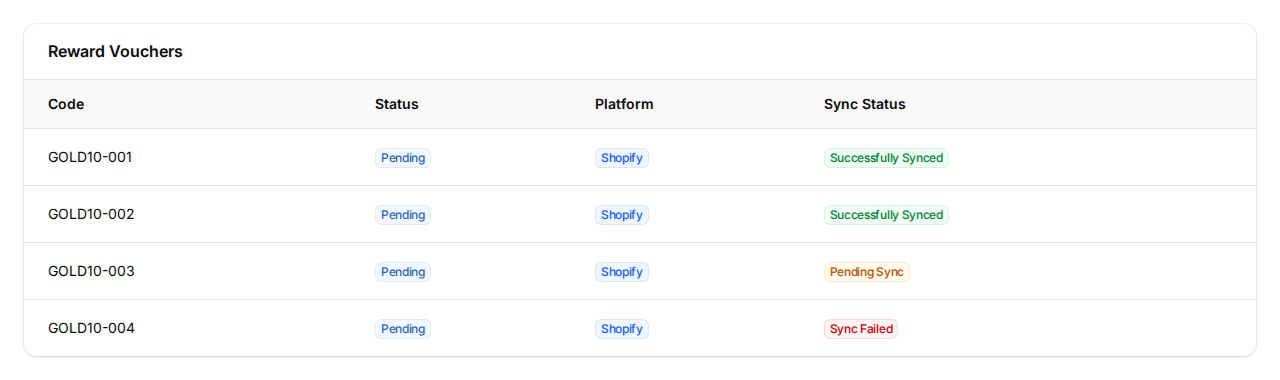
Select Import, then watch the Sync Status column as each code moves to Shopify.
Your CSV file needs a Code column, and each code must be unique. Enter only the unique part of each code, without your prefix; Pixalink adds the prefix automatically, so do not type it again or you will get a double prefix. You can also add Expired At and Phone Number columns. A phone number hands the code to that customer at once, and a blank expiry uses the reward's own setting.
code,expired_at,phone_number
AB12CD34,2026-12-31,
EF56GH78,2026-12-31,0121234567
The Shopify Configuration controls how every code behaves: Discount Type (percentage or fixed amount), Discount Value, Applies To (products or shipping), Minimum Purchase Amount, Usage Limit, and One Use Per Customer.
What Your Customers Will See
A customer redeems the reward in their portal and receives a discount code. They enter that code at your Shopify checkout, and the discount applies to their order.
Good to Know
- Each code becomes a real Shopify discount, ready the moment it shows Successfully Synced.
- A code that already exists in the same reward is skipped, so re-importing a file is safe.
- The settings you pick apply to the whole file. For different discount values, import separate files.
- If a code shows Sync Failed, use Retry Failed Shopify Syncs to send it again.
- Existing Shopify rewards need a prefix too. If you set up a Shopify reward before this became required, open its Shopify tab and set a Code Prefix. Until you do, new imports and automatic code generation are paused for that reward. Codes already in Shopify keep working.
Need Help?
Reach out to our support team and we will help you set up your first Shopify voucher import.