
How to Hide Points Progress for a Manual Tier
How to Hide Points Progress for a Manual Tier
What Is This?
Some loyalty tiers are not earned by spending points. You might grant a tier by age, by a paid membership, or by hand for VIP guests. By default, the customer portal shows a "spend more points to unlock" message for every tier. That message does not make sense for a tier you assign yourself. Setting that tier's Tier assignment to a manual mode fixes this. You can either hide the tier from customers who do not hold it, or keep it on display for everyone as an aspirational tier. Either way, there is no points progress to chase.
Video Walkthrough
Real-Life Example
Farah runs a health store with a seniors membership called Golden Years. Customers join Golden Years by age, not by earning points. But her portal told every shopper to "spend 999,000 more points to unlock Golden Years". A younger customer named Priya found this confusing and messaged the store. Farah set Golden Years to Manual — staff only. Now the tier and its points bar disappear for everyone who is not a member, and only real Golden Years members still see it. Later, some younger shoppers asked what Golden Years was and how to join, so Farah switched it to Manual — showcased to all. Now every customer sees the Golden Years card and its perks as something to aspire to, while nobody is told to spend 999,000 more points.
How to Set It Up
-
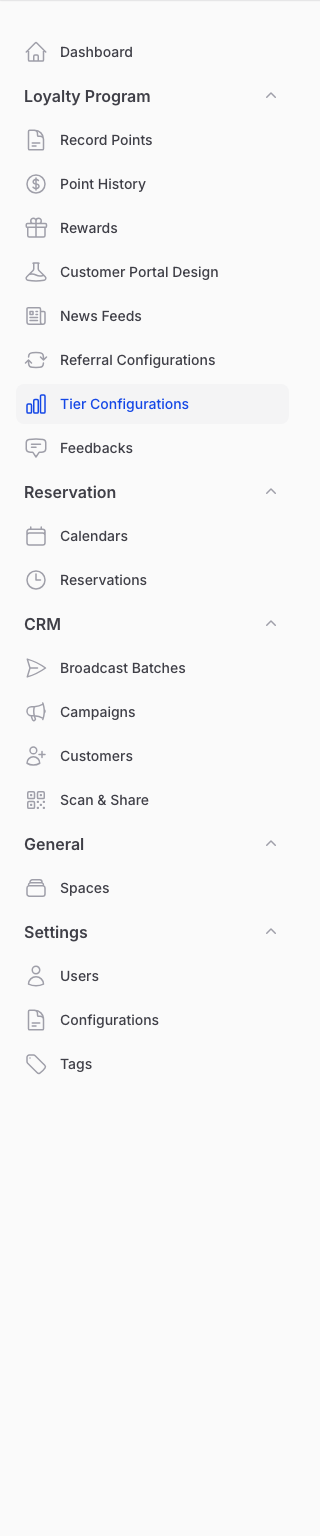
Go to Admin Panel → Loyalty Program → Tier Configurations
-
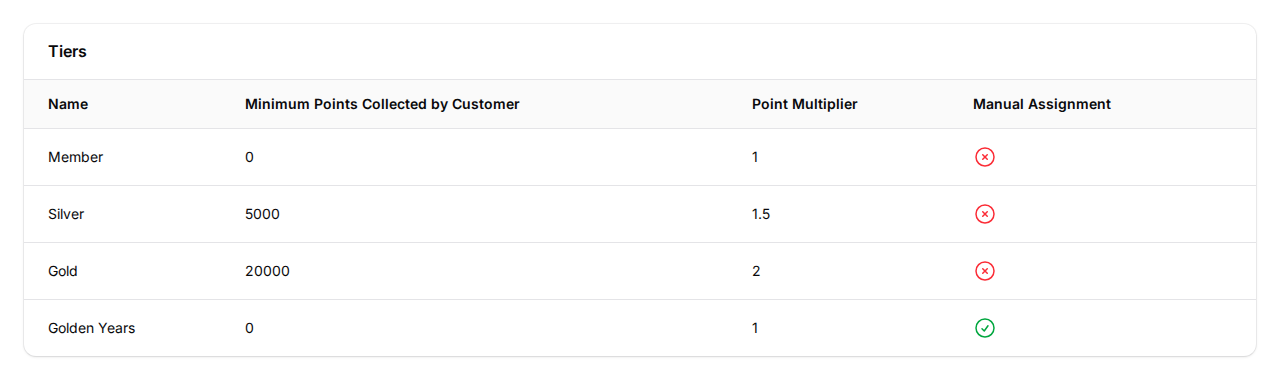
Click your tier configuration to open it. The Tiers table appears below, listing every tier. Find the tier you assign by hand.
-
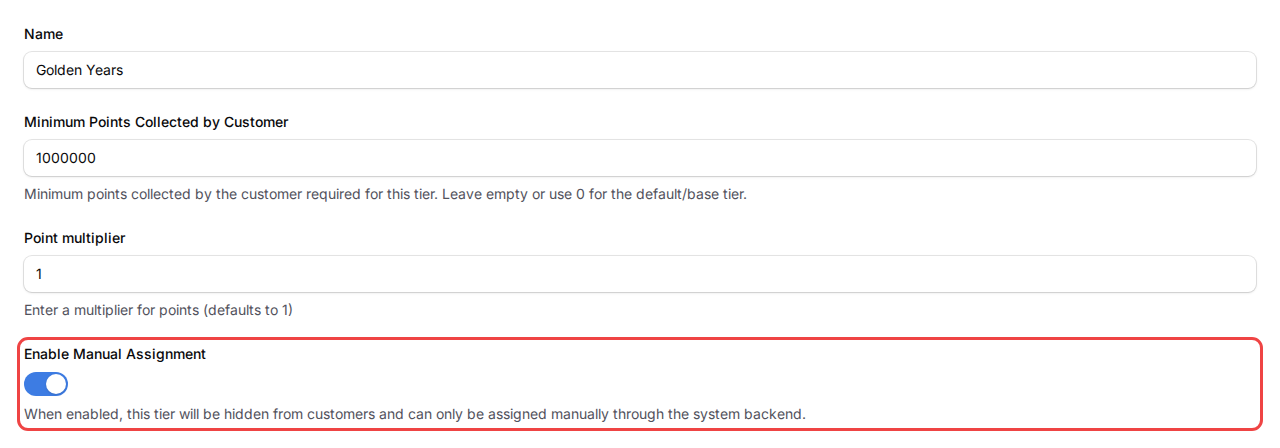
Click Edit on that tier, then set Tier assignment. You have three choices:
- Earned by points — the default; customers reach the tier automatically once they hit the point threshold.
- Manual — staff only — you grant the tier by hand, and it stays hidden from customers who do not hold it. This removes the confusing points message.
- Manual — showcased to all — you grant the tier by hand, but every customer still sees the tier and its benefits as an aspirational goal, with no points progress.
Choose Manual — staff only to hide the tier, or Manual — showcased to all to keep it on display for everyone.
-
Click Save. A green confirmation appears and the change takes effect right away.
What Your Customers Will See
What customers see depends on which manual mode you picked.
Manual — staff only: customers who are not in this tier no longer see it in their portal. The "spend more points to unlock" message and its progress bar are gone. Customers you assigned still see it as their current level.
Manual — showcased to all: every customer sees the tier's card and benefits, marked with a Tier not reached badge instead of a points bar, so it reads as an aspirational tier they can be invited into. Members you assigned see it as their current level, exactly as before. Either way, there is never a points target to chase, because the tier cannot be earned with points.
Good to Know
- Manual — staff only hides the tier from customers who do not have it. Manual — showcased to all keeps it visible to everyone as an aspiration.
- Either way, members you assign by hand see the tier as their level, and the tier can never be earned with points.
- The tier still counts in your programme, it is just off the points ladder.
- You can change the Tier assignment mode at any time.
- Assign a customer to a manual tier from their customer profile.
Need Help?
Not sure whether a tier should be manual or points-based? Send us a message and we will set it up with you.
What's Next?
- How to Set Up Tier Point Multipliers reward points-based tiers with bonus earning
- How to Set Up Tier-Based Birthday Vouchers give each tier its own birthday gift