
How to Create and Use Reward Bundles
How to Create and Use Reward Bundles
What Is This?
Reward Bundles let you group multiple rewards into a single redeemable package — saving time and keeping offerings consistent.
Real-Life Example
Siti runs a wellness spa and wants to offer a "Pamper Package" (massage voucher, treatment discount, and complimentary tea). Without bundles, staff would redeem each reward separately. With a Reward Bundle, the entire package is redeemed in one click.
How to Set It Up
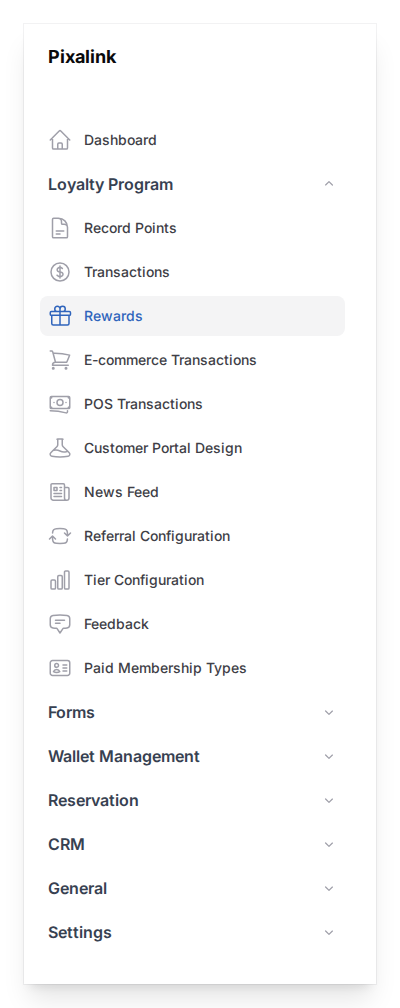
- Go to Admin Panel → Loyalty Program → Rewards
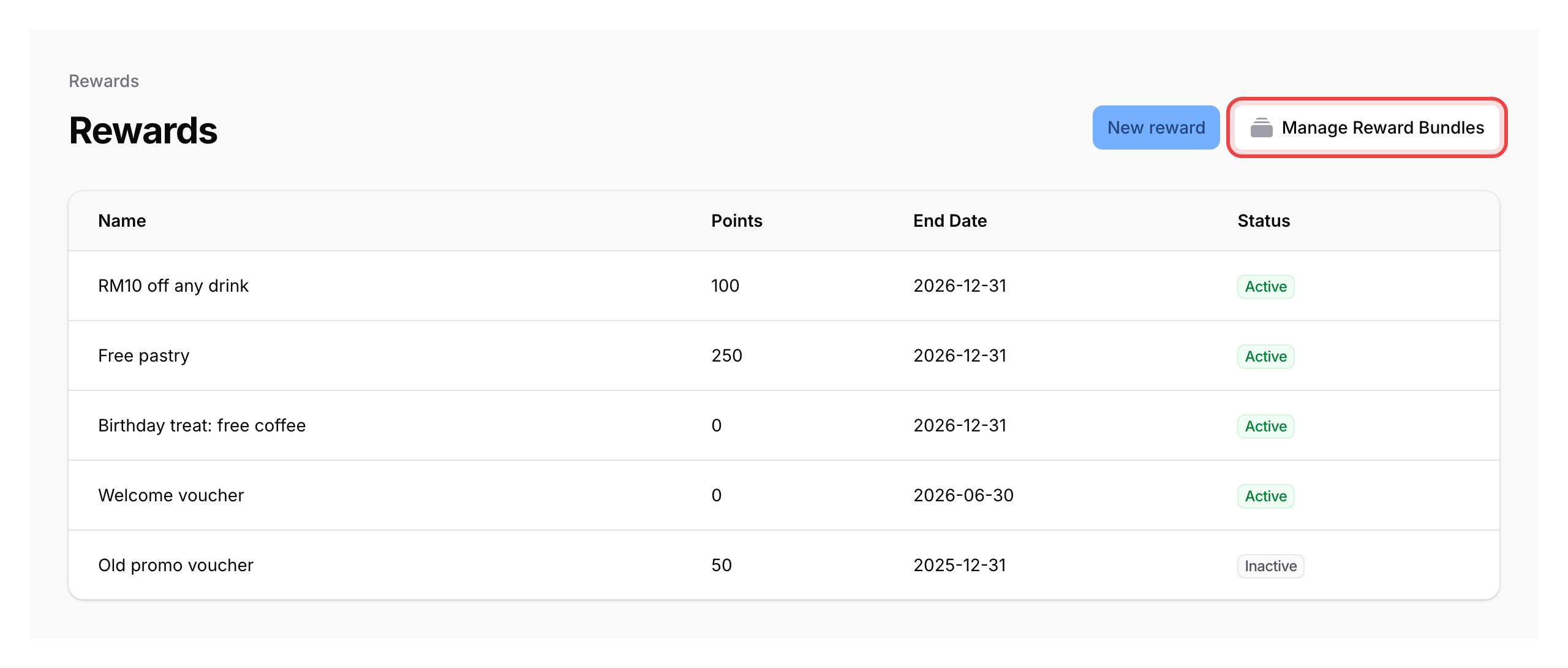
- Click the Manage Reward Bundles button at the top of the page
Note: This button only appears when the Reward Bundles feature is enabled for your organisation. If you don't see it, contact support.
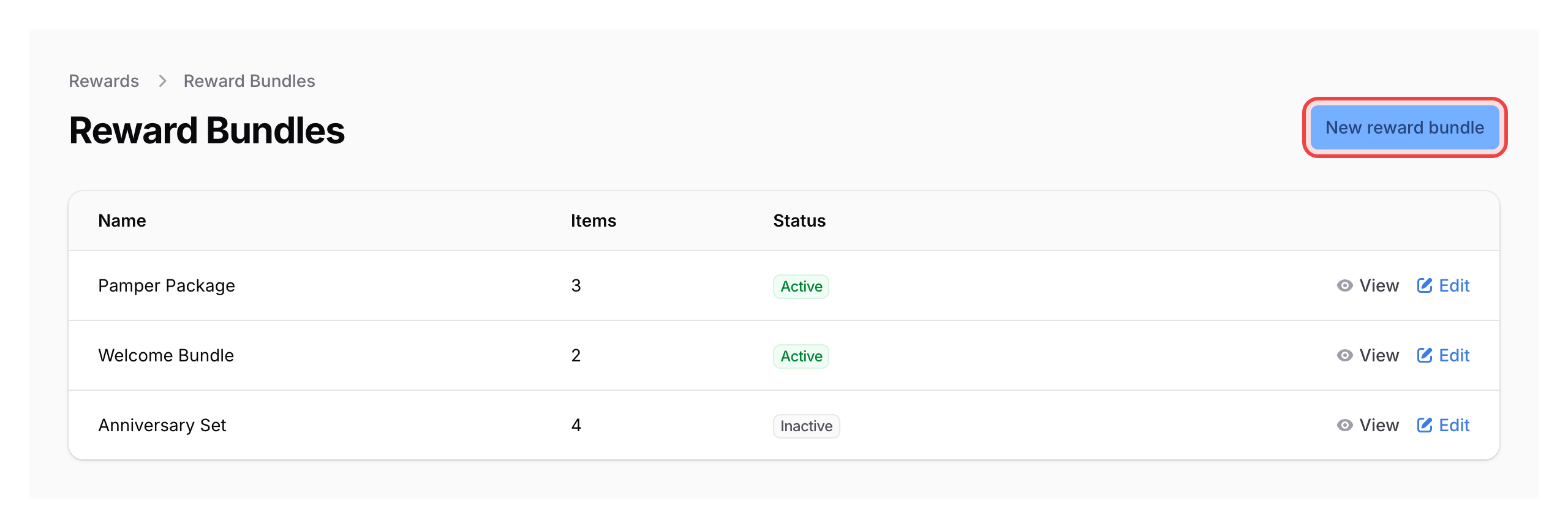
- Click New Reward Bundle
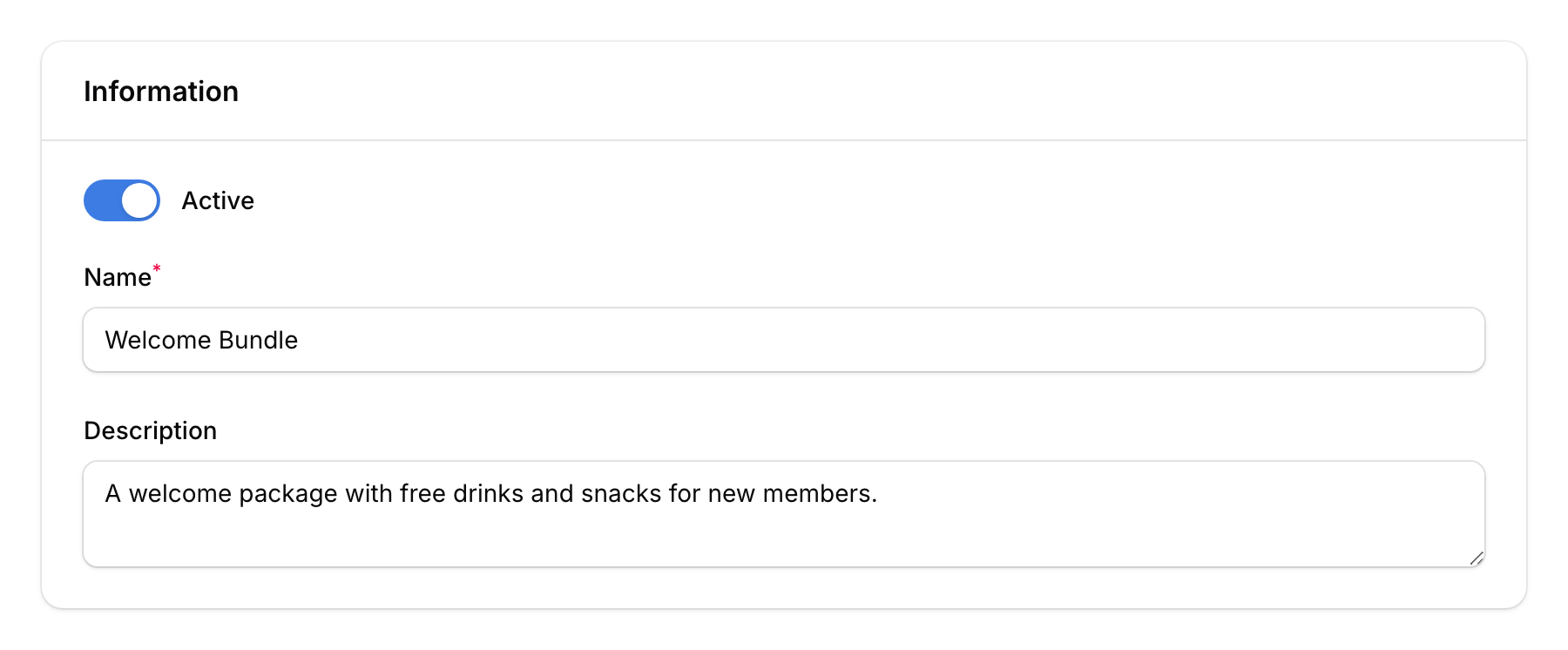
- Fill in the Information tab:
- Active — toggle on to make the bundle available for redemption
- Name — a clear name (e.g., "Welcome Package"). Maximum 50 characters.
- Description — optional short note. Maximum 100 characters.
- Go to the Rewards Item tab
Note: This tab is only available during creation. After saving, use the Reward Bundle Items section instead (see Managing Bundle Items After Creation).
- Click Add to items, then select a Reward and set the Quantity. Repeat to add more rewards (up to 10 per bundle).
- Click Create to save your bundle
Adding Rewards to Bundles in Bulk
From Admin Panel → Loyalty Program → Rewards, tick the rewards you want, select Add to Reward Bundle from the bulk actions menu, choose the target bundle(s), set the quantity, and confirm.
Redeeming a Bundle for a Customer
In Quick Redeem, bundles appear under a Reward Bundle group in the dropdown (only visible when the feature is enabled). Select the bundle, set the quantity, and confirm — all rewards are given at once.
What Your Customers Will See
When a bundle is redeemed, customers receive each reward individually in their account — not the bundle as a single item. Each reward appears separately and follows its own expiry and redemption rules.
Managing Bundle Items After Creation
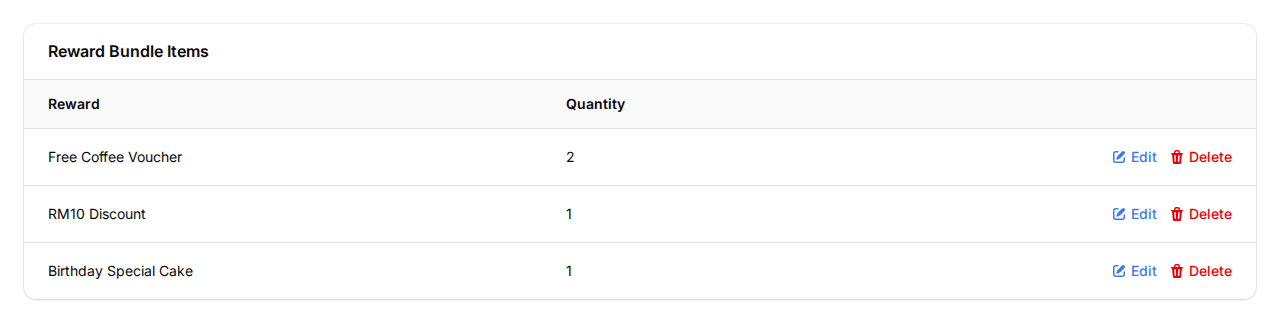
Open the bundle from the Reward Bundles list (click View or Edit), then scroll to the Reward Bundle Items section. Use New Reward Bundle Item to add rewards, or delete existing ones.
Good to Know
- During creation, any reward can be added except those with single redemption enabled.
- After creation, only rewards that are free to redeem (0 points), do not have single redemption, and are not auto-given to new customers can be added.
- Maximum 10 rewards per bundle.
- Setting a bundle to Inactive hides it from redemption but does not delete it.
- If any reward in a bundle becomes inactive, the entire bundle is hidden until all its rewards are active again.