
How to Add Quick Amount Buttons to Top Up Credits
What Is This?
Quick amount buttons let staff top up common amounts with one tap. Each button adds its amount to the Top Up Amount box, so staff type less and make fewer mistakes at a busy counter.
This guide was split out of How to Give Bonus Credits When Customers Top Up.
Real-Life Example
Ahmad runs a car wash in Shah Alam where most customers top up RM50, RM100 or RM500. On busy Saturdays his cashier mistyped amounts, once entering RM5,000 instead of RM500. Ahmad sets three quick buttons for those amounts. Now the cashier taps 500 credit instead of typing. A RM150 top-up is two taps: 100 and 50. Mistakes stop, and the queue moves faster.
How to Set It Up
-
Go to Admin Panel → Wallet Management → Top Up Configurations.

Top Up Configurations is in the Wallet Management group.
-
Turn on Enable Quick Credit Buttons in the Quick Credit Button section.
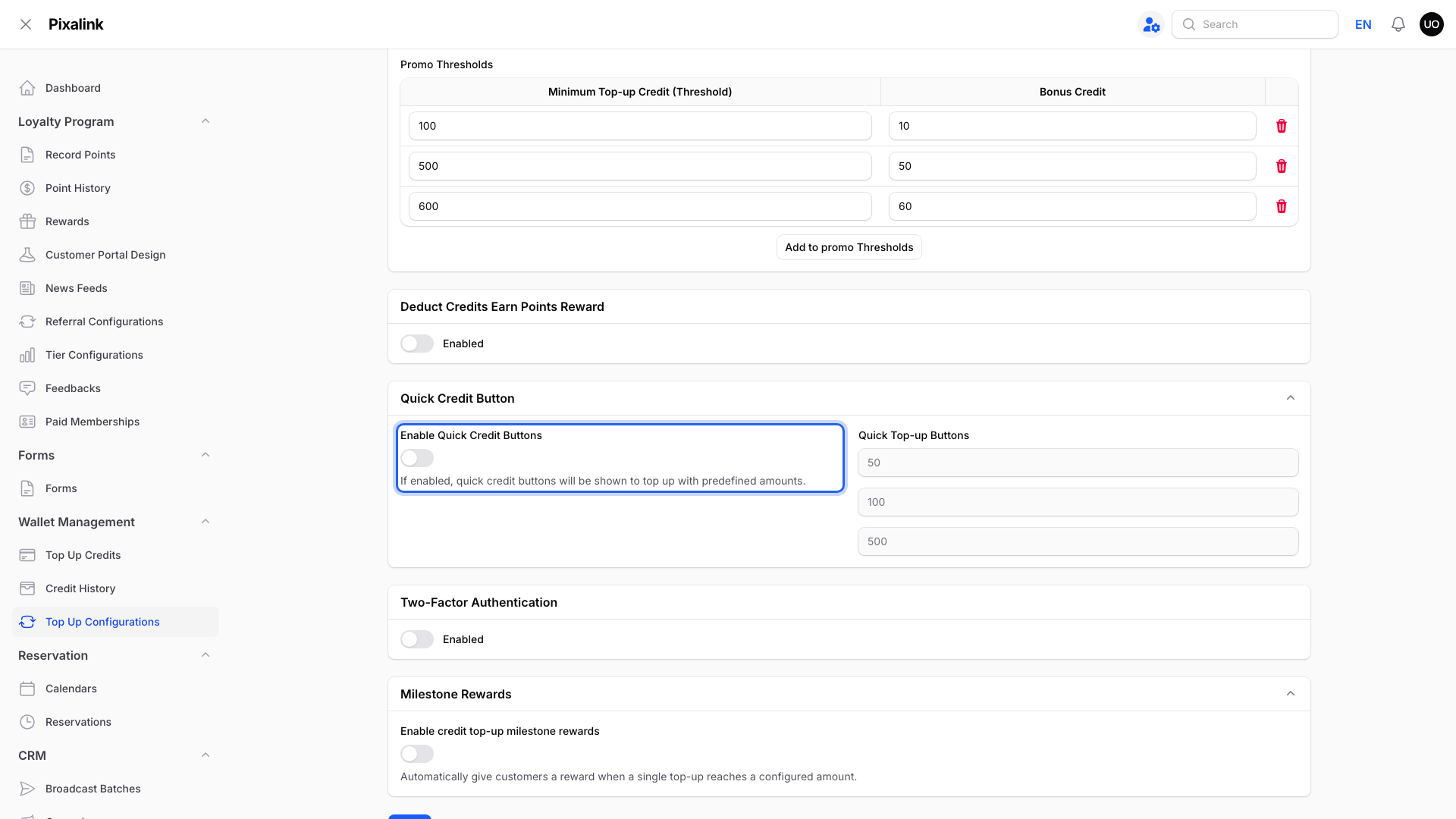
The amount boxes on the right stay grey until you turn this on.
-
Change the amounts in Quick Top-up Buttons to your most common top-ups.
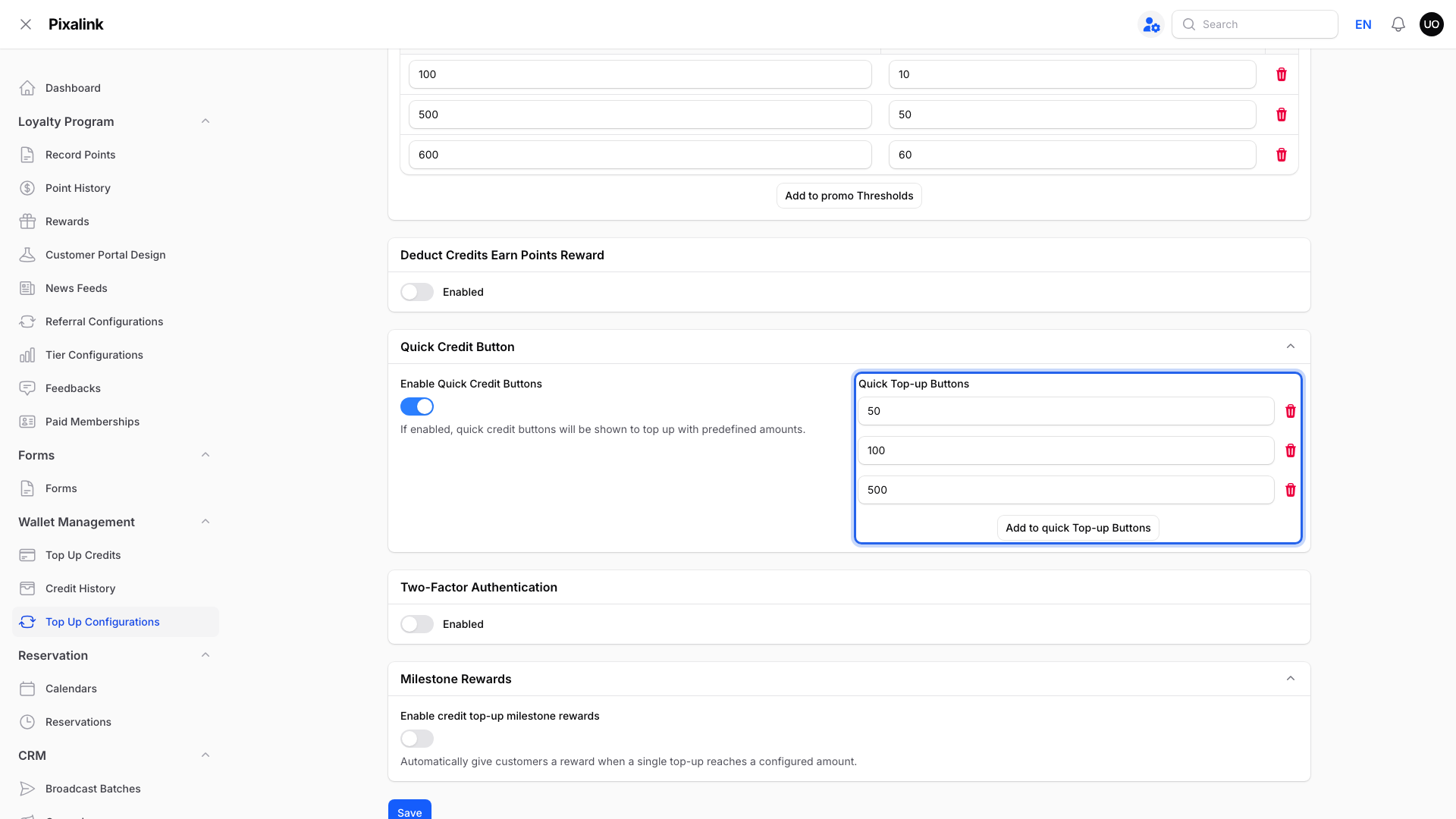
Use whole numbers. You can have up to 5 buttons.
-
Click Save at the bottom of the page.
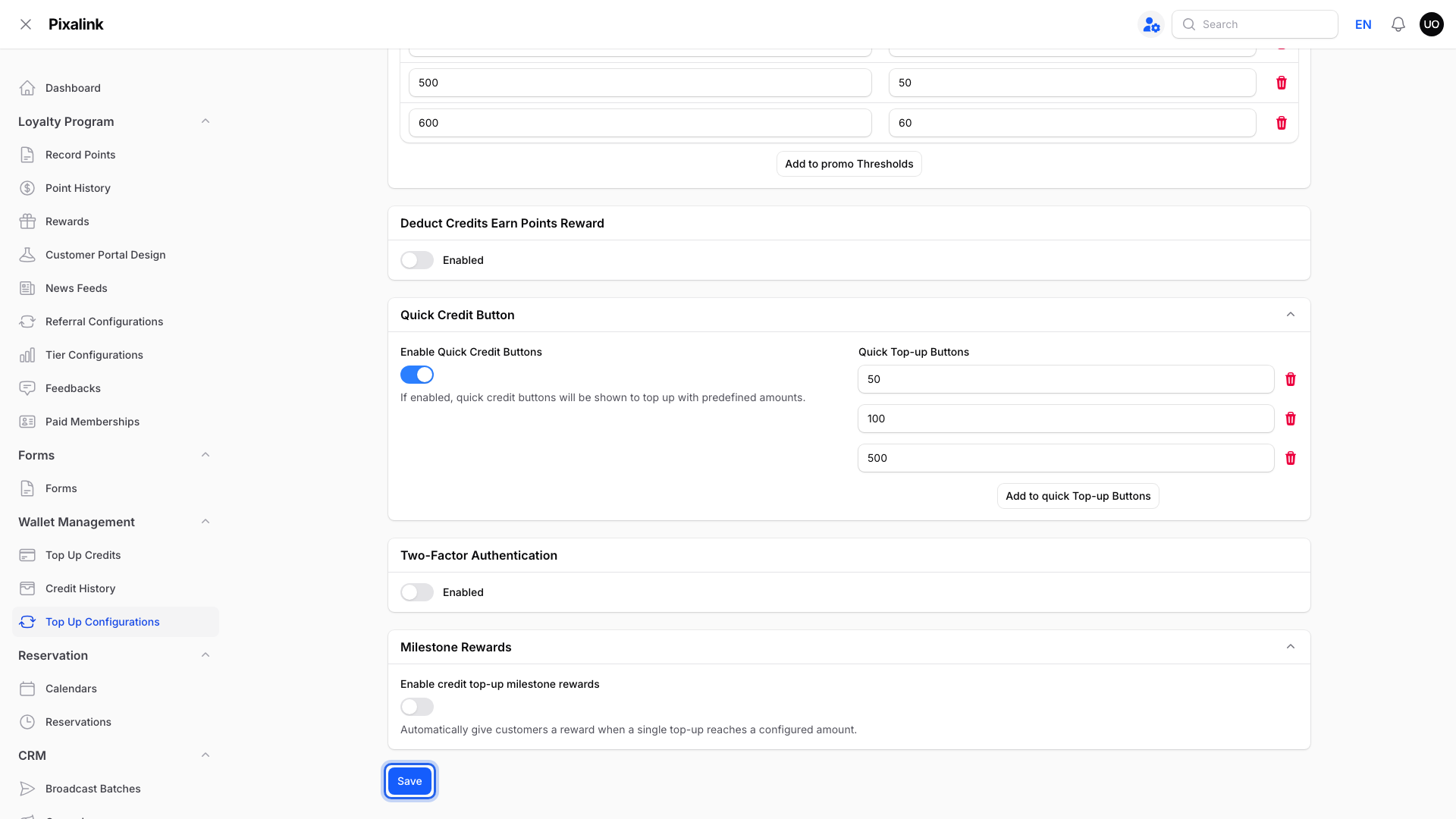
The buttons appear on Top Up Credits right after you save.
-
Go to Top Up Credits, enter the customer, and tap a button on the Enter Top Up Amount step.

Each tap adds to the amount. Tap 100 then 50 for RM150.
What Your Customers Will See
Nothing changes for customers. The buttons appear only on the staff Top Up Credits page, not in the customer portal.
Good to Know
- When you first turn the buttons on, Pixalink fills in 1, 5, 10, 50 and 100. Change them before you save.
- Buttons add whole amounts to what is in Top Up Amount, and drop any cents. Use the clear icon in the box to start again.
- Customers who top up online see a different set of buttons. See How to Let Customers Top Up Credits Online.
Need Help?
If staff don't see the buttons on Top Up Credits, Enable Quick Credit Buttons isn't saved as on. Turn it on, click Save, and reload the page.