
How to Change How Timeslots Look and Allow Multiple Slots
What Is This?
You choose how timeslots read on your booking page. You can also show slots that are fully booked, and let customers book more than one slot in a single reservation. Clear slots mean fewer questions from customers.
Real-Life Example
Priya runs a badminton court in Subang. Her customers play for two hours, but her slots are one hour each. They had to book twice and sometimes lost the second slot. She turned on Allow Multiple Timeslot Selection. She also chose a format that shows only the start time. Now players book a full two-hour block in one go.
How to Set It Up
-
Go to Admin Panel → Reservation → Calendars.
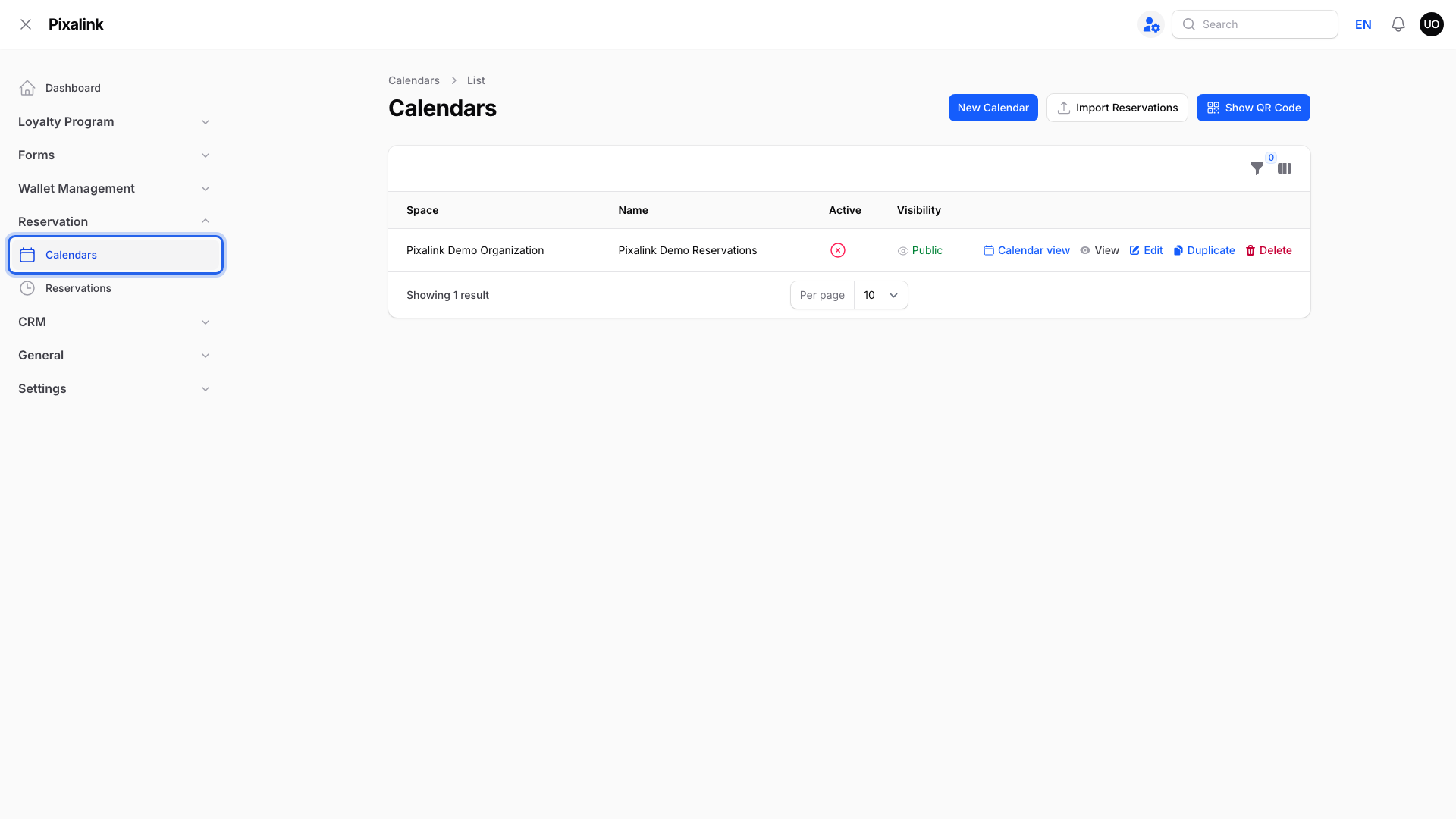
-
Click Edit on your calendar.
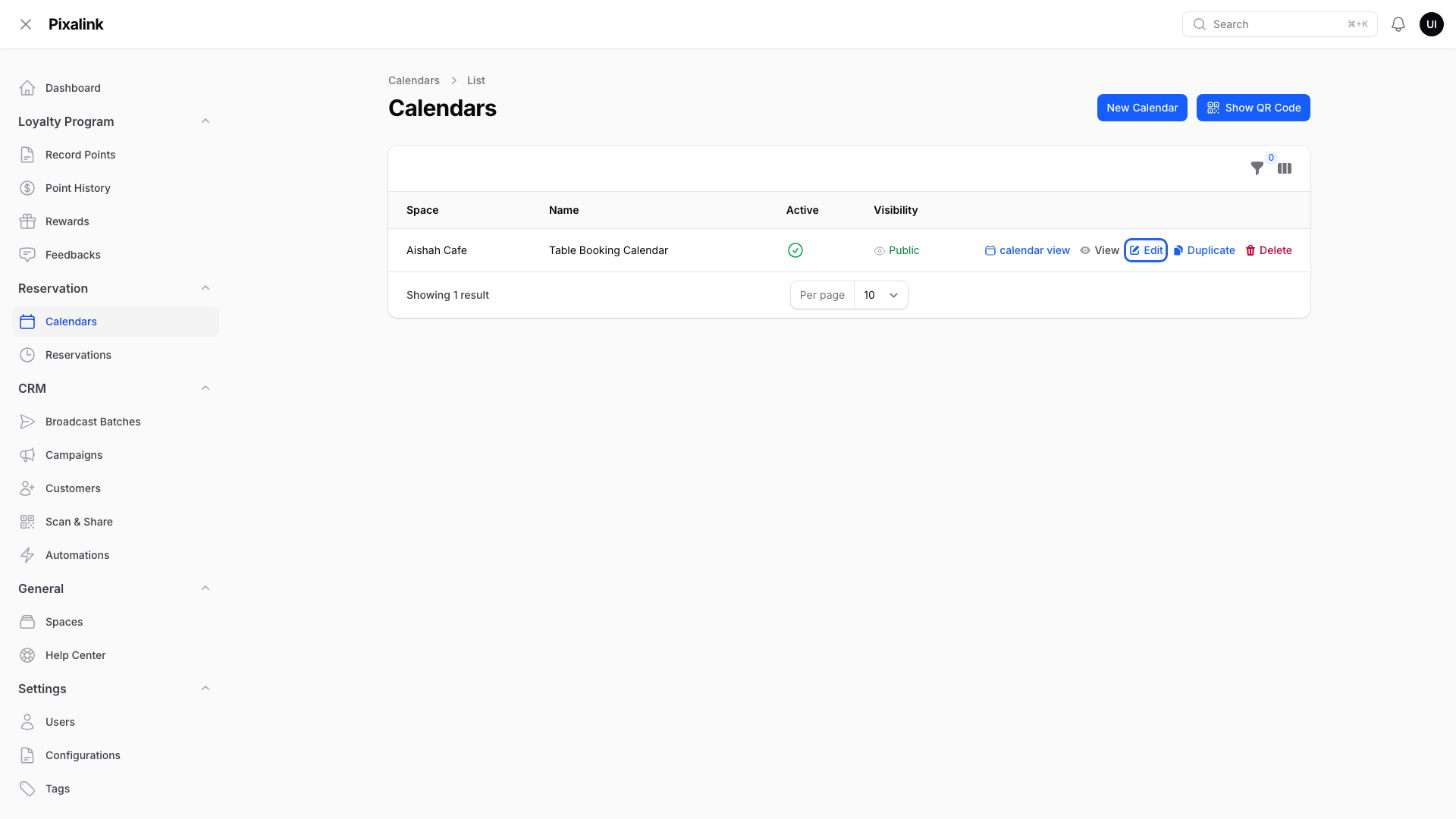
-
Open the Advanced Settings tab.
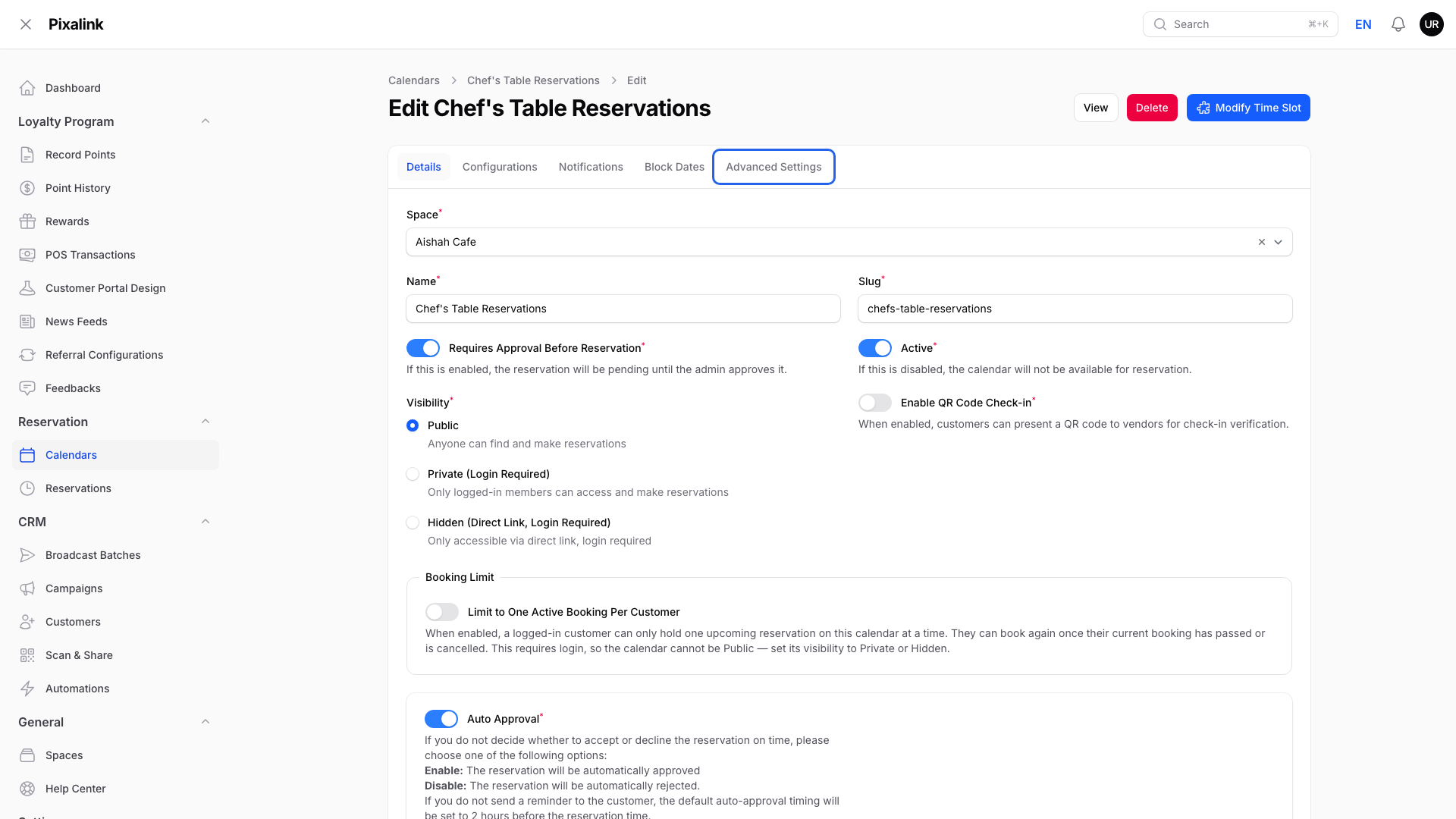
-
Pick a Timeslot Display Format. The four choices are:
09:00 AM - 10:00 AM (2 available) | TITLE(the starting choice)09:00 AM - 10:00 AM | TITLE09:00 AM (2 available) | TITLE09:00 AM | TITLE

-
Turn on Display fully booked timeslots to show full slots instead of hiding them. In the two formats that show "(2 available)", a full slot is marked FULL. In the other two, a full slot looks like any other.

-
Turn on Allow Multiple Timeslot Selection so customers can pick several slots in one booking.

-
Click Save changes.

What Your Customers Will See
-
Each slot reads in the format you picked. TITLE is the name you gave the timeslot. It is left out when the name is just the day, like "Monday".

-
With multiple selection on, the booking form says "You can select up to 3 consecutive time slots."
-
Slots picked together must be next to each other. If they are not, the form says "Selected timeslots must be consecutive."
Good to Know
- The "(2 available)" number only appears when your calendar counts by number of bookings. If it counts by seats or by tables, no number is shown, but FULL still appears when the slot is full.
- The limit of 3 slots per booking is the standard. You can't change it in your panel.
- Customers can see and even pick a full slot, but the booking is turned down with a "not available" message.
Need Help?
Reach out to our support team. We're happy to help you get started.