
How to Use WooCommerce Integration with Pixalink
How to Use WooCommerce Integration with Pixalink
What is the WooCommerce Integration?
The WooCommerce integration connects your online store to your Pixalink loyalty program. Once set up, your customers automatically earn loyalty points when they buy from your WooCommerce store — just like they do when shopping at your physical location.
What it does for you:
- Customers who shop on your website earn loyalty points automatically
- New customers who register on your WooCommerce store are added to your Pixalink customer list
- If a customer returns an order, the points are automatically deducted
- Your online and in-store loyalty programs work as one
What you need to know:
- The WooCommerce integration is set up by the Pixalink support team on your behalf
- Once set up, everything runs automatically — you don't need to do anything for day-to-day operations
- You can view your WooCommerce settings and manage transactions from your Admin Panel
Getting Started
Prerequisites
Before requesting the WooCommerce integration, make sure you have:
- A WooCommerce store with admin access
- WooCommerce connection keys (your Pixalink support contact will guide you through this)
- A Pixalink account with at least one Space (outlet) set up
How to Set Up
Your Pixalink support contact will guide you through the setup. In most cases, you just need to:
- Log in to your WooCommerce admin panel
- Go to WooCommerce > Settings > Advanced > REST API
- Click Add Key and generate a set of connection keys
- Copy both keys immediately and send them to your Pixalink support contact along with your store URL (e.g.,
https://yourstore.com)
Important: The secret key is only shown once. If you lose it, you'll need to create a new one.
The support team will then:
- Enable WooCommerce on your Pixalink account
- Connect your store
- Set up automatic order and customer syncing
How Points Work with WooCommerce
When Customers Earn Points
Points are awarded automatically when an order status changes to Processing in WooCommerce. This typically happens when payment is received (credit card, bank transfer confirmed, etc.).
If an order doesn't appear automatically, use the Refresh button on the Ecommerce Transactions page — it checks for orders from the last 7 days that may have been missed.
Orders that do NOT award points:
- Pending payment
- On hold
- Cancelled
- Failed
When Points Are Deducted
If a WooCommerce order is fully refunded (order status changes to "Refunded"), the loyalty points from that order are automatically deducted from the customer's account.
Note: Partial refunds on individual items do not automatically deduct points — only a full order refund that changes the order status to "Refunded" will trigger point deduction. Refunds are also only processed if the original order was previously synced and appears in your Ecommerce Transactions list.
How Customers Are Matched
The system recognises your customers using:
- WooCommerce account — if the customer is registered in WooCommerce, the system links them directly to their Pixalink profile
- Phone number — for guest checkouts, or if no WooCommerce account match is found, the billing phone number is used to match or create the customer
If a customer shops on your website for the first time and doesn't already exist in Pixalink, a new customer record is automatically created.
Tip: Make sure your WooCommerce checkout form collects the customer's phone number. This is the primary way the system matches online customers to their loyalty accounts.
Using the Admin Panel
Viewing Your WooCommerce Settings
Navigation: Admin Panel > General > Spaces > Select your outlet
Scroll down to the WooCommerce Integration section. Here you can see your WooCommerce integration settings, including:
- Whether the integration is active
- Your store URL
- Feature settings (Product-Based Transactions, Do Not Award Points)
- Sync status (shows whether automatic syncing is active)
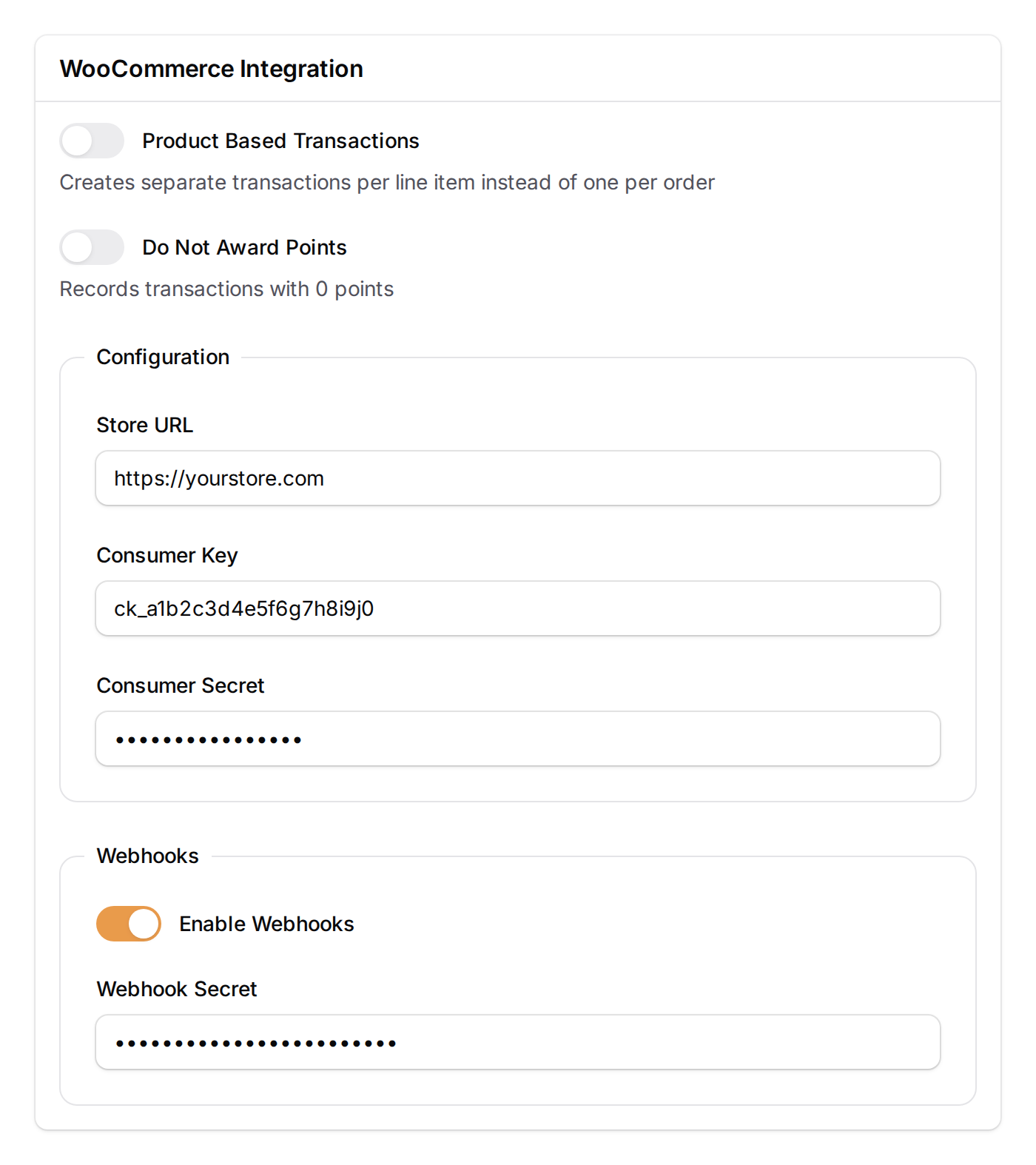
These settings are view-only. If you need to change anything, contact your Pixalink support team.
Viewing Ecommerce Transactions
Navigation: Admin Panel > Loyalty Program > Ecommerce Transactions
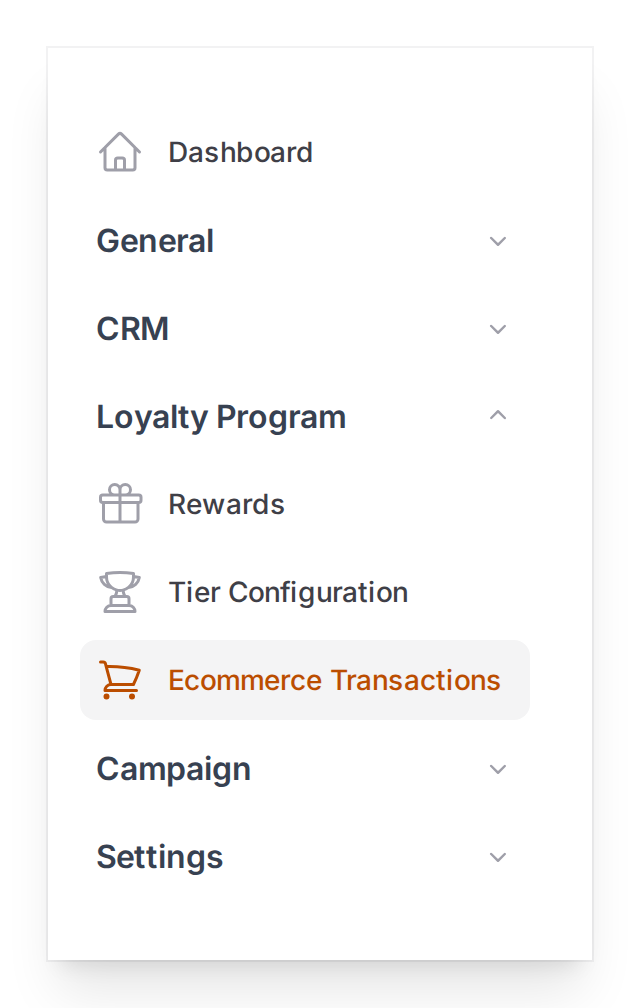
This page shows all orders synced from your WooCommerce store. Each transaction shows:
- Transaction time
- Order ID
- Total amount
- Space
You can filter by Space, Provider, or Status.
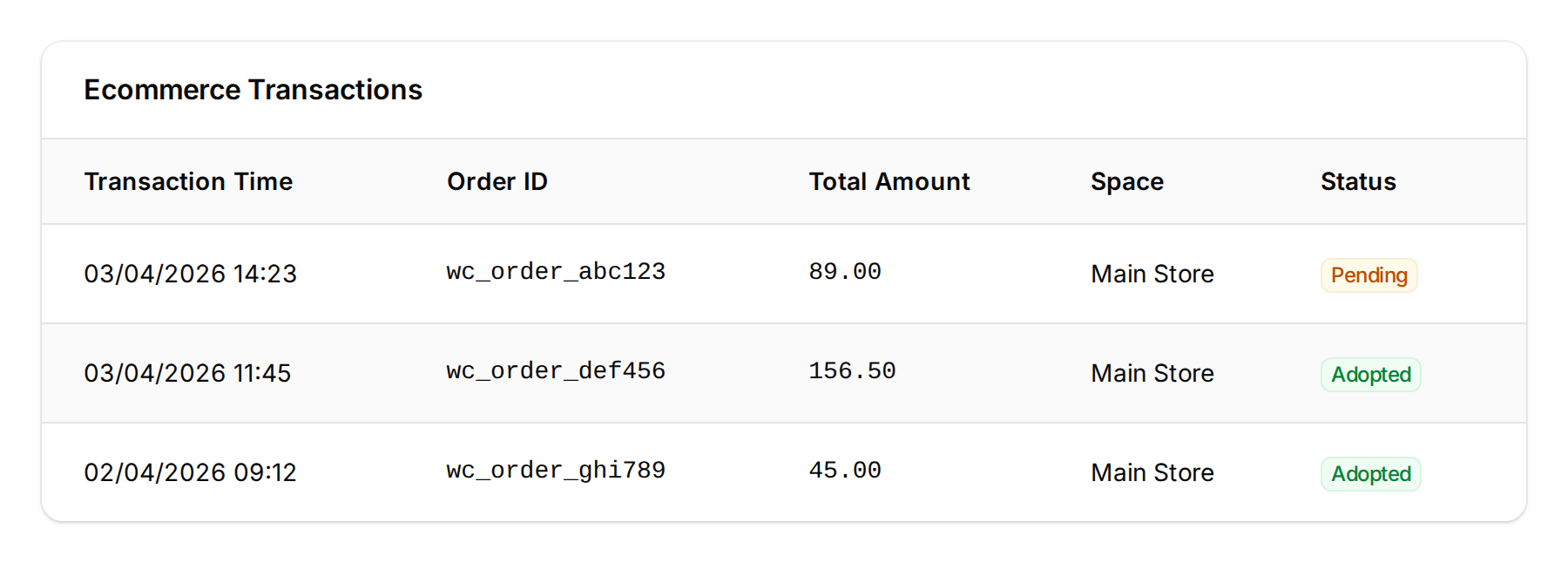
Transaction statuses:
- Pending (yellow) — order received but not yet assigned to a customer
- Adopted (green) — order has been assigned and points awarded
Refreshing Transactions
If you want to manually check for new orders:
- Go to Ecommerce Transactions
- Click the Refresh button in the top right
- The system fetches orders with status Processing or Completed from the last 7 days
- Only orders not yet in your list will be added — orders already recorded won't be re-synced
In most cases, you don't need to do this — orders sync automatically in real time. Use this if you suspect an order was missed.
Adopting a Transaction
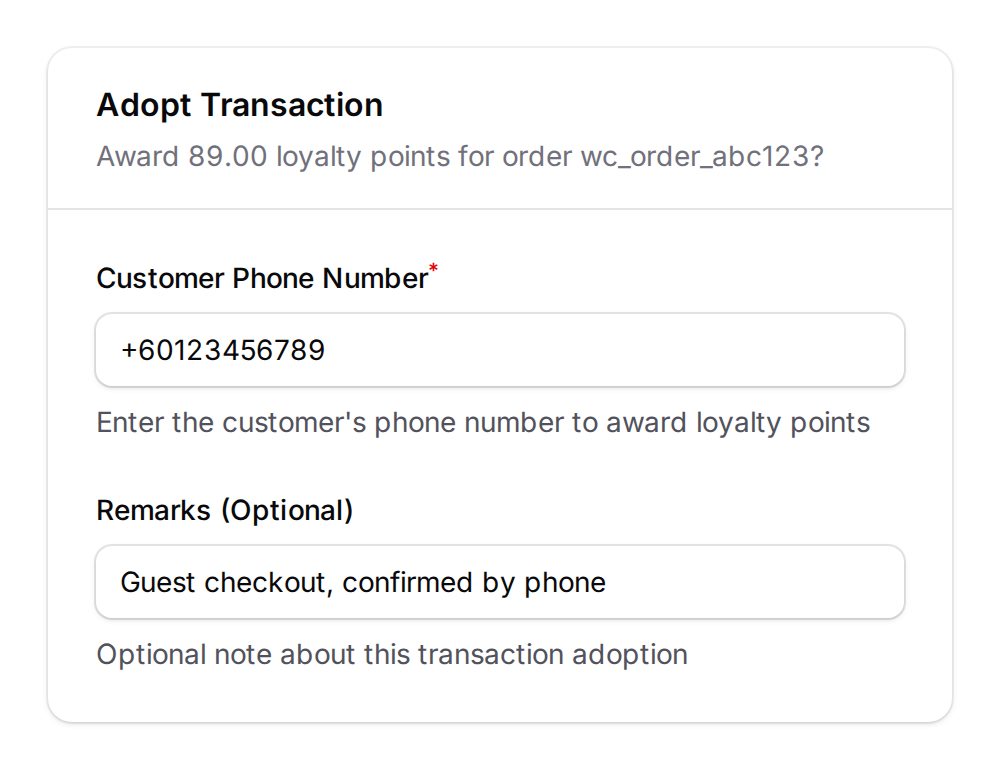
If a transaction shows as Pending, it means the system couldn't automatically match it to a customer. You can manually assign it:
- Go to Ecommerce Transactions
- Find the pending transaction
- Click the Adopt Transaction button on that row
- Enter the customer's phone number
- Optionally add a remark (e.g., "Guest checkout, confirmed by phone")
- Confirm
The customer will receive the loyalty points for that order.
Importing Customers from WooCommerce
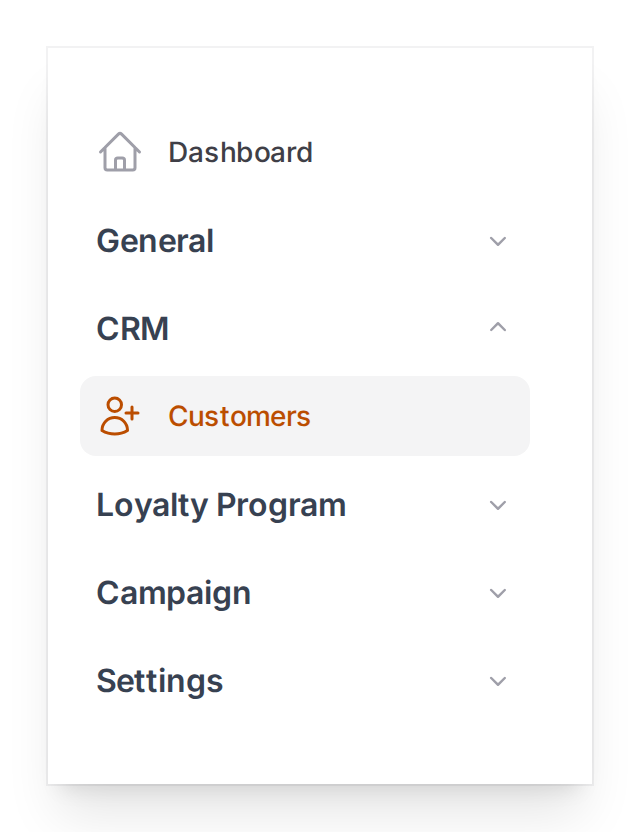
If you want to bulk-import your existing WooCommerce customers into Pixalink:
- Go to Admin Panel > CRM > Customers
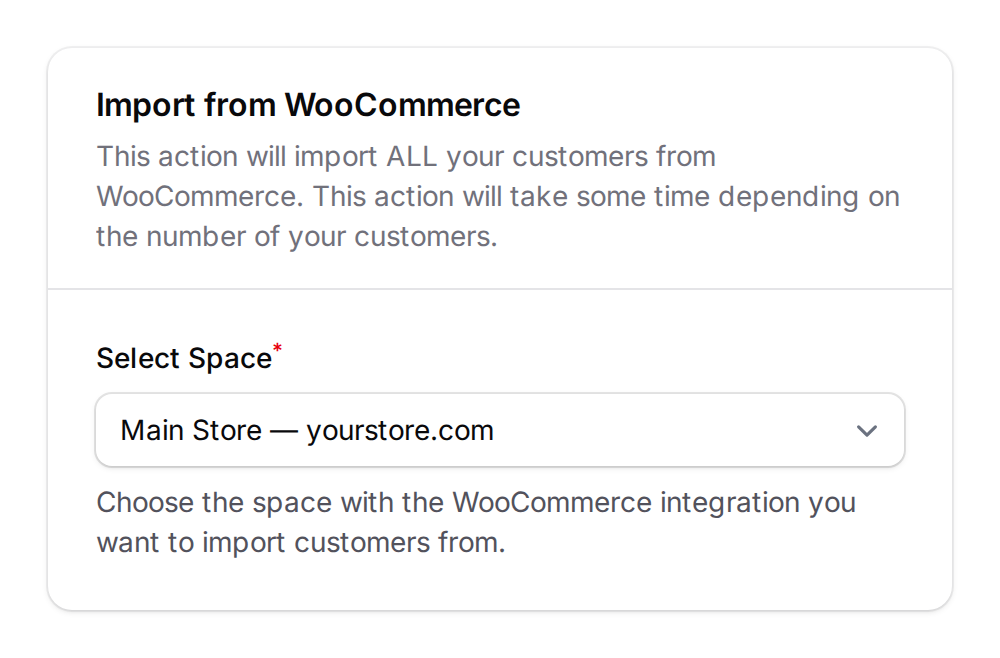
- Click the dropdown menu button (three-dot icon) in the top right corner, then select Import from WooCommerce
- Select the Space (outlet) connected to your WooCommerce store
- Confirm the import
The system imports all customers from your WooCommerce store. Existing customers (matched by phone number) won't be duplicated.
Feature Options
These options are configured by your Pixalink support team. Ask them if you'd like to change any setting.
Product-Based Transactions
Default: Off
When enabled, each product in an order creates a separate transaction instead of one transaction for the whole order.
Example:
- Customer buys a shirt (RM 30) and shoes (RM 70)
- Off: One transaction for RM 100
- On: Two transactions — RM 30 for the shirt, RM 70 for the shoes
When to use: If you want to track which products your customers buy most often, or if you have different point rules for different product categories.
Do Not Award Points
Default: Off
When enabled, WooCommerce transactions are recorded but no points are awarded. The purchase amount is saved for reference.
When to use: During testing, or if you use custom point rules that are calculated separately.
What Your Customers Will See
Your customers don't need to do anything special. After they complete a purchase on your WooCommerce store:
- Their loyalty points balance updates automatically
- They can see the new points in their customer portal or loyalty card
- If you have WhatsApp notifications set up, they'll receive a message about their earned points
- They can redeem these points at your physical outlet or online — just like points earned from in-store purchases
Real-Life Example
Aishah orders a RM 89 blouse from your WooCommerce store. When her payment is confirmed and the order status changes to "Processing", she automatically earns loyalty points — just as if she'd shopped at your physical outlet. The next day, she visits your store in person and redeems her points for a discount. She didn't need to register separately or show any receipt — the system recognised her by her phone number.
Frequently Asked Questions
"My customer didn't receive points for their online order"
Check these in order:
- Was the order paid? — Only orders with status "Processing" or "Completed" award points. Orders that are "Pending" or "On Hold" don't.
- Does the customer have a phone number? — The system matches customers primarily by phone number. If the WooCommerce order has no billing phone number, the customer might not be matched.
- Check Ecommerce Transactions — Go to Admin Panel > Loyalty Program > Ecommerce Transactions. If the order appears as "Pending", you can manually adopt it.
- Contact support — If the order doesn't appear at all, the automatic sync may have missed it. Your Pixalink support team can investigate.
"A customer has two accounts — one from the store, one from WooCommerce"
This can happen when the phone number in WooCommerce doesn't match the one in Pixalink — for example, if a customer used a different number when registering on your website versus in-store. Contact your Pixalink support team to merge the accounts.
"I processed a refund but points weren't deducted"
Check:
- Was the original order processed and points awarded? If the order was never synced, there are no points to deduct.
- Is "Do Not Award Points" enabled? If so, refunds are skipped because no points were awarded.
"Orders from a few days ago are missing"
- Try the Refresh button on the Ecommerce Transactions page — it fetches orders from the last 7 days
- If still missing, contact your Pixalink support team to investigate
"Can I connect multiple WooCommerce stores?"
Yes. Each WooCommerce store is connected to a separate Space in Pixalink. If you have multiple online stores, each one gets its own Space with its own WooCommerce configuration. Ask your Pixalink support team to set up additional connections.
"Can my customers redeem rewards on WooCommerce?"
If your Pixalink setup includes reward vouchers, these can be synced to WooCommerce as coupon codes. Your customers receive a coupon code that they can apply at checkout on your WooCommerce store. Ask your Pixalink support team about setting up voucher sync.
Need Help?
If you experience any issues with your WooCommerce integration:
- Check the FAQ above for common solutions
- Refresh your transactions using the Refresh button
- Contact your Pixalink support team for configuration changes or technical issues
Your support team can:
- Update your WooCommerce credentials if they change
- Enable or disable feature options
- Investigate missing orders or customer matching issues
- Set up voucher sync to WooCommerce