
How to Use the Tier Progress Simulator
How to Use the Tier Progress Simulator
What Is This?
The Tier Progress Simulator lets you test how customers move between loyalty tiers before anything goes live. You can add pretend purchases and redemptions, then instantly see which tier a customer would land on — helping you fine-tune your tier point requirements with confidence.
Real-Life Example
Siti runs a bubble tea chain with three tiers: Bronze (0 points), Silver (500 points), and Gold (1,000 points). Before launching, she wasn't sure if 1,000 points for Gold was too high. She opened the simulator, added a few typical purchase transactions — 15 points here, 20 points there — and watched the timeline. After simulating three months of a regular customer's visits, the customer was still stuck at Bronze. Siti lowered her Gold requirement to 800 points, re-ran the simulation, and saw the customer reach Gold by month three. She launched with the adjusted tiers and her top customers started hitting Gold within a realistic timeframe.
Video Walkthrough
How to Set It Up
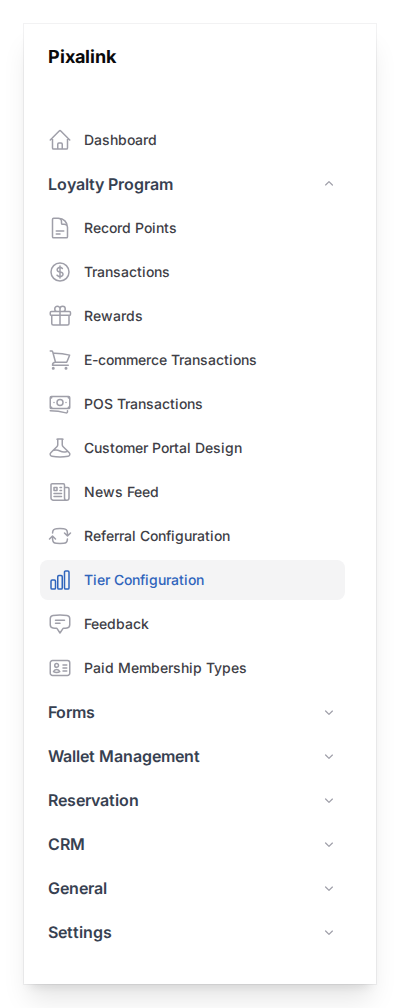
- Go to Admin Panel → Loyalty Program → Tier Configurations
-
Click on the tier configuration you want to test to open its View or Edit page, then click Simulate in the top-right corner
-
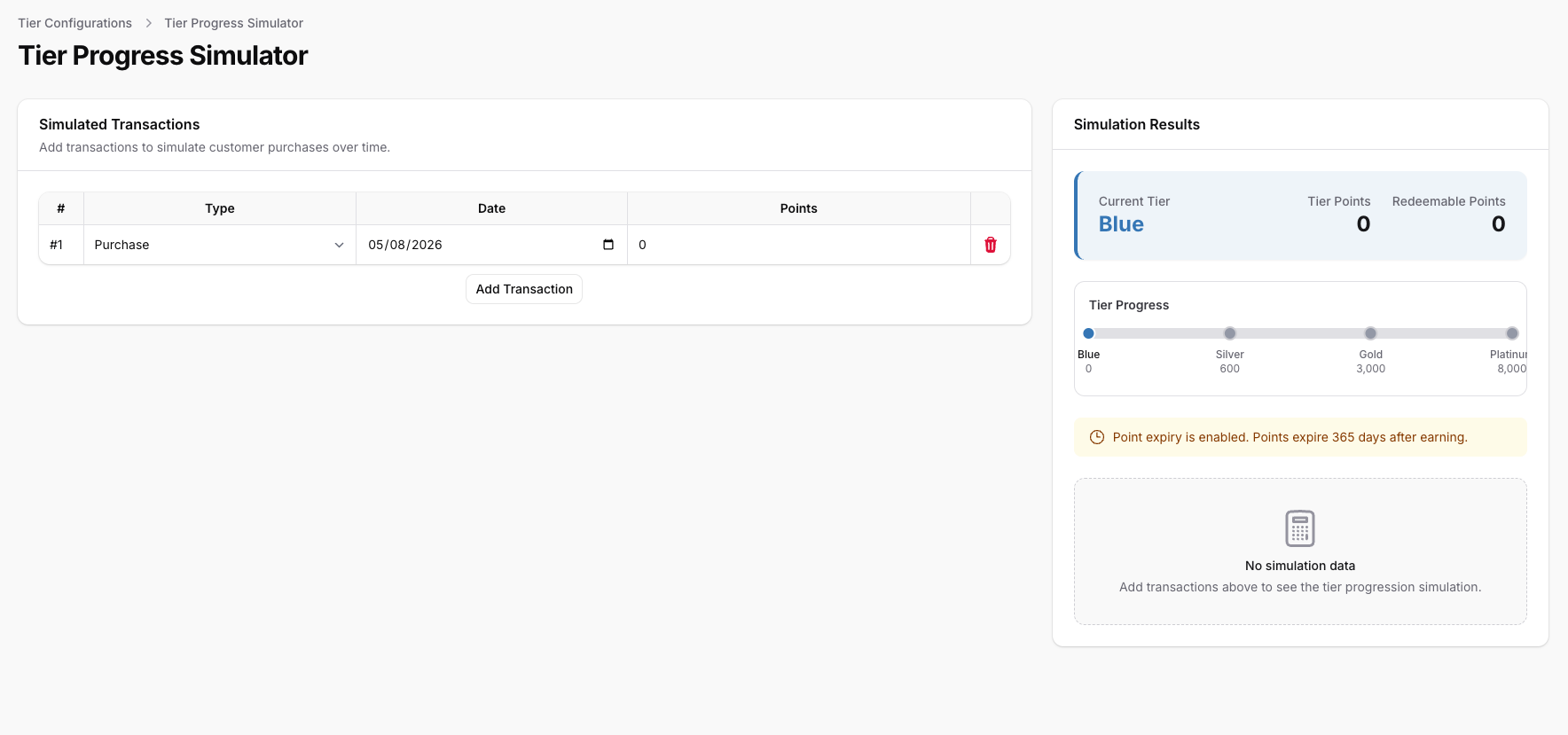
In the Simulated Transactions section on the left, you'll see a table with one starter row, already set to Purchase with today's date. Fill it in:
- Type — choose Purchase to add points, or Redemption to subtract points
- Date — pick the date this transaction would happen
- Points — enter the number of points earned or redeemed (at least 1)
-
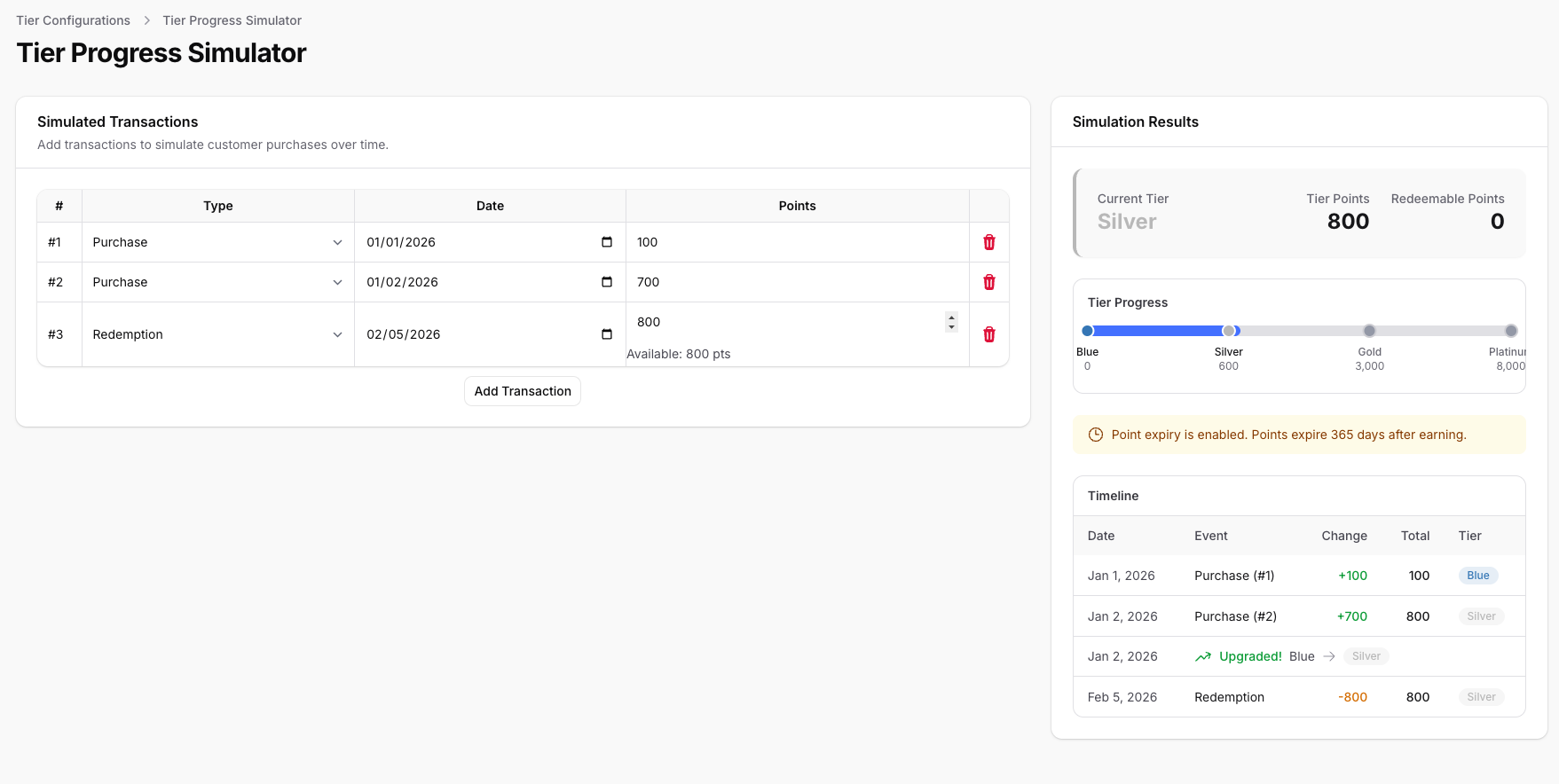
Click Add Transaction below the table to add more rows. The simulation updates automatically as you add or change transactions.
-
Review the Simulation Results panel on the right side of the page. It shows:
- Current Tier — the tier this customer would be in right now
- Tier Points — total points counting toward tier status
- Redeemable Points — points available to spend on rewards
- Tier Progress — a visual bar showing how close the customer is to the next tier
- Timeline — a detailed table of every event, including tier upgrades and downgrades
Reading the Results
The timeline table is colour-coded to help you scan quickly:
- Green rows with an upward arrow show a tier upgrade — the customer moved to a higher tier
- Red rows with a downward arrow show a tier downgrade — the customer dropped to a lower tier
- Green numbers in the Change column mean points were added (from purchases)
- Amber numbers mean points were used (from redemptions)
- Red numbers mean points expired
If your account has point expiry turned on, you'll also see:
- A notice showing how many days points last before they expire
- Future projections marked with an asterisk (*) — these show when existing points will expire and how that affects the customer's tier
Good to Know
- The simulator doesn't affect real customer data. It's a sandbox for testing only.
- Redemption transactions can't exceed the available point balance. The simulator shows you how many points are available.
- Redemptions lower Redeemable Points but not Tier Points, so spending points never drops a customer's tier. In the simulator, only expiring points can bring a customer back down.
- If you enter transaction dates out of order, you'll see a warning. The simulation logic sorts transactions by date internally, but the visible table rows stay in the order you entered them.
- Only automatic tiers are included in the simulation. Manually assigned tiers are excluded.
- The simulation runs instantly each time you change a transaction — no need to click a "Run" button.