
How to Set Up Payment for Calendar Reservations
How to Set Up Payment for Calendar Reservations
What Is This?
Paid reservations let you charge customers when they book a timeslot. This helps reduce no-shows and earn revenue from classes, sessions, and appointments directly through Pixalink.
Real-Life Example
Aisyah runs a Pilates studio in Petaling Jaya. She used to offer free bookings, but half her class slots went to no-shows. After turning on payment, customers now pay RM35 when they book. No-shows dropped overnight because people don't skip something they've already paid for.
Video Walkthrough
How to Set It Up
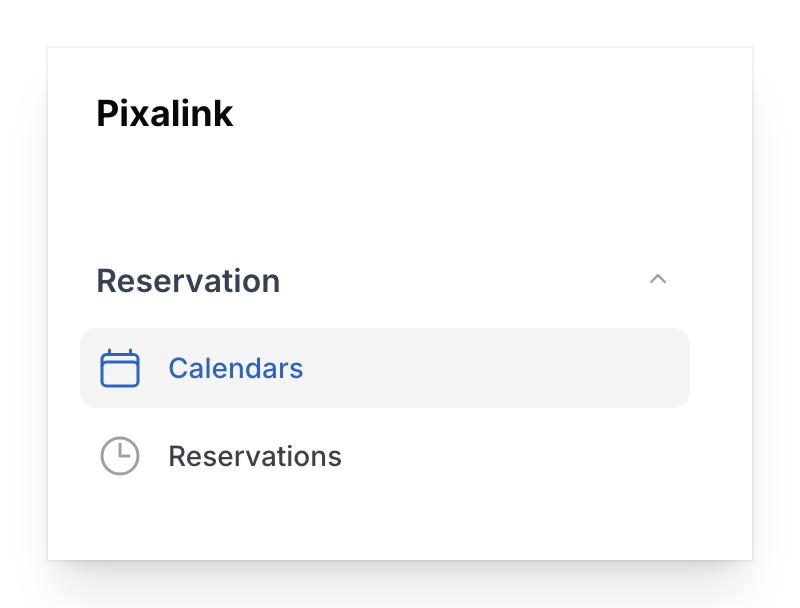
- Go to Admin Panel → Reservation → Calendars, find the calendar you want to charge for, and click Edit.
- Open the Payment Configuration tab and turn on Require Payment. The booking button changes to Proceed to Payment, and customers pay before their booking is confirmed. Your calendar also switches to Private visibility, so customers must log in before booking.

Note
Require Payment stays greyed out until a payment gateway or credit payment is set up for your account. Contact our support team to set it up.
-
Set the Payment Amount, for example RM35. Customers see it under Payment Information on the booking page.
-
If your members carry wallet credits, turn on Accept Pay with Credits. They can then pay from their credit balance when they proceed to payment. Customers can pay in two ways:
- Online Payment — goes through your payment gateway, which our support team sets up for you
- Credits — comes out of the member's wallet balance
-
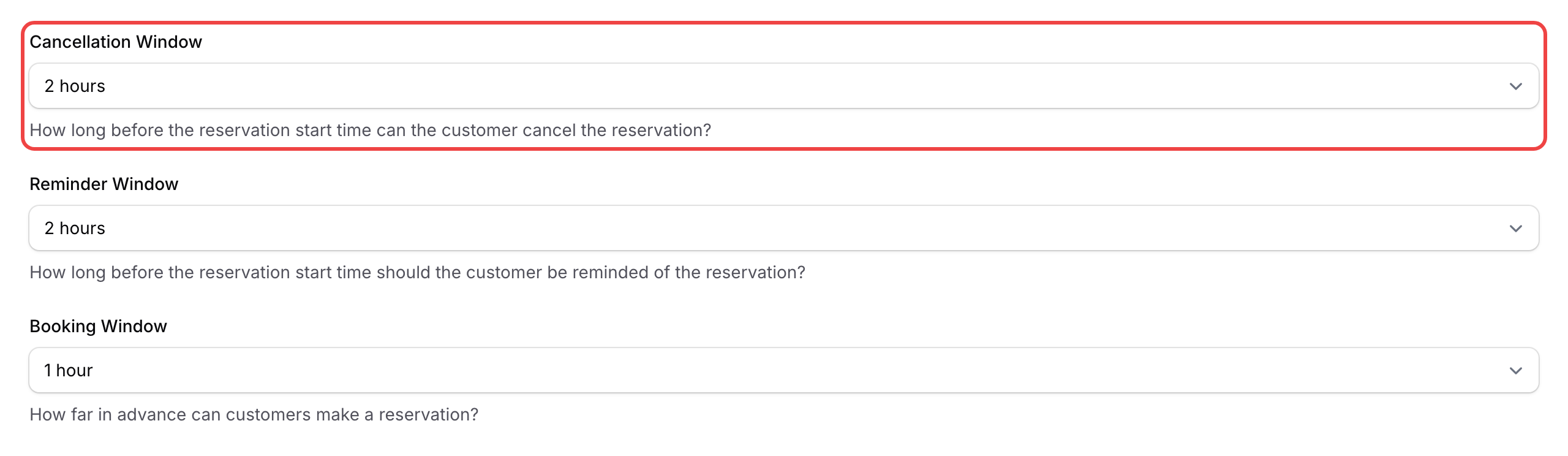
Open the Configurations tab and pick a Cancellation Window — how long before the booking a customer can still cancel. Options run from 30 minutes to 1 day, or No cancellation allowed. Then click Save changes.
Advanced: Busy Slot Pricing
You can charge more for your busiest slots, like a Saturday evening class, and keep the normal price for the rest.
- On the same calendar, click Edit, then Modify Time Slot at the top of the page.
- Find the slot, for example Saturday at 7 PM, and click its cog icon.
- Enter a Custom Price, for example RM50, and save.
A customer booking that slot pays RM50, and every other slot keeps your Payment Amount. Customers see the slot's price in the Pricing Breakdown when they book.
- Leave Custom Price empty to use the calendar's Payment Amount. Enter 0 to make that slot free.
- Custom Price only appears once Require Payment is on and saved.
- The price is set per weekly slot. There are no automatic peak-hour or date rules, so you raise your busy slots by hand.
What Your Customers Will See
When booking a paid timeslot, customers see the amount to pay under Payment Information, then tap Proceed to Payment. They pay online through your payment gateway, or with their credits if you turned on Accept Pay with Credits. The reservation stays pending until payment is completed.
Good to Know
- Private only — paid calendars can't be public. Customers must be logged in so the system can track payment.
- Pending until paid — each booking stays pending until it is paid.
- Auto-approve — if your calendar requires approval, the Payment Configuration tab also lets you auto-approve a booking once payment is verified, and auto-reject it when payment fails.
- Busy slot pricing — a slot's Custom Price overrides the calendar's Payment Amount for that weekly slot. See Advanced: Busy Slot Pricing above.
- Contact our support team before you start. Require Payment stays greyed out until a payment gateway or credit payment is set up for your account. The gateway is set up by Pixalink, not from your own admin panel, so contact our support team to set it up.
What's Next?
- Add custom fields — collect extra details from customers when they book.
- Block dates — manage availability alongside paid bookings.