
How to Send Calendar Notifications to a Specific Outlet
How to Send Calendar Notifications to a Specific Outlet
What Is This?
Each outlet can receive its own booking notifications at a different email. This way the staff at each branch only see the bookings that belong to them, instead of every branch flooding one shared inbox.
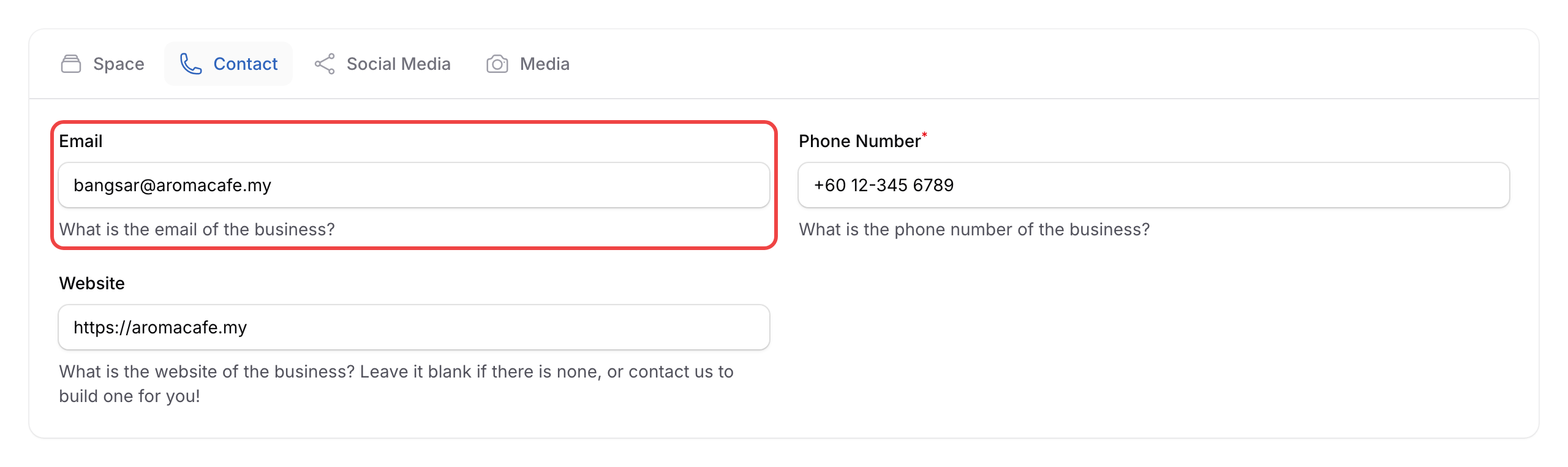
In the Admin Panel this field is just labeled Email. Pixalink uses it as the destination for that outlet's booking notifications.
Real-Life Example
Farah runs Aroma Cafe with three branches: Bangsar, Mont Kiara, and Sunway. At first, every reservation email went to a single head-office inbox. The Bangsar manager kept missing same-day bookings because she had to scroll past notifications meant for the other two branches.
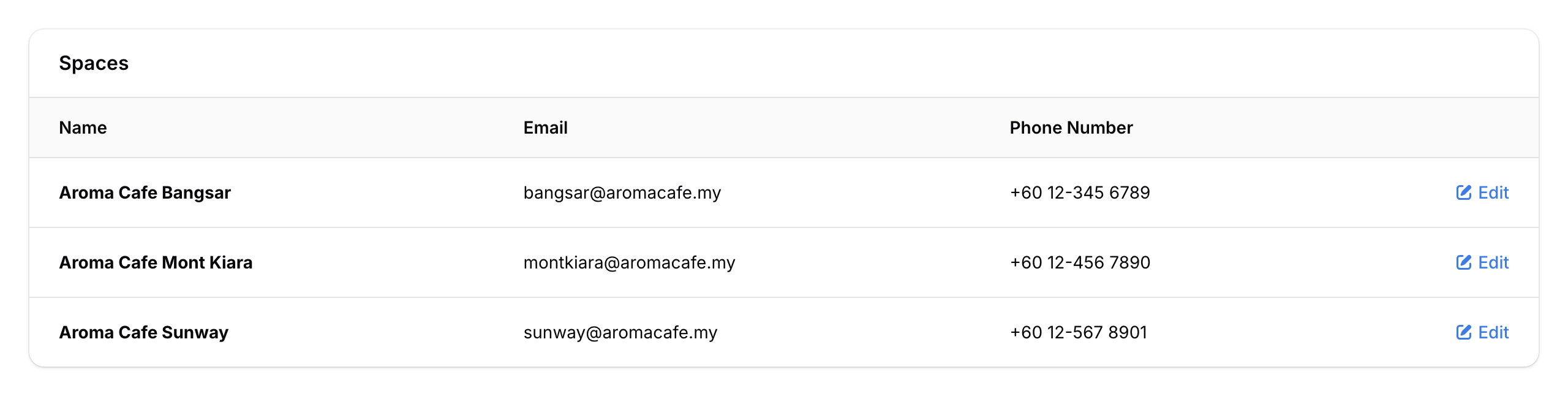
Farah opened each outlet in the admin panel and gave it its own email — bangsar@aromacafe.my, montkiara@aromacafe.my, and sunway@aromacafe.my. Now each branch manager only sees their own table reservations the moment they come in. No more missed bookings, and no more guessing whose customer is at the door.
How to Set It Up
-
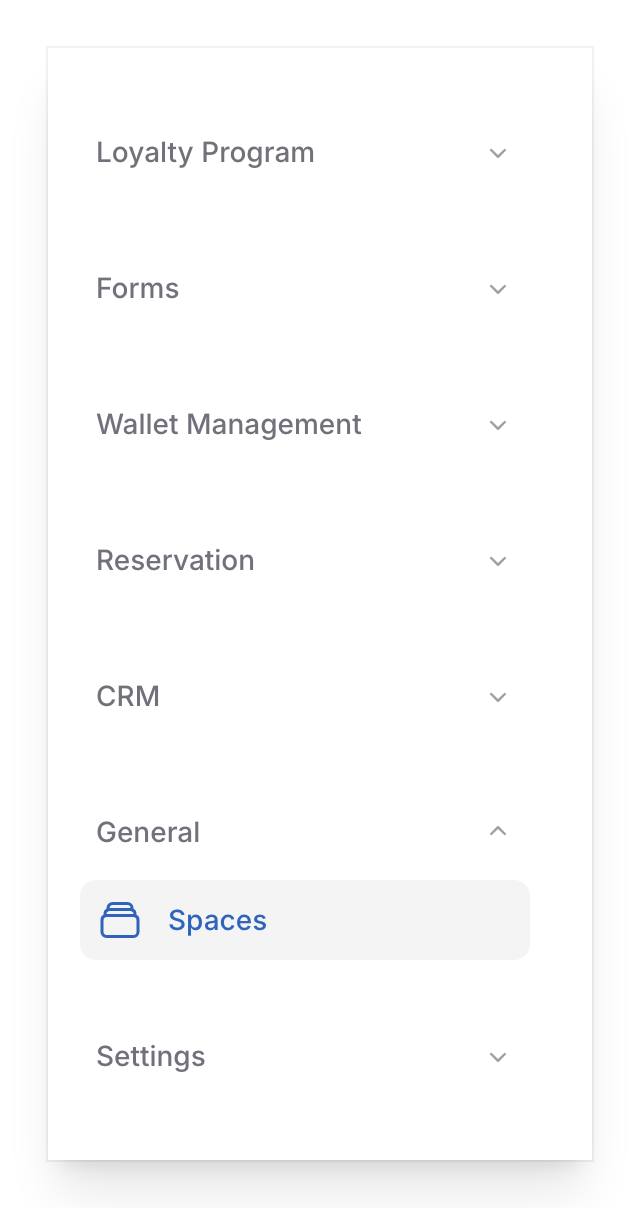
Go to Admin Panel → General → Spaces.
-
Find the outlet you want to update and click Edit.
-
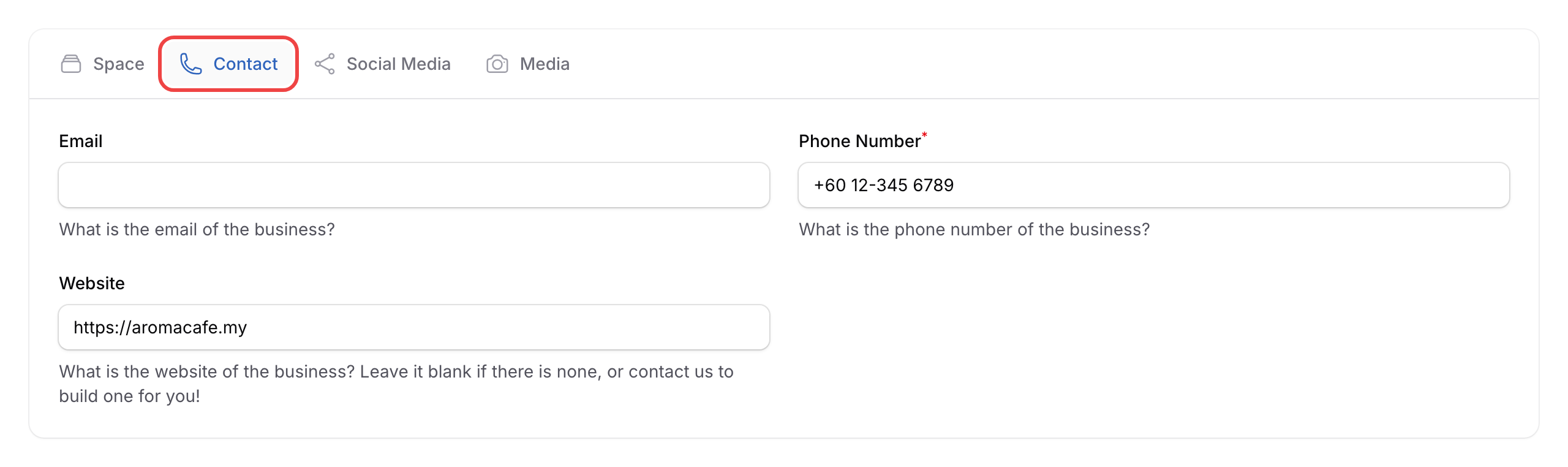
Click the Contact tab.
-
Type the receiving email address into the Email field.
-
Click Save.
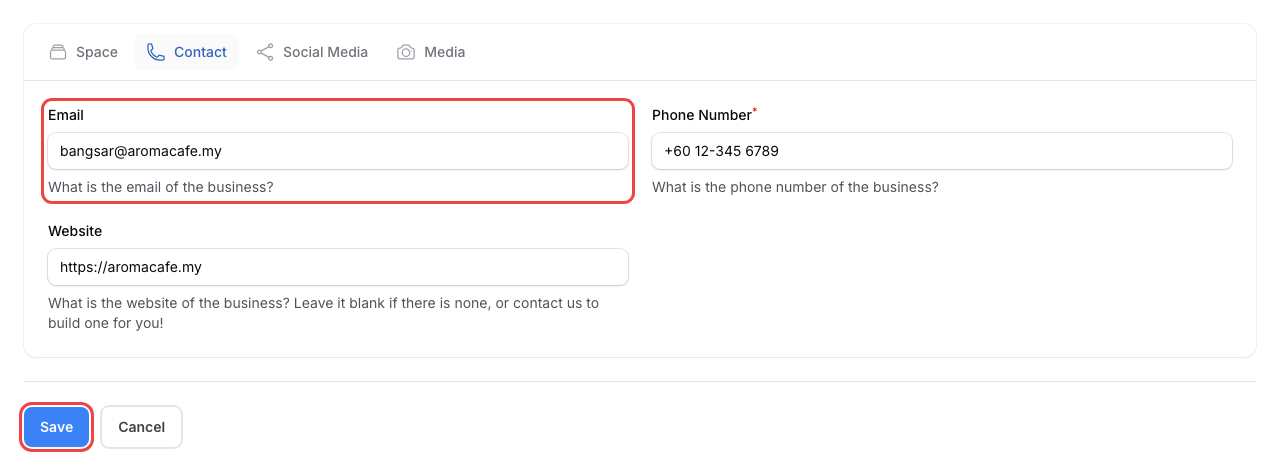
Repeat the same steps for each outlet that needs its own email. Every outlet can have a different address.
What If the Email Field Is Blank
If you leave the Email field empty, the outlet will not receive any booking emails. The notification simply has nowhere to go — it does not fall back to a head-office address.
To keep your bookings flowing, always fill in an email for every outlet that takes reservations.
What Your Customers Will See
Nothing changes for your customers. This setting only controls where your team's booking alerts land. The booking confirmation that goes to the customer is unaffected.
Good to Know
- You can use a shared inbox or distribution list as the email — for example, bookings@yourcafe.my that forwards to several staff phones.
- Only one email address per outlet is supported. To send to multiple people, point the field at a distribution list or a forwarding alias managed by your email provider.
- This setting is for your vendor-side booking alerts. WhatsApp booking alerts are managed separately on each calendar.
- Updating the email takes effect for the next reservation. Past bookings are not re-sent.
Need Help?
Reach out to our support team — we're happy to help you split notifications across your outlets.